
In today’s dynamic e-commerce landscape, protecting your WooCommerce store from scammers isn’t just important—it’s mission-critical. Fraudulent activities can quickly derail your operations, harm your reputation, and eat into your profits. That’s where Aelia Blacklister for WooCommerce comes in—a smart, proactive solution designed to keep your store safe.
With Aelia Blacklister, you can precisely control who interacts with your store by blacklisting names, emails, phone numbers, addresses, and IPs. Whether you’re blocking specific details or using pattern recognition with regular expressions, the plugin gives you the flexibility to fine-tune access. Even better, it leverages an intelligent risk scoring system that automatically flags and prevents high-risk orders, so you stop fraud before it happens.
This tool doesn’t just enhance security—it creates a more reliable experience for your genuine customers. Pairing it with features like the Tax Display by Country for WooCommerce plugin allows you to display tax information transparently based on the customer’s location, helping reduce cart abandonment and build trust across borders.
For international stores, combining Aelia Blacklister with the Currency Switcher for WooCommerce ensures not only safety but also a smooth, customized checkout experience tailored to your customers—no matter where they’re shopping from.
Why Blocking Fraudulent Users Is Necessary in WooCommerce
Running a WooCommerce store comes with a host of responsibilities, and one of the most critical is safeguarding your business against fraud. Blocking users might sound harsh at first, but in reality, it’s a vital step in protecting your store, your revenue, and your customers.
1. Prevent Financial Loss
Fraudulent orders can lead to costly chargebacks, lost inventory, and wasted shipping costs. By blocking high-risk users before they check out, you can significantly reduce the chances of financial setbacks that hurt your bottom line.
2. Preserve Store Reputation
Every customer interaction impacts your brand. If your store becomes a target for scammers, it not only affects your finances but also damages your credibility. Preventing malicious activity ensures a safe and trustworthy environment for real customers.
3. Stop Repeat Offenders
Scammers often return using the same email addresses, IPs, or even billing names. Blocking these identifiers cuts them off at the source and prevents recurring abuse—saving you time and stress down the line.
4. Improve Operational Efficiency
Manually reviewing suspicious orders eats up valuable time and resources. Smart tools like Aelia Blacklister automate this process by enforcing blacklist rules, helping your team focus on growth instead of fraud management.
5. Enhance Customer Experience
When fraud is under control, your store runs smoother. Genuine customers enjoy faster, more secure checkouts—boosting loyalty and encouraging repeat business.
Boost Your WooCommerce Store Security with Aelia Blacklister
Online scams are getting more sophisticated, but so are the tools to stop them. If you’re running a WooCommerce store, keeping scammers out is critical for protecting your revenue and reputation. That’s where Aelia steps in—It has an advanced plugin built to block fraudulent users before they can harm your business.
1. Intelligent Blacklisting with Custom Criteria
Aelia Blacklister enables you to filter out suspicious users based on detailed customer data, giving you total control over who can and cannot access your store. Here’s how:
- Names & Surnames: Block users by full names or even partial matches using regular expressions, catching repeat scammers using similar aliases.
- Addresses: Flag specific locations tied to fraud—filter by country, city, postcode, or full street address.
- Email Addresses: Prevent scammers from abusing disposable or suspicious email domains. This aligns well with this simple method to block WooCommerce email addresses.
- Phone Numbers: Detect fraudulent attempts by blocking specific phone numbers or patterns.
- IP Address Ranges: Use CIDR notation to blacklist single IPs or entire ranges, especially effective against bot attacks or repeat offenders.
2. Smarter Filtering with Regex
One standout feature is its support for regular expressions, allowing you to pinpoint patterns in user data. For example, if scammers are using variations of the same email domain, regex helps you block them all in one go. This is particularly helpful when fraudsters try to mask their identity with small tweaks to their info.
3. Automatic Fraud Prevention During Checkout
Aelia Blacklister doesn’t just flag potential threats—it actively blocks them at checkout. The plugin scans each customer’s details in real time, and if a match is found in your blacklist, it halts the transaction before any damage can be done.
This automatic protection saves you from manually reviewing risky orders and protects your business from chargebacks and loss.
4. Professional Error Messaging
If a customer gets blocked, Aelia Blacklister allows you to show custom error messages so you can explain why their order didn’t go through. This helps avoid confusion for legitimate customers and deters scammers from trying again.
5. Built-in Risk Assessment Tools
The plugin comes with a risk scoring system that evaluates each order based on location, behavior, and other indicators. High-risk orders can be blocked immediately—before they even reach your payment gateway—giving you a proactive edge against fraud.
6. Built for WooCommerce
Aelia Blacklister is designed specifically for WooCommerce, ensuring seamless integration. Once installed, it creates a dedicated admin panel where you can manage blacklist entries, set rules, and monitor suspicious activity—all without needing to be tech-savvy.
Installation Steps
Download and Install the Plugin
Before you can start using Aelia Blacklister, you’ll need to download the plugin.
Purchase and Download:
- Go to the Blacklister Plugin for WooCommerce product page and purchase the plugin.
- After purchasing, you will be given a ZIP file containing the plugin.
1. log in to Your WordPress Admin Dashboard
- Open your preferred web browser.
- Go to your WordPress login page (usually www.yoursite.com/wp-admin).
- Enter your username and password, then click login to access your WordPress dashboard.
2. Go to Plugins → Add New

- In the left-hand menu of the WordPress dashboard, hover over Plugins.
- In the dropdown that appears, click on Add New. This will take you to the Add Plugins page.
3. Click on “Upload Plugin” at the Top of the Page

- On the Add Plugins page, at the top left, you will see several options including Upload Plugin.
- Click the Upload Plugin button. This allows you to upload a plugin from your computer instead of selecting one from the WordPress plugin repository.
4. Click on “Choose File” and Select the ZIP File You Downloaded

- After clicking Upload Plugin, a new screen will appear asking you to select the plugin you want to install.
- Click on the Choose File button. This will open a file explorer dialog on your computer.
- Find the ZIP file you downloaded for Aelia Blacklister on your computer, select it, and click Open.
5. Click “Install Now”
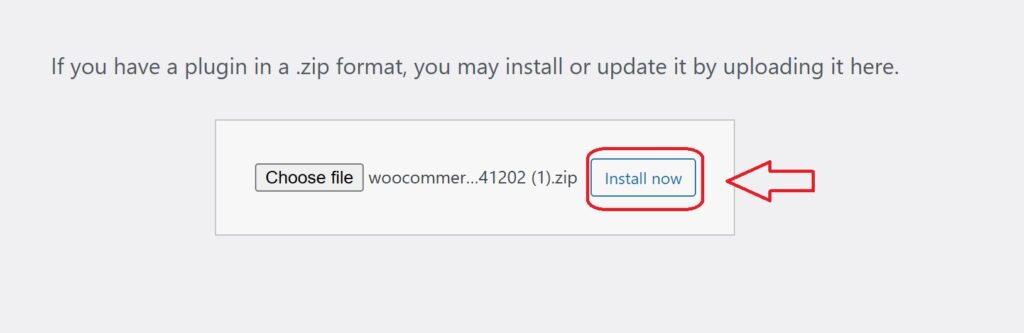
- After selecting the ZIP file, the plugin’s name will appear next to the Choose File button.
- Click the Install Now button to start the installation process. WordPress will begin installing the plugin from the ZIP file you selected.
6. Activate the Plugin
- Once the installation is complete, you’ll see a message confirming that the plugin was successfully installed.
- Now, click the Activate button to activate the plugin on your WordPress site.
Configuring Aelia Blacklister for WooCommerce
Once the plugin is installed and activated, follow the steps below to configure it.
1. Access the Aelia Blacklister Settings
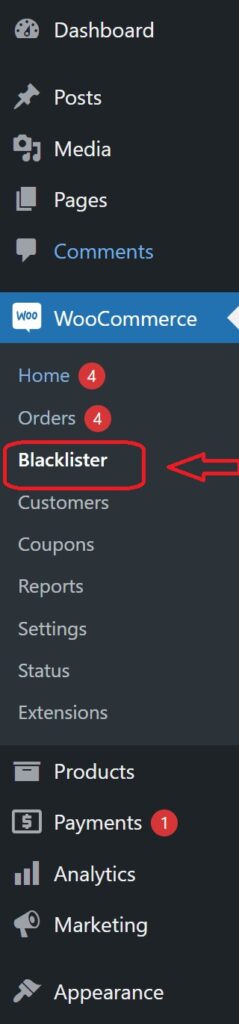
- After activation, you will see a new menu item called Aelia Blacklister in your WordPress dashboard.
- Go to WooCommerce → Settings → Aelia Blacklister.
This will open the plugin settings where you can configure your blacklisting rules.
2. Set Up Blacklist Criteria
The Aelia Blacklister plugin allows you to block customers based on various criteria, including names, addresses, emails, phone numbers, and IP addresses. Here’s how to configure each:
Blacklist Names:
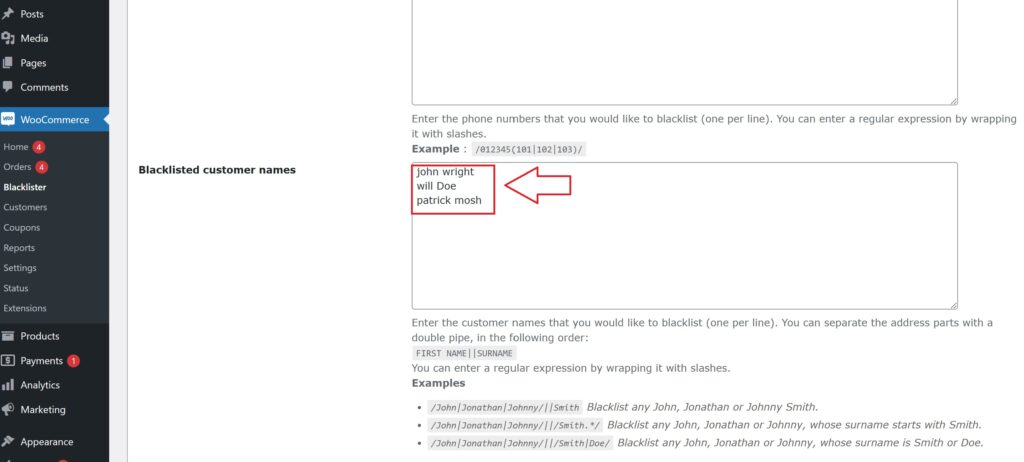
- Navigate to the Blacklist tab in the settings.
- Under Customer Name, enter the names or surnames you want to block.
- You can add exact names or use regular expressions for partial matches.
Blacklist Email Addresses:
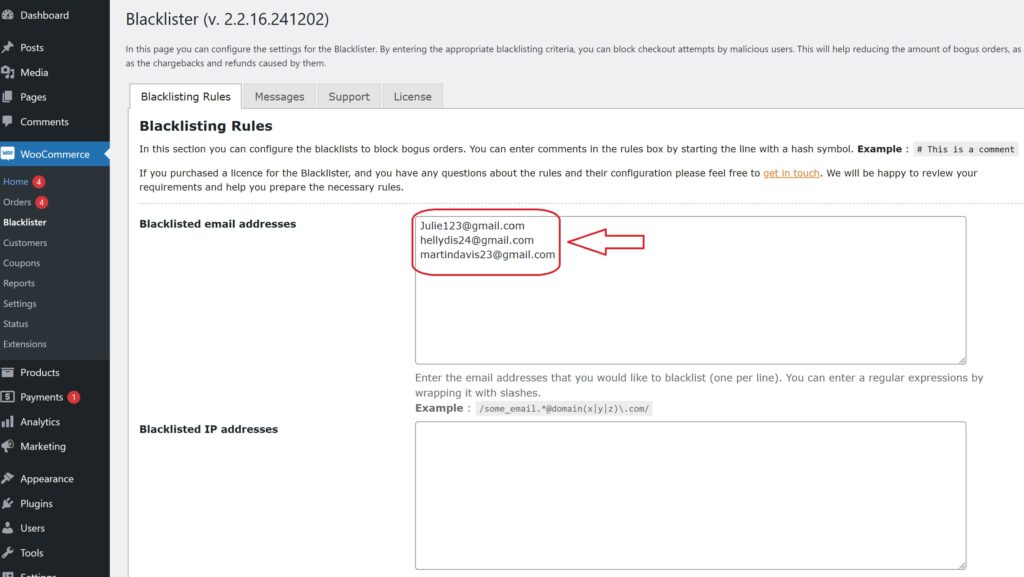
- In the Blacklist Emails section, enter the email addresses you want to block.
- You can block specific addresses or entire email domains (e.g., @fraudulentdomain.com).
- Blacklist Phone Numbers:
- In the Blacklist Phone Numbers section, add phone numbers that are linked to fraudulent activities.
- Use regex if you want to block specific phone number patterns (e.g., numbers starting with a certain prefix).
Blacklist Addresses:

- Under the Blacklist Addresses section, you can block specific addresses or regions.
- You can specify street names, postcodes, cities, or countries that you want to prevent orders from.
Blacklist IP Addresses:

- In the Blacklist IP Addresses section, you can enter specific IP addresses or ranges.
- You can use exact matches, IP address masks (CIDR notation), or IP ranges to block fraudulent sources.
3. Customize Error Messages
When a customer is blocked, it’s important to inform them of why their order was rejected. You can customize the error message that is displayed when a match is found against your blacklist.
- Go to the Messages section in the Aelia Blacklister settings.
- Customize the message that will be shown to blocked customers. For example, you can create a message like:
- “Sorry, your order could not be processed because we detected suspicious activity linked to your account. Please contact support if you believe this is a mistake.”
This ensures that customers understand the reason behind the block and can reach out for clarification.
4. Adjust Match Criteria
Aelia Blacklister offers flexibility in how matches are detected:
- Exact Match: This will block users whose details exactly match the ones you’ve blacklisted.
- Partial Match (using Regular Expressions): This allows you to block users whose details partially match (e.g., blocking all email addresses ending with @fraudulentdomain.com).
- IP Address Range Matching: If you want to block a range of IP addresses, you can specify this in the IP address section.
5. Save and Apply the Settings
Once you have configured all the blacklist criteria and customized the error messages:
- Click on Save Changes at the bottom of the page.
- The plugin will now begin comparing customer data against the blacklisted entries during checkout.
Looking to fine-tune other parts of your WooCommerce store? Check out this guide on how to easily rename country codes in WooCommerce for another simple but powerful customization tip.
