As an eCommerce store owner or business owner, you might have encountered the message “There are no shipping methods available” on your WooCommerce shop. This issue can be frustrating, as it can potentially lead to lost sales and dissatisfied customers. In this blog, we’ll discuss the common causes behind this error and provide solutions to help you resolve it. As a developer and business coach, our goal is to help you increase sales, leads, and improve SEO for your online store.

Common Causes of “There Are No Shipping Methods Available” Error:

Products with no weight and dimensions:

Products with no weight and dimensions: If your products do not have the weight and dimensions specified, it can cause issues with shipping rate calculations. To resolve this, ensure that all your products have accurate weight and dimensions added in the product settings.

These settings can be found on the product page show below

image
Products with no weight and dimensions:

No shipping method added for the shipping zone

No shipping method added for the shipping zone: This error can occur if you haven’t added a shipping method for the customer’s shipping zone. To fix this, go to WooCommerce > Settings > Shipping, and ensure you have set up shipping zones and assigned appropriate shipping methods to each zone.

image 1
No shipping method added for the shipping zone

Incorrect shipping address entered by the customer

Incorrect shipping address entered by the customer: If a customer enters an incorrect shipping address or an address that does not match the format required by your shipping carrier, it may result in an error. Encourage your customers to double-check their shipping address before placing an order, and consider using address validation tools to minimize errors.

image 3 edited
Incorrect shipping address entered by the customer

Shipping service is not available for the address

Shipping service is not available for the address: Sometimes, certain shipping services may not be available for specific locations. To resolve this issue, ensure you offer multiple shipping options to cater to different locations and avoid service limitations.

image 4

Shipping carrier account configuration issues

Shipping carrier account configuration issues: If you’re using a shipping carrier plugin for your store, incorrect configuration settings can lead to an error. Double-check your shipping carrier account settings and API credentials to ensure they’re correctly configured and up-to-date.

WooCommerce Development Agency

If you need assistance resolving the “There are no shipping methods available” error or other WooCommerce-related issues, our web development agency is here to help. Our team of experts specializes in WooCommerce, and we can provide the support you need to optimize your online store, increase sales, and improve your SEO. Don’t let technical challenges hold you back – contact us today, and let us help you make the most of your WooCommerce store.

Josh Morley

I have been designing & marketing websites since 2013. I specialize not just in WordPress web design but also in online marketing. SEO, PPC, keyword research, link-building and most recently on lead acquisition for local businesses.

As an eCommerce store owner or business owner, understanding the various tools and plugins that can enhance your WooCommerce shop’s functionality is crucial. The WooCommerce Clover Payment Gateway is one such plugin that allows you to integrate your Clover POS with your WooCommerce store, simplifying payment processing and order management. In this blog, we’ll discuss what the WooCommerce Clover Payment Gateway is, its features, and the potential challenges you may encounter when using it.

Overview of WooCommerce Clover Payment Gateway:

The WooCommerce Clover Payment Gateway plugin enables you to connect your Clover POS with your WooCommerce store, allowing you to accept payments seamlessly from your online shop. With this plugin, customers can place orders on your WordPress website, and you’ll receive notifications on your Clover POS. This integration makes it easy to manage and print orders as they come in, providing a streamlined solution for processing payments through Clover in less than 10 minutes.

Key Features:

  1. Regularly Updated: The plugin is routinely updated to ensure compatibility with the latest versions of WooCommerce and WordPress.
  2. Compatibility: At the time of this post, the plugin is compatible with WordPress 4.4 or higher and has been tested up to WooCommerce 6.1.1.
  3. PHP Version Requirement: The plugin requires PHP version 5.2.0 or higher to function correctly.

Challenges with WooCommerce Clover Payment Gateway:

Despite its valuable features, some users have faced difficulties with the WooCommerce Clover Payment Gateway. The plugin has received a number of one-star reviews, indicating that some users have struggled to implement and use it effectively. Additionally, there is a lack of support on the plugin’s WordPress forum, as the developers have stated they “don’t actively monitor” it. This can make it challenging for store owners to resolve issues or get answers to their questions about the plugin.

WooCommerce Clover Payment Gateway Support

If you’re considering using the WooCommerce Clover Payment Gateway or need assistance with any other WooCommerce-related issues, our web development agency is here to help. Our team of experts specializes in WooCommerce and can provide you with the support you need to optimize your online store, increase sales, and improve your SEO. Don’t let technical challenges hold you back – contact us today, and let us help you make the most of your WooCommerce store.

Josh Morley

I have been designing & marketing websites since 2013. I specialize not just in WordPress web design but also in online marketing. SEO, PPC, keyword research, link-building and most recently on lead acquisition for local businesses.

As an eCommerce store owner or business owner using WooCommerce, you may have come across various order statuses, including “Payment Pending.” Understanding what these statuses mean is crucial for managing your online store efficiently and ensuring smooth transactions. In this blog, we will explore the “Payment Pending” status in WooCommerce, its implications, and other order status types. We’ll also discuss how partnering with a web development agency can help you address WooCommerce-related challenges and optimize your online store for success.

What Does “Payment Pending” Mean in WooCommerce?

In WooCommerce, the “Payment Pending” status indicates that a customer has placed an order, but the payment has not yet been received or confirmed. There can be several reasons for this status:

  1. The customer selected a manual payment method, such as bank transfer or check, and the payment is still in transit or awaiting confirmation.
  2. The customer has chosen an online payment gateway, but there was an issue processing the payment or the transaction is still being verified.
  3. The customer abandoned the checkout process before completing the payment.

As a store owner, you should monitor the “Payment Pending” orders and take appropriate action based on the payment method and the time elapsed since the order was placed. You may need to follow up with the customer, confirm payment receipt, or cancel the order if necessary.

Other WooCommerce Order Status Types:

Apart from “Payment Pending,” WooCommerce has several other order statuses to help you manage and track your orders efficiently. Some of the common order statuses include:

  1. Completed: The order has been fully processed, payment received, and the product delivered to the customer.
  2. Processing: The payment has been received, and the order is being prepared for shipment or delivery.
  3. On Hold: The order is awaiting further action, such as payment confirmation, stock availability, or customer input.
  4. Failed: The payment for the order has been declined or could not be processed.
  5. Refunded: A full or partial refund has been issued to the customer.
  6. Cancelled: The order has been cancelled, either by the customer or the store owner, before processing or shipment.

Understanding these order statuses will enable you to manage your WooCommerce store more effectively and provide a better customer experience.

Need WooCommerce Support?

Are you facing challenges with your WooCommerce store or need assistance in optimizing it for better performance and sales? Our web development agency specializes in WooCommerce and is ready to support your business in achieving its eCommerce goals. From resolving technical issues to enhancing your online store’s design and functionality, we can help you create an exceptional shopping experience for your customers. Don’t wait any longer; contact us today and let our experts take your WooCommerce store to the next level!

Josh Morley

I have been designing & marketing websites since 2013. I specialize not just in WordPress web design but also in online marketing. SEO, PPC, keyword research, link-building and most recently on lead acquisition for local businesses.

What is the Additional Information Tab?

The Additional Information tab is a default section on WooCommerce product pages, usually located alongside the Description and Reviews tabs. This tab is designed to display extra details about the product that may not be covered in the main product description. Some potential use cases for the Additional Information tab include:

  1. Product Attributes: If you have defined custom attributes for your products, such as size, color, material, or any other product-specific characteristics, the Additional Information tab can be used to display this information in a structured and organized manner.
  2. Technical Specifications: For products like electronics or appliances, the Additional Information tab can be an ideal place to provide detailed technical specifications, such as dimensions, weight, power consumption, compatibility, or any other relevant technical details.
  3. Care Instructions: For items like clothing, accessories, or home goods, the Additional Information tab can be used to provide care instructions, such as washing, drying, or maintenance guidelines, to help customers properly maintain their purchases.
  4. Shipping and Handling Information: You can use the Additional Information tab to provide specific shipping and handling details, such as handling time, shipping restrictions, or any other special considerations related to the delivery of the product.
  5. Custom Fields: If you have added custom fields to your products using plugins or custom code, the Additional Information tab can be used to display this custom data. This may include information like product certifications, warranty details, or any other data unique to your store or product offering.

The Additional Information tab in WooCommerce is a versatile section that can be utilized to provide customers with supplementary details about your products, improving their understanding and increasing their confidence in making a purchase. However there are a number of reasons why you might want to remove it.

Why would you want to remove the Additional Information Tab?

There could be several reasons why a store owner would want to remove the Additional Information tab from their WooCommerce product pages. Some of these reasons include:

  1. Redundancy: If the information typically displayed in the Additional Information tab is already provided in the product description or other sections of the product page, keeping the tab might be redundant and create unnecessary clutter on the page.
  2. Simplicity: Store owners may prefer a cleaner, more straightforward product page layout with fewer tabs, focusing on the main product description and customer reviews. Removing the Additional Information tab can contribute to a more minimalist and user-friendly design.
  3. No relevant information: Some products may not require any additional information beyond what is already provided in the description. In such cases, having an empty or sparsely populated Additional Information tab may confuse or frustrate customers, making it better to remove it altogether.
  4. Customization: Store owners may want to create a custom tab or section on the product page to display specific information that doesn’t fit within the default Additional Information tab. In this case, removing the default tab and replacing it with a custom one can provide a more tailored user experience.
  5. Focus on essential content: By removing the Additional Information tab, store owners can direct customers’ attention to the most critical aspects of the product page, such as the description, images, and reviews, without any distractions.

Ultimately, the decision to remove the Additional Information tab depends on the specific needs and preferences of the store owner, as well as the type of products being sold. It is essential to consider the user experience and ensure that customers have access to all the necessary information to make informed purchasing decisions.

If you find that this tab is not necessary for your store or product types, you can easily remove it using the provided code snippet below.

How to Remove the Additional Information Tab?

How to remove the Additional Information tab from the WooCommerce product page by using a hook in the functions.php file of your child theme or a custom plugin. This can be helpful for store owners who don’t require extra information from their customers, such as shipping notes or custom fields, during the checkout process.

To achieve this, follow the steps below:

Step 1: Remove the Additional Information tab

Open the functions.php file of your child theme or custom plugin and add the following code:

function custom_remove_additional_info_tab($tabs) {
    unset($tabs['additional_information']);
    return $tabs;
}
add_filter('woocommerce_product_tabs', 'custom_remove_additional_info_tab', 98);

This code snippet hooks into the ‘woocommerce_product_tabs’ filter and unsets the ‘additional_information’ tab, effectively removing it from the product page.

Now, when you visit the product page on your WooCommerce store, you should no longer see the Additional Information tab.

WooCommerce Developer or Design Services

Do you need a professional WooCommerce developer or design services to further enhance and customize your online store? Our team of experts is ready to help! Contact us today and let us know your requirements. Together, we can create an exceptional shopping experience for your customers and boost your online sales. Don’t wait, reach out to us now!

Josh Morley

I have been designing & marketing websites since 2013. I specialize not just in WordPress web design but also in online marketing. SEO, PPC, keyword research, link-building and most recently on lead acquisition for local businesses.

What is a WooCommerce shortcode?

WooCommerce Shortcodes

WooCommerce shortcodes are snippets of code that you can use to add dynamic content to your WooCommerce store. These snippets allow you to quickly and easily add images, products, prices, buttons, and more without having to manually enter the HTML code each time. By using WooCommerce shortcodes, you can customize your online store faster than ever before. Shortcodes are also helpful when creating customized emails or blog posts related to products on your store. With just a few clicks of the mouse, you can have a unique looking product page that stands out from the rest!

Why would you need to create a WooCommerce shortcode?

Creating a WooCommerce shortcode can be beneficial to your online store in a variety of ways. Shortcodes allow you to quickly add dynamic content, such as images and products, that makes your store more attractive and easier to navigate. Shortcodes also make it easier to create customized emails or blog posts related to products on your store. Additionally, shortcodes can help improve the speed and efficiency of creating product pages, allowing you to get them up and running faster than ever before.

Example of Shortcodes

WooCommerce stores are using shortcodes to add extra functionality and content to their websites. WooCommerce shortcodes can be used to display various elements of your online store, such as products, product categories, or the shopping cart, within pages or posts. Here are three examples of WooCommerce stores using shortcodes:

A store showcasing its featured products on the homepage:

[featured_products per_page="4" columns="4" orderby="date" order="desc"]

This shortcode displays the four most recent featured products in a 4-column layout.

A store displaying specific product categories on a custom landing page:

[product_categories number="3" columns="3" orderby="name" order="asc" parent="0" ids="10,15,20"]

This shortcode displays three specific product categories (with IDs 10, 15, and 20) in a 3-column layout.

A store embedding the shopping cart on a custom checkout page:

[woocommerce_cart]

This shortcode displays the WooCommerce shopping cart on the desired page.

To create a custom WooCommerce shortcode, follow the steps below:

Step 1: Define your custom shortcode function

Open the functions.php file of your child theme or custom plugin and add the following code:

function custom_woocommerce_shortcode($atts) {
    extract(shortcode_atts(array(
        'param' => 'default_value',
    ), $atts));

    // Your custom shortcode logic goes here

    $output = 'Your custom output';

    return $output;
}

This code snippet defines a new shortcode function, which accepts attributes and returns custom output.

Step 2: Register the custom shortcode

In the same functions.php file, add the following code to register the custom shortcode:

add_shortcode('custom_woo', 'custom_woocommerce_shortcode');

This code registers the custom shortcode with the tag ‘custom_woo’.

Now, you can use your custom WooCommerce shortcode within pages or posts like this:

[custom_woo param="custom_value"]

Remember to replace ‘param’ and ‘custom_value’ with the actual attribute name and value, and implement the desired logic within the ‘custom_woocommerce_shortcode’ function to suit your needs.

Josh Morley

I have been designing & marketing websites since 2013. I specialize not just in WordPress web design but also in online marketing. SEO, PPC, keyword research, link-building and most recently on lead acquisition for local businesses.

How to disable the zip code or postcode field in WooCommerce

woocommerce disable zip code

Are you looking to disable the zip or postal code for your WooCommerce store? This guide will explore why disabling this information is beneficial and how to do it. Disabling the zip or postal code may be necessary if you don’t want customers to see their exact location when they’re making a purchase, or if you are running a store that requires products to be shipped internationally. With just a few clicks, you can have your store up and running in no time, so read on to learn more about why disabling the zip or postal code is important and how to get started.

In this tutorial, we will learn how to disable the zip code or postcode field in the WooCommerce checkout form by using a hook in the functions.php file of your child theme or custom plugin. This can be helpful for store owners who don’t require this information from their customers during checkout.

To achieve this, follow the steps below:

Step 1: Disable the zip code or postcode field (code)

Open the functions.php file of your child theme or custom plugin and add the following code:

function custom_disable_postcode_checkout($fields) {
    unset($fields['billing']['billing_postcode']);
    unset($fields['shipping']['shipping_postcode']);
    return $fields;
}
add_filter('woocommerce_checkout_fields', 'custom_disable_postcode_checkout');

You can learn more about this in the WooCommerce Documentation.

This code snippet hooks into the ‘woocommerce_checkout_fields’ filter and unsets both the billing and shipping postcode fields, effectively removing them from the checkout form.

Now, when you visit the checkout page on your WooCommerce store, you should no longer see the zip code or postcode fields for both billing and shipping addresses.

Disable the zip code or postcode field (Plugin)

Customizing WooCommerce Checkout Fields

WooCommerce Checkout Fields are the fields that your customers fill out when they’re checking out. These include fields like name, address, and of course, zip code. But did you know you can customize these fields? Here’s how:

  1. Go to WooCommerce Settings: In your WordPress dashboard, go to WooCommerce and then Settings.
  2. Go to the Checkout tab: Here, you’ll find all the settings related to the checkout process.
  3. Customize Checkout Fields: Look for an option called “Checkout Fields”. Here, you can add, remove, and rearrange fields. You can also change the labels and placeholders.

For example, if you want to disable the Zip Code field, you can simply remove it. Or, if you want to make it optional, you can uncheck the “Required” box. You can learn more about this in the WooCommerce Checkout Field Editor Plugin.

Reasons to Disable Zip Code Validation in WooCommerce

There might be situations where Zip Code Validation is unnecessary or even problematic. For example:

  • International Stores: If you’re selling to customers worldwide, Zip Code Validation might cause issues. Not all countries use zip codes, and the formats can vary widely.
  • Digital Products: If you’re selling digital products that don’t require shipping, you might not need Zip Code Validation.

Disabling Zip Code Validation can also improve the user experience. It can make the checkout process faster and smoother, which can lead to more completed purchases.

Considerations When Disabling Zip Code Validation

Disabling Zip Code Validation in WooCommerce can have a big impact on your store, especially when it comes to shipping and delivery. Without valid zip codes, it can be harder to calculate shipping costs and deliver products to the right address.

But don’t worry, there are alternatives to disabling Zip Code Validation. For example, you can make the Zip Code field optional, or you can use a plugin to validate zip codes based on the customer’s country.

Case Studies of WooCommerce Stores Without Zip Code Validation

There are many successful WooCommerce stores that have disabled Zip Code Validation. For example, many stores that sell digital products don’t require zip codes. And many international stores have found ways to handle shipping and taxes without zip codes.

These case studies show that it’s possible to run a successful WooCommerce store without Zip Code Validation. But they also show that it’s important to think carefully about your WooCommerce customization and to test your store thoroughly.

Do you need a professional WooCommerce developer or design services?

Do you need a professional WooCommerce developer or design services to further enhance and customize your online store? Our team of experts is ready to help! Contact us today and let us know your requirements. Together, we can create an exceptional shopping experience for your customers and boost your online sales. Don’t wait, reach out to us now!

Josh Morley

I have been designing & marketing websites since 2013. I specialize not just in WordPress web design but also in online marketing. SEO, PPC, keyword research, link-building and most recently on lead acquisition for local businesses.

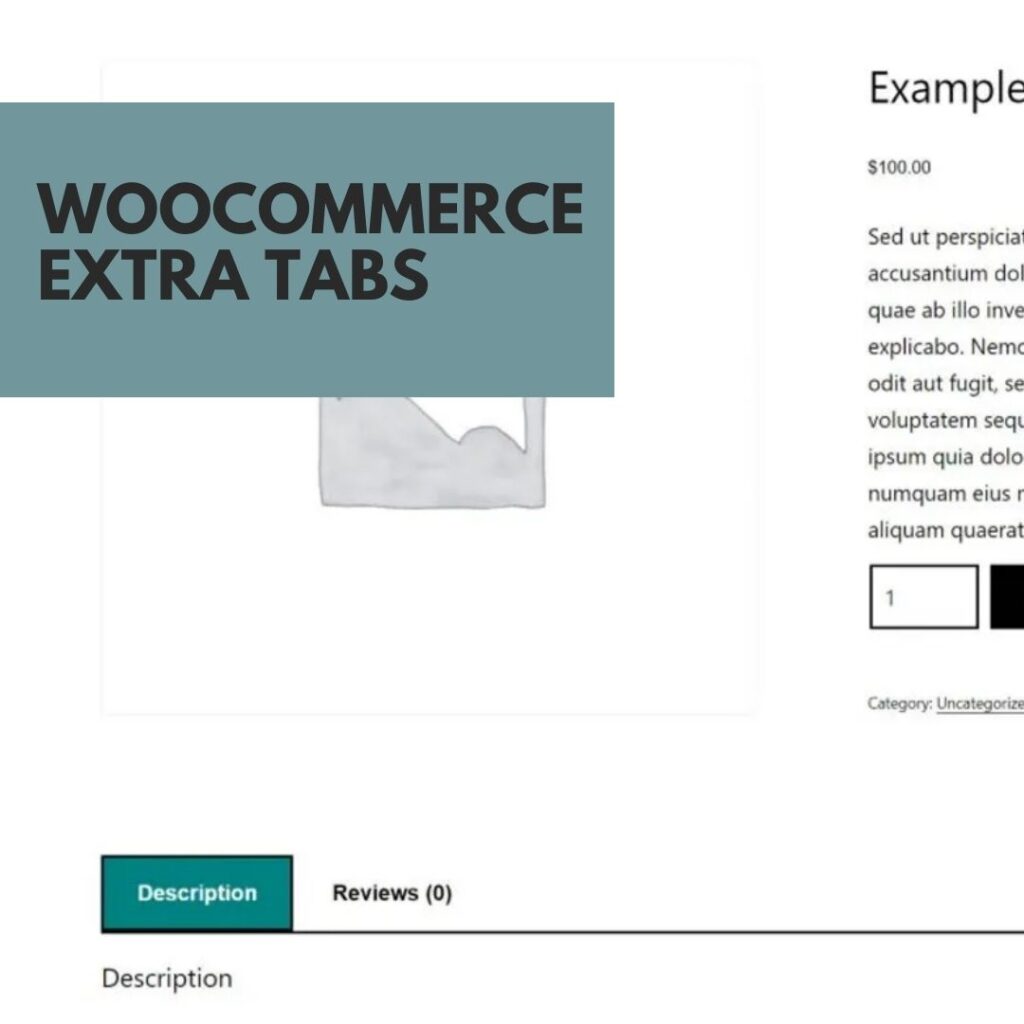
Woocommerce Extra Tabs (Hook)

woocommerce extra tabs

Are you looking to add an extra tab on your WooCommerce product page? This guide will show you exactly how to customize your store’s product pages with an additional tab. With just a few clicks, you can increase user engagement and take full advantage of the WooCommerce platform. Read on to learn more about why adding this extra tab is so beneficial and how to get started.

We are going to add an extra tab to the WooCommerce product page template by utilizing hooks. This will allow you to add custom content to your product pages without directly modifying the core WooCommerce template files. Instead, we will be working with the functions.php file of your child theme or a custom plugin, and the single-product.php file.

To achieve this, follow the steps below:

Step 1: Add a new custom tab to the product page

Open the functions.php file of your child theme or custom plugin and add the following code:

function custom_add_extra_tab($tabs) {
    $tabs['custom_tab'] = array(
        'title' => __('Custom Tab', 'text-domain'),
        'priority' => 50,
        'callback' => 'custom_tab_content'
    );
    return $tabs;
}
add_filter('woocommerce_product_tabs', 'custom_add_extra_tab', 98);

his code snippet adds a new tab to the product page called “Custom Tab” by hooking into the ‘woocommerce_product_tabs’ filter. The ‘custom_tab_content’ function, which we will create in the next step, will be used to display the content of this tab.

Step 2: Define the content of the custom tab

In the same functions.php file, add the following code:

function custom_tab_content() {
    global $product;
    $custom_tab_content = get_post_meta($product->get_id(), '_custom_tab_content', true);
    echo '<div class="custom-tab-content">';
    echo apply_filters('the_content', $custom_tab_content);
    echo '</div>';
}

This function retrieves the custom tab content from the product’s metadata and displays it within a div container. You can modify this function to display any content you like.

Step 3: Add custom tab content to the product

To add content to the custom tab, you can either use the default WordPress custom fields or create a custom meta box for the product edit screen. In this example, we’ll use the default custom fields.

  1. Go to the product edit screen for the desired product in your WordPress admin area.
  2. Scroll down to the “Custom Fields” meta box. If you don’t see it, click on “Screen Options” at the top right corner of the screen and make sure “Custom Fields” is checked.
  3. Click on “Enter new” and enter “_custom_tab_content” as the Name and your desired content as the Value.
  4. Click “Add Custom Field” and update your product.

Now, when you visit the product page, you should see the new custom tab with your added content. If you want to add custom content to other products, simply repeat Step 3 for each product.

WooCommerce Development Services

Are you looking for a WooCommerce developer to help make the changes your store needs? Look no further! Contact us today and one of our experienced WooCommerce developers will work with you to customize your product page in no time. With our help, you can experience all the benefits that come with adding an extra tab to your WooCommerce product page, so don’t wait any longer and get started now!

Josh Morley

I have been designing & marketing websites since 2013. I specialize not just in WordPress web design but also in online marketing. SEO, PPC, keyword research, link-building and most recently on lead acquisition for local businesses.