
Managing unwanted registrations and spam orders can be one of the most frustrating aspects of running a WooCommerce store. That’s why implementing email blacklisting in WooCommerce is a smart and effective way to keep your eCommerce site secure, trustworthy, and efficient. With tools like the Aelia Blacklister Plugin, you can easily integrate robust email blocking into your WooCommerce setup, safeguarding your business from suspicious activity.
By using the Aelia Blacklister, store owners gain precise control over who can interact with their online shop. This means only legitimate customers are allowed through, helping to reduce fraud, protect sensitive data, and improve overall store performance. In this guide, we’ll show you how to effectively use Aelia’s plugin to block unwanted email addresses, enhancing your store’s security and user experience at the same time. For a simple step-by-step method, check out this helpful guide on blocking fraudulent User in WooCommerce.
Why Email Blacklisting Matters in WooCommerce
Email blacklisting is a crucial feature in WooCommerce for reducing spam, fake registrations, and fraudulent orders. By blocking specific email addresses or entire domains, you prevent malicious users from accessing your checkout, creating fake accounts, or initiating harmful transactions. This proactive step ensures your customer base remains authentic and your backend stays clean. To dive deeper into protecting your WooCommerce store from suspicious users, including blocking by IPs, check out this detailed guide on Protecting Your WooCommerce Store with IP Addresses
How does the Aelia Blacklister for WooCommerce help?
The Block Emails for WooCommerce plugin by Aelia offers a simple yet powerful solution for managing email restrictions. Store administrators can easily enter specific email addresses—like storebot@mailjoonix.net—or block full domains, such as @example.com, directly within the plugin settings. Once blacklisted, users from those sources will be prevented from completing registrations or purchases on your site.
Whether you’re dealing with persistent spam bots or suspicious-looking domains, Aelia’s plugin helps you maintain a safe and professional WooCommerce environment with minimal effort.
How to Set Up the Aelia Blacklister Plugin in WooCommerce
Getting started with Aelia’s Block Emails for WooCommerce plugin is quick and hassle-free. The setup involves just three simple steps:
- Upload the Plugin Files: Add the plugin to your WordPress site by placing it in the wp-content/plugins/wc-block-emails directory or installing it directly through the WordPress plugin dashboard.
- Activate the Plugin: Go to the Plugins page in your WordPress admin panel and activate the plugin.
- Configure Your Settings: Navigate to WooCommerce > Settings > Block Emails to begin adding email addresses or domains you want to block.
Once set up, whenever a blacklisted email attempts to make a purchase, the plugin automatically blocks the transaction and displays a customizable error message. This real-time response helps deter suspicious users without disrupting the experience of genuine customers.
The plugin also supports bulk uploading of email addresses, allowing store owners to import large blocklists effortlessly—a key feature for high-traffic stores facing frequent spam or fraud attempts.
A Quick Look at Key Features
| Feature | Description |
| Ease of Use | Simple installation and intuitive user interface |
| Customization | Create personalized error messages for blocked users |
| Bulk Email Blocking | Upload large lists of emails and domains with ease |
| Compatibility | Fully supports classic WooCommerce checkout |
| Security Enhancement | Prevents fake registrations and fraudulent orders effectively |
Why Email Blacklisting Is a Smart Move in WooCommerce
Adding email blacklisting is a proactive security measure every WooCommerce store should consider. It helps eliminate fake users before they can place fraudulent orders, preserving your store’s integrity and saving time on backend management.
Benefits of Email Blacklisting in WooCommerce
Implementing email blacklisting with tools like Aelia’s plugin offers a wide range of benefits:
- Enhanced Security: Prevent unauthorized access and transactions.
- Reduced Spam Orders: Keep fake or bot-generated orders out of your system.
- Better Store Reputation: Maintain customer trust by providing a safe shopping environment.
- Streamlined Order Management: Eliminate time wasted on handling fraudulent purchases.
- Custom Error Messages: Tailor user feedback when blocking occurs.
- Bulk List Support: Easily upload and manage large email blocklists.
- Cost Savings: Reduce chargeback incidents and fraud-related losses.
- Compliance Support: Contribute to data protection and privacy standards.
- Seamless Integration: Use without needing complex configurations or custom code.
- Increased Customer Trust: Promote repeat business with a secure checkout process.
Introduction to Aelia Blacklister for WooCommerce
Beyond just blocking emails, the Aelia Blacklister for WooCommerce plugin provides comprehensive tools for identifying and stopping suspicious users at multiple touchpoints. Its features include:
- Email Address Blocking: Use regular expressions to block specific emails or entire domains (e.g., all users from @frauddomain.com).
- IP Address Restrictions: Deny access based on individual IPs or IP ranges using CIDR, wildcard, or range formats.
- Phone Number Blocking: Stop users with phone numbers flagged in past fraudulent activity.
- Customer Name Filtering: Prevent known scam names from completing transactions.
- Flexible Rule Settings: Customize and fine-tune your blacklist rules with precision.
- Easy Installation: Quickly install and activate from the WordPress dashboard.
- Bulk Upload Support: Import large datasets of blocked emails, IPs, and more.
By combining multiple layers of protection, Aelia Blacklister helps store owners maintain a fraud-free environment, preserving revenue, enhancing customer trust, and ensuring smooth operations.
Running a secure and professional eCommerce setup goes beyond managing email filters — it’s also about building better communication with your audience. If webinars are part of your marketing or training strategy, read our in-depth post on How to Pick the Right Virtual Webinar Platform for Your Business – Insights from ClickMeeting to learn how to choose the right tool for hosting seamless, branded virtual sessions that engage and convert.
Setting Up Aelia to Block Email Addresses in WooCommerce
To efficiently block unwanted or suspicious email addresses in your WooCommerce store, the best approach is to use the Aelia Blacklister for WooCommerce plugin. This powerful tool offers a streamlined way to filter out fraudulent users and spam registrations before they can affect your business.
Follow these simple steps to get started:
Step 1: Install the Plugin
- Go to the Plugins section of your WordPress dashboard.

- Click on Add New Plugin

- Select Upload Plugin
- Click Choose File, then select the Aelia Blacklister plugin zip file you downloaded from the Aelia website.
- Click Install Now.
- Once the plugin is installed, click Activate.
Step 2: Access the Plugin Settings
- After activation, go to WooCommerce and click on it.
- Look for the Blacklister tab in the settings menu (it might appear under the Aelia tab depending on the version of WordPress).
- Click on the Blacklister tab to access the plugin’s settings.
Step 3: Block Email Addresses
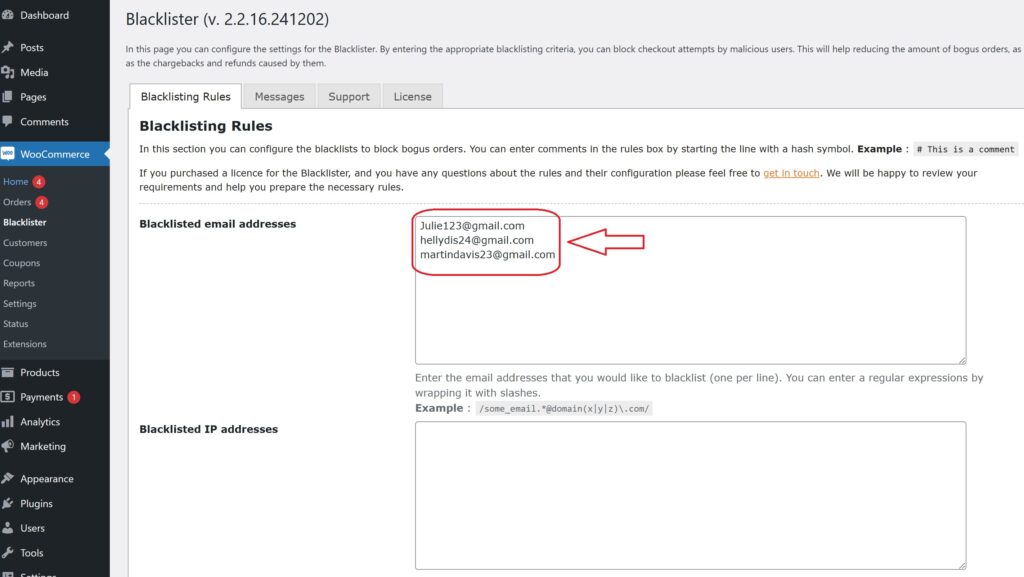
- In the Blacklister settings, find the option called Blacklisted email addresses.
- Enter the email addresses you want to block in the provided text field (you can block multiple email addresses by separating them with commas or entering them one by one).
- After entering the email addresses, Scroll Down and click Save Changes.
Step 4: Test the Configuration
- Go to your WooCommerce checkout page.
- Try to register or make a purchase using one of the blacklisted email addresses.
- If the plugin is correctly set up, the user will not be able to complete the purchase or registration.
How to Get Support for the Aelia Blacklister for WooCommerce Plugin
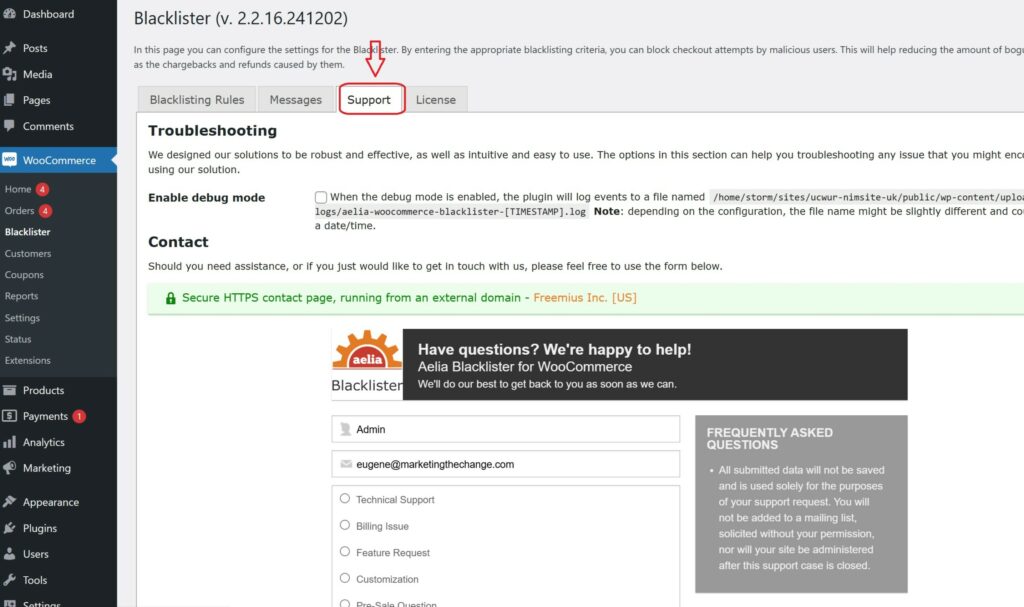
Getting support for the Aelia Blacklister for WooCommerce plugin is simple and user-friendly. Within the plugin’s settings, navigate to the Support section, where you’ll find a comment box to describe any issues or questions you may have. Once submitted, Aelia’s dedicated support team will review your request and provide personalized assistance to help resolve your concerns promptly.
To further enhance your WooCommerce store’s functionality, you might also want to explore the Tax Display by Country for WooCommerce plugin. This powerful tool lets you control tax visibility based on the customer’s geographic location, offering a more localized and seamless shopping experience.
