Running a WooCommerce store requires more than just selling products—it demands vigilant protection against fraud. Malicious users can compromise your store by using stolen credit cards, exploiting coupon codes, initiating chargebacks, or placing fake orders to exploit shipping loopholes. These activities don’t just impact revenue; they also erode your relationship with payment gateways and tarnish your store’s credibility.
To stay ahead of these threats, it’s vital to implement smart, automated tools that monitor and restrict access based on risk factors like IP addresses, suspicious email domains, billing locations, and user behavior. Integrating these security tools with other helpful features—such as a Currency Switcher for WooCommerce for global pricing—allows you to serve genuine customers seamlessly while keeping threats at bay.
By proactively blocking risky users and blacklisting known offenders, you safeguard your store, your customers, and your brand’s long-term reputation.
Understanding the Real Cost of WooCommerce Fraud
Fraud isn’t just an inconvenience—it can cause serious and lasting damage to your business. Here’s why proactive fraud prevention Tactics for WooCommerce are a must:
Significant Financial Impact
Fraudulent orders often result in chargebacks, refunds, and inventory losses—all of which directly eat into your profit margins.
Loss of Customer Trust
If your store becomes a frequent target for fraud, legitimate customers may question your security and choose not to return.
Wasted Time and Resources
Manually investigating fraudulent activity, processing chargebacks, and resolving disputes can take hours of your team’s time.
Legal and Compliance Risks
Failing to prevent fraud can breach your payment processor’s terms and expose you to legal penalties or account restrictions.
Robust fraud prevention tools help avoid these scenarios by keeping your operations smooth and your customers protected.
How to Identify and Block Fraudulent Users in WooCommerce
To effectively stop fraud in its tracks, you need to know what to look for. Here are key indicators and red flags that signal suspicious activity:
Problematic Payment Patterns
- Orders with unusually high values.
- Billing details that don’t match shipping information.
- Multiple failed payment attempts—common with stolen card testing.
Frequent Order Modifications
Repeated changes to order details post-purchase can signal an attempt to exploit billing or shipping systems.
Suspicious IP or Location Data
- Orders from unfamiliar or high-risk countries.
- Multiple purchases from a single IP address within a short timeframe.
- Use of proxies or VPNs to disguise the true location.
Incomplete or Inconsistent User Profiles
Accounts lacking valid contact information or displaying conflicting details often suggest fraudulent intent.
To prevent access from these high-risk users, consider IP blocking and region-based restrictions. These tactics are effective additions to any WooCommerce security strategy.
Implementing a Blacklisting System in WooCommerce
A proactive way to combat fraud is to establish a blacklist within your WooCommerce store. Tools like the Aelia Blacklister for WooCommerce allow you to block users based on key identifiers such as:
- IP address
- Email domain
- Phone number
- Customer name
- Billing or shipping address
With Aelia’s intuitive interface, you can easily configure blacklist rules and prevent high-risk users from placing orders—no coding knowledge required.
Take Control of Your WooCommerce Security
Whether you’re dealing with fraud, abuse, or policy violators, blacklisting tools give you a powerful layer of defense. Combine this with IP blocking and behavior monitoring to build a robust fraud prevention framework.
For additional support, explore this guide to blocking unwanted IP addresses in WooCommerce—an essential resource for store owners serious about online safety.
Aelia Plugin for WooCommerce: Block Fraudulent Users with Precision
Aelia For WooCommerce is a powerful plugin designed to help store owners effectively block fraud and blacklist users based on specific, customizable criteria. Whether you’re dealing with fake orders, chargebacks, or abusive behavior, this plugin gives you complete control over who can place orders in your store.
What Makes Aelia Blacklister Effective?
This WooCommerce blacklist plugin allows you to filter and prevent malicious activity by targeting a wide range of user data, including:
- Full Name: Block specific individuals using their first and last names.
- Address Details: Prevent orders from flagged street addresses, postal codes, cities, states/provinces, or even entire countries.
- Email Address: Stop repeat offenders using the same email or domain.
- Phone Number: Block suspicious phone numbers linked to fraud or abuse.
- IP Address: Filter traffic from risky or blacklisted IPs to prevent access from bots or high-risk regions.
How to Configure the Aelia Blacklister Plugin in WooCommerce
Setting up Aelia Blacklister is straightforward and doesn’t require advanced technical skills. Designed with ease of use in mind, the plugin seamlessly integrates into your WooCommerce dashboard, allowing you to:
Step 1: Download and Install the Aelia Blacklister Plugin
Part 1: Download the Plugin
- Visit the Official Aelia Website:
Head over to Aelia’s official site to obtain the most recent and authentic version of the plugin. - Purchase or Access the Plugin:
If the plugin requires payment, complete your purchase first. After payment, you will be able to download the plugin as a ZIP file. - Download the ZIP Archive:
Click the download button to save the compressed ZIP file containing all necessary plugin files to your computer.
Note: The ZIP file includes everything needed to install the plugin on your WordPress site.
Part 2: Upload the Plugin to Your WordPress Site
- Log in to WordPress Admin:
Access your WordPress admin dashboard by logging in with your credentials. - Go to Plugins > Add New:
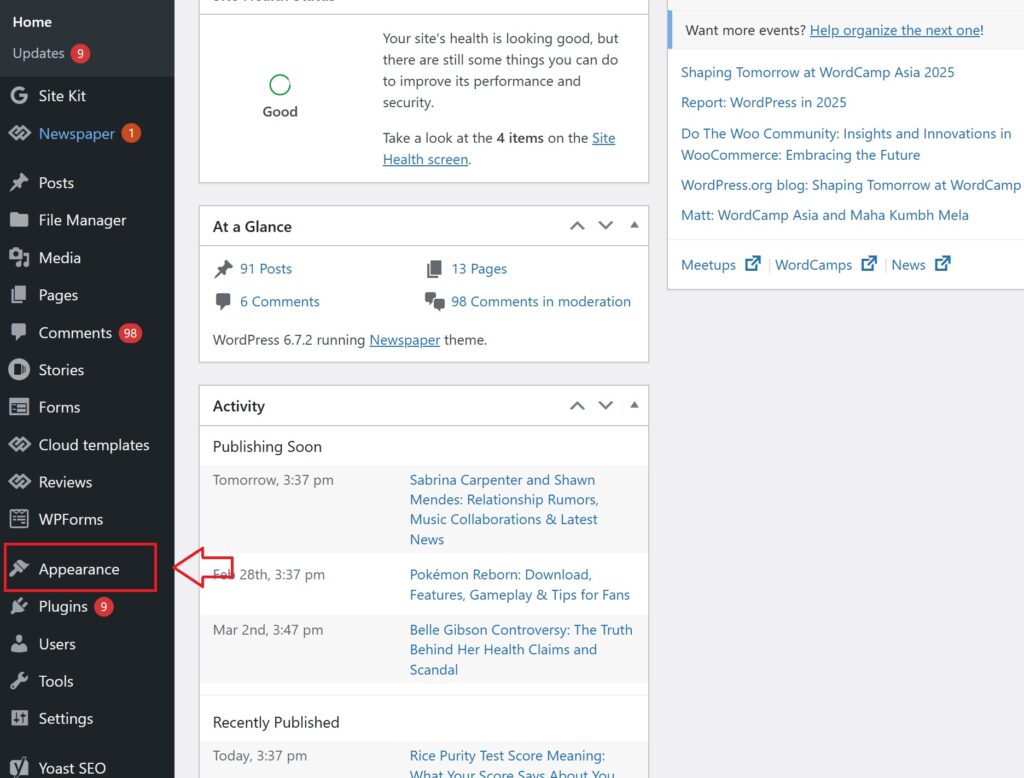
From the left-hand menu, hover over Plugins and select Add New to open the plugin installation page.
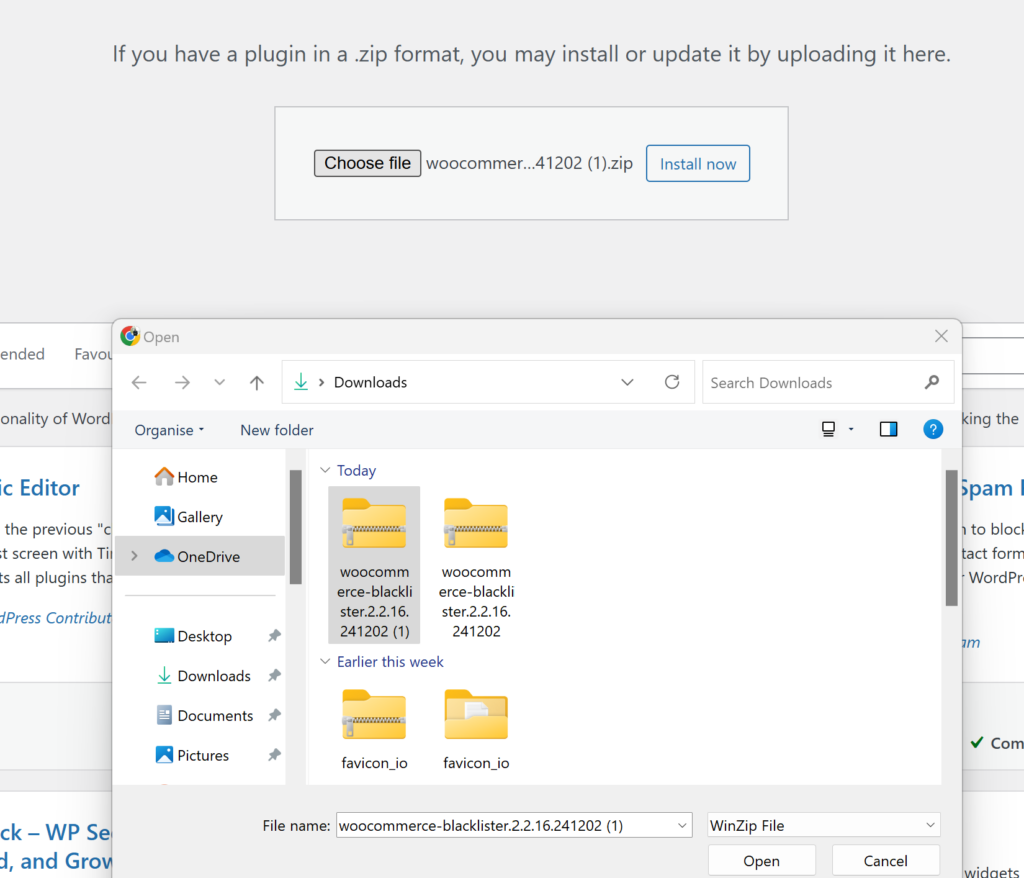
- Click ‘Upload Plugin’:
At the top of the page, find and click the Upload Plugin button to start uploading manually. - Select the ZIP File:
Click Choose File, locate the Aelia Blacklister ZIP file you downloaded, and select it.
- Install the Plugin:
After selecting the file, click Install Now. WordPress will upload and unpack the plugin for installation.
Part 3: Activate the Plugin
- Wait for Installation to Finish:
The installation process will take a few seconds. Once done, a confirmation message will appear. - Activate the Plugin:
Click Activate Plugin to enable Aelia Blacklister on your WooCommerce store. - Verify Activation:
After activation, you’ll be redirected to the Plugins page where Aelia Blacklister should be listed as active. You’ll also find a new menu or settings option for Aelia Blacklister within the WooCommerce settings, confirming the plugin is ready to use.
Step 2: Configure Blocking Rules in Aelia Blacklister
After installing and activating the Aelia Blacklister plugin, the next step is to set up the blocking rules to protect your store from fraudulent activity.
1. Block by Name and Surname
How to Block:
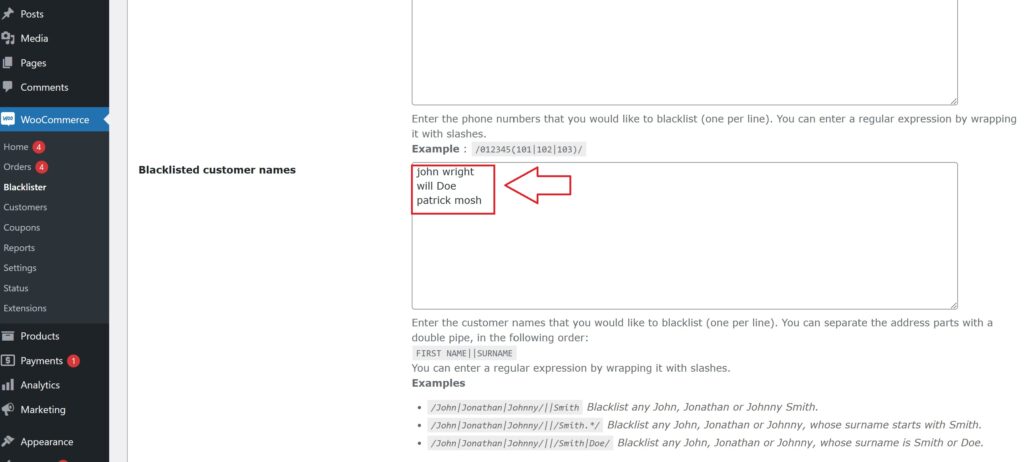
Navigate to the blacklist settings and enter the full names or surnames of individuals you want to block. You can target first names, last names, or a combination of both.
Why It Matters:
Fraudsters may change their contact information like email or IP but often reuse the same names. Blocking by name prevents them from bypassing your security even when other details change.
Steps:
- Open the Blacklist Customer section in the plugin settings.
- Add the names you want to block.
- Save or update the settings.
2. Block by Address (Street, Postcode, City, Province/State, Country)
How to Block:
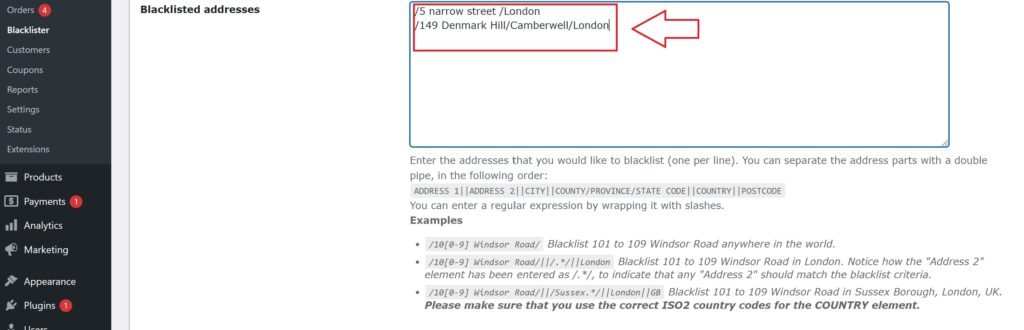
You can block specific address components such as street, postal code, city, state/province, or country. This helps identify and block fraudulent users who reuse fake or stolen addresses.
Why It Matters:
Fraudsters frequently use bogus or stolen addresses from high-risk regions. Blocking these locations helps prevent fraudulent purchases.
Steps:
- Enter the full or partial address details in the Address section.
- Specify the level of detail to block (e.g., street, postcode, region).
- Save your changes.
3. Block by Email Address
How to Block:

Enter specific email addresses or entire domains to block. For example, blocking all addresses from disposable email providers by using domain wildcards (e.g., *@tempmail.com).
Why It Matters:
Many fraudsters use temporary or disposable email accounts to create fake user profiles. Blocking these emails stops them from abusing your store.
Steps:
- In the Email Address field, add the exact emails or domains you want to block.
- Save the settings to apply the restrictions.
4. Block by Phone Number
How to Block:

Input individual phone numbers or entire area codes to block fraudulent contact numbers.
Why It Matters:
Fraudsters often use fake or stolen phone numbers to place orders. Blocking suspicious numbers adds another protective layer.
Steps:
- Go to the Phone Number section.
- Add phone numbers or area codes you want to restrict.
- Save the updates.
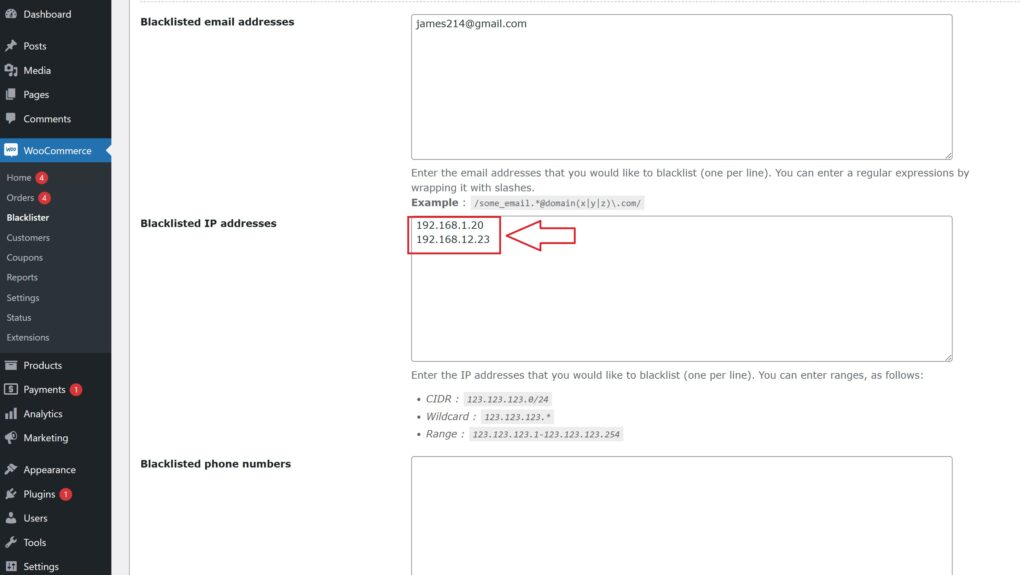
5. Block by IP Address
How to Block:

Block single IP addresses or whole IP ranges using wildcards or regular expressions to cover patterns of abusive behavior.
Why It Matters:
Blocking IP addresses stops fraudsters from accessing your store repeatedly from the same networks, limiting repeat offenses.
Steps:
- Access the IP Address settings.
- Enter specific IPs or use wildcards to block entire ranges.
- For advanced rules, apply regex patterns.
- Save the configuration.
Final Step: Save and Activate Your Rules
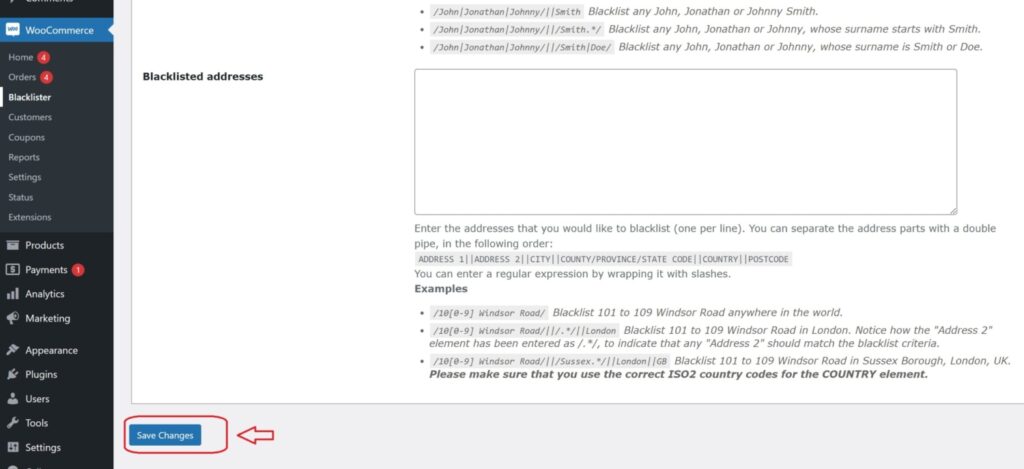
Once you have entered all the blocking criteria, make sure to Save or Update your settings to activate the blacklist rules. Regularly review and update your blacklist to stay ahead of new fraud attempts and keep your WooCommerce store secure.
With these steps, store owners can instantly reduce risk and block fraudulent activity, ensuring smoother operations and safer transactions.
Enhance Your Store Security with Additional Aelia Tools
While Aelia Blacklister offers robust protection against fraudulent users, pairing it with other Aelia plugins can further elevate your WooCommerce store’s security, functionality, and global reach.
Aelia Prices by Country for WooCommerce
This plugin enables you to display different product prices based on the visitor’s location. It’s an ideal solution for businesses selling internationally, helping to:
- Prevent pricing abuse by aligning product costs with regional economic conditions.
- Improve customer experience by displaying location-specific pricing automatically.
- Optimize revenue through tailored pricing strategies across different markets.
Learn more and explore pricing options here
Pro Tip:
By combining Aelia Blacklister with Prices by Country For WooCommerce, you not only secure your store from fraudulent transactions but also offer a more personalized and seamless experience for genuine customers around the world.