Managing unwanted registrations and spam orders can be one of the most frustrating aspects of running a WooCommerce store. That’s why implementing email blacklisting in WooCommerce is a smart and effective way to keep your eCommerce site secure, trustworthy, and efficient. With tools like the Aelia Blacklister Plugin, you can easily integrate robust email blocking into your WooCommerce setup, safeguarding your business from suspicious activity.

By using the Aelia Blacklister, store owners gain precise control over who can interact with their online shop. This means only legitimate customers are allowed through, helping to reduce fraud, protect sensitive data, and improve overall store performance. In this guide, we’ll show you how to effectively use Aelia’s plugin to block unwanted email addresses, enhancing your store’s security and user experience at the same time.  For a simple step-by-step method, check out this helpful guide on blocking fraudulent User in WooCommerce.

Why Email Blacklisting Matters in WooCommerce

Email blacklisting is a crucial feature in WooCommerce for reducing spam, fake registrations, and fraudulent orders. By blocking specific email addresses or entire domains, you prevent malicious users from accessing your checkout, creating fake accounts, or initiating harmful transactions. This proactive step ensures your customer base remains authentic and your backend stays clean. To dive deeper into protecting your WooCommerce store from suspicious users, including blocking by IPs, check out this detailed guide on Protecting Your WooCommerce Store with IP Addresses

How does the Aelia Blacklister for WooCommerce help?

The Block Emails for WooCommerce plugin by Aelia offers a simple yet powerful solution for managing email restrictions. Store administrators can easily enter specific email addresses—like storebot@mailjoonix.net—or block full domains, such as @example.com, directly within the plugin settings. Once blacklisted, users from those sources will be prevented from completing registrations or purchases on your site.

Whether you’re dealing with persistent spam bots or suspicious-looking domains, Aelia’s plugin helps you maintain a safe and professional WooCommerce environment with minimal effort.

How to Set Up the Aelia Blacklister Plugin in WooCommerce

Getting started with Aelia’s Block Emails for WooCommerce plugin is quick and hassle-free. The setup involves just three simple steps:

  1. Upload the Plugin Files: Add the plugin to your WordPress site by placing it in the wp-content/plugins/wc-block-emails directory or installing it directly through the WordPress plugin dashboard.
  2. Activate the Plugin: Go to the Plugins page in your WordPress admin panel and activate the plugin.
  3. Configure Your Settings: Navigate to WooCommerce > Settings > Block Emails to begin adding email addresses or domains you want to block.

Once set up, whenever a blacklisted email attempts to make a purchase, the plugin automatically blocks the transaction and displays a customizable error message. This real-time response helps deter suspicious users without disrupting the experience of genuine customers.

The plugin also supports bulk uploading of email addresses, allowing store owners to import large blocklists effortlessly—a key feature for high-traffic stores facing frequent spam or fraud attempts.

A Quick Look at Key Features

FeatureDescription
Ease of UseSimple installation and intuitive user interface
CustomizationCreate personalized error messages for blocked users
Bulk Email BlockingUpload large lists of emails and domains with ease
CompatibilityFully supports classic WooCommerce checkout
Security EnhancementPrevents fake registrations and fraudulent orders effectively

Why Email Blacklisting Is a Smart Move in WooCommerce

Adding email blacklisting is a proactive security measure every WooCommerce store should consider. It helps eliminate fake users before they can place fraudulent orders, preserving your store’s integrity and saving time on backend management.

Benefits of Email Blacklisting in WooCommerce

Implementing email blacklisting with tools like Aelia’s plugin offers a wide range of benefits:

  • Enhanced Security: Prevent unauthorized access and transactions.
  • Reduced Spam Orders: Keep fake or bot-generated orders out of your system.
  • Better Store Reputation: Maintain customer trust by providing a safe shopping environment.
  • Streamlined Order Management: Eliminate time wasted on handling fraudulent purchases.
  • Custom Error Messages: Tailor user feedback when blocking occurs.
  • Bulk List Support: Easily upload and manage large email blocklists.
  • Cost Savings: Reduce chargeback incidents and fraud-related losses.
  • Compliance Support: Contribute to data protection and privacy standards.
  • Seamless Integration: Use without needing complex configurations or custom code.
  • Increased Customer Trust: Promote repeat business with a secure checkout process.

Introduction to Aelia Blacklister for WooCommerce

Beyond just blocking emails, the Aelia Blacklister for WooCommerce plugin provides comprehensive tools for identifying and stopping suspicious users at multiple touchpoints. Its features include:

  • Email Address Blocking: Use regular expressions to block specific emails or entire domains (e.g., all users from @frauddomain.com).
  • IP Address Restrictions: Deny access based on individual IPs or IP ranges using CIDR, wildcard, or range formats.
  • Phone Number Blocking: Stop users with phone numbers flagged in past fraudulent activity.
  • Customer Name Filtering: Prevent known scam names from completing transactions.
  • Flexible Rule Settings: Customize and fine-tune your blacklist rules with precision.
  • Easy Installation: Quickly install and activate from the WordPress dashboard.
  • Bulk Upload Support: Import large datasets of blocked emails, IPs, and more.

By combining multiple layers of protection, Aelia Blacklister helps store owners maintain a fraud-free environment, preserving revenue, enhancing customer trust, and ensuring smooth operations.

Running a secure and professional eCommerce setup goes beyond managing email filters — it’s also about building better communication with your audience. If webinars are part of your marketing or training strategy, read our in-depth post on How to Pick the Right Virtual Webinar Platform for Your Business – Insights from ClickMeeting to learn how to choose the right tool for hosting seamless, branded virtual sessions that engage and convert.

Setting Up Aelia to Block Email Addresses in WooCommerce

To efficiently block unwanted or suspicious email addresses in your WooCommerce store, the best approach is to use the Aelia Blacklister for WooCommerce plugin. This powerful tool offers a streamlined way to filter out fraudulent users and spam registrations before they can affect your business.

Follow these simple steps to get started:

Step 1: Install the Plugin

  • Go to the Plugins section of your WordPress dashboard.
plugin
  • Click on Add New Plugin
plugin add new 1
  • Select Upload Plugin
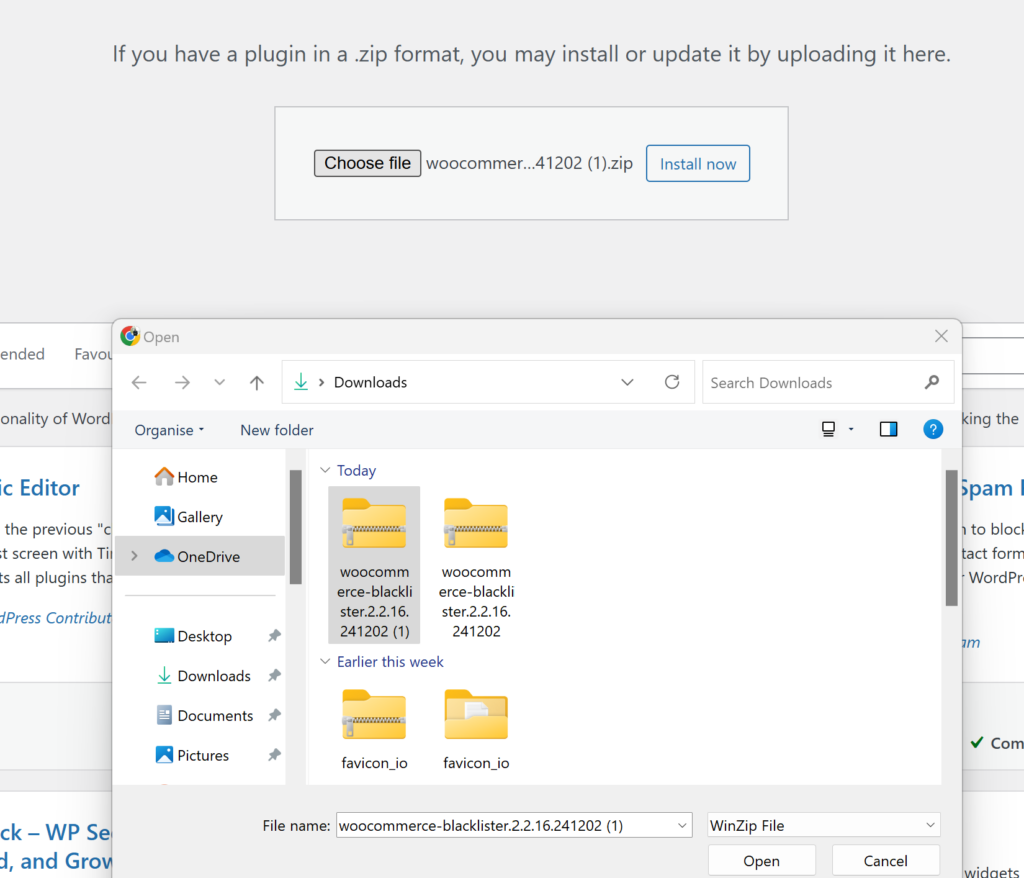
  • Click Choose File, then select the Aelia Blacklister plugin zip file you downloaded from the Aelia website.
  • Click Install Now.
  • Once the plugin is installed, click Activate.

Step 2: Access the Plugin Settings

  • After activation, go to WooCommerce and click on it.
  • Look for the Blacklister tab in the settings menu (it might appear under the Aelia tab depending on the version of WordPress).
  • Click on the Blacklister tab to access the plugin’s settings.

Step 3: Block Email Addresses
email address to blacklist 1 1
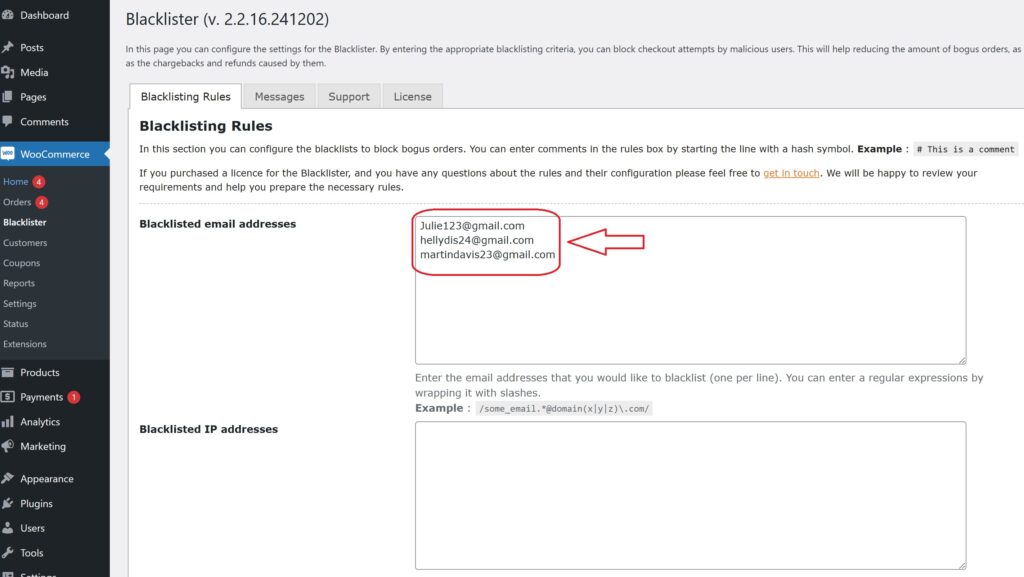
  • In the Blacklister settings, find the option called  Blacklisted email addresses.
  • Enter the email addresses you want to block in the provided text field (you can block multiple email addresses by separating them with commas or entering them one by one).
  • After entering the email addresses, Scroll Down and click Save Changes.

Step 4: Test the Configuration

  1. Go to your WooCommerce checkout page.
  2. Try to register or make a purchase using one of the blacklisted email addresses.
  3. If the plugin is correctly set up, the user will not be able to complete the purchase or registration.

How to Get Support for the Aelia Blacklister for WooCommerce Plugin
support aelia

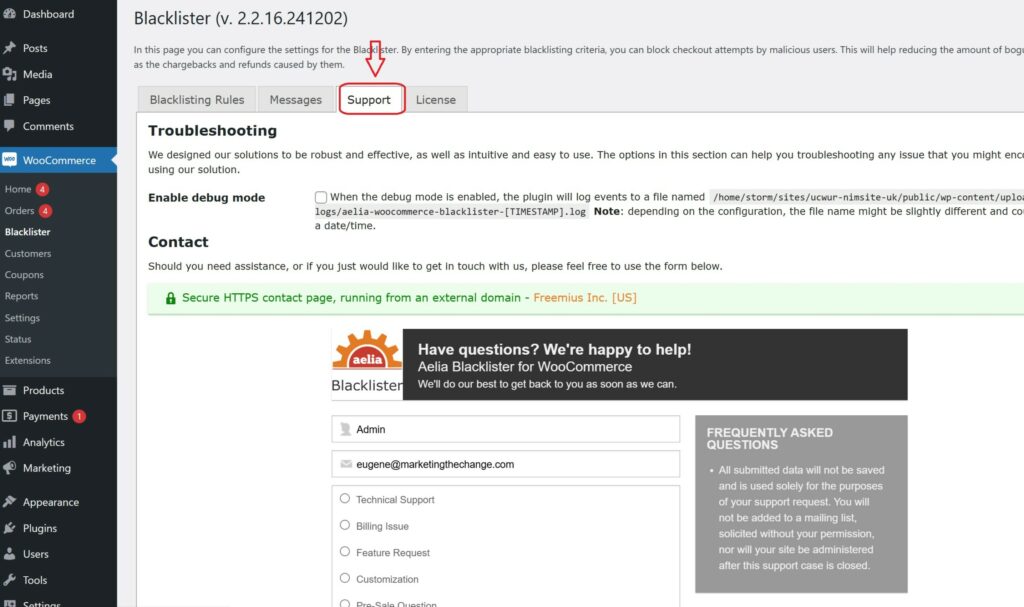
Getting support for the Aelia Blacklister for WooCommerce plugin is simple and user-friendly. Within the plugin’s settings, navigate to the Support section, where you’ll find a comment box to describe any issues or questions you may have. Once submitted, Aelia’s dedicated support team will review your request and provide personalized assistance to help resolve your concerns promptly.

To further enhance your WooCommerce store’s functionality, you might also want to explore the Tax Display by Country for WooCommerce plugin. This powerful tool lets you control tax visibility based on the customer’s geographic location, offering a more localized and seamless shopping experience.

Josh Morley

I have been designing & marketing websites since 2013. I specialize not just in WordPress web design but also in online marketing. SEO, PPC, keyword research, link-building and most recently on lead acquisition for local businesses.

In today’s competitive e-commerce landscape, WooCommerce store owners are increasingly targeted by fraudulent activities, ranging from fake orders and spam to malicious bot traffic. These threats not only disrupt operations but can also damage your brand’s reputation and lead to financial loss. One of the most effective security strategies is to block IP address WooCommerce. By restricting access from suspicious or high-risk IP addresses, you can stop bad actors before they cause harm, reduce spam, and create a safer shopping experience for your genuine customers

Pairing IP blocking with additional tools—like Tax Display by Country for WooCommerce—adds another layer of protection by ensuring accurate tax calculations based on customer location. This comprehensive security strategy not only safeguards your revenue but also enhances the overall shopping experience.

What Is an IP Address?

An IP address Internet Protocol address, is a unique string of numbers assigned to every device connected to the Internet. Think of it as a digital street address—it tells websites where to send and receive data, just like your home address directs mail to your door.

There are two main types of IP addresses:

  • IPv4: The most common format, consisting of four number sets separated by periods (e.g., 192.168.0.1).
  • IPv6: A newer version designed to support the growing number of internet-connected devices, offering a vastly larger address range.

For WooCommerce store owners, IP addresses play a key role in tracking user behavior and identifying potential threats. Monitoring visitor IPs allows you to spot suspicious activity and block malicious users before they can harm your store, as explained in this detailed guide on blocking fraudulent users in WooCommerce.

Why Blocking IP Addresses Is Crucial for Your WooCommerce Store

Every device that connects to your store leaves a digital fingerprint—its IP address. Unfortunately, cybercriminals often exploit fake or temporary IPs to commit fraud, spam your site with fake reviews, or place bogus orders that lead to costly chargebacks.

Blocking these IP addresses helps you take control of your store’s safety. It’s a simple yet powerful way to stop fraud at the source, long before it affects your business operations or customer trust.

For even tighter security, combine IP blocking with other WooCommerce protection strategies—like using a plugin to block suspicious activity, as outlined in this step-by-step guide— Plugin to Block Suspicious Activity to stay ahead of evolving threats.

How IP Blocking Protects Your WooCommerce Store

Here’s how blocking harmful IP addresses can help secure your e-commerce site:

  • Prevents Fraudulent Orders: Many scammers use the same IPs repeatedly. Blocking them cuts off their access instantly.
  • Protects Your Brand Reputation: Avoiding fraud means fewer chargebacks and disputes, keeping your store’s credibility intact.
  • Mitigates Geographic Risk: If fraud is common from certain regions, IP blocking lets you restrict traffic from those locations.
  • Reduces Chargebacks: By blocking known bad actors, you reduce the risk of unauthorized transactions and related costs.

How to Block IP Addresses in WooCommerce

There are two primary ways to block IPs in WooCommerce:

  1. Manual Blocking: Add suspicious IPs to your server or security plugin settings.
  2. Plugin-Based Blocking: Use dedicated tools like the Aelia Blacklister Plugin. These plugins automate detection and blocking, giving you full control over blacklisted IPs, emails, and more.

For even greater protection, learn how to block email addresses in WooCommerce. Combining both strategies helps you defend against repeat offenders and bots, making your store a harder target for fraud.

Securing your WooCommerce store starts with smarter tools and proactive strategies. IP blocking is one of the simplest yet most effective ways to keep malicious users out, giving you peace of mind and your customers a safer shopping experience.

Introducing the Aelia Tools for WooCommerce: Effortlessly Block Suspicious Users and IP Addresses

The Aelia Blacklister for WooCommerce plugin is a powerful, intuitive tool designed to help store owners block unwanted users and safeguard their business. Whether it’s fraudulent IP addresses, suspicious emails, or flagged customer details, this plugin empowers you to stop malicious activity before it reaches your checkout.

With real-time protection and customizable rules, Aelia Blacklister enhances your WooCommerce store’s security while ensuring a seamless experience for legitimate customers.

Key Features of Aelia Blacklister

Customizable Blocking Rules
Easily create rules to block users based on:

  • IP addresses
  • Email addresses
  • Phone numbers
  • Customer names
  • Shipping or billing addresses

Use exact matches or regular expressions (regex) for flexible partial matching.

Multiple Blocking Methods
Choose the right method for your needs:

  • Exact Match – Block specific IPs, emails, or phone numbers.
  • Partial Match (Regex) – Identify patterns like disposable email domains or phone number prefixes.

Multi-Layered Protection
Block across several identifiers at once—IP, email, phone number, and location—creating a robust defense against all forms of fraudulent activity.

Customizable Denial Messages
Display tailored error messages when blocking users, offering clarity without compromising security.

Geolocation-Based Blocking
Restrict orders from high-risk regions or countries using geolocation data to minimize your exposure to international fraud.

Chargeback Prevention
By automatically blocking known fraudsters and repeat offenders, the plugin helps reduce the risk of chargebacks and unauthorized refund claims.

Why Choose Aelia Blacklister?

User-Friendly Interface
Designed to integrate seamlessly with WooCommerce, no technical background is required for setup and management.

Real-Time Blocking at Checkout
Malicious users are stopped instantly—before they can place an order—ensuring your store processes only legitimate transactions.

Proven Fraud Protection
Aelia Blacklister actively scans customer input in real time, making it an essential tool for maintaining a secure and trustworthy online store.

How to Install the Aelia Blacklister Plugin for WooCommerce

Getting started with Aelia Blacklister is simple. Before you can start blocking suspicious users and securing your WooCommerce store, you’ll need to install the plugin. Follow these quick steps to set it up:

Step 1: Purchase and Download the Plugin

  • Visit the Aelia product page and purchase the Blacklister plugin.
  • Once your purchase is complete, you’ll receive a downloadable ZIP file containing the plugin.

Step 2: Log into Your WordPress Dashboard

Block IP Address WooCommerce
  • Open your web browser and go to your WordPress login page (typically www.yoursite.com/wp-admin).
  • Enter your login credentials and click Log In to access your admin panel.

Step 3: Navigate to Plugins → Add New

Block IP Address WooCommerce
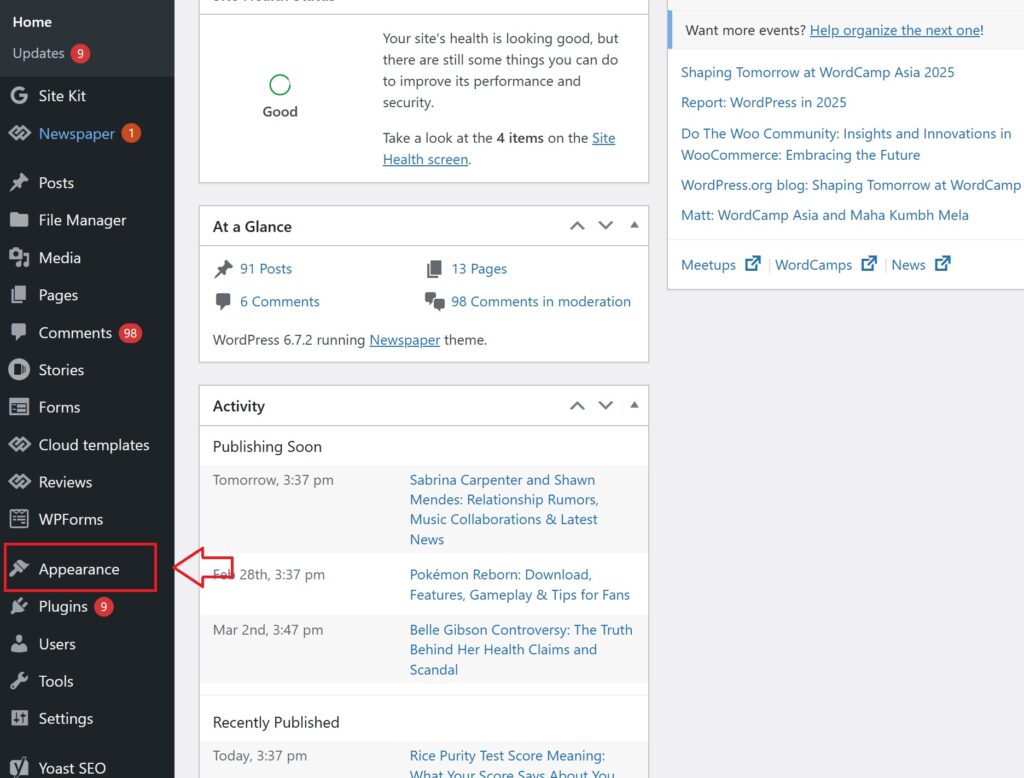
  • In the WordPress admin sidebar, hover over Plugins.
  • Click on Add New from the dropdown menu to access the plugin installation page.

Step 4: Upload the Plugin ZIP File

Block IP Address WooCommerce
  • At the top of the page, click the Upload Plugin button.
  • Click Choose File, then locate and select the Aelia Blacklister ZIP file from your computer.

Step 5: Install the Plugin

  • After selecting the file, click Install Now.
  • WordPress will begin installing the plugin. This may take a few moments.

Step 6: Activate the Plugin

  • Once installation is complete, click the Activate button to enable the plugin on your WooCommerce store.

Setting Up IP Blocking with Aelia Blacklister

With the plugin activated, you can now configure your blacklisting rules to block unwanted or suspicious users.

Blocking by IP Address

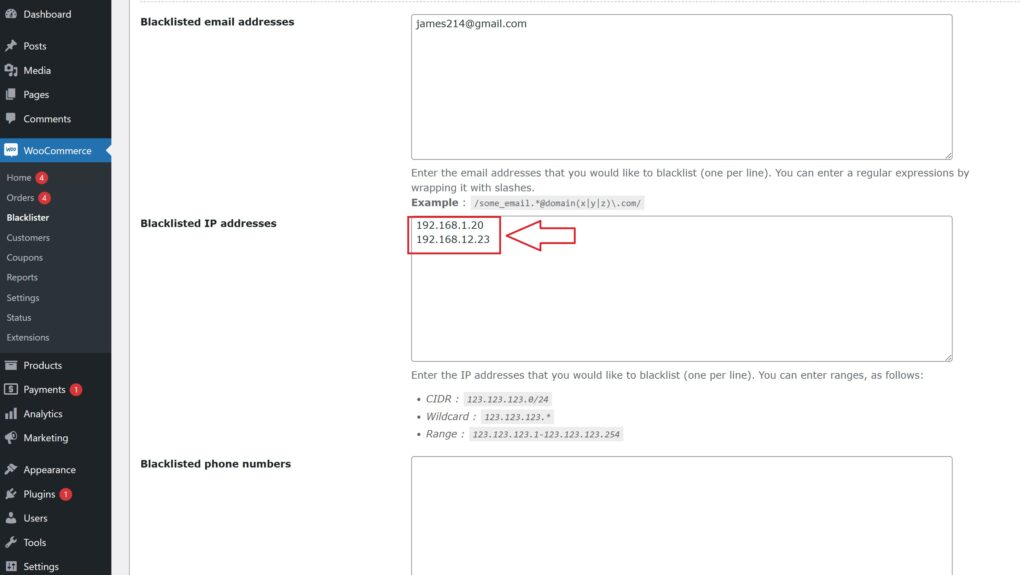
Blocking list of IP address 1
  • Go to the Aelia Blacklister settings within your WooCommerce admin panel.
  • Locate the IP Address Blocking section.
  • Enter any known suspicious or fraudulent IP addresses you wish to block.
  • You can add multiple IPs. These users will automatically be prevented from completing purchases.

Why This Matters:
Fraudsters often use the same IP addresses repeatedly. Blocking them early helps stop chargebacks, fake orders, and other forms of abuse.

 Additional Blocking Options with Aelia Blacklister

Aelia Blacklister goes beyond simple IP blocking. It allows you to create custom rules that target a wide range of user data, giving you full control over who can access your store.

You can block users based on:

  • Email Addresses – Stop spam accounts and known fraudulent emails.
  • Usernames – Block problematic or abusive users by their login names.
  • Phone Numbers – Filter out suspicious or repeat offenders using the same number.
  • Billing & Shipping Addresses – Prevent fraudulent orders linked to flagged locations.
  • Regions or Countries (via Geolocation) – Automatically block high-risk areas from placing orders.

This comprehensive, multi-layered defense helps protect your WooCommerce store from fraud, abuse, and unwanted activity, ensuring a smoother and safer shopping experience for your real customers.

Josh Morley

I have been designing & marketing websites since 2013. I specialize not just in WordPress web design but also in online marketing. SEO, PPC, keyword research, link-building and most recently on lead acquisition for local businesses.