I have been designing & marketing websites since 2013. I specialize not just in WordPress web design but also in online marketing. SEO, PPC, keyword research, link-building and most recently on lead acquisition for local businesses.
Introducing Smart Robots.txt Generator & Bot Control for WordPress
Managing your robots.txt file shouldn’t require editing files, FTP access, or technical guesswork.
Smart Robots.txt Generator & Bot Control for WordPress gives you complete control over which bots can access your site — directly from your WordPress dashboard.
Whether you want to allow Google but block aggressive SEO crawlers, or stop AI bots from scraping your content, this plugin makes it simple.
No file editing. No complicated configuration. Just smart control.
🚀 What the Free Version Includes
✅ Dynamic Robots.txt Generator
The plugin safely hooks into WordPress’ built-in robots.txt system — it does not overwrite your physical file.
✅ Bot Group Controls
Toggle entire categories of bots on or off:
Search Engines (Google, Bing, Yandex, etc.)
SEO Crawlers (Ahrefs, Semrush, Moz, MJ12, etc.)
AI & LLM Crawlers (GPTBot, ClaudeBot, PerplexityBot, etc.)
Social Preview Bots
Security & Scanner Bots
✅ Custom Bot Blocking
Add your own user-agents to block — one per line.
✅ Custom Robots.txt Rules
Need something more advanced? Add custom directives that will be appended safely to your generated robots.txt file.
✅ Safe & Standards Compliant
Uses WordPress filters
Does not edit core files
Fully uninstall clean-up
Built with performance in mind
🔥 Pro Version Coming Soon
We’re taking this beyond simple blocking.
The upcoming Pro version transforms this into a full crawl intelligence tool.
📊 Bot Activity Logging & Analytics
See exactly which bots are visiting your site.
Top 30 Bots over the last 30 days
Weekly crawl totals
AI bot activity tracking
Most crawled pages
Blocked vs allowed bot comparison
Historical trend data
All powered by a high-performance summary system designed to avoid slowing your site.
🧠 AI Crawl Monitoring
Find out:
How often GPTBot hits your content
Whether ClaudeBot is crawling your site
How much AI traffic you’re getting weekly
Knowledge is power — especially in the AI era.
🛡 Advanced Protection Tools
Planned Pro features include:
Automatic suspicious bot detection
Rate limit alerts
.htaccess and Nginx rule generator
Cloudflare firewall export
Crawl log CSV export
Configurable log retention settings
⚡ Built for Performance
The Pro analytics system uses:
Indexed database tables
Pre-aggregated daily summaries
Optimized queries
Optional caching
Automatic log cleanup
Your frontend performance remains unaffected.
Why This Matters
Content scraping, aggressive SEO crawling, and AI data harvesting are increasing rapidly.
Smart Robots.txt Generator & Bot Control gives WordPress users:
Visibility
Control
Simplicity
Future-ready protection
The free version is available now.
The Pro version is launching soon.
Stay in control of who crawls your site.
Josh Morley
I have been designing & marketing websites since 2013. I specialize not just in WordPress web design but also in online marketing. SEO, PPC, keyword research, link-building and most recently on lead acquisition for local businesses.
Healthcare marketing operates under unique constraints that don’t apply to most other industries. Regulatory compliance requirements, patient privacy considerations, complex buyer journeys involving multiple stakeholders, and the sensitive nature of health-related decisions create a specialised marketing environment. Understanding how healthcare marketing agencies navigate these challenges through SEO and paid advertising reveals sophisticated strategies that balance patient acquisition, regulatory compliance, and trust-building in ways that generic marketing approaches cannot.
The stakes in healthcare marketing are unusually high. Poor targeting wastes budget whilst potentially directing patients toward inappropriate care options. Compliance failures risk regulatory penalties and reputational damage. Overly aggressive advertising undermines the trust essential for patient-provider relationships. Healthcare marketing agencies must thread these needles whilst delivering measurable patient acquisition results that justify substantial digital marketing investments.
The Regulatory Framework That Shapes Every Strategy
Before examining specific SEO and advertising tactics, understanding the regulatory environment proves essential. Healthcare marketing agencies operate within frameworks that include advertising standards regulations, patient data protection laws, medical device advertising requirements, and profession-specific guidelines from bodies such as the General Medical Council and the Care Quality Commission in the UK.
These regulations prohibit certain claims, require substantiation for others, restrict comparative advertising, and mandate specific disclosures. A healthcare marketing agency cannot simply copy strategies from consumer goods or professional services sectors; every tactic requires regulatory vetting to ensure compliance.
This regulatory burden makes organic SEO particularly valuable for healthcare providers. Unlike paid advertising, where every claim faces scrutiny and approval processes, organic content can provide detailed educational information, address patient concerns comprehensively, and build authority through thought leadership—all whilst remaining compliant through careful content development and legal review.
SEO Strategies Tailored to Healthcare Buyer Journeys
Healthcare decision-making rarely follows the simple awareness-consideration-decision path common in consumer purchasing. Patients research symptoms, seek information on diagnoses, compare treatment options, evaluate providers, verify credentials, and often consult multiple sources before booking appointments. This extended, non-linear journey requires sophisticated SEO strategies that address multiple decision stages.
A good healthcare marketing agency typically develops content strategies around three distinct phases. Early-stage content targets symptom-related queries and general health information, positioning the healthcare provider as a trusted educational resource without explicit commercial intent. This content builds awareness and establishes expertise without appearing opportunistic when patients are vulnerable and seeking information rather than services.
Mid-funnel content addresses treatment options, procedure explanations, and provider selection criteria. This stage requires careful balance—providing genuinely useful information that helps patients make informed decisions whilst subtly positioning the healthcare provider’s specific approaches and differentiators. Many healthcare organisations struggle to create this content convincingly without devolving into thinly veiled sales pitches; experienced healthcare marketing agencies excel at maintaining educational value whilst advancing strategic positioning.
Bottom-funnel content targets high-intent queries like “hip replacement surgeon near me” or “private dermatology clinic London.” These pages combine practical information—locations, insurance accepted, booking processes—with trust signals including physician credentials, facility accreditations, patient testimonials, and before/after evidence where appropriate.
Local SEO as the Foundation of Healthcare Marketing
Most healthcare services remain inherently local. Patients rarely travel significant distances for routine care, making local SEO the foundation of healthcare marketing agency strategies. This prioritisation manifests in several specific tactics.
Google Business Profile optimisation receives intensive focus, with healthcare marketing agencies managing practice profiles, responding to reviews, posting updates about services and staff, and ensuring accurate information across all locations. Review management becomes particularly sensitive in healthcare contexts—responding to patient feedback whilst maintaining confidentiality and professionalism requires specialised expertise.
Location-based content extends beyond simple “our office” pages to address regional health concerns, community involvement, and local patient testimonials. A healthcare marketing agency serving a dermatology practice in a high-pollution urban area might create content addressing pollution-related skin conditions specific to that geography, attracting local patients whilst demonstrating a specialised understanding of regional factors.
Citation building across healthcare directories—Healthgrades, Vitals, RateMDs, speciality-specific directories—ensures consistent NAP (name, address, phone) information whilst building authoritative backlinks. These citations carry particular weight in healthcare SEO because search algorithms recognise their relevance and authority within the medical domain.
Paid Advertising Within Strict Compliance Boundaries
Google Ads for healthcare requires navigating policies that restrict certain terms, prohibit particular claims, and mandate verification for advertisers in many healthcare categories. Healthcare marketing agencies maintain certification as Google Ads healthcare advertisers and stay current on policy updates that frequently affect permissible messaging.
Keyword strategies in healthcare PPC differ markedly from other sectors. Broad match keywords risk inappropriate traffic—someone searching “cancer treatment options” might be researching for a family member, writing an article, or seeking completely different cancer types than the advertiser treats. Healthcare marketing agencies typically favour exact and phrase match keywords despite higher costs, prioritising relevance over volume.
Ad copy in healthcare faces unique constraints. Claims must be substantiated, superlatives avoided unless verifiable, and certain sensitive terms handled carefully or excluded entirely. A healthcare marketing agency writing ads for cosmetic surgery cannot promise specific results, must avoid creating unrealistic expectations, and typically includes disclaimers about individual variation in outcomes.
Landing page optimisation for healthcare ads requires balancing conversion optimisation with information provision. Patients arriving via ads need sufficient information to make informed decisions, not just aggressive calls to action that push immediate bookings. The most effective healthcare landing pages provide substantial educational content, address common concerns and questions, showcase credentials and expertise, and invite consultation booking only then.
Remarketing Strategies That Respect Patient Privacy
Healthcare remarketing presents particularly complex privacy considerations. Following someone around the internet with ads after they’ve researched sensitive health conditions risks violating their privacy and damaging the healthcare provider’s reputation. Healthcare marketing agencies implement remarketing strategies with additional safeguards.
This might include remarketing only to users who reached deeper funnel pages (contact pages, appointment booking pages) rather than those who merely read informational content about symptoms or conditions. It might involve generic brand awareness messaging rather than condition-specific ads. And it requires careful audience segmentation, ensuring users researching particularly sensitive conditions receive no remarketing whatsoever.
The balance between effective remarketing and patient privacy represents an area where experienced healthcare marketing agencies demonstrate their value. The technical capability to implement remarketing is available to any advertiser; the judgment about when and how to use it appropriately requires healthcare-specific expertise.
Content Marketing as Trust-Building Foundation
Given regulatory restrictions on advertising claims and the high-trust nature of healthcare decisions, content marketing becomes foundational rather than supplementary in healthcare marketing strategies. Healthcare marketing agencies typically invest heavily in creating authoritative, evidence-based content that positions healthcare providers as experts whilst providing genuine patient value.
This content takes multiple forms: blog posts addressing common patient questions; video content explaining procedures or introducing providers; downloadable patient education resources as PDFs; infographics simplifying complex medical information; and case studies (with appropriate consent) demonstrating treatment outcomes.
The key distinction from generic content marketing lies in medical accuracy requirements and the need for clinical review. Healthcare marketing agencies working effectively in this space maintain relationships with medical professionals who review content for accuracy, identify potentially misleading implications, and ensure appropriate hedging around outcome claims.
Measurement Approaches Adapted to Healthcare
Healthcare marketing measurement presents challenges that many industries don’t face. Patient confidentiality prevents granular conversion tracking in many cases. Long consideration periods mean that attribution windows must extend far beyond the typical 30-90 days. Multiple touchpoints across online and offline channels obscure the true contribution of digital marketing.
A specialised healthcare marketing agency addresses these challenges through adapted measurement approaches: anonymised conversion tracking that preserves patient privacy whilst enabling performance analysis, extended attribution windows reflecting realistic healthcare decision timelines, offline conversion import connecting digital touchpoints to phone bookings or in-person appointments, and cohort analysis examining how patients acquired through different channels perform over longer timeframes.
The most sophisticated healthcare marketing agencies move beyond vanity metrics like website traffic and ad impressions to focus on patient acquisition cost, lifetime patient value, and retention rates. A dermatology practice might discover that patients acquired through educational SEO content have lower initial revenue but significantly higher lifetime value than those from aggressive PPC ads, fundamentally shifting marketing budget allocation.
The Integrated Approach That Works
The most effective healthcare marketing combines SEO and paid advertising in integrated strategies rather than treating them as separate channels. SEO provides the foundation—authoritative content, local visibility, and trust-building expertise demonstration. Paid advertising accelerates visibility for high-priority services, captures high-intent searches, and remarkets to engaged prospects.
This integration means using SEO insights to inform ad targeting, testing ad messaging before investing in long-form SEO content, and creating content that serves both organic and paid landing page needs. Healthcare providers working with agencies that understand this integration see substantially better results than those treating channels independently.
Healthcare marketing requires specialised expertise that combines digital marketing sophistication with healthcare industry knowledge and regulatory compliance understanding. The agencies succeeding in this space demonstrate proficiency across all three dimensions, delivering patient acquisition results whilst navigating the complex requirements that make healthcare marketing uniquely challenging.
Josh Morley
I have been designing & marketing websites since 2013. I specialize not just in WordPress web design but also in online marketing. SEO, PPC, keyword research, link-building and most recently on lead acquisition for local businesses.
TL;DR: I was contacted by what appeared to be a legitimate non-profit client requesting WordPress support. After several normal emails, I was asked to log in via a fake WordPress login page designed to steal credentials. The scam relied on patience, trust-building, and realistic workflows, not urgency. Always verify login URLs, never send credentials, and treat unusual access requests as a red flag.
The Scam I Almost Fell For (And How to Spot It)
Even when you work in digital marketing every day, scams can still catch you off guard, especially when they’re well-written, patient, and carefully tailored to your industry.
For context, Marketing the Change has been operating for over a decade, working on hundreds of WordPress websites across a wide range of sectors. We’re trusted Jetpack partners, and a large part of our work involves security, malware cleanup, and recovering hacked WordPress sites. Spotting suspicious behaviour is genuinely part of our day-to-day wor,k which is exactly why this experience stood out.
Just before Christmas, I was contacted about some website work that, on the surface, looked completely legitimate. The emails were professional, the website looked real, and the request itself was something we deal with all the time.
It nearly worked.
Here’s what happened and what you can learn from it.
How It Started (Very Normally)
I received an email from someone introducing themselves as a marketer for a US-based non-profit organisation. They asked for help improving their website and shared:
A real-looking website
A Google Doc listing website tasks
A believable story about firing a previous developer for overbilling
Nothing about this felt rushed or suspicious. In fact, it felt too normal the exact type of enquiry agencies deal with every week.
The Trust-Building Phase
Over a few emails, the conversation stayed professional and measured:
Discussion about site speed and performance
Clarifying whether issues were UX-related or SEO-related
Polite, patient responses (no pressure tactics)
They even leaned into shared values, mentioning Christian ministry work, something that subtly lowers your guard if you’re not careful.
This phase is important: good scams don’t rush you.
Link to website
Fake phone number
Real website
read address
Real logo
Here is a snapshot of the Google Doc they sent
He even sent a video showcasing the issue that he was facing
The Red Flag Moment
Things changed when I was asked to:
Log in to a WordPress site using a non-standard login URL
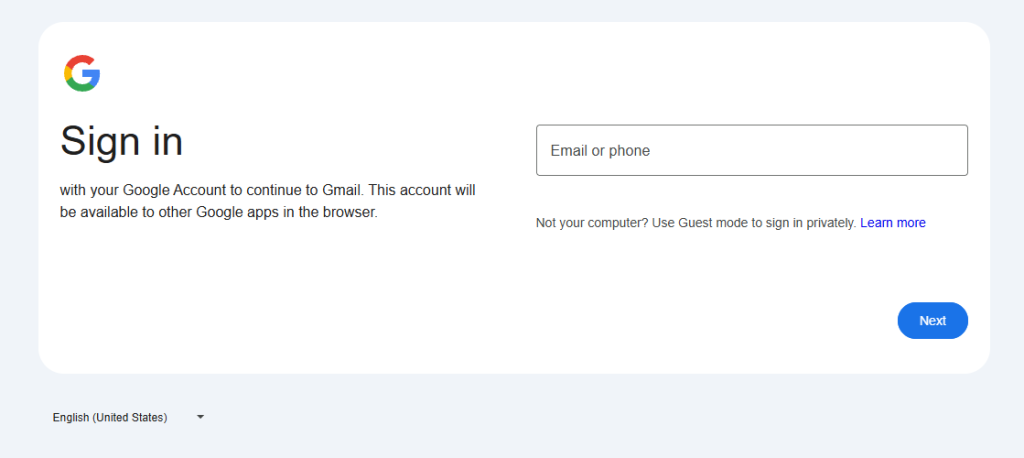
Complete a Google authorisation flow
Send back a generated username after logging in
At first glance, the page looked like a normal WordPress login screen. But it wasn’t loading from the website’s own domain and that’s where everything fell apart.
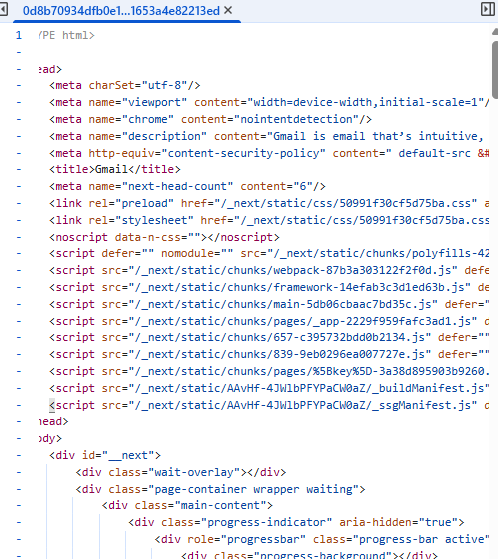
On closer inspection, the login page was pulling scripts and assets from an entirely different domain: https://matungasert.com/ a website that Google has flagged as a dangerous site.
Digging a little deeper revealed multiple red flags:
The login page was masquerading as WordPress
The site’s real /wp-admin The login still existed and worked normally
External scripts were being loaded from a known malicious domain
The request to “send back a username” made no sense in any legitimate WordPress workflow
At that point, it was clear this wasn’t a misconfiguration or a buggy plugin. It had all the hallmarks of a credential-harvesting phishing setup, designed to quietly capture logins while appearing completely legitimate.
What I Did Next
Instead of logging in, I:
Stopped the conversation immediately
Recorded a quick video showing what looked wrong
Contacted the actual site owner via their public contact email
Warned them that someone may be impersonating their organisation
Called and spoke to them about the issue
Whether the site had been compromised or the domain was being abused, one thing was clear: No legitimate client will ever ask you to log in through a custom URL and send credentials back to them.
Key Lessons for Freelancers & Agencies
If you do web, SEO, or marketing work, watch out for these signs:
If you work with WordPress, SEO, web development, or digital marketing, this is the uncomfortable truth: you are a prime target for phishing scams. Not because you’re careless but because you’re trusted with access.
Here are the key takeaways from this experience:
1. Never Log In Before Scope, Contract, or Verification
Any request to access a website before a scope of work, agreement, or payment structure is clearly defined should be treated with caution. Legitimate clients don’t need admin access granted before basics are agreed.
2. Always Verify the WordPress Login URL
A real WordPress login will be accessible via /wp-admin or /wp-login.php on the same domain. Custom login URLs, redirects, or “temporary” login pages should be independently verified especially if external scripts are involved.
3. Watch for External Script Loading
If a login page is pulling files, scripts, or assets from another domain, stop immediately. This is a common technique used in credential-harvesting attacks and should never be part of a standard WordPress setup.
4. Google Authorisation ≠ WordPress Access
Requests to complete Google authorisation flows, or OAuth steps, as part of WordPress access are highly unusual. These workflows are often abused in phishing attempts and should be validated outside of email instructions.
5. Never Send Credentials, Usernames, or Auth Tokens
No legitimate workflow requires you to log in and then send back usernames, passwords, or generated IDs. If you’re asked to do this, assume malicious intent.
6. Trust Discomfort, Not Familiarity
This scam didn’t rely on urgency or pressure; it relied on being familiar, polite, and believable. If something feels slightly “off,” pause and verify independently.
Scammers are getting better. They’re patient, polite, and informed.
Final Thoughts
This scam did not rely on fear or urgency. It relied on familiarity.
That same reliance on trust is why industries like healthcare require a much higher bar for digital practices — from security and compliance to how SEO and advertising are handled. We’ve explored this balance in depth in our article on how healthcare marketing agencies use SEO & ads without compromising trust.
That is what made it dangerous.
If something feels slightly off, pause. If access is requested in an unusual way, stop. If credentials are ever involved, verify everything independently.
I was lucky. I spotted it just in time.
Hopefully, this helps someone else do the same.
Need Help With Malware or a Hacked Website? If you’re worried your website may have been compromised, or you’ve spotted unusual login behaviour, redirects, or external scripts loading from unknown domains, it’s important to act quickly.
We regularly help businesses clean up hacked WordPress sites, remove malware, secure admin access, and prevent future attacks.
If you need help or just want a second opinion, get in touch here:
Even if you’re not sure something is wrong, it’s always better to check.
They Tried Again — This Time Using the PUMA Brand
A few weeks later, the same pattern appeared again.
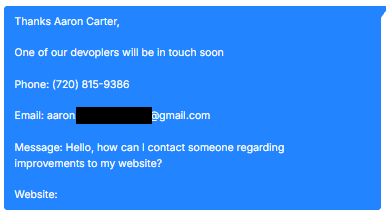
This time, the enquiry came from someone claiming to represent an organisation linked to PUMA. The message read:
“One of our developers will be in touch soon… We are currently experiencing several technical issues and malfunctions on our website… Please reply to me for full details.”
It included:
A US phone number
A Gmail address
A vague description of “technical issues”
No real scope
No specific URLs mentioned
On the surface, it looks like a standard website support enquiry. But the structure was almost identical to the previous attempt.
The brand had changed. The script had not.
The same workflow pattern was emerging:
Open with a vague but believable website issue
Suggest urgency without being aggressive
Move the conversation toward login access
Funnel the target to a non-standard WordPress login page
Load external scripts from the same malicious hosting routine
The only real difference was the brand being used to create credibility.
This is an important reminder: scammers often reuse infrastructure. They rotate organisation names and email addresses, but keep the same phishing setup behind the scenes.
If you see:
Generic Gmail addresses claiming to represent established brands
Vague “technical issue” outreach with no detail
Requests to log into unfamiliar admin URLs
External assets loading from unrelated domains
Pause immediately.
The branding may change. The malware routine often doesn’t.
Josh Morley
I have been designing & marketing websites since 2013. I specialize not just in WordPress web design but also in online marketing. SEO, PPC, keyword research, link-building and most recently on lead acquisition for local businesses.
The UK’s digital landscape is highly competitive, and finding the best web design agencies to trust with your online presence is critical. We’ve assessed the top creative studios, from London to Liverpool, to help you find an agency that delivers world-class design, robust development, and measurable ROI.
TL;DR: Best Web Design Agencies in the UK (Quick Summary)
If you’re comparing UK web design agencies and want the fast version, here’s what matters most:
Best Overall:[Agency Name 1] — ideal if you want a full-service partner focused on measurable ROI and end-to-end digital transformation.
Best for Bold, Creative Design:[Agency Name 2] — a great pick for award-winning UX/UI, standout visuals, and strong brand storytelling.
What to compare before choosing: look for strong case studies, a portfolio that matches your industry, and proven expertise in your platform (e.g., WordPress, Shopify) plus conversion-led UX/UI. Industry experience matters more than many buyers realise — especially in regulated sectors. For example, healthcare organisations face unique compliance, trust, and patient-privacy challenges that require very different digital strategies, which we explore in detail in our guide on how healthcare marketing agencies use SEO and paid advertising.
Don’t skip this stuff: use a vetting checklist, understand typical pricing models (£5k–£50k+), and confirm IP/code ownership in the contract.
Why this guide is structured this way: the summary + detailed comparison format is built for buyers who want to shortlist quickly, then dig deeper before hiring.
Quick Look: Top-Ranked UK Web Design Agencies
Rank
Agency
Location
Logo
Reviews (count)
Short excerpt
1
Marketing the Change
Liverpool (UK)
Logo shown on branding materials
Varied by listing; multiple sources note strong SEO and digital marketing capabilities
Focused on change-driven digital marketing, SEO optimization, and client-centric strategies
2
Identify Digital
Wakefield
Logo available on site
Strong client feedback across platforms
Fast-loading WordPress sites and reliable long-term support
3
Tangent
London
Logo on website
Positive enterprise client testimonials
Enterprise UX, strategy, and full-stack development
4
Fortnight Studio
London
Logo on site
Favorable case studies
Design-driven with high-impact experiences
5
Lighthouse London
London
Branding materials
Strong reviews for research-driven design and CRO
Emphasis on user clarity and conversion optimization
6
KOTA
London
Logo featured
Positive feedback from lifestyle/creative brands
Expressive, visually memorable websites
7
Luminary Brands
UK-wide
Logo on branding pages
Multiple testimonials highlighting ROI
Full-service including web design, branding, SEO
8
Fishfinger Creative Agency
UK
Branding shown
Notable recognition and client praise
Work for Google, Nike, WWF, Red Bull
9
Waywest Design
UK
Logo on site
Praise for transparency and measurable results
Full-service with branding, development, ongoing support
10
DesignRush-recognized UK agencies
UK
Various client logos
Aggregated client feedback
Noted for strong design quality and client success
Josh Morley
I have been designing & marketing websites since 2013. I specialize not just in WordPress web design but also in online marketing. SEO, PPC, keyword research, link-building and most recently on lead acquisition for local businesses.
Your domain is the foundation of your digital brand. It shapes how customers find, remember, and trust you online—and often becomes the very first impression people have of your business. Yet, while most marketers recognise its importance, far fewer take a strategic, long-term approach to managing their domain portfolio.
A smart domain strategy isn’t about collecting endless variations or holding onto clever names you’ll never use. It’s about building a clear, intentional structure that supports your marketing goals, strengthens your online authority, and leaves room for future growth.
Your domain also works closely with the technical infrastructure behind your website. Even the perfect domain name can fall flat without fast, reliable hosting. If you’re reviewing your setup or planning a new site, it may be worth exploring the best hosting provider to ensure your website performs optimally.
Together, your domain strategy and hosting choices form the backbone of your online presence—shaping trust, visibility, and long-term digital success.
Choosing the Right Domain for Your New Website
Choosing the right domain is one of the most important early decisions you’ll make when launching a new website, rebranding, or expanding into new markets. Your domain acts as your online identity — it shapes how customers perceive you, how easily they can find you, and how much they trust your brand from the first click. A thoughtful choice sets the tone for your entire digital presence and supports your long-term marketing goals.
Here are a few key principles to keep in mind:
Keep it simple. Short, readable names are easier for visitors to remember and type.
Reflect your brand. Your domain should align closely with your business name or core service; consistency helps reinforce recognition across all channels.
Avoid clutter. Skip unnecessary words, numbers, or hyphens that make your address look less professional.
Think globally. If your new site is targeting multiple regions, consider regional extensions such as .eu or .fr to build trust locally.
Secure availability early. Before you begin your website design, invest in checking domain availability to ensure your chosen name is open. You can do this quickly using EuroDNS’s domain search tool.
Your website design might evolve, but your domain is the constant that ties it all together. The right name reinforces credibility, helps SEO, and gives customers a reason to trust your brand from the very first click.
When to Register New Domains
You don’t need a new domain for every product launch, campaign, or minor update. In most cases, your main domain is sufficient. However, there are specific situations where registering additional domains makes sense, helping you protect your brand, reach new audiences, and clearly separate distinct ventures.
Rebranding: When your business name changes, a new domain helps reset perception and keeps your communications consistent.
Regional growth: Country-specific extensions build trust and visibility with local audiences.
Brand protection: Securing logical variations of your name, such as .com, .co.uk, and relevant misspellings, prevents confusion and impersonation.
New ventures: If you’re launching a distinct brand or sub-business, a dedicated domain may be essential for clarity and audience targeting.
Strategic additions only: Each new domain should serve a clear purpose and connect back to your wider brand ecosystem.
When to Build on What You Already Have
For most marketing activities, your existing domain is your strongest asset. It carries your SEO equity, customer familiarity, and authority. Creating separate domains unnecessarily can weaken that power and fragment your online presence.
Instead of splitting things up, consider smarter ways to organise under the same roof:
Subfolders: Use paths( yourbrand.com/campaign-name) to host short-term initiatives and landing pages.
Subdomains: Use addresses such as (blog.yourbrand.com) or (shop.yourbrand.com) for distinct areas of your site, while keeping everything under one trusted domain.
Redirects: Apply them strategically when consolidating old content or migrating URLs to preserve SEO value.
This unified approach ensures your audience always recognises your brand while maintaining your search authority. For added confidence, you can run a comprehensive SEO audit to identify opportunities, optimise performance, and protect your site’s rankings.
Building a Future-Proof Domain Portfolio
A strong domain strategy isn’t something you set once and forget. As your business evolves, your domain portfolio should grow and adapt alongside it. Regular reviews help ensure that every domain you own still aligns with your marketing goals, supports your brand, and avoids unnecessary clutter. A future-proof portfolio saves you time, protects your brand, and ensures you’re ready to scale into new markets or initiatives without complications.
A Well-Managed Domain Portfolio Should:
Protect your primary brand name and regional variations: Ensure that your core domain and key extensions (.com, country-specific TLDs) are always secured to prevent competitors or cybersquatters from taking them.
Avoid duplicate or unused domains: Extra domains that aren’t actively used can create confusion, dilute SEO authority, and increase management overhead. Streamline your portfolio to focus on meaningful assets.
Include renewal monitoring: Set reminders or use automated services so that important domains never accidentally expire, avoiding costly recovery or brand damage.
Support your future growth: Every domain in your portfolio should have a clear purpose — whether for new products, regional expansions, or strategic campaigns — without overwhelming your management or creating redundant complexity.
Think of your domains as valuable digital property. Each one should play a defined role within your brand ecosystem, contributing to credibility, visibility, and long-term business growth. A thoughtful portfolio helps you stay organized, protects your brand, and keeps you ready for whatever opportunities come next.
Final Thoughts
A well-planned domain strategy focuses on making smarter choices, not simply adding more domains. The right domain structure helps your brand appear consistent, credible, and easy to find, while leaving room to grow. Before your next campaign or website launch, take a few minutes to review your current setup. Is your main domain still the best fit? Are there regional or protective domains worth securing? A quick audit of your existing domains can go a long way toward keeping your marketing consistent and your online presence future-proof.
Josh Morley
I have been designing & marketing websites since 2013. I specialize not just in WordPress web design but also in online marketing. SEO, PPC, keyword research, link-building and most recently on lead acquisition for local businesses.
The way we connect with audiences has changed forever. In a world where remote work, online learning, and digital events have become the norm, webinars now play a central role in how brands build relationships and share ideas. Choosing the right Virtual Webinar Platform isn’t just about finding software that can stream a presentation — it’s about creating a space where your audience feels engaged, valued, and connected. A reliable, interactive, and well-designed platform can elevate your brand image, improve participation, and help turn attendees into loyal customers. That’s exactly where ClickMeeting makes a difference. Built with marketers, educators, and business leaders in mind, ClickMeeting takes the stress out of running online events by combining ease of use with smart automation, analytics, and branding tools. Whether you’re hosting a product launch, an online course, or a company-wide meeting, ClickMeeting helps deliver a professional experience from start to finish. In this article, we’ll explore what makes a great webinar platform and how to choose the one that truly fits your business goals — with insights from ClickMeeting’s proven expertise in virtual engagement.
What Is a Virtual Webinar Platform?
In simple terms, a webinar platform is a digital space where businesses, educators, and creators can host live or recorded events. It brings together all the tools needed to present, teach, and engage an audience — from video streaming and screen sharing to interactive polls, chat, and Q&A features. Unlike traditional video meeting tools, a webinar platform is designed for larger audiences and polished presentations, helping hosts deliver professional, scalable, and highly engaging virtual experiences.
A reliable Virtual Webinar Platform does much more than connect people on a screen. It allows you to create branded experiences, interact in real time, and gather valuable data through analytics and post-event reports. These insights can help improve future sessions and better understand audience behavior. Whether you’re running a marketing webinar, a customer training session, or an online course, the right platform ensures every event feels seamless, engaging, and results-driven.
Why Choosing the Right Platform Matters?
Choosing the right platform for your webinars isn’t just about convenience — it’s about creating an experience your audience will remember. A dependable, easy-to-use platform allows you to host smooth, interactive sessions that reflect your brand’s professionalism. When everything works seamlessly — from registration to streaming and post-event follow-ups — it builds credibility and encourages attendees to stay engaged. On the other hand, poor audio, lagging video, or confusing interfaces can quickly cause frustration and weaken your audience’s trust in your message.
Beyond presentation quality, the right platform directly influences your marketing results. It determines how easily you can collect leads, measure engagement, and nurture relationships after each session. Integrations with CRM systems, analytics, and automation tools turn webinars into powerful growth assets rather than one-off events. If you’re looking to refine your digital strategy or explore ways to strengthen your online engagement, you can start by reviewing your upcoming project application to ensure your webinar goals align with your broader business objectives.
Factors to Consider When Choosing a Virtual Webinar Platform?
With so many options available today, finding the right webinar platform can feel overwhelming. Each tool promises unique features, but the key is to focus on what truly matters for your audience and business goals. The right choice should balance functionality, reliability, and ease of use — without overcomplicating the process for your team or attendees.
Here are some of the most important factors to keep in mind when evaluating platforms:
Ease of Use: The best platforms are intuitive for both hosts and participants. A clear interface, simple navigation, and minimal setup can make a huge difference in engagement and participation rates.
Scalability: Whether you’re hosting a small workshop or a large conference, your platform should handle your audience size without technical issues or lag.
Customization and Branding: Look for tools that let you add your logo, colors, and brand visuals. Consistent branding builds recognition and professionalism throughout the event.
Engagement Features: Interactive tools such as polls, live chat, Q&A sessions, and whiteboards help keep attendees involved and make webinars feel more like conversations than lectures.
Integrations: A strong Virtual Webinar Platform should connect easily with your CRM, email marketing tools, and automation systems. This ensures smoother data flow and more effective lead nurturing after each event.
Security and Compliance: Especially for corporate and educational webinars, security features like password protection, encrypted sessions, and GDPR compliance are essential.
Analytics and Reporting: Post-event data helps you measure attendance, engagement, and conversion rates, giving insight into what worked — and what can be improved.
Support and Reliability: Reliable customer support can save you time and stress, especially during live sessions. Check whether the platform offers live chat, tutorials, or dedicated technical assistance.
Taking the time to review these factors before committing can prevent headaches later and ensure your events run smoothly from start to finish. Whether your goal is to build brand awareness, generate leads, or train your team, the right platform acts as the backbone of your digital communication strategy — helping you deliver meaningful, memorable experiences that drive results.
Best Virtual Webinar Platform for Your Business
When it comes to finding the best virtual webinar platform for your business, one name consistently stands out — ClickMeeting. Designed with marketers, educators, and organizations in mind, ClickMeeting makes it easy to create professional, interactive, and measurable online events without the technical hassle. It combines simplicity with advanced features, giving businesses the flexibility to host anything from small training sessions to large-scale virtual conferences.
What makes ClickMeeting such a strong choice isn’t just its technology — it’s how it helps brands deliver experiences that feel personal, polished, and engaging. Every detail, from setup to post-event analytics, is built to support your goals and make your webinars more impactful.
Here are a few reasons why ClickMeeting is considered one of the best virtual webinar platforms available today:
Browser-Based Access: Attendees can join directly from their browser without downloading any software — a simple but powerful feature that improves accessibility and participation.
Automation and On-Demand Options: ClickMeeting lets you record sessions, schedule automated replays, and even create evergreen webinars to keep generating leads long after the live event ends.
Interactive Engagement Tools: Polls, surveys, chat, and Q&A features help keep audiences involved, while breakout rooms allow for deeper discussions and networking.
Custom Branding: Businesses can add logos, colors, and themes to create a consistent and professional look across every event page.
Analytics and Lead Tracking: Detailed post-event reports show who attended, how they engaged, and where follow-up efforts should focus — turning webinars into valuable marketing insights.
Integration Ready: ClickMeeting connects smoothly with marketing and CRM tools, so lead data flows automatically into your existing systems.
In short, ClickMeeting isn’t just another webinar tool — it’s a complete solution for hosting meaningful, measurable, and professional virtual events. By combining accessibility, interactivity, and data-driven insights, it helps businesses turn ordinary presentations into lasting connections that drive growth and engagement. Learn more at: https://blog.clickmeeting.com/virtual-webinar-platform-showdown
ClickMeeting vs Other Virtual Webinar Platforms: How It Compares to Zoom, Webex, GoToWebinar, and Microsoft Teams
With so many tools available for hosting online events, it’s natural to wonder which platform truly delivers the best value and experience. The market leaders — Zoom, GoToWebinar, Webex, and Microsoft Teams — each have their strengths, but when it comes to hosting professional, marketing-driven webinars, ClickMeeting brings together the right balance of usability, branding, and engagement tools.
Zoom is great for meetings and quick collaboration but was originally built for internal communication rather than large-scale webinars. While it offers breakout rooms and screen sharing, it lacks deeper marketing integrations and detailed analytics that businesses often need for lead tracking.
GoToWebinar is a long-standing choice for corporate webinars, offering reliability and solid performance. However, it can feel dated and less flexible compared to newer, browser-based options. Its setup process also requires software installation, which can sometimes discourage casual attendees from joining.
Webex by Cisco is known for its security and enterprise-grade features. It’s ideal for large organizations with strict IT policies, but the interface can feel complex for smaller teams or marketing departments looking for simplicity and creative freedom.
Microsoft Teams excels in internal communication and collaboration, especially within companies already using Microsoft 365. However, its webinar features are still relatively limited, and customization options for branding or audience engagement remain basic.
What sets ClickMeeting apart is how it bridges the gap between professional-grade webinars and accessible, easy-to-use functionality. It’s built for marketers and educators who want more than just a video call — they want to host experiences that look great, feel engaging, and deliver measurable results. With automation, built-in lead tracking, customizable branding, and browser-based access, ClickMeeting allows teams to focus on content and connection rather than tech issues.
Choosing the right webinar platform is only half the battle—your domain setup also affects how easily people find and trust your event pages. If you’re not sure whether to use a subdomain, subfolder, or even a dedicated event site, check out our Smart Marketer’s Guide to Domain Strategy for a practical breakdown of how to align your domain structure with your marketing goals.
How to Evaluate and Test a Virtual Webinar Platform Before You Commit
Choosing the right Virtual Webinar Platform is one of the most important digital investments your business can make. It directly affects how you connect with your audience, capture leads, and represent your brand online. Before you commit to a paid plan or move all your events to a new system, it’s essential to test the platform thoroughly. A careful evaluation helps you confirm that the tool not only sounds good in marketing materials but also performs smoothly when it matters most.
Here are some practical steps to help you make a confident, well-informed decision:
Take Advantage of Free Trials and Demo Sessions Most reliable webinar platforms offer free trials or demo access — and these are your best opportunity to explore how the system really works. Set up a small internal event to test the interface, audio and video quality, and attendee experience. Notice how easy it is to customize registration pages or add interactive elements like polls and chat. A short hands-on trial often reveals far more about usability than hours of reading reviews.
Create a Checklist of Must-Have Features Before you start testing, define exactly what you need. Do you prioritize branding flexibility, automation tools, or seamless CRM integration? Make a list of your must-have features — such as analytics, engagement tools, mobile support, and security compliance. Having a checklist helps you focus on your core requirements rather than being distracted by unnecessary extras.
Run a Test Event and Gather Feedback Once you’ve identified a platform you like, organize a mock event. Invite a few team members or trusted clients to join as attendees. Afterward, collect feedback about the registration process, video and sound quality, ease of use, and interaction options. This real-world feedback gives you valuable insight into the attendee experience — something that technical specs alone can’t show.
Evaluate Integrations and Support Options A great platform should fit neatly into your existing tech stack. Test how well it integrates with tools like your CRM, email automation, or analytics software. Smooth data transfer between platforms makes post-event follow-up and reporting far easier. Also, check the support system — look for live chat, tutorials, or a responsive help center that can quickly resolve issues during a live session.
Taking the time to test and compare webinar platforms ensures you invest in a solution that truly supports your goals. It’s not just about finding software that works — it’s about choosing a platform that helps you deliver polished, engaging, and effective online experiences that reflect the quality of your brand.
Josh Morley
I have been designing & marketing websites since 2013. I specialize not just in WordPress web design but also in online marketing. SEO, PPC, keyword research, link-building and most recently on lead acquisition for local businesses.
TypePad Shutting Down: Seamless WordPress Migration Before September 30th
Last Updated: September 23, 2025 | Only 7 Days Remaining
Your TypePad Migration Options: Export vs Professional Transfer
DIY Export: How to Download Your Content (And Its Limitations)
TypePad provides a basic export function that allows you to download your content before the shutdown. Here’s the step-by-step process:
Export Process:
Log into your TypePad account dashboard
Navigate to “Settings” → “Import/Export”
Click “Export Blog”
Choose your export format (Movable Type or WordPress)
Wait for the export file generation (can take several hours)
Download the .txt or .xml file to your computer
What the Export Includes:
Blog post text and titles
Post dates and categories
Basic comment data
Author information
Critical Limitations of DIY Export:
Images and media files not included: Photos, videos, and documents remain on TypePad servers and will be deleted
Formatting often breaks: Rich text formatting, custom styling, and layouts don’t transfer properly
Comments may not import correctly: Reader engagement and discussion threads often fail to transfer
No SEO preservation: URL structures change, breaking existing search engine rankings
Custom design lost: Any theme customizations or unique styling disappears
No technical support: If the export fails or is corrupted, you’re on your own
Time Investment: Even with a successful export, you’ll need significant time to:
Set up WordPress hosting and installation
Import and clean up content formatting
Recreate your site design
Fix broken links and missing images
Configure SEO settings
Professional WordPress Migration: Complete Solution
Professional migration services handle every aspect of moving your blog to WordPress while preserving what matters most: your content, SEO rankings, and professional appearance.
What’s Included in Professional Migration:
Complete Content Transfer:
All blog posts with original formatting preserved
Comments and reader engagement maintained
Images and media files properly migrated
Categories and tags organized correctly
Author profiles and bio information transferred
SEO Preservation:
URL structure analysis and 301 redirect setup
Meta titles and descriptions maintained
Image alt tags and SEO data preserved
XML sitemap generation for search engines
Google Search Console transition assistance
Design and Functionality:
Modern WordPress theme selection and customization
Mobile-responsive design implementation
Speed optimization and performance improvements
Security setup and backup systems
Plugin installation for enhanced functionality
Ongoing Support:
Pre-launch testing and quality assurance
Training on WordPress admin interface
30-day post-migration support
Emergency technical assistance during transition
Comparing Costs: Free Export vs Migration Investment
DIY Export Costs (Seemingly Free):
TypePad export: Free
WordPress hosting: £5-15/month
Premium theme: £50-100
Your time investment: 40-60 hours
Hidden costs: Lost SEO rankings, broken functionality, missed deadline stress
Professional Migration Investment:
Complete migration service: £497-897 (depending on site complexity)
Hosting setup included
Professional design included
SEO preservation guaranteed
Time saved: 50+ hours of your valuable time
Return on Investment Calculation: If your blog generates leads, sales, or professional opportunities, the SEO rankings and professional appearance preserved through professional migration typically pay for themselves within 2-3 months.
Risk Assessment:
DIY success rate: 30-40% (many users lose critical data or rankings)
Professional migration success rate: 99% (backed by guarantees)
Why WordPress is the Best TypePad Alternative
WordPress vs Other Blogging Platforms
When evaluating TypePad alternatives, WordPress stands out as the clear winner for serious bloggers and content creators:
WordPress Advantages:
Market Leadership: Powers 43% of all websites globally
Flexibility: Grows from simple blog to complex website
Ownership: You control your content and data completely
Customization: Thousands of themes and plugins available
Community Support: Massive developer and user community
Future-Proof: Constantly updated and improved
Compared to Other Alternatives:
Blogger (Google):
❌ Limited customization options
❌ Google could shut down service (like they did with Google+)
❌ Fewer professional design options
✅ Free hosting included
Medium:
❌ No custom branding or design control
❌ Limited monetization options
❌ Algorithm changes affect visibility
✅ Built-in audience discovery
Squarespace:
❌ Monthly costs similar to TypePad
❌ Less flexibility for complex sites
❌ Limited blogging-specific features
✅ Beautiful design templates
WordPress clearly wins because it offers the perfect balance of power, flexibility, and long-term stability that growing blogs need.
SEO Benefits of Moving to WordPress
WordPress provides significant SEO advantages that TypePad simply couldn’t match:
Technical SEO Superiority:
Faster Loading Speeds: Modern hosting and caching options
Mobile Optimization: Responsive themes are standard
Clean Code: Search engines can easily crawl and index content
URL Structure Control: Customize permalinks for SEO optimization
Content SEO Features:
SEO Plugins: Yoast SEO, RankMath provide real-time optimization guidance
Schema Markup: Structured data helps search engines understand content
Image Optimization: Automatic compression and alt tag management
Internal Linking: Easy linking suggestions and management
Advanced SEO Capabilities:
XML Sitemaps: Automatic generation and submission to search engines
Meta Tag Control: Complete control over titles, descriptions, and headers
Analytics Integration: Seamless Google Analytics and Search Console setup
Page Speed Optimization: Caching plugins and CDN integration
Migration SEO Benefits: Many TypePad users see immediate SEO improvements after migrating:
25-40% faster page load times
Improved mobile usability scores
Better search engine crawling and indexing
Enhanced user engagement metrics
Design Flexibility and Modern Features
WordPress offers design and functionality options that make TypePad look outdated:
Design Flexibility:
Thousands of Themes: Free and premium options for every niche
Complete Customization: Modify colors, fonts, layouts, and functionality
Page Builders: Drag-and-drop design tools for non-technical users
Custom CSS: Full design control for advanced users
Modern Blogging Features:
Social Media Integration: Automatic sharing and social feeds
Email Marketing: Newsletter signup forms and automation
Comment Systems: Advanced moderation and engagement tools
Multi-Author Support: Team blogging with role management
Content Management:
Rich Text Editor: Advanced formatting and media insertion
Content Scheduling: Plan and automate post publishing
Revision History: Never lose content with automatic backups
Media Library: Organized file management and optimization
E-commerce Ready:
WooCommerce Integration: Sell products directly from your blog
Membership Sites: Paid content and subscriber management
Donation Systems: Accept payments and donations easily
SSL Certificates: Free HTTPS encryption for all sites
Data Ownership:
Complete Control: You own your content, design, and data
Export Freedom: Move to any hosting provider anytime
No Platform Lock-in: Never face another TypePad-style shutdown
Multiple Backup Options: Your content is never held hostage
This stability means you’ll never face another emergency migration situation like you’re experiencing with TypePad’s shutdown.
If you’re planning to move your online community or content to WordPress, you might also be exploring better ways to connect with your audience once you’re there. Webinars are one of the most powerful tools for that. Check out our latest guide on How to Pick the Right Virtual Webinar Platform for Your Business – Insights from ClickMeeting to discover how to host professional, engaging virtual events that build trust and drive growth.
The TypePad to WordPress Migration Process
With only 7 days remaining until TypePad shuts down, here’s exactly how professional migration works within this tight deadline:
Content Assessment and Planning (Day 1)
Immediate Assessment: Within hours of your migration request, our team begins:
Content Audit: Analyzing your TypePad blog structure, post count, and media files
SEO Analysis: Documenting current search rankings and traffic sources
Technical Review: Identifying custom features, plugins, or special functionality
Design Evaluation: Understanding your current branding and style preferences
Migration Strategy Development:
URL Mapping: Planning how TypePad URLs will redirect to WordPress
Content Organization: Optimizing categories, tags, and site structure
Feature Enhancement: Identifying opportunities to improve your blog during migration
Timeline Confirmation: Ensuring completion before September 30th deadline
Client Communication:
Progress Dashboard: Real-time updates on migration status
Direct Contact: Dedicated migration specialist assigned to your project
Emergency Support: 24/7 availability during critical migration period
Data Migration and URL Preservation (Days 2-3)
Content Transfer Process:
TypePad Export: Professional extraction of all blog data and media files
WordPress Import: Careful transfer preserving formatting and structure
Media Migration: Downloading and re-uploading all images, videos, and documents
Comment Integration: Preserving reader engagement and discussion history
SEO-Critical URL Setup:
301 Redirects: Every TypePad URL redirects to corresponding WordPress page
Permalink Structure: Optimized URLs for better search engine performance
Meta Data Transfer: Preserving SEO titles, descriptions, and keywords
Sitemap Generation: New XML sitemap for search engine submission
Quality Assurance Testing:
Link Verification: Every internal and external link tested and fixed
Image Display: All media files loading correctly and optimized
Comment Functionality: Reader engagement features working properly
Mobile Compatibility: Site displays perfectly on all device types
Design Enhancement and Mobile Optimization (Days 4-5)
Professional Design Implementation:
Theme Selection: Choosing WordPress theme that matches your brand
Custom Styling: Adapting colors, fonts, and layout to your preferences
Logo Integration: Professional header and branding setup
Navigation Menu: Intuitive site navigation and user experience
Performance Optimization:
Speed Enhancement: Page loading optimization (typically 40-60% faster than TypePad)
Mobile Responsiveness: Perfect display on phones, tablets, and desktops
Image Compression: Automatic optimization for faster loading
Caching Setup: Advanced caching for improved performance
Feature Enhancements:
Social Media Integration: Share buttons and social feed integration
Contact Forms: Professional inquiry and contact systems
Analytics Setup: Google Analytics and Search Console configuration
Testing and Launch Before Deadline (Days 6-7)
Comprehensive Testing Phase:
Functionality Testing: Every feature, link, and form tested thoroughly
Cross-Browser Compatibility: Ensuring perfect display across all browsers
Mobile Device Testing: iPhone, Android, tablet compatibility verified
Speed Testing: Performance optimization and loading speed verification
Pre-Launch Client Review:
Staging Site Preview: Complete review of migrated site before going live
Content Verification: Client approval of all transferred content and design
Final Adjustments: Last-minute tweaks and modifications
Training Session: WordPress admin tutorial for content management
Launch Day Process (September 29th):
DNS Switch: Seamless transition from TypePad to WordPress hosting
Redirect Testing: Verifying all old TypePad URLs redirect properly
Search Engine Notification: Submitting new sitemap to Google and Bing
Performance Monitor: Real-time monitoring during launch transition
Post-Launch Support (September 30th and beyond):
TypePad Shutdown Monitoring: Ensuring redirects work as TypePad goes offline
Search Engine Updates: Monitoring Google’s indexing of new WordPress site
Performance Tracking: Analytics setup and initial performance reporting
30-Day Support: Ongoing assistance with WordPress management
Emergency Migration Timeline (If You Start Today)
Today (September 23rd):
Contact migration service immediately
Complete emergency assessment form
Receive migration quote and timeline confirmation
September 24th:
Project kickoff and content extraction begins
WordPress hosting setup and initial configuration
September 25th-27th:
Content migration and design implementation
SEO setup and redirect configuration
September 28th:
Final testing and client review
Last-minute adjustments and optimization
September 29th:
Launch and go-live before TypePad shutdown
Final redirect testing and monitoring
September 30th:
TypePad shuts down – your blog safely migrated
Monitoring and post-launch support begins
Protecting Your SEO Rankings During Migration
The biggest fear for established bloggers is losing years of SEO work. Here’s how professional migration preserves and often improves your search rankings:
301 Redirects and URL Structure Planning
Understanding 301 Redirects: 301 redirects tell search engines that your content has permanently moved from TypePad to WordPress. When implemented correctly, they transfer 90-99% of SEO value to your new URLs.
Professional Redirect Strategy:
Complete URL Mapping: Every TypePad page redirected to corresponding WordPress page
Optimized WordPress URLs: New permalink structure designed for better SEO
Category and Tag Redirects: Taxonomy pages properly redirected
Image and Media Redirects: Even media files redirect to new locations
Wrong Redirect Types: Using 302 (temporary) instead of 301 (permanent) redirects
Redirect Chains: Multiple redirects that slow down page loading
Incomplete Media Redirects: Images and documents showing as broken
Professional Redirect Implementation: Our migration process includes comprehensive redirect testing:
Automated Redirect Generation: Software creates redirects for every URL
Manual Verification: Each redirect tested individually
Search Console Integration: Google notified of all URL changes
Redirect Monitoring: Ongoing monitoring to catch any missed URLs
Preserving Comment History and User Engagement
Why Comments Matter for SEO: Comments provide fresh content, user engagement signals, and social proof that search engines value. Losing comment history can significantly impact rankings.
Professional Comment Migration:
Complete Comment Transfer: All reader comments imported with original dates
User Profile Preservation: Commenter names and information maintained
Reply Threading: Comment conversations and replies kept intact
Spam Filtering: Cleaning up spam comments during migration
Enhanced Comment Functionality: WordPress offers superior comment management:
Better Moderation Tools: Advanced spam filtering and approval systems
Social Login Options: Readers can comment using Facebook, Google accounts
Threaded Discussions: Improved conversation flow and engagement
Email Notifications: Automatic updates for comment authors
Image and Media File Migration
The Media Migration Challenge: TypePad hosts all images and media files on their servers. When they shut down, all media disappears unless properly migrated.
Professional Media Migration Process:
Bulk Download: All images, videos, and documents downloaded from TypePad
WordPress Upload: Media files uploaded to WordPress media library
URL Replacement: All content links updated to new WordPress URLs
Image Optimization: Files compressed for faster loading without quality loss
SEO Benefits of Proper Media Migration:
Image Alt Tags: SEO-optimized descriptions for all images
File Name Optimization: Images renamed with relevant keywords
Schema Markup: Structured data for image search optimization
CDN Integration: Faster loading from content delivery networks
Google Search Console Setup and Monitoring
Essential Post-Migration SEO Steps:
Search Console Configuration:
Property Verification: Confirming Google ownership of new WordPress site
Sitemap Submission: New XML sitemap submitted for faster indexing
URL Parameter Setup: Configuring tracking parameters and variations
International Targeting: Geographic targeting settings (if applicable)
Migration Monitoring:
Crawl Error Tracking: Monitoring for broken links and 404 errors
Index Status Monitoring: Ensuring Google indexes new WordPress pages
Search Performance: Tracking ranking changes during transition
Mobile Usability: Confirming mobile-friendly status
Recovery Timeline: Most professionally migrated sites see SEO recovery within:
Week 1: Google begins indexing new URLs
Week 2-3: Search rankings stabilize at pre-migration levels
Month 2-3: Rankings often improve due to WordPress SEO advantages
Common SEO Improvements Post-Migration:
Faster Loading Times: 25-40% speed improvements
Better Mobile Scores: Responsive design improves mobile rankings
Enhanced User Experience: Lower bounce rates, higher engagement
Technical SEO: Clean code and structure benefits
Advanced SEO Preservation Techniques
Schema Markup Implementation:
Article Schema: Helps search engines understand your content type
Author Schema: Preserves author authority and expertise signals
Organization Schema: Business information for local SEO
Review Schema: Customer testimonials and ratings markup
Content Enhancement During Migration:
Meta Title Optimization: Improving titles for better click-through rates
Meta Description Updates: Compelling descriptions that drive clicks
Header Tag Optimization: Proper H1, H2, H3 structure for SEO
Internal Linking: Strategic links to improve site authority flow
Advanced Tracking Setup:
Google Analytics: Historical data connection and enhanced tracking
Search Console: Advanced reporting and monitoring setup
Rank Tracking: Monitoring specific keyword positions
Conversion Tracking: Measuring migration impact on business goals
Post-Migration: Making Your Blog Better Than Before
The TypePad shutdown, while stressful, presents an opportunity to dramatically improve your blog’s performance, design, and functionality.
Modern Design Options for News Sites and Blogs
Professional WordPress Themes:
Magazine Layouts: Perfect for news sites and content-heavy blogs
Responsive Design: Flawless display on all devices and screen sizes
Custom Typography: Professional fonts and readable text formatting
Brand Integration: Custom colors, logos, and styling options
Enhanced User Experience:
Improved Navigation: Intuitive menus and content organization
Search Functionality: Advanced site search with filtering options
Related Content: Automatic suggestions keep readers engaged longer
Social Integration: Share buttons and social media feeds
Content Presentation:
Featured Content Areas: Highlight important posts and announcements
Author Profiles: Professional author bios and social links
Platform Stability: 20+ year track record of growth and development
Community Support: Massive developer and user community
Regular Updates: Continuous improvement and security patches
Data Ownership: Complete control over your content and website
Don’t Lose 15+ Years of Content – Get Emergency Migration Help
Time is Running Out – Only 7 Days Left
TypePad shuts down permanently on September 30, 2025. After that date, your content will be gone forever with no recovery options.
Why Choose Marketing the Change for Emergency Migration?
Proven Track Record:
1,400+ Successful Projects completed since 2015
350+ Satisfied Clients worldwide
9+ Years of Experience with Josh Morley leading migrations
100% Success Rate with emergency deadline projects
Emergency Migration Guarantee:
Completion Before September 30th or full refund
Content Safety Promise – we’ve never lost client data
24/7 Support during critical migration period
Direct Phone Line for urgent questions and updates
What You Get with Professional Migration:
✅ Complete Content Transfer – All posts, pages, comments, and media ✅ SEO Rankings Preserved – 301 redirects and optimization ✅ Modern WordPress Design – Mobile-responsive, professional appearance ✅ Performance Improvements – 40-60% faster loading times ✅ Security Setup – SSL certificates, backups, and malware protection ✅ 30-Day Support – Ongoing help after migration completion ✅ WordPress Training – Learn to manage your new site confidently
Emergency Migration Pricing:
Standard Migration: £597
Up to 500 posts and pages
Complete media file transfer
Professional theme setup
SEO preservation
30-day support
Complex Site Migration: £897
Unlimited posts and pages
Custom functionality preservation
Advanced design customization
Priority support
Extended training session
Payment Options:
No upfront payment required
Payment after successful migration
Refund guarantee if deadline missed
Get Started Right Now:
???? URGENT: Complete This Form Today
Emergency TypePad Migration Request
Your Name:___
TypePad Blog URL:___
Email Address:___
Phone Number:___
Best Time to Call:___
Approximate Number of Posts:___
Special Features/Requirements:___
???? Call Our Emergency Hotline: [Your Phone Number] Available 7 days a week until TypePad shutdown
???? Email: urgent-migrations@marketingthechange.co.uk Response within 2 hours during business hours
???? Visit Us: Marketing the Change Lombard Chambers, Ormond St Liverpool, Merseyside L3 9NA
What Happens Next:
Today: Submit emergency migration request
Within 24 Hours: Receive detailed migration plan and timeline
Days 2-3: Content extraction and WordPress setup begins
Days 4-5: Design implementation and optimization
Days 6-7: Testing, launch, and final preparations
September 30th: Your blog safely migrated before TypePad shutdown
Testimonials from Recent Emergency Migrations:
“I thought I was going to lose 12 years of blog posts when I heard about TypePad shutting down. Marketing the Change saved everything and made my WordPress site look better than ever. The migration was completed with 2 days to spare!”– Sarah Johnson, Lifestyle Blogger
“As a news site with 1,500+ articles, I was terrified about the migration complexity. The team handled everything professionally and preserved all our SEO rankings. We’re actually getting more traffic now than we did on TypePad.”– Mark Davidson, Local News Publisher
Don’t Wait – Your Content Disappears in 7 Days
This is not a drill. TypePad will permanently delete all content on September 30th, 2025. There are no extensions, no recovery services, and no second chances.
If you do nothing:
❌ 15+ years of blog posts lost forever
❌ Thousands of reader comments deleted
❌ SEO rankings and Google traffic disappears
❌ Professional online presence gone
❌ Years of work vanished without trace
If you act now:
✅ All content safely migrated to WordPress
✅ SEO rankings preserved and often improved
✅ Modern, professional website design
✅ Better performance and security
✅ Long-term platform stability
✅ Peace of mind before the deadline
???? URGENT ACTION REQUIRED – CONTACT US TODAY ????
Don’t let TypePad’s shutdown destroy years of your hard work. Professional migration ensures your blog not only survives but thrives on WordPress.
Time remaining until TypePad shutdown: 7 days
Contact Marketing the Change now for emergency TypePad to WordPress migration services.
Post-Migration: Making Your Blog Better Than Before
Protecting Your SEO Rankings During Migration
The TypePad to WordPress Migration Process
Why WordPress is the Best TypePad Alternative
Introduction
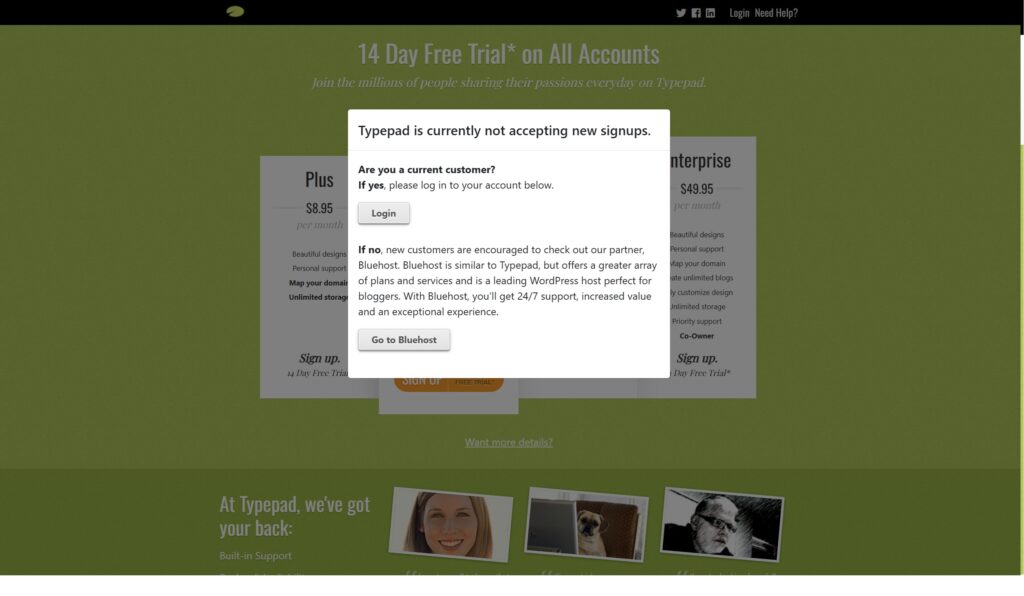
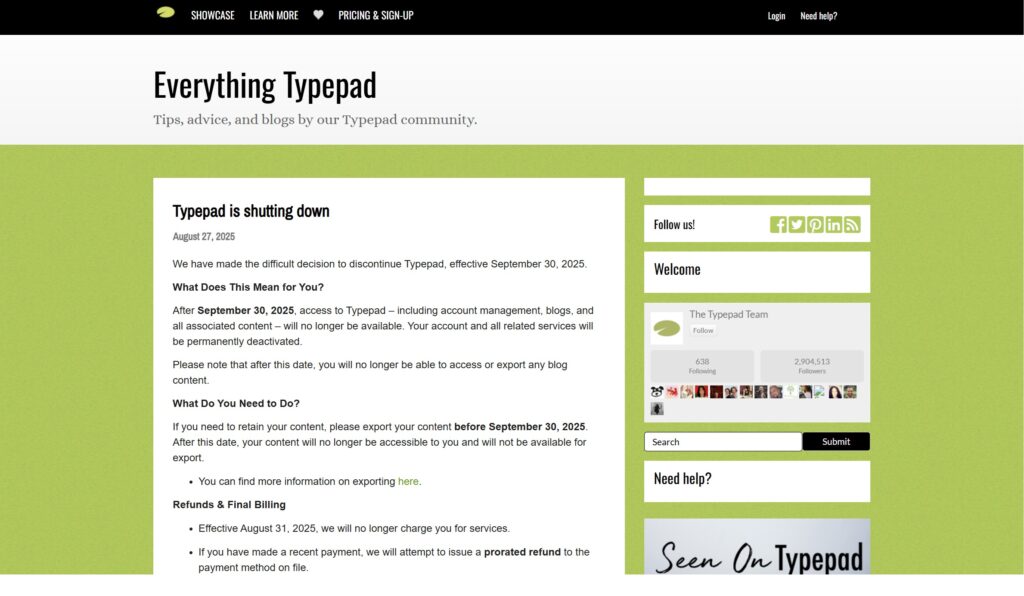
TypePad is officially shutting down on September 30, 2025. If you’re one of the thousands of bloggers and news site owners still using the platform, you have just 7 days left to save your content and find a new home for your blog.
Don’t panic—but don’t delay either. Losing years of blog posts, comments, and SEO rankings isn’t just frustrating; it can destroy the online presence you’ve worked so hard to build. Whether you run a personal blog, news site, or business blog, your content represents countless hours of work and valuable search engine visibility.
WordPress offers the perfect solution, powering over 40% of all websites worldwide. At Marketing the Change, we specialize in seamless TypePad to WordPress migrations that preserve your content, maintain your SEO rankings, and often improve your site’s performance and design.
In this urgent guide, we’ll walk you through exactly what’s happening with TypePad, your migration options, and how to ensure your blog not only survives but thrives on WordPress—all before the September 30th deadline.
How to Save Your TypePad Content Before Shutdown
To save your TypePad content before the September 30, 2025 shutdown, you have two main options:
Option 1: Basic Export (Free)
Log into your TypePad account
Go to Account Settings → Export
Download your content files
Store files safely on your computer
Option 2: Professional Migration (Recommended)
Export your TypePad content
Hire a WordPress migration specialist
Preserve SEO rankings and formatting
Get a redesigned, modern website
Maintain all comments and media
Critical deadline: You must act before September 30, 2025. After this date, TypePad content becomes permanently inaccessible with no recovery options available.
Professional migration ensures your blog continues functioning seamlessly while improving performance and design.
TypePad Shutdown: What You Need to Know Now
Official Shutdown Timeline and Key Dates
According to the official TypePad announcement from August 27, 2025, here are the critical dates every TypePad user must know:
August 31, 2025: Final billing date – no more charges
September 30, 2025: Complete platform shutdown
October 1, 2025: All content permanently deleted
The message is crystal clear: “After September 30, 2025, access to TypePad – including account management, blogs, and all associated content – will no longer be available. Your account and all related services will be permanently deactivated.”
This isn’t a temporary closure or maintenance period. Once the servers go dark on September 30th, your content is gone forever.
What Happens to Your Content After September 30th
TypePad has been explicit about what happens to user content after the shutdown date:
Complete data loss: All blog posts, pages, and media files deleted
No recovery options: Content cannot be retrieved after September 30th
Comments disappear: Years of reader engagement and discussions lost
SEO rankings vanish: Google will remove your pages from search results
Email subscribers lost: Mailing lists and subscriber data eliminated
Custom domains stop working: Your domain will show error pages
The official notice states: “Please note that after this date, you will no longer be able to access or export any blog content.” There are no exceptions, extensions, or recovery services planned.
A platform migration is the perfect time to review your wider domain setup—whether you keep your current address, consolidate multiple blogs, or secure new variations for future projects. Our Smart Marketer’s Guide to Domain Strategy walks you through when to register new domains, when to build on what you already have, and how to protect your SEO during the transition.
Why TypePad is Closing and What It Means for Users
TypePad’s shutdown reflects the broader shift in the blogging landscape. Launched in 2003 when hosted blogging platforms were essential, TypePad competed with early WordPress and Blogger. However, several factors led to its decline:
Market Evolution: WordPress evolved from a simple blogging tool to a full content management system, offering far more flexibility and features than TypePad could match.
Mobile Revolution: TypePad struggled to adapt to mobile-first design requirements, while WordPress themes became fully responsive and mobile-optimized.
SEO Limitations: Modern blogs require advanced SEO capabilities that TypePad’s aging infrastructure couldn’t provide effectively.
Cost vs. Value: Users increasingly questioned paying monthly fees for TypePad when superior free and low-cost alternatives existed.
For current users, this means transitioning isn’t just about preserving content—it’s an opportunity to upgrade to a platform that better serves modern blogging needs.
Your TypePad Migration Options: Export vs Professional Transfer
Josh Morley
I have been designing & marketing websites since 2013. I specialize not just in WordPress web design but also in online marketing. SEO, PPC, keyword research, link-building and most recently on lead acquisition for local businesses.
The Morse Code Translator Plugin is a powerful tool designed to convert Morse code to English and vice versa, created by Marketing the Change Web Design Liverpool. Whether you are looking to use a Morse Code Generator to create messages or a Morse Code Decoder to decipher existing Morse code, this plugin makes it easy and fun. It provides an intuitive way to translate messages between Morse code and readable text, making it a perfect choice for learners, hobbyists, and enthusiasts.
With the text to morse codetranslator, users can instantly generate Morse code from English sentences, or decode incoming Morse code messages back into English text. Whether you want to send secret messages, learn Morse code, or explore historical communication methods, this plugin offers an easy and interactive solution.
Morse Code Alphabet
What is the Morse Code Alphabet?
The Morse code alphabet is a system of encoding letters, numbers, and punctuation using a series of dots (·) and dashes (−) to represent each character. Developed in the 1830s and 1840s by Samuel Morse and Alfred Vail, this system was designed to allow long-distance communication over telegraph lines, using sound or light signals to transmit information.
In Morse code, each letter of the alphabet has a unique pattern of dots and dashes, which makes it possible to spell out words. For instance:
The letter A is represented as .−
The letter B is −…
Morse code isn’t just limited to letters; it also includes numbers and commonly used symbols, which allows for comprehensive communication.
The Morse Code Chart
A Morse code chart is a visual reference that lists the Morse code representation of each character in the alphabet, as well as numbers and punctuation marks. It serves as a handy guide to help users translate Morse code into readable text or vice versa. For example:
The chart will show E as a single dot (·) and O as three dashes (− − −).
It will also list numbers such as 5 represented as ….. and 0 as —–.
Using a Morse code chart makes learning and interpreting Morse code more straightforward. By referring to the chart, beginners can quickly see the dot and dash patterns for each letter, making it easier to encode or decode messages.
How Is the Morse Code Alphabet Used?
The Morse code alphabet can be used in various forms:
Audible Signals: Typically, it is transmitted as sound signals using a short beep for a dot and a longer beep for a dash.
Visual Signals: It can also be conveyed visually through light flashes or even gestures.
Emergency Situations: The Morse code alphabet is especially useful in emergency situations where other forms of communication are not possible. The most famous Morse code sequence is SOS (· · · − − − · · ·), which signals distress.
The Morse code chart remains an essential tool for anyone interested in learning Morse code or understanding this historical form of communication. Whether for educational purposes, a hobby, or even survival training, understanding the Morse code alphabet and using a Morse code chart can open up a unique form of communicating across distances, transcending language barriers.
Character
Morse Code
Character
Morse Code
Character
Morse Code
Character
Morse Code
A
.-
B
-…
C
-.-.
D
-..
E
.
F
..-.
G
–.
H
….
I
..
J
.—
K
-.-
L
.-..
M
—
N
-.
O
—
P
.–.
Q
–.-
R
.-.
S
…
T
–
U
..-
V
…-
W
.–
X
-..-
Y
-.–
Z
–..
0
—–
1
.—-
2
..—
3
…–
4
….-
5
…..
6
-….
7
–…
8
—..
9
—-.
Period (.)
.-.-.-
Comma (,)
–..–
Question Mark (?)
..–..
Apostrophe (‘)
.—-.
Exclamation (!)
-.-.–
Slash (/)
-..-.
Parentheses ( )
-.–.-
Ampersand (&)
.-…
Colon (:)
—…
Semicolon (;)
-.-.-.
Equals Sign (=)
-…-
Plus (+)
.-.-.
Hyphen (-)
-….-
Underscore (_)
..–.-
Quotation Mark (“)
.-..-.
Dollar Sign ($)
…-..-
At Sign (@)
.–.-.
SOS Morse Code
... --- ...
three dots (· · ·), three dashes (− − −), three dots (· · ·)
What Does SOS Mean?
Contrary to popular belief, SOS does not stand for specific words like “Save Our Ship” or “Save Our Souls.” Instead, it’s simply a distinctive and easily recognizable sequence of dots and dashes in Morse code that can be quickly sent and understood, even under challenging conditions.
Why SOS?
Unique Pattern: The sequence of three short signals, three long signals, and three short signals is very distinct and hard to confuse with other Morse sequences, making it effective for emergencies.
Ease of Transmission: The pattern of dots and dashes is simple to remember and easy to transmit, even in urgent situations where time and clarity are crucial.
Universal Recognition: Since its adoption by the International Radiotelegraph Convention in 1906, SOS has become the most well-known emergency signal. It’s universally recognized, regardless of language barriers, making it highly effective for distress communication.
How Is SOS Used?
Maritime and Aviation Emergencies: Traditionally, SOS was used by ships in distress, particularly before the age of modern radio communication. It is also used in aviation, especially in situations where traditional communication systems fail.
Visual Signals: In addition to being transmitted via radio, SOS can be used visually—such as with flashes of light, written on the ground, or signaled with body movements. The simplicity of the three short, three long, three short pattern makes it adaptable to almost any form of signaling.
Survival Situations: In emergencies on land, people have used SOS by creating flashing lights, smoke signals, sound patterns, or even arranging objects on the ground to form the letters. The versatility of the SOS pattern allows it to be communicated in nearly any environment where help is needed.
Modern Use
Today, with advancements in technology, SOS is often built into emergency equipment. For example, many EPIRBs (Emergency Position-Indicating Radio Beacons) and PLBs (Personal Locator Beacons) automatically transmit SOS signals when activated. Even some smartphones have SOS features that can be activated to send distress messages, highlighting the ongoing importance of this simple yet powerful signal.
Why Is SOS Still Important?
Even with advanced communication systems, Morse code and SOS remain important in emergency situations where other systems fail. They are reliable and can be used across different media, from sound to light to physical signals, ensuring that those in distress have a simple way to communicate their need for help.
Morse Code Numbers
Morse code isn’t just used for letters; it also includes a unique representation for each number from 0 to 9. These numbers are represented using combinations of dots (·) and dashes (−), which make it easy to transmit numerical data, especially in early telegraph systems. Learning Morse code numbers is important for anyone interested in fully understanding Morse code and using it to communicate in emergencies or for fun.
Below is a Morse code chart specifically for numbers:
Number
Morse Code
0
—–
1
.—-
2
..—
3
…–
4
….-
5
…..
6
-….
7
–…
8
—..
9
—-.
Explanation:
Each number is represented by a unique sequence of dots and dashes.
0 is represented as —– (five dashes), while 1 is .—- (one dot followed by four dashes).
As the number increases, the pattern progresses by adding more dots and fewer dashes.
This table serves as a quick reference for Morse code numbers, making it easy to learn and translate numerical information in Morse code. Whether you’re studying Morse code for fun or looking to incorporate it into emergency communication, knowing the number codes is an essential part of the learning process.
“I Love You” in Morse Code
Expressing “I love you” in Morse code is a beautiful and unique way to share your feelings. The phrase “I love you” is represented in Morse code as:
.. / .-.. --- ...- . / -.-- --- ..
Breaking it down:
I is ..
Love is .-.. — …- .
You is -.– — ..
In Morse code, each letter is translated to a specific sequence of dots (·) and dashes (−), with each word separated by a slash (/) or space to make it clear.
A Special Way to Communicate
Morse code can be a creative and heartfelt way to say “I love you,” especially if you want to add a secret or mysterious touch to your expression of love. Whether sent as an audible signal, written down, or even shared using flashes of light, this special message carries deep meaning in a distinct format that can only be understood by those who know Morse code.
Learning how to say “I love you” in Morse code is a simple but unique way to make someone feel special, and it’s a perfect example of how Morse code transcends language barriers to communicate heartfelt emotions.
History of Morse Code
Morse code was invented in the 1830s and 1840s by Samuel Morse and Alfred Vail. The system was originally created to allow messages to be transmitted over the newly developed telegraph system.
Invention Timeline:
1836: Samuel Morse, an American artist and inventor, began working on the concept of using electrical signals to send messages over long distances. His idea was to use electrical pulses to communicate, but he needed a way to represent letters and numbers.
1837-1844: Morse partnered with Alfred Vail, who helped improve the original concept by developing the Morse code system, which used a series of dots (·) and dashes (−) to represent each character in the alphabet. The Morse code allowed for a fast, reliable way to send messages over long distances using electrical impulses.
May 24, 1844: Samuel Morse sent the first official telegraph message from Washington, D.C., to Baltimore, Maryland. The message read, “What hath God wrought!”, and marked the first successful use of the telegraph system and Morse code.
How Was Morse Code Invented?
Concept: Samuel Morse developed the telegraph system, which allowed for electrical signals to be sent over a wire. To encode messages, Morse and Vail needed a standardized way to represent letters and numbers in a sequence of electrical impulses.
Collaboration: Alfred Vail played a crucial role in refining the code, making it efficient for sending messages. Together, they created the Morse code—a way to represent each letter, number, and some punctuation marks using combinations of dots (short signals) and dashes (long signals).
Impact of Morse Code
Morse code revolutionized communication in the 19th century. It was widely adopted for telegraph systems and became the standard for long-distance communication, especially in maritime and military settings. Morse code allowed people to transmit messages faster and more accurately compared to traditional methods, like letters or physical messengers, leading to a significant advancement in how information was shared over long distances.
Today, Morse code continues to hold historical significance and remains in use for niche communication purposes, such as amateur radio, emergency signaling, and even for artistic or symbolic purposes in jewelry and design.
Morse Code WordPress Plugin
Certainly! Here’s an overview of your Morse Code Translator WordPress plugin:
Overview of the Morse Code Translator Plugin
The Morse Code Translator Plugin is a user-friendly WordPress tool designed to allow users to easily convert between English text and Morse code. With a clean and intuitive interface, this plugin is ideal for anyone interested in learning, using, or experimenting with Morse code. It is a perfect tool for educators, hobbyists, and anyone who wants to add a unique interactive feature to their website.
Key Features:
Bidirectional Translation:
Users can convert English text to Morse code or Morse code back to English with just a click. This allows for seamless translation in both directions, providing versatility and ease of use.
Light/Dark Mode Toggle:
The plugin includes a light/dark mode toggle for better visual comfort. Users can switch between light and dark themes to suit their preferences, especially useful in different lighting environments.
“Click to Copy” Feature:
Each translated result includes a “Click to Copy” button, allowing users to easily copy the translated text to the clipboard for quick sharing or saving.
Accessibility-Focused Design:
The plugin is designed with accessibility in mind, featuring:
ARIA attributes for better screen reader support.
Keyboard navigation, allowing all buttons and text areas to be easily accessed and interacted with via keyboard.
High-contrast color options in both light and dark modes to ensure readability for users with visual impairments.
Error messaging with live regions, making it easy for users with assistive technologies to understand form issues.
Simple, Intuitive Interface:
The plugin’s interface includes a text area where users can enter either English or Morse code, and three buttons for translating the text to Morse code, translating to English, or toggling between light and dark modes.
How It Works:
Input Your Text:
Users start by entering text into the provided text area. This can either be a regular English sentence or a sequence in Morse code.
Translate:
Click on the “Translate to Morse” button to convert English text into Morse code.
Click on the “Translate to English” button to convert Morse code into readable English.
Copy the Result:
Once the translation is displayed, users can simply click on the “Click to Copy” button to copy the translated text to their clipboard.
Toggle Light/Dark Mode:
Users can click on the “Switch to Dark Mode” button to toggle the theme of the translator, making it more comfortable to use in different lighting conditions.
Accessibility Highlights:
Keyboard Navigation: All controls, including the toggle button, translation buttons, and text input, are accessible via keyboard navigation for ease of use by people with mobility impairments.
Screen Reader Compatibility: Proper use of ARIA labels and live regions makes the plugin accessible to users with screen readers, ensuring that error messages, button states, and form descriptions are fully voiced.
Error Feedback: When an invalid input is provided, such as attempting to translate an already Morse-encoded message to Morse, a clear and visible error message appears. This message is announced by screen readers, making the plugin user-friendly for everyone.
Use Cases:
Educational Tool: Ideal for teaching Morse code to students. The plugin’s simplicity makes it easy to introduce beginners to Morse code in an interactive way.
Hobbyist Use: Amateur radio operators and hobbyists interested in cryptography can use the tool to encode or decode messages in Morse.
Fun and Interactive: A great feature for websites looking to add an interesting and interactive element that users can engage with.
Technical Overview:
Customizable via Shortcode: The plugin can be embedded in any post or page of a WordPress site using a shortcode, making it easy to add the translator anywhere within your site.
Built with Accessibility in Mind: From button navigation to live regions for screen readers, every aspect of the plugin is designed to be inclusive and easy to use for all audiences.
In summary, the Morse Code Translator Plugin is a versatile, easy-to-use tool for converting text between English and Morse code, featuring light/dark modes, accessibility features, and a simple UI designed for both educational and practical use cases. It’s an engaging way to introduce Morse code to users and is a valuable addition to any WordPress website.
Morse Code Tattoos
Morse code tattoos are a unique and personal form of body art that incorporates the dots (·) and dashes (−) of Morse code to convey a hidden message. These tattoos are often used to symbolize important words, dates, or phrases that have special significance to the wearer. Since Morse code uses simple symbols, it creates a minimalistic and elegant tattoo that holds deep meaning, often understood only by those who are familiar with Morse code.
Discreet Messaging: Morse code tattoos allow you to keep the message private and meaningful. It could represent something deeply personal, like a loved one’s name, a significant date, or an inspiring phrase, without being obvious to everyone.
Minimalist Design: The simplicity of dots and dashes makes Morse code tattoos ideal for those who prefer a minimalistic aesthetic. These tattoos can be placed almost anywhere on the body and can be as small or large as desired, depending on the design.
Personal Significance: Because the meaning is coded, Morse code tattoos often carry more significance than visible words. Only those who understand Morse code or know the story behind the tattoo will know its meaning, making it an intimate reminder of what’s important.
Popular Ideas for Morse Code Tattoos
Names of Loved Ones: Many people choose to tattoo the name of a family member, friend, or partner in Morse code as a lasting tribute to someone important.
Dates: Significant dates, like anniversaries or birthdays, can be encoded in Morse code to mark important moments in one’s life.
Motivational Words: Words like “strength,” “hope,” or “love” are popular choices for Morse code tattoos, serving as daily reminders of positive values.
Phrases: Some choose entire phrases or sentences, turning them into a longer line of dots and dashes across the wrist, forearm, or spine.
Placement Ideas
Wrists: Wrists are a popular spot for Morse code tattoos because of their visibility and the linear nature of the Morse symbols.
Forearm or Spine: Longer phrases are often placed along the forearm or down the spine, emphasizing the elegance of the linear Morse code design.
Behind the Ear: A small Morse code tattoo can be placed behind the ear for a subtle and hidden effect.
Symbolism and Personal Expression
Morse code tattoos allow the wearer to carry a message that is deeply personal. Because the meaning is coded, only those who understand it or who have been told what it means will know its significance. This makes Morse code tattoos ideal for people who value discretion and symbolism in their body art.
Whether it’s a way to express love, remember an important event, or remind oneself of a personal value, Morse code tattoos are a powerful and artistic way to carry a meaningful message on your skin.
Josh Morley
I have been designing & marketing websites since 2013. I specialize not just in WordPress web design but also in online marketing. SEO, PPC, keyword research, link-building and most recently on lead acquisition for local businesses.
Managing unwanted registrations and spam orders can be one of the most frustrating aspects of running a WooCommerce store. That’s why implementing email blacklisting in WooCommerce is a smart and effective way to keep your eCommerce site secure, trustworthy, and efficient. With tools like the Aelia Blacklister Plugin, you can easily integrate robust email blocking into your WooCommerce setup, safeguarding your business from suspicious activity.
By using the Aelia Blacklister, store owners gain precise control over who can interact with their online shop. This means only legitimate customers are allowed through, helping to reduce fraud, protect sensitive data, and improve overall store performance. In this guide, we’ll show you how to effectively use Aelia’s plugin to block unwanted email addresses, enhancing your store’s security and user experience at the same time. For a simple step-by-step method, check out this helpful guide on blocking fraudulent User in WooCommerce.
Why Email Blacklisting Matters in WooCommerce
Email blacklisting is a crucial feature in WooCommerce for reducing spam, fake registrations, and fraudulent orders. By blocking specific email addresses or entire domains, you prevent malicious users from accessing your checkout, creating fake accounts, or initiating harmful transactions. This proactive step ensures your customer base remains authentic and your backend stays clean. To dive deeper into protecting your WooCommerce store from suspicious users, including blocking by IPs, check out this detailed guide on Protecting Your WooCommerce Store with IP Addresses
How does the Aelia Blacklister for WooCommerce help?
The Block Emails for WooCommerce plugin by Aelia offers a simple yet powerful solution for managing email restrictions. Store administrators can easily enter specific email addresses—like storebot@mailjoonix.net—or block full domains, such as @example.com, directly within the plugin settings. Once blacklisted, users from those sources will be prevented from completing registrations or purchases on your site.
Whether you’re dealing with persistent spam bots or suspicious-looking domains, Aelia’s plugin helps you maintain a safe and professional WooCommerce environment with minimal effort.
How to Set Up the Aelia Blacklister Plugin in WooCommerce
Getting started with Aelia’s Block Emails for WooCommerce plugin is quick and hassle-free. The setup involves just three simple steps:
Upload the Plugin Files: Add the plugin to your WordPress site by placing it in the wp-content/plugins/wc-block-emails directory or installing it directly through the WordPress plugin dashboard.
Activate the Plugin: Go to the Plugins page in your WordPress admin panel and activate the plugin.
Configure Your Settings: Navigate to WooCommerce > Settings > Block Emails to begin adding email addresses or domains you want to block.
Once set up, whenever a blacklisted email attempts to make a purchase, the plugin automatically blocks the transaction and displays a customizable error message. This real-time response helps deter suspicious users without disrupting the experience of genuine customers.
The plugin also supports bulk uploading of email addresses, allowing store owners to import large blocklists effortlessly—a key feature for high-traffic stores facing frequent spam or fraud attempts.
A Quick Look at Key Features
Feature
Description
Ease of Use
Simple installation and intuitive user interface
Customization
Create personalized error messages for blocked users
Bulk Email Blocking
Upload large lists of emails and domains with ease
Compatibility
Fully supports classic WooCommerce checkout
Security Enhancement
Prevents fake registrations and fraudulent orders effectively
Why Email Blacklisting Is a Smart Move in WooCommerce
Adding email blacklisting is a proactive security measure every WooCommerce store should consider. It helps eliminate fake users before they can place fraudulent orders, preserving your store’s integrity and saving time on backend management.
Benefits of Email Blacklisting in WooCommerce
Implementing email blacklisting with tools like Aelia’s plugin offers a wide range of benefits:
Enhanced Security: Prevent unauthorized access and transactions.
Reduced Spam Orders: Keep fake or bot-generated orders out of your system.
Better Store Reputation: Maintain customer trust by providing a safe shopping environment.
Streamlined Order Management: Eliminate time wasted on handling fraudulent purchases.
Custom Error Messages: Tailor user feedback when blocking occurs.
Bulk List Support: Easily upload and manage large email blocklists.
Cost Savings: Reduce chargeback incidents and fraud-related losses.
Compliance Support: Contribute to data protection and privacy standards.
Seamless Integration: Use without needing complex configurations or custom code.
Increased Customer Trust: Promote repeat business with a secure checkout process.
Introduction to Aelia Blacklister for WooCommerce
Beyond just blocking emails, the Aelia Blacklister for WooCommerce plugin provides comprehensive tools for identifying and stopping suspicious users at multiple touchpoints. Its features include:
Email Address Blocking: Use regular expressions to block specific emails or entire domains (e.g., all users from @frauddomain.com).
IP Address Restrictions: Deny access based on individual IPs or IP ranges using CIDR, wildcard, or range formats.
Phone Number Blocking: Stop users with phone numbers flagged in past fraudulent activity.
Customer Name Filtering: Prevent known scam names from completing transactions.
Flexible Rule Settings: Customize and fine-tune your blacklist rules with precision.
Easy Installation: Quickly install and activate from the WordPress dashboard.
Bulk Upload Support: Import large datasets of blocked emails, IPs, and more.
By combining multiple layers of protection, Aelia Blacklister helps store owners maintain a fraud-free environment, preserving revenue, enhancing customer trust, and ensuring smooth operations.
Running a secure and professional eCommerce setup goes beyond managing email filters — it’s also about building better communication with your audience. If webinars are part of your marketing or training strategy, read our in-depth post on How to Pick the Right Virtual Webinar Platform for Your Business – Insights from ClickMeeting to learn how to choose the right tool for hosting seamless, branded virtual sessions that engage and convert.
Setting Up Aelia to Block Email Addresses in WooCommerce
To efficiently block unwanted or suspicious email addresses in your WooCommerce store, the best approach is to use the Aelia Blacklister for WooCommerce plugin. This powerful tool offers a streamlined way to filter out fraudulent users and spam registrations before they can affect your business.
Follow these simple steps to get started:
Step 1: Install the Plugin
Go to the Plugins section of your WordPress dashboard.
Click on Add New Plugin
Select Upload Plugin
Click Choose File, then select the Aelia Blacklister plugin zip file you downloaded from the Aelia website.
Click Install Now.
Once the plugin is installed, click Activate.
Step 2: Access the Plugin Settings
After activation, go to WooCommerce and click on it.
Look for the Blacklister tab in the settings menu (it might appear under the Aelia tab depending on the version of WordPress).
Click on the Blacklister tab to access the plugin’s settings.
Step 3: Block Email Addresses
In the Blacklister settings, find the option called Blacklisted email addresses.
Enter the email addresses you want to block in the provided text field (you can block multiple email addresses by separating them with commas or entering them one by one).
After entering the email addresses, Scroll Down and click Save Changes.
Step 4: Test the Configuration
Go to your WooCommerce checkout page.
Try to register or make a purchase using one of the blacklisted email addresses.
If the plugin is correctly set up, the user will not be able to complete the purchase or registration.
How to Get Support for the Aelia Blacklister for WooCommerce Plugin
Getting support for the Aelia Blacklister for WooCommerce plugin is simple and user-friendly. Within the plugin’s settings, navigate to the Support section, where you’ll find a comment box to describe any issues or questions you may have. Once submitted, Aelia’s dedicated support team will review your request and provide personalized assistance to help resolve your concerns promptly.
To further enhance your WooCommerce store’s functionality, you might also want to explore the Tax Display by Country for WooCommerce plugin. This powerful tool lets you control tax visibility based on the customer’s geographic location, offering a more localized and seamless shopping experience.
Josh Morley
I have been designing & marketing websites since 2013. I specialize not just in WordPress web design but also in online marketing. SEO, PPC, keyword research, link-building and most recently on lead acquisition for local businesses.
Running a WooCommerce store requires more than just selling products—it demands vigilant protection against fraud. Malicious users can compromise your store by using stolen credit cards, exploiting coupon codes, initiating chargebacks, or placing fake orders to exploit shipping loopholes. These activities don’t just impact revenue; they also erode your relationship with payment gateways and tarnish your store’s credibility.
To stay ahead of these threats, it’s vital to implement smart, automated tools that monitor and restrict access based on risk factors like IP addresses, suspicious email domains, billing locations, and user behavior. Integrating these security tools with other helpful features—such as a Currency Switcher for WooCommerce for global pricing—allows you to serve genuine customers seamlessly while keeping threats at bay.
By proactively blocking risky users and blacklisting known offenders, you safeguard your store, your customers, and your brand’s long-term reputation.
Understanding the Real Cost of WooCommerce Fraud
Fraud isn’t just an inconvenience—it can cause serious and lasting damage to your business. Here’s why proactivefraud prevention Tactics for WooCommerce are a must:
Significant Financial Impact Fraudulent orders often result in chargebacks, refunds, and inventory losses—all of which directly eat into your profit margins.
Loss of Customer Trust If your store becomes a frequent target for fraud, legitimate customers may question your security and choose not to return.
Wasted Time and Resources Manually investigating fraudulent activity, processing chargebacks, and resolving disputes can take hours of your team’s time.
Legal and Compliance Risks Failing to prevent fraud can breach your payment processor’s terms and expose you to legal penalties or account restrictions.
Robust fraud prevention tools help avoid these scenarios by keeping your operations smooth and your customers protected.
How to Identify and Block Fraudulent Users in WooCommerce
To effectively stop fraud in its tracks, you need to know what to look for. Here are key indicators and red flags that signal suspicious activity:
Problematic Payment Patterns
Orders with unusually high values.
Billing details that don’t match shipping information.
Multiple failed payment attempts—common with stolen card testing.
Frequent Order Modifications Repeated changes to order details post-purchase can signal an attempt to exploit billing or shipping systems.
Suspicious IP or Location Data
Orders from unfamiliar or high-risk countries.
Multiple purchases from a single IP address within a short timeframe.
Use of proxies or VPNs to disguise the true location.
Incomplete or Inconsistent User Profiles Accounts lacking valid contact information or displaying conflicting details often suggest fraudulent intent.
To prevent access from these high-risk users, consider IP blocking and region-based restrictions. These tactics are effective additions to any WooCommerce security strategy.
With Aelia’s intuitive interface, you can easily configure blacklist rules and prevent high-risk users from placing orders—no coding knowledge required.
Take Control of Your WooCommerce Security
Whether you’re dealing with fraud, abuse, or policy violators, blacklisting tools give you a powerful layer of defense. Combine this with IP blocking and behavior monitoring to build a robust fraud prevention framework.
Aelia Plugin for WooCommerce: Block Fraudulent Users with Precision
Aelia For WooCommerce is a powerful plugin designed to help store owners effectively block fraud and blacklist users based on specific, customizable criteria. Whether you’re dealing with fake orders, chargebacks, or abusive behavior, this plugin gives you complete control over who can place orders in your store.
What Makes Aelia Blacklister Effective?
This WooCommerce blacklist plugin allows you to filter and prevent malicious activity by targeting a wide range of user data, including:
Full Name: Block specific individuals using their first and last names.
Address Details: Prevent orders from flagged street addresses, postal codes, cities, states/provinces, or even entire countries.
Email Address: Stop repeat offenders using the same email or domain.
Phone Number: Block suspicious phone numbers linked to fraud or abuse.
IP Address: Filter traffic from risky or blacklisted IPs to prevent access from bots or high-risk regions.
How to Configure the Aelia Blacklister Plugin in WooCommerce
Setting up Aelia Blacklister is straightforward and doesn’t require advanced technical skills. Designed with ease of use in mind, the plugin seamlessly integrates into your WooCommerce dashboard, allowing you to:
Step 1: Download and Install the Aelia Blacklister Plugin
Part 1: Download the Plugin
Visit the Official Aelia Website: Head over to Aelia’s official site to obtain the most recent and authentic version of the plugin.
Purchase or Access the Plugin: If the plugin requires payment, complete your purchase first. After payment, you will be able to download the plugin as a ZIP file.
Download the ZIP Archive: Click the download button to save the compressed ZIP file containing all necessary plugin files to your computer.
Note: The ZIP file includes everything needed to install the plugin on your WordPress site.
Part 2: Upload the Plugin to Your WordPress Site
Log in to WordPress Admin: Access your WordPress admin dashboard by logging in with your credentials.
Go to Plugins > Add New:
From the left-hand menu, hover over Plugins and select Add New to open the plugin installation page.
Click ‘Upload Plugin’: At the top of the page, find and click the Upload Plugin button to start uploading manually.
Select the ZIP File:
Click Choose File, locate the Aelia Blacklister ZIP file you downloaded, and select it.
Install the Plugin: After selecting the file, click Install Now. WordPress will upload and unpack the plugin for installation.
Part 3: Activate the Plugin
Wait for Installation to Finish: The installation process will take a few seconds. Once done, a confirmation message will appear.
Activate the Plugin: Click Activate Plugin to enable Aelia Blacklister on your WooCommerce store.
Verify Activation: After activation, you’ll be redirected to the Plugins page where Aelia Blacklister should be listed as active. You’ll also find a new menu or settings option for Aelia Blacklister within the WooCommerce settings, confirming the plugin is ready to use.
Step 2: Configure Blocking Rules in Aelia Blacklister
After installing and activating the Aelia Blacklister plugin, the next step is to set up the blocking rules to protect your store from fraudulent activity.
1. Block by Name and Surname
How to Block:
Navigate to the blacklist settings and enter the full names or surnames of individuals you want to block. You can target first names, last names, or a combination of both.
Why It Matters: Fraudsters may change their contact information like email or IP but often reuse the same names. Blocking by name prevents them from bypassing your security even when other details change.
Steps:
Open the Blacklist Customer section in the plugin settings.
Add the names you want to block.
Save or update the settings.
2. Block by Address (Street, Postcode, City, Province/State, Country)
How to Block:
You can block specific address components such as street, postal code, city, state/province, or country. This helps identify and block fraudulent users who reuse fake or stolen addresses.
Why It Matters: Fraudsters frequently use bogus or stolen addresses from high-risk regions. Blocking these locations helps prevent fraudulent purchases.
Steps:
Enter the full or partial address details in the Address section.
Specify the level of detail to block (e.g., street, postcode, region).
Save your changes.
3. Block by Email Address
How to Block:
Enter specific email addresses or entire domains to block. For example, blocking all addresses from disposable email providers by using domain wildcards (e.g., *@tempmail.com).
Why It Matters: Many fraudsters use temporary or disposable email accounts to create fake user profiles. Blocking these emails stops them from abusing your store.
Steps:
In the Email Address field, add the exact emails or domains you want to block.
Save the settings to apply the restrictions.
4. Block by Phone Number
How to Block:
Input individual phone numbers or entire area codes to block fraudulent contact numbers.
Why It Matters: Fraudsters often use fake or stolen phone numbers to place orders. Blocking suspicious numbers adds another protective layer.
Steps:
Go to the Phone Number section.
Add phone numbers or area codes you want to restrict.
Save the updates.
5. Block by IP Address
How to Block:
Block single IP addresses or whole IP ranges using wildcards or regular expressions to cover patterns of abusive behavior.
Why It Matters: Blocking IP addresses stops fraudsters from accessing your store repeatedly from the same networks, limiting repeat offenses.
Steps:
Access the IP Address settings.
Enter specific IPs or use wildcards to block entire ranges.
For advanced rules, apply regex patterns.
Save the configuration.
Final Step: Save and Activate Your Rules
Once you have entered all the blocking criteria, make sure to Save or Update your settings to activate the blacklist rules. Regularly review and update your blacklist to stay ahead of new fraud attempts and keep your WooCommerce store secure.
With these steps, store owners can instantly reduce risk and block fraudulent activity, ensuring smoother operations and safer transactions.
Enhance Your Store Security with Additional Aelia Tools
While Aelia Blacklister offers robust protection against fraudulent users, pairing it with other Aelia plugins can further elevate your WooCommerce store’s security, functionality, and global reach.
Aelia Prices by Country for WooCommerce
This plugin enables you to display different product prices based on the visitor’s location. It’s an ideal solution for businesses selling internationally, helping to:
Prevent pricing abuse by aligning product costs with regional economic conditions.
Improve customer experience by displaying location-specific pricing automatically.
Optimize revenue through tailored pricing strategies across different markets.
Learn more and explore pricing options here
Pro Tip: By combining Aelia Blacklister with Prices by Country For WooCommerce, you not only secure your store from fraudulent transactions but also offer a more personalized and seamless experience for genuine customers around the world.
Josh Morley
I have been designing & marketing websites since 2013. I specialize not just in WordPress web design but also in online marketing. SEO, PPC, keyword research, link-building and most recently on lead acquisition for local businesses.