
Managing unwanted registrations or spam orders on WooCommerce can be a real headache. Using the WooCommerce block email feature is a great way to keep your store safe. Protecting your business from unwanted emails is simple with Aelia. Its straightforward integration lets you block any address you choose. For more details on setting up WooCommerce international shipping, check out How to Set Up WooCommerce International Shipping.
Using Aelia, you get to choose who shops with you. It keeps out anyone who isn’t a paying customer. Learn how to block email addresses here. WooCommerce’s Aelia Blacklister plugin. Customers enjoy a better experience now that security has been upgraded. For an in-depth explanation on blacklisting malicious users, check out Blacklisting Malicious Users.
What is Email Blocking in WooCommerce?
Blocking emails in WooCommerce plays a vital role in enhancing the security of your store by preventing unwanted registrations and fraudulent orders. This prevents fake sign-ups and keeps fraudulent purchases away. Spam and malicious emails? Stop them by blocking certain addresses or whole domains. Email blocking keeps only real customers buying, protecting your online store’s good name.
Aelia Blacklister Plugin provides an efficient solution to manage blocked emails. Administrators can easily add unwanted email addresses or domains into the plugin settings, such as blocking store@mailjoonix.net or the domain @example.com to prevent these sources from accessing the checkout.
Setting up the plugin is easy and involves three simple steps:
- Upload Plugin Files: Upload the plugin to the wp-content/plugins/wc-block-emails directory or install directly through the WordPress plugin screen.
- Activate the Plugin: Enable the plugin from the WordPress Plugins interface.
- Configure Settings: Go to WooCommerce > Settings > Block Emails and input the email addresses or domains you want to block.
When a blocked email attempts to place an order, the plugin will display a customizable error message, halting the transaction and deterring unauthorized users. This feature helps prevent fraud without disturbing the shopping experience for legitimate customers.
Additionally, the plugin supports bulk uploading of email addresses, making it perfect for large stores that frequently face spam or fraud issues. By integrating Aelia Blacklister for WooCommerce, you can maintain a secure, trustworthy environment for your customers while protecting your business’s reputation. For further enhancing your WooCommerce store’s functionality, if you’re looking to make your site more user-friendly and improve the checkout experience, consider learning how to easily rename country codes in WooCommerce. This simple tweak can help your international customers navigate the store with ease.
Key Features of the Block Emails Plugin:
| Feature | Description |
|---|---|
| Ease of Use | Simple setup and user-friendly interface |
| Customization | Customize error messages for blocked email addresses |
| Bulk Email Blocking | Supports bulk uploading of email addresses and domains |
| Compatibility | Works with classic WooCommerce checkout |
| Security Enhancement | Prevents fraudulent orders and spam registrations |
Implementing email blocking is a proactive approach to protecting your WooCommerce store from potential threats. With Aelia Blacklister for WooCommerce, you ensure that robust defenses are in place to provide a secure shopping environment for your customers.
Advantages of Blocking Email Addresses
Blocking email addresses in WooCommerce offers several benefits, including improving your store’s overall security and functionality:
Enhanced Security
Blocking unauthorized access helps minimize the risk of malicious activities. By restricting specific email addresses or entire domains, you protect your store from fraudulent users.
Reduced Spam Orders
By blocking unwanted emails, you significantly reduce spam orders, which allows your team to focus on fulfilling legitimate transactions. For stores catering to a global audience, adding features like a Currency Switcher can make the shopping experience even more seamless by allowing customers to view prices in their preferred currency.
Improved Store Reputation
Maintaining a secure store environment builds trust with customers. By eliminating fraudulent activities, your store’s reputation improves, encouraging repeat customers and positive reviews.
Streamlined Order Management
With fewer spam and fraudulent orders, order management becomes more efficient. Your team can focus on processing genuine orders without distractions from fraudulent transactions.
Customized User Experience
Using Aelia Blacklister for WooCommerce, you can tailor the error messages shown to blocked users, maintaining a professional appearance while informing them of access restrictions.
Bulk Email Management
The ability to bulk upload blocked email addresses makes managing large lists of spam or fraudulent users much easier, saving time for administrators.
Cost Savings
By reducing the number of fraudulent transactions, you save on costs related to chargebacks and order processing, which benefits your business’s bottom line.
Compliance and Data Protection
Blocking unauthorized email addresses helps you comply with data protection regulations, ensuring that you adhere to best practices when managing customer data.
Efficient Plugin Use
Integrating a powerful plugin enables you to manage email restrictions effectively without needing to write extensive code, ensuring a smooth and maintainable security system.
Enhanced Customer Trust
A secure store fosters trust among customers. When customers feel that their data is safe and their purchases are protected, they are more likely to engage with your store and make purchases..
Setting Up Aelia to Block Email Addresses
To effectively block email addresses in WooCommerce while using Aelia, integrate the “Aelia Blacklister for WooCommerce” plugin. Follow these steps to set up the necessary plugins and configure the blocking settings.
Step 1: Install the Plugin
- Go to the Plugins section of your WordPress dashboard.

- Click on Add New Plugin
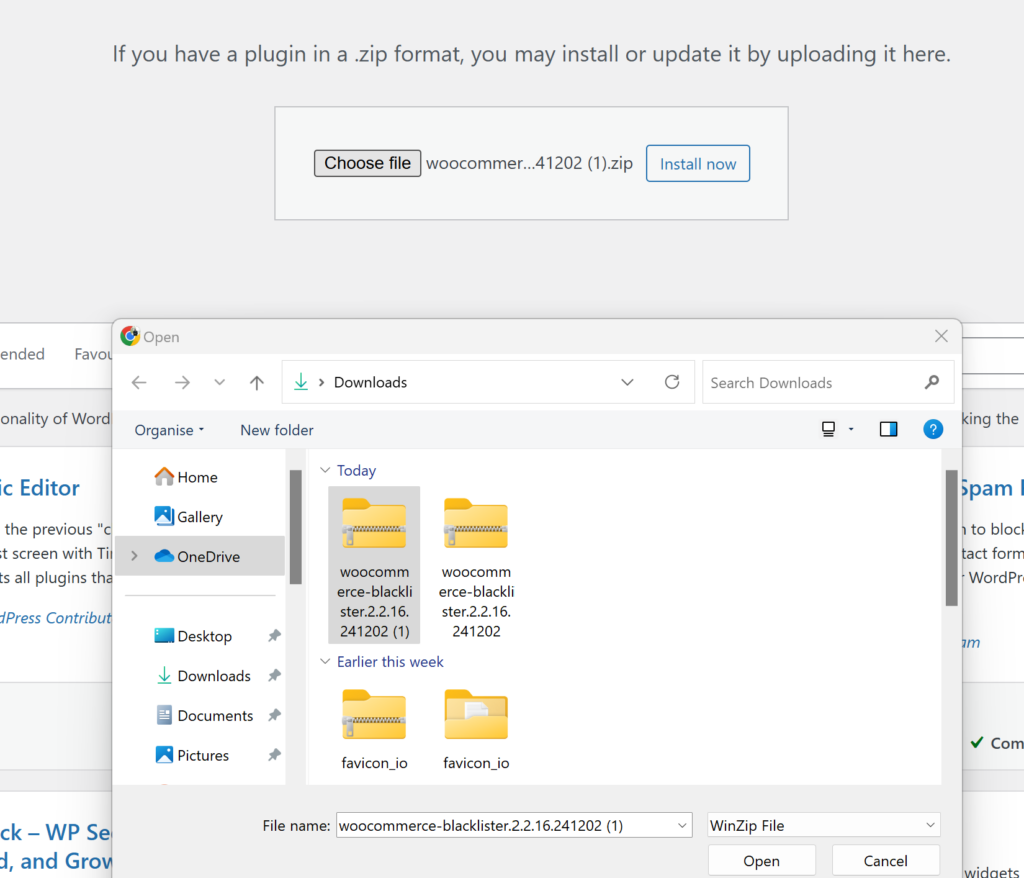
- Select Upload Plugin
- Click Choose File, then select the Aelia Blacklister plugin zip file you downloaded from the Aelia website.
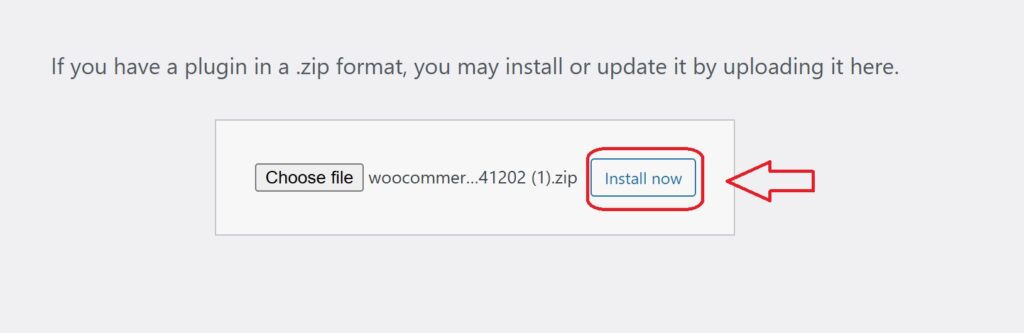
- Click Install Now.
- Once the plugin is installed, click Activate.
Step 2: Access the Plugin Settings
- After activation, go to WooCommerce and click on it.
- Look for the Blacklister tab in the settings menu (it might appear under the Aelia tab depending on the version of WordPress).
- Click on the Blacklister tab to access the plugin’s settings.
Step 3: Block Email Addresses
- In the Blacklister settings, find the option called Blacklisted email addresses.
- Enter the email addresses you want to block in the provided text field (you can block multiple email addresses by separating them with commas or entering them one by one).
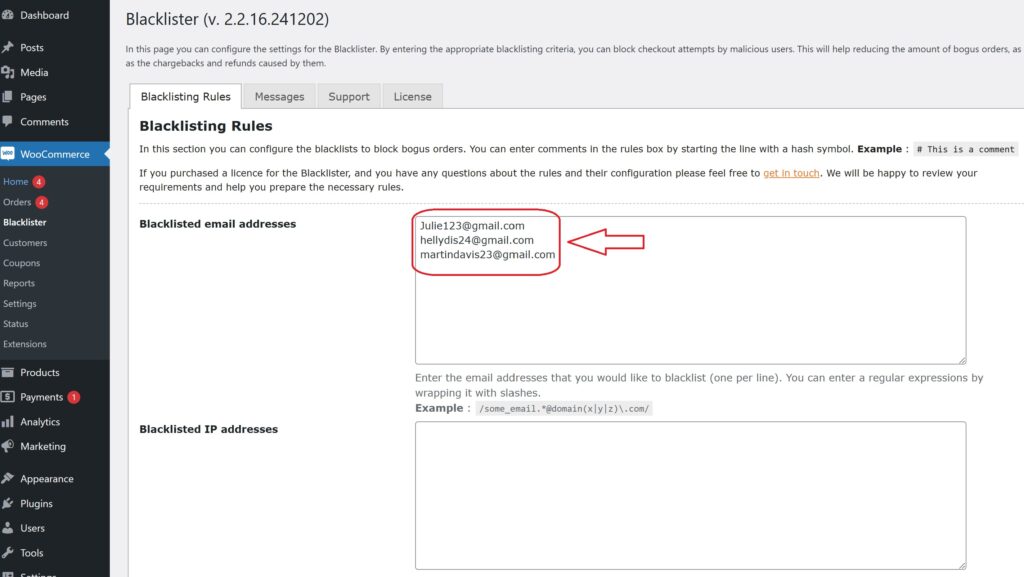
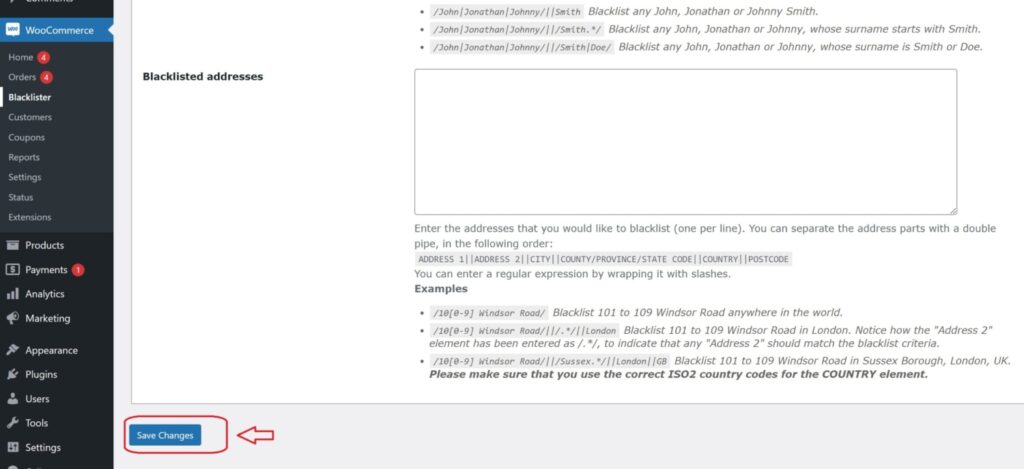
- After entering the email addresses, Scroll Down and click Save Changes.
Step 4: Test the Configuration
- Go to your WooCommerce checkout page.
- Try to register or make a purchase using one of the blacklisted email addresses.
- If the plugin is correctly set up, the user will not be able to complete the purchase or registration.
How to Get Support for Aelia Blacklister For WooCommerce Plugin

You can easily reach out for support directly from the Blacklister for WooCommerce plugin. Just head to the Support section in the plugin settings, where you can submit your issue or provide details about the problem in the comment section. After submission, a member of Aelia’s support team will quickly review your message and offer personalized assistance, ensuring a fast resolution to your concerns.
To further enhance your WooCommerce store, consider exploring the Tax Display by Country for WooCommerce, a seamless solution for managing tax visibility based on customer location, improving the shopping experience. Additionally, check out the Currency Switcher for WooCommerce for a smooth multi-currency shopping experience.
