
Running a WooCommerce store is about more than just offering high-quality products—it’s also about safeguarding your business from fraud and ensuring a seamless shopping experience for your genuine customers. Unfortunately, the online shopping space attracts malicious actors who exploit vulnerabilities, leading to financial losses with each unauthorized transaction. To protect your WooCommerce store from these threats, implementing effective fraud prevention measures is essential. By utilizing advanced tools like the Aelia Blacklister Plugin, you can block malicious users and secure sensitive data, ensuring your store remains safe and trusted by legitimate customers.
However, relying solely on the default features may not be enough. One of the best ways to enhance your store’s security is by using a specialized plugin designed to protect against fraudulent users. These plugins allow you to quickly detect and block suspicious activities, such as fraudulent email addresses, phone numbers, and IPs. Whether you’re looking for a quick fix or a comprehensive security overhaul, these plugins offer the flexibility you need through easy-to-implement code snippets and dedicated tools to fortify your store against threats. For more about optimizing your store, check out our WooCommerce Web Design services, ensuring that both functionality and security go hand-in-hand.
With these Plugin called Blacklister for WooCommerce at your disposal, you can effectively prevent unwanted transactions and build a stronger relationship with your customers.
Reasons to Blacklist Malicious Users in WooCommerce
Blacklisting malicious users is crucial for maintaining a secure and reliable online store on WordPress. In the world of e-commerce, WooCommerce store owners face constant threats from fraudsters and cybercriminals who attempt to exploit weaknesses in their systems. By blocking these harmful users, you can prevent unauthorized transactions, safeguard sensitive customer data, and maintain a positive reputation. Whether it’s stopping fraudulent chargebacks, protecting promotions, or enhancing customer trust, blacklisting malicious users helps ensure the safety and success of your WooCommerce business Build on WordPress by web designers or other platform. With the right security measures, such as WordPress plugins and WooCommerce features, you can build a safer shopping environment for both you and your customers.
The main reason to Blacklist Malicious user are:-
Prevent Fraudulent Transactions
- Impact: Chargebacks, unauthorized purchases, and stolen credit card use.
- Benefit: Blocks fraudulent users before they can affect your sales and cash flow, keeping your WooCommerce store secure on WordPress.
Protect Sensitive Customer Data
- Impact: Theft of email addresses, phone numbers, and payment information.
- Benefit: Safeguard personal and financial data with WordPress security plugins and WooCommerce features, ensuring privacy and customer trust.
Improve Store Security
- Impact: Malicious actors attempting to exploit store vulnerabilities.
- Benefit: Strengthen security by blocking suspicious IPs, emails, and phone numbers using WordPress security tools and WooCommerce blacklisting features.
Reduce Financial Losses
- Impact: Fraudulent transactions lead to lost inventory, chargeback fees, and administrative costs.
- Benefit: Prevent these losses by blocking fraudulent users early, saving money and improving operational efficiency.
Maintain Customer Trust
- Impact: Fraud can damage your store’s credibility and lead to negative reviews.
- Benefit: Build customer confidence by using WordPress and WooCommerce to protect data and prevent malicious activity.
Prevent Abuse of Discounts and Promotions
- Impact: Fraudsters exploit promotions or discount codes.
- Benefit: Ensure that discounts and promotions are used by legitimate customers, maintaining fairness and profitability.
Protect Website Reputation
- Impact: A security breach can lead to public incidents, poor reviews, and loss of customer trust.
- Benefit: Prevent damage to your store’s reputation by blocking fraudulent users, ensuring your site remains secure and trustworthy.
Implementing Blacklister Plugin for WooCommerce
Enhancing the security of your WooCommerce store becomes much easier with the implementation of a blacklist, preventing unwanted transactions and protecting your business from fraudulent activity. Aelia Blacklister offers a powerful solution by utilizing various tools and methods to manage and enforce blacklisting rules effectively.
Aelia Blacklister for WooCommerce
Aelia Blacklister Plugin provides a robust and flexible configuration for blocking orders from specific users. The plugin allows you to filter malicious users based on the following criteria:
- Name and Surname
- Address: Street, Postcode, City, Province/State, Country
- Email Address
- Phone Number
- IP Address
How to Set Up Aelia Blacklister for WooCommerce
Setting up Aelia Blacklister is a simple process that allows even those with minimal technical knowledge to boost their store’s security by blocking fraudulent customers.
Step 1: Install the Aelia Blacklister Plugin
Begin by downloading, uploading, and installing the Aelia Blacklister plugin into your WooCommerce store. Here’s how:
Part 1: Download the Plugin
- Visit the Aelia Website:
Go to the official Aelia website to ensure you are downloading the latest, most reliable version of the plugin. - Purchase or Get the Plugin:
If the plugin is not free, complete the purchase before proceeding. Once the transaction is complete, you’ll be able to download the plugin ZIP file to your computer. - Download the ZIP File:
After purchase, click the download button to save the ZIP file containing all the plugin files to your computer.
Part 2: Upload the Plugin to Your WordPress Site
Log Into Your WordPress Admin Dashboard:
Start by logging into the Admin Dashboard of your WordPress website.
Navigate to Plugins:

In the left-hand menu, hover over the “Plugins” option, then click on “Add New.” This will open the page where you can search for and upload new plugins.
Click on Upload Plugin:
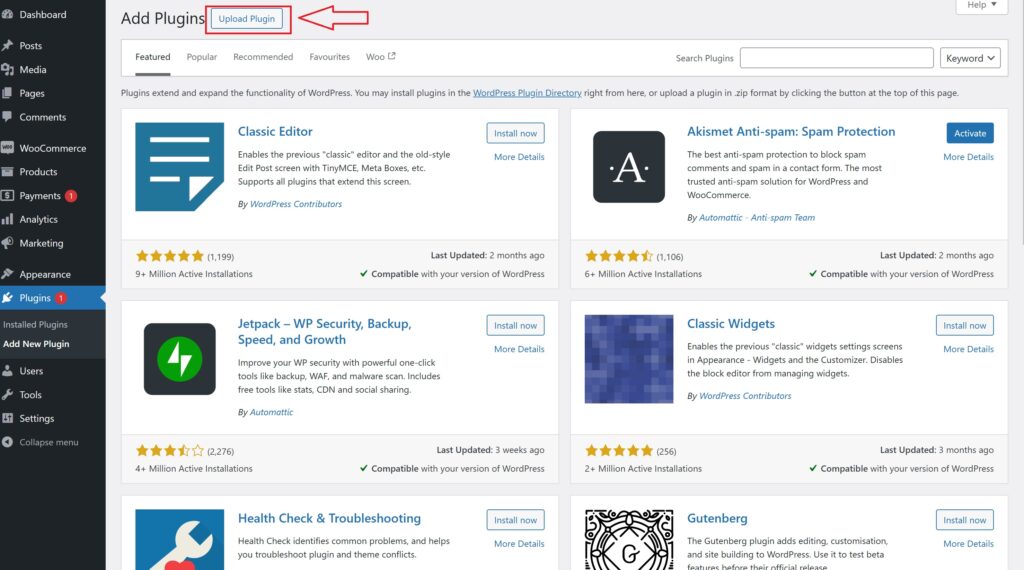
On the Add Plugins page, at the top of the screen, you’ll see an option labeled “Upload Plugin.” Click this to proceed with the manual upload process.
Select the ZIP File:
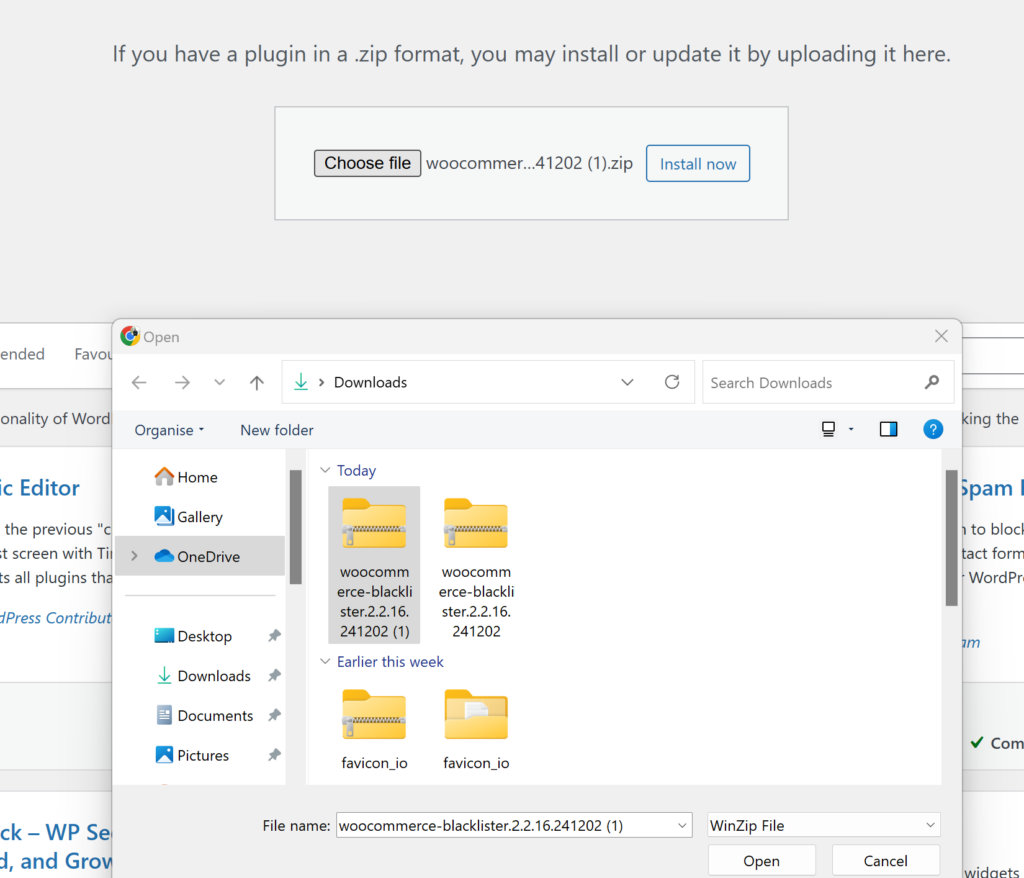
Once you click “Upload Plugin,” you’ll see a “Choose File” button. Click it to open a file dialog, then locate and select the Aelia Blacklister ZIP file that you downloaded earlier.
Install the Plugin:
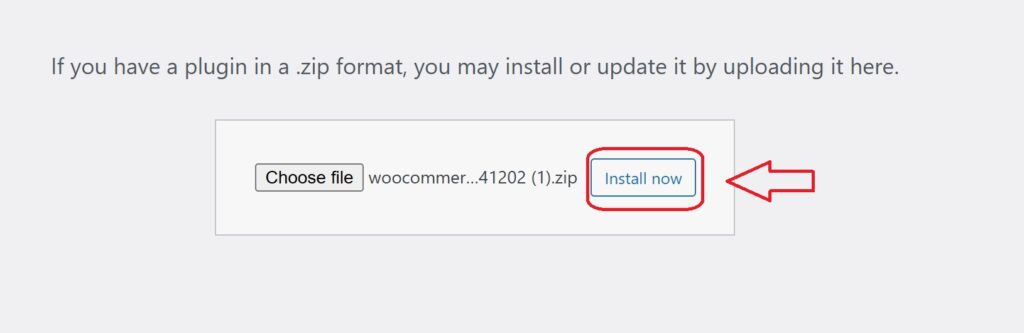
After selecting the file, click “Install Now.” WordPress will begin uploading the plugin file to your website.
Part 3: Install and Activate the Plugin
Wait for the Installation to Complete:
WordPress will now install the plugin. The process may take a few moments, depending on the file size and your internet connection. Once it’s done, you’ll see a success message.
Activate the Plugin:
Once installation is complete, click “Activate” to enable the Aelia Blacklister plugin on your WooCommerce store.
Confirm Plugin Activation:
After activation, you’ll be redirected to the Plugins page, where you should see the Aelia Blacklister plugin listed under your active plugins. Additionally, a new menu item or settings option for Aelia Blacklister will appear under the WooCommerce settings, confirming the plugin is successfully installed and active.
Step 2: Set Up Blocking Rules in Aelia Blacklister
With the Aelia Blacklister plugin now installed and activated, it’s time to configure the settings to block fraudulent users.
1. Block by Name and Surname
How to Block:
Within the plugin settings, you can enter the full name or surname of customers you wish to blacklist. You can block first names, last names, or any combination of both.
Why It’s Important:
Fraudsters often change their contact details, like email or phone number, but keep using the same name. Blocking names helps prevent transactions even if other details are modified.
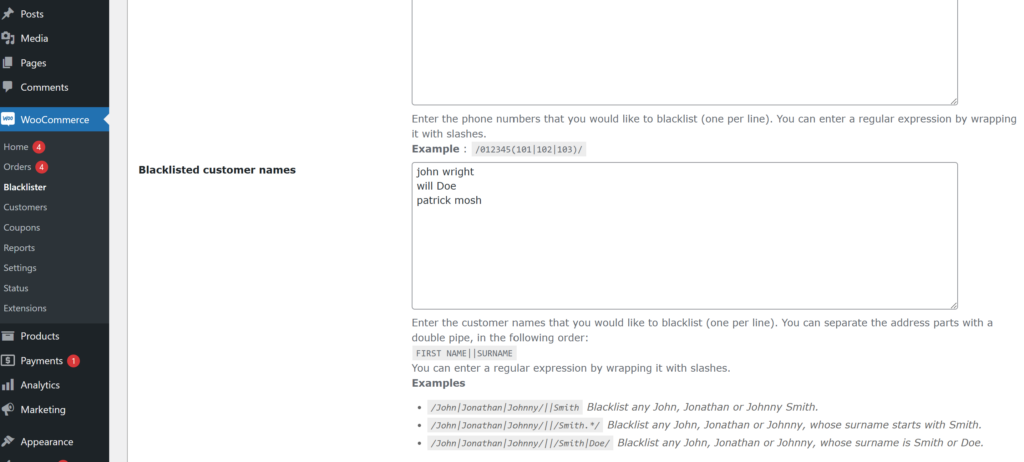
Steps to Block:
- Go to the “Blacklisted Customer Name” section in the plugin settings.
- Enter the name(s) you want to block.
- Click “Save” or “Update.”
2. Block by Address (Street, Postcode, City, Province/State, Country)
How to Block:
Block users by their address, including street, postcode, city, province, or country. This is useful for detecting patterns like fraudsters using the same fake addresses.
Why It’s Important:
Fraudsters may use stolen or fake addresses, especially in regions known for fraudulent activities. Blocking specific addresses prevents them from completing purchases.

Steps to Block:
- In the “Address” section, input the full address or parts like postcode or city.
- Click “Save” to apply the block.
3. Block by Email Address
How to Block:
You can block specific email addresses or entire domains (e.g., *@fakedomain.com) to prevent fraudulent sign-ups.
Why It’s Important:
Many fraudsters rely on disposable email services to create fake accounts. Blocking emails stops them from abusing your store’s offers.
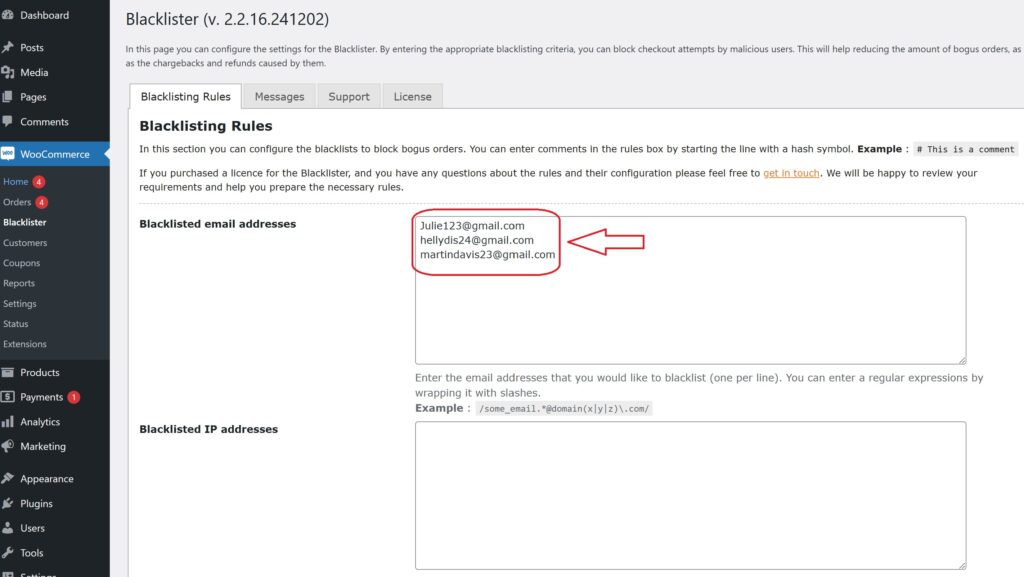
Steps to Block:
- Under the “Email Address” section, input the email or domain to block (e.g., *@disposablemail.com).
- Click “Save” to activate the block.
4. Block by Phone Number
How to Block:
You can block specific phone numbers or even area codes. Fraudsters may use stolen phone numbers to complete transactions, and blocking these ensures they can’t proceed with the purchase.
Why It’s Important:
Blocking fraudulent phone numbers adds an additional layer of security, preventing fraudulent transactions tied to these numbers.

Steps to Block:
- In the “Phone Number” section, input the numbers or area codes to block.
- Click “Save” to apply the changes.
5. Block by IP Address
How to Block:
Block specific IP addresses or ranges to prevent fraudsters from accessing your store using the same network. You can also use wildcards or regular expressions for broader protection.
Why It’s Important:
Blocking IP addresses can prevent repeat fraud from the same source, offering a significant deterrent for fraudulent activity.
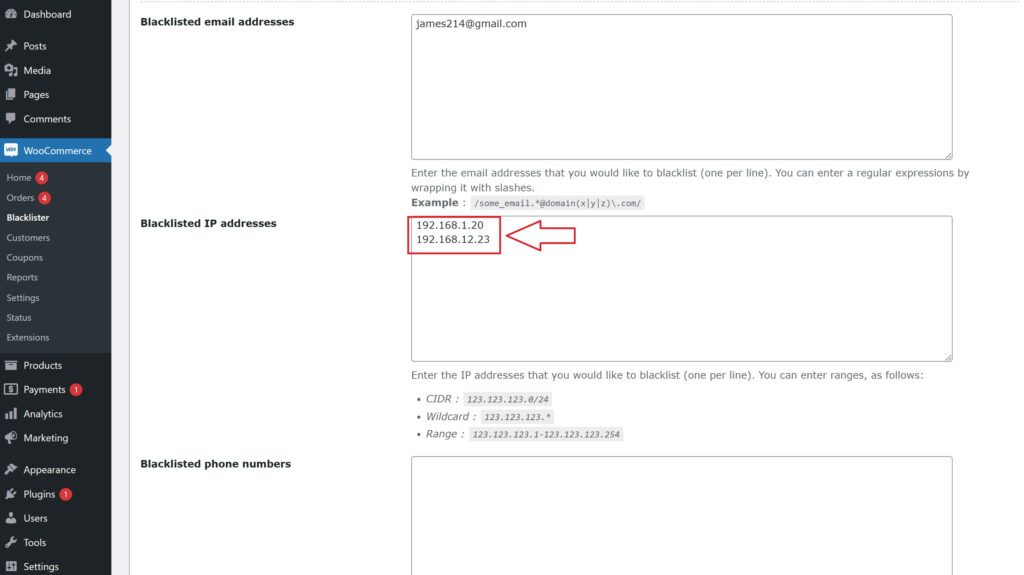
Steps to Block:
- Go to the “IP Address” section in the settings.
- Enter the specific IP or range to block.
- Click “Save” to activate the IP block.
Final Step: Save and Apply Changes
Once you’ve entered all the blocking details, click “Save” or “Update” to apply the changes. It’s crucial to regularly monitor and update your blacklist to keep your store protected against new fraudulent attempts.
Why Use the Aelia Blacklister Plugin Compared to Other WooCommerce Plugins

The Aelia Blacklister Plugin stands out as one of the most effective and flexible solutions for managing fraudulent activity and ensuring the security of your WooCommerce store. While there are numerous plugins available to combat fraud, Aelia Blacklister offers unique features and benefits that make it a top choice for WooCommerce store owners.
Here’s why you should consider using the Aelia Blacklister Plugin compared to other WooCommerce plugins:
1. Comprehensive Blocking Capabilities
Aelia Blacklister enables store owners to blacklist malicious users based on a wide range of factors, including:
- Name and Surname – Block specific individuals based on their names.
- Address – Block customers by street, postcode, city, state, or country.
- Email Address – Block specific email addresses or entire domains.
- Phone Number – Block specific phone numbers or area codes.
- IP Address – Block specific IP addresses or ranges for enhanced protection.
Many other plugins may offer a limited selection of blocking criteria, but Aelia Blacklister covers all key aspects to ensure comprehensive protection.
2. Easy Setup and Configuration
Aelia Blacklister is designed for both novice and experienced users, making it easy to set up even for those with minimal technical knowledge. The setup process involves clear instructions and simple steps to get the plugin up and running quickly. This user-friendly approach ensures that store owners can implement security measures quickly and effectively.
3. Flexible and Customizable Rules
One of the standout features of Aelia Blacklister is its ability to create highly customized blocking rules. Whether you need to block individual users, specific geographical locations, or large-scale fraud patterns, Aelia allows store owners to tailor the blocking settings to their unique needs. This level of flexibility is often more limited in other WooCommerce security plugins.
4. Integration with WooCommerce
Aelia Blacklister integrates seamlessly with WooCommerce, allowing for easy management of blacklisted users directly from the WooCommerce dashboard. This tight integration ensures that the plugin works smoothly alongside other WooCommerce features, minimizing potential conflicts and enhancing overall functionality.
5. Detailed Monitoring and Logs
Aelia Blacklister offers robust monitoring features and logs, allowing you to track blacklisted users, view actions taken, and analyze patterns. This detailed insight helps you fine-tune your security settings and identify potential vulnerabilities. Other plugins may not offer such detailed monitoring, which is essential for proactive fraud prevention.
6. Regular Updates and Support
Aelia is known for providing excellent customer support and frequent updates, ensuring that the plugin remains effective against the latest fraudulent techniques and security threats. This commitment to maintaining the plugin is a significant advantage over other plugins that may not receive timely updates or responsive support.
7. No Compromise on Store Performance
While enhancing security, Aelia Blacklister is optimized to run efficiently without impacting your store’s performance. Some security plugins can slow down your website or introduce complex configurations, but Aelia Blacklister is designed with performance in mind, ensuring that your store operates smoothly
