
Protecting your WooCommerce store from fraud, fake orders, and malicious users is essential for maintaining a secure and trustworthy shopping environment. Fraudulent activity not only disrupts operations but can also damage your brand’s reputation and lead to revenue loss. Whether you’re encountering suspicious IP addresses, fake customer accounts, or spammy order details, taking proactive measures is key.
One of the most effective strategies to combat these issues is implementing a blacklist system. Using a blacklist plugin—like the Blacklister for WooCommerce—allows you to block users based on specific criteria such as email addresses, phone numbers, IPs, or even billing and shipping countries. This means you can prevent problematic customers from placing orders or even accessing your store entirely.
For instance, if you notice repeated fake orders from a certain region or IP range, you can easily blacklist those users to stop the fraud in its tracks. Plugins like Aelia Blacklister are especially valuable because they integrate directly with WooCommerce and offer flexible, customizable rules that fit your store’s unique needs.
Blacklist tools also pair well with broader security practices, especially if your store handles international shipping. When opening your WooCommerce store to global customers, it’s important to understand how to set up your shipping correctly and securely. Check out our full guide on how to set up WooCommerce international shipping for detailed steps and tips to make sure your store is both accessible and protected worldwide.
By combining robust blacklist features with a well-configured international setup, you can minimize risk and focus on growing your WooCommerce business with confidence.
Why Protecting Your WooCommerce Store Matters
Your WooCommerce store isn’t just a website—it’s a full-fledged business. From handling sensitive customer data to managing secure payment gateways, you carry the responsibility of creating a safe environment for every transaction.
Implementing a blacklist strategy helps to:
- Block fraudulent purchases and spam orders
- Protect sensitive customer information
- Reduce chargebacks and financial loss
- Maintain trust and brand reputation
- Comply with data protection regulations
Without proper security measures like IP blocking and blacklisting, your store is vulnerable to automated bots, spam attacks, and even large-scale fraud.
What Is a Blacklist Feature in WooCommerce?
Although WooCommerce doesn’t offer a built-in blacklist tool, third-party plugins like Blacklister for WooCommerce Plugin fill this gap by letting you block users based on:
- IP addresses
- Email addresses
- Names
- Phone numbers
- locations
By combining blacklist and allowlist strategies, you create a powerful filter that only lets legitimate customers shop while keeping scammers out.
Setting Up Blacklists in WooCommerce with Aelia Blacklister for WooCommerce
The Blacklister for WooCommerce plugin allows you to easily manage and block specific customers based on various criteria, such as IP addresses, email addresses, phone numbers, and shipping addresses. By setting up Blacklists, you can improve your WooCommerce store’s security and prevent fraudulent or unwanted transactions.
Here’s a step-by-step guide to setting up Blacklists using the Aelia Blacklister for WooCommerce plugin:
Step 1: Install and Activate the Plugin

- Download the Plugin: First, purchase and download the plugin from Aelia.
- Upload the Plugin: In your WordPress admin panel, go to Plugins > Add New > Upload Plugin. Select the downloaded .zip file and click Install Now.
- Activate the Plugin: After installation, click Activate to enable the plugin on your store.
Step 2: Access the Aelia Blacklister Settings

- Once the plugin is activated, navigate to WooCommerce > Settings in your WordPress dashboard.
- You will see a new tab titled Aelia Blacklister. Click on it to access the plugin’s settings.
Step 3: Define Blacklist Rules
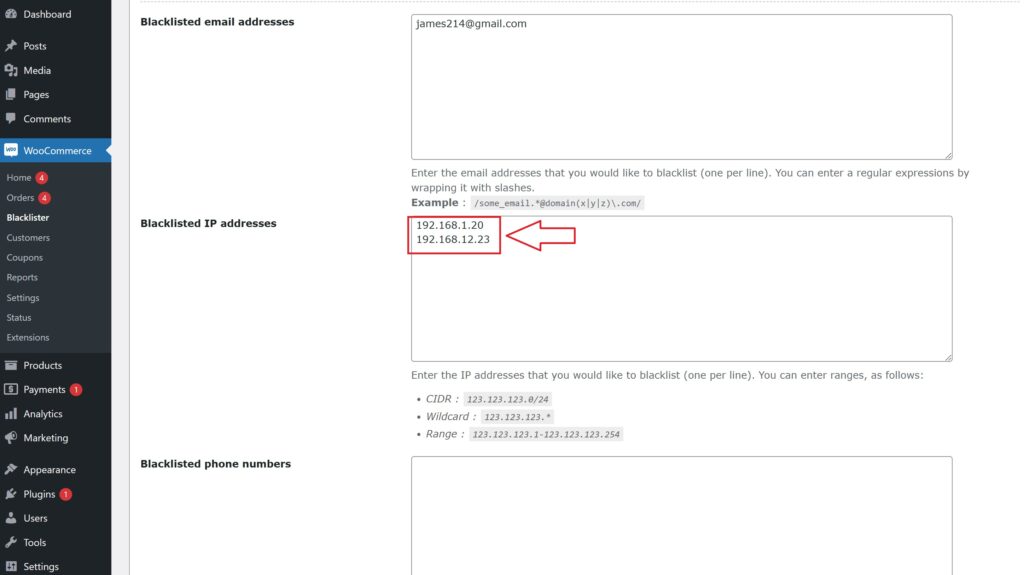
- Add Blacklist Entries: In the Aelia Blacklister settings, you’ll find options to add rules for blocking customers based on various fields:
- Customer’s Name and Surname: Using regular expressions, you can block customers based on their full name or partial matches.
- Customer’s Address: Block customers from specific cities, states, or countries by setting the corresponding address field.
- Customer’s Email Address: Block specific email addresses or domains to prevent unwanted customers from completing the checkout process.
- Customer’s Phone Number: Block phone numbers from specific regions or individual numbers associated with suspicious behavior.
- Customer’s IP Address: Block specific IP addresses, or use IP address masks to block ranges of IPs.
- You can configure these Blacklist criteria using exact matches or partial matches (with regular expressions for all fields except IP addresses).
- Set Match Criteria: Decide whether you want to block customers based on exact matches or partial matches:
- Exact Match: The customer’s information must exactly match the Blacklisted data.
- Partial Match: Use regular expressions to match parts of a customer’s information, such as a domain name in an email address.
Step 4: Configure Error Messages
- Custom Error Messages: Customise the error message that will be shown to customers when they attempt to place an order using Blacklisted details. This ensures clear communication with blocked users about why their order could not be completed.
Step 5: Save Settings

- After defining your Blacklist rules and customising error messages, click Save Changes to apply the settings.
Step 6: Test Blacklist Functionality
- To verify that the Blacklist is working properly, try to complete an order using details that match the blocked information (such as an email address, phone number, or IP).
- If configured correctly, the customer should be blocked from completing the checkout, and the custom error message will be displayed.
By setting up Blacklists with Aelia Blacklister for WooCommerce, you can easily block unwanted customers and prevent fraudulent transactions from occurring on your store. This not only enhances security but also ensures a smoother and more secure shopping experience for legitimate customers.
Best Practices for Using Blacklists Effectively in WooCommerce
To get the most out of your blacklist strategy, it’s important to go beyond simple blocking. Strategic use of blacklists ensures long-term protection, improved user experience, and fewer false positives.
Here are the best practices for using blacklists in WooCommerce:
1. Regularly Update Your Blacklists
Fraud tactics evolve quickly, so it’s essential to keep your blacklist data fresh. Regularly review and update your lists based on:
- Failed login attempts
- Refund abuse patterns
- Suspicious IP geolocations
- Chargeback claims
Keep a log of flagged users to avoid blocking legitimate customers accidentally.
2. Use Blacklists Alongside Allowlists
While blacklists keep threats out, allowlists let trusted customers in. By combining both:
- You ensure repeat buyers are never blocked
- You reduce the chance of false positives
- You build a more accurate filter for bad actors
Allowlisting VIP customers or verified emails helps you strike a balance between protection and user-friendliness.
3. Leverage Country and Region-Based Blocking
Fraud often originates from specific high-risk countries or regions. Use location-based blacklisting to block entire areas known for chargebacks or spam, while keeping access open for your target market.
Pair this with tools like Aelia Prices by Country to tailor pricing and availability by region while maintaining security.
4. Monitor Activity with Security Logs
Choose a plugin that provides logging features. Monitoring blocked attempts gives you insights into:
- Frequency of fraudulent attempts
- Common IPs or email domains
- Patterns of abuse
These insights help you fine-tune your blacklist criteria and reinforce vulnerable areas of your store.
5. Set Up Alerts for Suspicious Activity
Some blacklist tools allow for custom alerts when suspicious actions occur, such as:
- Multiple failed transactions
- Repeated login attempts
- Orders from blacklisted locations or emails
Set up alerts to act quickly before the fraud impacts your store.
To keep your WooCommerce store secure and protected from fraud, you can use the Aelia Blacklister for WooCommerce plugin. This tool helps you block suspicious users and prevent fake orders from malicious sources. Aelia also offers other helpful plugins, such as the Aelia Currency Switcher for WooCommerce, which enables you to offer multi-currency support, enhancing the shopping experience for international customers. By combining these powerful plugins, you can safeguard your store while offering a smooth, global shopping experience.
