
Running a WooCommerce store requires constant vigilance against fraudulent activities like fake orders, chargebacks, bot traffic, and spam. Fortunately, with the right tools, you can block suspicious activity in WooCommerce automatically. The right plugin helps you detect and prevent suspicious users before they can complete a purchase, keeping your store secure and your operations smooth.
In this guide, we’ll walk you through how to effectively prevent unwanted behavior using a robust WooCommerce plugin like Aelia Blacklister For WooCommerce. This tool enables you to filter out harmful traffic by blocking IP addresses, emails, phone numbers, customer names, and even locations—all managed easily from your store’s backend.
Whether you’re facing scammers, bots, or transactions from high-risk areas, this plugin offers a simple and efficient solution to safeguard your store and protect your revenue. For more details, explore how to secure your WooCommerce store by blacklisting scammers based on IP addresses.
Why Using a Plugin to Block Suspicious Activity in WooCommerce Is a Smart Move
Online scams and fraudulent behavior are on the rise, and WooCommerce stores are prime targets. Bad actors may try to exploit your site by using stolen credit cards, setting up fake accounts, or abusing loopholes in your checkout system. The consequences? Lost revenue, compromised customer data, and a damaged brand reputation.
That’s why using a plugin to block suspicious activity is a smart defense strategy. By identifying and restricting harmful users through IP addresses, email accounts, phone numbers, or shipping details, you can stop threats before they affect your business. Learn more about effective methods in this guide to blocking and blacklisting fraudulent users in WooCommerce.
Key Reasons to Use a Plugin to Block Suspicious Activity in WooCommerce
Enhance Store Security
Plugins help you detect and block malicious users before they can exploit your site, reducing the risk of fake accounts, bot attacks, and checkout manipulation.
Prevent Fraudulent Transactions
By stopping suspicious orders tied to stolen payment details, you avoid costly chargebacks, inventory losses, and potential financial penalties.
Automate Risk Management
With the right plugin, you can automatically flag or block users based on criteria like IP address, email, phone number, or billing details—saving time and reducing manual oversight.
Boost Customer Confidence
A secure shopping environment builds trust. Showing that your store actively protects against fraud reassures customers and encourages repeat business.
Why You Should Use a Plugin to Block Suspicious Activity in WooCommerce
Manually tracking and preventing fraudulent actions can be overwhelming and ineffective. That’s why a plugin designed for WooCommerce is a vital tool for any store owner.
Benefits of Using a Plugin
- Automated Monitoring: The plugin scans and blocks suspicious users instantly, freeing you from constant manual checks.
- Reduces Fraudulent Orders: Stop scammers before they reach checkout, minimizing chargebacks and financial losses.
- Saves Time and Effort: Let the plugin handle detecting suspicious patterns so you can focus on growing your business.
- Builds Customer Confidence: A secure store environment reassures buyers that their data and transactions are protected.
- Ensures Compliance: Helps you meet legal requirements related to fraud prevention and data protection in your industry.
For enhanced security, check out our Ultimate Guide to Blocking Unwanted Emails in WooCommerce—packed with tips on using IP-based blocking and more.
A plugin can only do so much on its own. It cannot update your other plugins or notice a new administrator account, which is why our WordPress security plans pair the tooling with a person.
Why Aelia Blacklister for WooCommerce Is the Best Solution for Blocking Suspicious Users
When protecting your WooCommerce store from fraud and abuse, the Aelia Blacklister plugin stands out as a robust and versatile tool. While many security plugins offer basic features, Aelia Blacklister delivers a thorough and customizable approach to keeping unwanted users out.
Comprehensive Blocking Options
Aelia Blacklister lets you block suspicious users based on multiple criteria, giving you full control over who can interact with your store. You can blacklist by:
- IP Address – Block risky IPs or entire regions known for fraudulent activity.
- Email Address – Prevent repeated attempts from the same email or domain.
- Phone Number – Stop users from creating multiple accounts using different emails.
- Customer Name – Add extra protection by blocking names linked to scams.
- Billing or Shipping Address – Filter out orders from flagged or high-risk locations.
This layered blocking strategy ensures scammers can’t simply bypass restrictions by changing one piece of information.
Easy Setup and Full Control
Built specifically for WooCommerce, Aelia Blacklister integrates seamlessly into your store’s admin dashboard. You can set up rules, manage blacklists, and monitor suspicious activity—all without needing technical skills.
Whether you’re combating chargebacks, spam accounts, or fraudulent orders, Aelia Blacklister equips you with powerful tools to protect your store from every angle.
How to Set Up Blacklister in WooCommerce Using Aelia Blacklister
The Aelia Blacklister plugin offers an easy and effective way to block suspicious users and protect your WooCommerce store from fraud, spam, and chargebacks. Whether you need to stop repeat offenders, block risky IP addresses, or prevent abusive customers, this tool lets you blacklist users quickly based on multiple identifying factors.
Step-by-Step Guide to Setting Up Blacklists
Step 1: Install and Activate the Plugin

- Download the Plugin: Begin by purchasing and downloading Aelia Blacklister from the official Aelia website.
- Upload to WordPress: Go to your WordPress dashboard, navigate to Plugins > Add New > Upload Plugin, select the .zip file, and click Install Now.
- Activate the Plugin: Once installed, click Activate to enable the plugin.
Step 2: Access Plugin Settings
- After activation, head to WooCommerce > Settings in your dashboard.
- A new tab labeled Aelia Blacklister will appear. Click this tab to access and configure the plugin settings.
Step 3: Create Blacklister Rules
In the Aelia Blacklister settings, you can define the types of user data you’d like to block. The plugin supports rules based on:

- IP Address – Block specific IPs or IP ranges.
- Email Address – Stop known email addresses or domains from accessing checkout.
- Phone Number – Prevent use of flagged or suspicious numbers.
- Customer Name – Use full or partial matches to block names linked to scam activity.
- Customer Address – Filter users by region, city, or country.
You can use exact matches or partial matches (via regular expressions) for everything except IP addresses.
Step 4: Customise Block Messages
- Set Error Messages: Define the message users will see if they’re blocked. This can help clarify the reason their order was rejected and reduce customer service issues.
Step 5: Save Your Settings
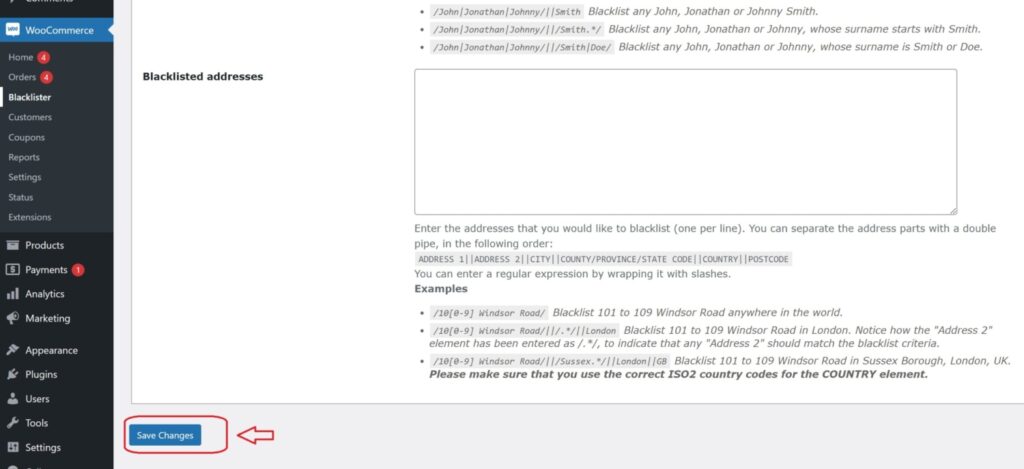
- After setting up your blacklist rules and customising your message, click Save Changes to apply the new restrictions.
Step 6: Test Your Blacklist Setup
- Try placing a test order using a blocked IP, email, or other information to ensure your blacklist is working as intended.
- If successful, the user will be prevented from completing the order and will see your custom error message.
Additional Aelia Tools to Boost WooCommerce Security
While Aelia Blacklister is an excellent solution for blocking suspicious users, protecting your WooCommerce store often calls for a layered security strategy. Luckily, Aelia offers other plugins that enhance your store’s safety, compliance, and overall performance.
- Aelia Currency Switcher for WooCommerce
Primarily designed for multi-currency stores, this plugin also helps in fraud prevention by:
- GeoIP-Based Currency Detection: Automatically shows prices in the customer’s local currency and can flag suspicious orders when the geo-location doesn’t match billing or shipping details.
- Custom Country Rules: Restrict certain currencies or payment options for high-risk regions to reduce fraudulent transactions.
Tip: Combine this with Aelia Blacklister to block IP addresses from flagged countries while customizing currency options for trusted markets.
- Aelia Tax Display by Country
This plugin supports tax compliance and helps detect potential fraud by:
- Preventing Tax Evasion: Identifies the customer’s true location via IP to discourage false declarations aimed at avoiding tax.
- Ensuring Legal Compliance: Automatically adjusts tax display and calculations based on the buyer’s country, helping you meet VAT or sales tax requirements in regions like the EU and US.
