Staying on top of the latest updates in WooCommerce is crucial for any savvy online store owner. That’s why we’re diving into the WooCommerce changelog, your go-to resource for all the nitty-gritty details on the newest features, fixes, and improvements.

The current WooCommerce Changelog can be found here: https://raw.githubusercontent.com/woocommerce/woocommerce/trunk/changelog.txt

Whether you’re a developer, a store manager, or just someone with a keen interest in eCommerce, understanding the changelog can give you a competitive edge. Let’s unpack the latest enhancements that could transform the way you run your online business.
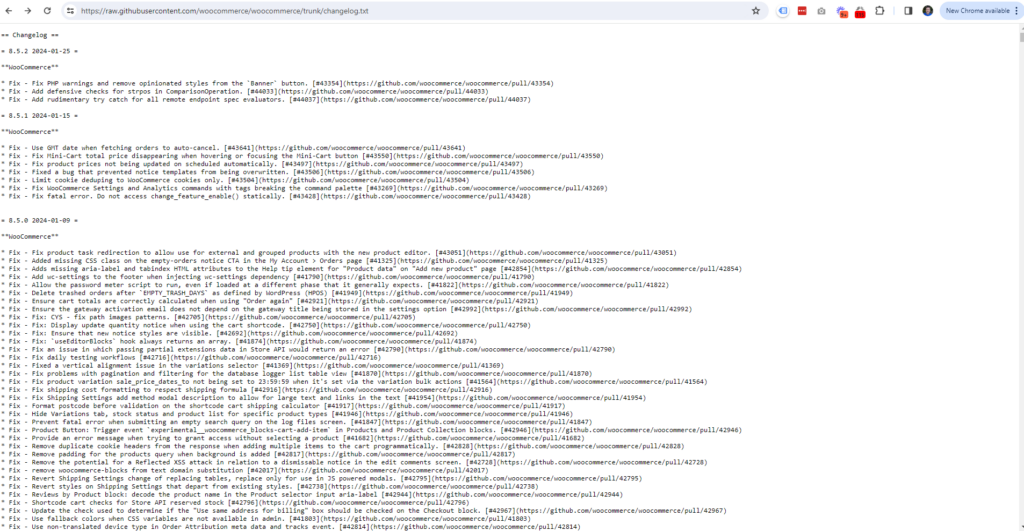
image 1

What is a Changelog?

At Marketing the Change, we’re committed to ensuring our clients are well-versed with the essential tools that drive their WooCommerce-powered online stores. A changelog is a documented history of all the changes made to a piece of software over time. This record offers invaluable insights into the development and growth of the software, revealing bug fixes, new features, enhancements, and sometimes even known issues that are on the developers’ radar.

Understanding a changelog is crucial for several reasons:

  • It helps you keep track of specific modifications and when they occurred.
  • You can anticipate changes that may affect your store’s functionality.
  • It enables informed decision-making when upgrading or troubleshooting your site.

WooCommerce changelogs are meticulously detailed to cater to the needs of different users. Whether you’re a developer needing to adapt your custom code, or you’re a business owner looking out for new ways to enhance the customer experience, the changelog serves as a roadmap to the evolution of your e-commerce platform.

Consider a changelog as a detailed journal that not only notes the alterations but also the rationale behind them. It’s a communication bridge between the WooCommerce developers and users, ensuring everyone’s on the same page. Here’s what you can typically expect to find within a WooCommerce changelog:

  • Version number: Indicates the release iteration.
  • Release date: Tells you when the update was made public.
  • List of changes:
  • New features that can give your store a fresh edge.
  • Improvements to existing functionalities for better performance.
  • Fixes that address previous issues, ensuring smoother operations.
  • Templates changed, crucial for those with customised themes.
  • Deprecated functions and methods, alerting you to phased-out elements that need your attention.

For businesses that rely on WooCommerce, checking the changelog isn’t just good practice—it’s an instrumental part of maintaining a successful online storefront. At Marketing the Change, we don’t just bring this information to light; we help you understand and act upon it, keeping your business ahead of the curve.

Why is the Changelog Important for WooCommerce Users?

ea5b1103 dfff 4984 aed0 5abf0aac7367PVEjoGgta47vGA6ly8d4O 2755313

At Marketing the Change, we understand that WooCommerce users have a lot on their plate. Ensuring that your online store remains efficient, secure, and user-friendly is no small feat. That’s where comprehending the significance of WooCommerce changelogs becomes paramount. They’re not just updates; they’re a lifeline for your e-commerce business.

Changelogs offer a transparent view of the ongoing developments and refinements within WooCommerce. Each entry in a changelog is more than an update; it’s part of a continuous dialogue between WooCommerce developers and store owners like us, helping you to stay proactive rather than reactive. Here’s why keeping a keen eye on the changelog is beneficial:

  • Anticipate Adjustments: By reviewing changelogs regularly, we’re able to anticipate adjustments that may affect our store’s operations. This foresight enables us to prepare accordingly, ensuring minimal disruption to our business and customer experience.
  • Enhance Security: Security updates are often included in changelogs. Identifying these promptly means we can protect our site against vulnerabilities swiftly, maintaining the trust of our customers and safeguarding our reputation.
  • Optimise Performance: Performance enhancements detailed in changelogs can lead to faster, smoother shopping experiences for our customers. Quick loading times and streamlined processes contribute significantly to retaining customers and increasing sales.

Furthermore, changelogs inform us if certain plugins or themes will become incompatible with the latest version of WooCommerce. Armed with this knowledge, we can either update or replace them before any issues arise, thus keeping our online store functioning seamlessly.

By integrating the practice of checking changelogs into our workflow at Marketing the Change, we ensure that we are leveraging the full potential of WooCommerce for the benefit of the businesses we support. Not only does this keep us informed, but it also allows us to provide crucial updates and suggestions tailored to the unique needs of our clients’ stores.

Remember, neglecting to check the changelog isn’t an option if excellence in e-commerce is what we’re aiming for. Being in the know helps us to build better, more resilient online stores that are equipped to handle the dynamic digital market landscape.

How to Access the WooCommerce Changelog

image-4872191

Accessing the WooCommerce changelog is a straightforward process that can save us precious time and effort. As advocates for seamless online business operations at Marketing the Change, we understand the importance of being able to quickly and efficiently find the information that our clients need.

Firstly, navigate to the WooCommerce GitHub repository. This platform is where developers and contributors collaborate and track the progress of WooCommerce updates. The repository contains a section specifically dedicated to documenting all the changes made with each new release in the release notes. To view the changelog, simply click on the ‘Releases’ section where a list of all the updates, annotated with version numbers and dates, will be on display.

image

Alternatively, access to the changelog can also be found through the WordPress dashboard. By going to the Plugins section and locating WooCommerce, you can click on the ‘View version details’ link corresponding to the plugin which often includes the changelog for the latest version.

Here are some steps to locate the changelog via WordPress admin:

  • Go to the Dashboard of our WordPress site
  • Click on ‘Plugins’, then ‘Installed Plugins’
  • Find WooCommerce and click on ‘View version details’

It’s also possible to receive changelog updates directly through WooCommerce’s subscription services. Signing up for their newsletter or following WooCommerce on social media platforms will provide us with regular updates. The advantage here is receiving news about substantial or critical changes when they happen, which allows us to stay ahead of the curve.

Regardless of the method chosen, it’s critical we keep track of these updates to ensure we’re implementing the latest features and keeping our clients’ sites secure. Our familiarity with the changelog not only showcases our diligence but also solidifies our reputation as a knowledgeable digital agency who can navigate and interpret the evolving landscape of WooCommerce for our business partners.

Understanding the Structure of the Changelog

ea5b1103 dfff 4984 aed0 5abf0aac7367fDvZtLPiYdooZJ8BTLcbE 2930062

Before we dive deeper, let’s decode the layout of a WooCommerce changelog. When you open it, you’ll notice that changes are grouped by categories. This helps you quickly spot updates that might impact your store. Here’s what those categories usually include:

  • Enhancements: Improvements to existing features that make them more user-friendly or efficient.
  • New Features: Introduction of entirely new functionalities to enhance your online store’s capabilities.
  • Tweaks: Minor adjustments that refine the current operation but aren’t as significant as enhancements.
  • Bug Fixes: Solutions to known issues that have been reported by users or identified by developers.
  • Template Files: Notifications about updates to template files that might require attention, especially if you’ve customised your shop.
  • Deprecated Features: Details on functionalities that are no longer supported and are being phased out.

Understanding what each section entails is key for us at Marketing the Change to provide our clients with tailored advice.

When we’re looking at the changelog, we pay special attention to version numbers which signify the magnitude of changes. As a rule of thumb, a change in the first number (e.g., 3.x to 4.x) signals a major update that could affect many aspects of your WooCommerce store. A change in the second or third number (e.g., 3.1.x to 3.2.x, or 3.1.1 to 3.1.2) usually indicates minor updates or patches.

Here’s a quick tip: always keep a backup of your store before applying updates, particularly if there are major version changes. This precautionary step cannot be overstated as it guards against potential issues arising from the update process.

With each changelog entry, there are usually links provided that take you to a more in-depth description or documentation. These are incredibly useful for understanding the nuances of the update and making informed decisions about whether and when to implement them. For the tech-savvy, delving into the developer notes can provide even greater insights into the changes at code level.

Staying informed about WooCommerce developments ensures that we’re using its full potential while also safeguarding our clients’ interests. It’s part of our commitment to deliver exceptional service and support for businesses making the most of WordPress and WooCommerce platforms.

Latest Features and Enhancements

Understanding the latest features and enhancements in WooCommerce can be pivotal to leveraging your online store’s full potential. WooCommerce updates frequently introduce improvements that can boost your site’s performance, streamline operations, and enhance the user experience.

In our ongoing efforts to support business owners who are navigating WooCommerce, we delve into the specifics of the most recent release. It’s not uncommon to encounter new features that are game-changers in the eCommerce space. For example, a recent update may include:

  • Advanced analytics for better insights into customer behavior
  • Improved payment gateway integrations to simplify transactions
  • Enhanced mobile responsiveness to ensure a seamless shopping experience across devices

Each enhancement is engineered to provide online store owners with the tools needed for more efficient management and improved sales conversions.

We must also highlight tweaks made to existing features. These adjustments, while seemingly small, can result in significant benefits. They often address user feedback and reflect WooCommerce’s commitment to continual improvement. Such tweaks can range from user interface upgrades to improvements in product search algorithms that aid visitors in finding the right products quickly.

Developers and designers will appreciate the updated template files that come with these releases. These updates ensure compatibility and add new functionalities to themes, making it easier for us to create a custom and compelling shopping experience for users.

Remember, while the allure of new features and enhancements is strong, it’s essential to test them in a staging environment before applying to your live store. This approach guarantees that your store maintains its performance and provides a buffer against any potential conflicts or issues that may arise from the update.

Important Fixes and Bug Updates

At Marketing the Change, we understand that running an online store smoothly hinges on the regular maintenance and prompt application of necessary fixes. Within the WooCommerce changelog, bug updates and important fixes are among the most critical components to be aware of. These corrections not only address immediate functional issues but also ensure enhanced security for your e-commerce site, which is paramount when dealing with customer data and transactions.

In dissecting the changelog, you’ll discover bug updates itemised clearly under their respective headings. By staying vigilant about these updates, we help our clients maintain a secure and efficient online presence. Let’s delve into some of the recent changes WooCommerce has made:

  • Security Enhancements: Continual improvements are made to fortify your site against new threats, keeping your customer data protected.
  • Performance Fixes: Updates that resolve speed and responsiveness issues, helping your store deliver a seamless shopping experience.
  • UI/UX Adjustments: Changes aimed at refining the user interface and enhancing the overall user experience for both store managers and customers.
  • API Tweaks: Modifications to the WooCommerce API to streamline integration with other systems and improve compatibility.

It’s important not to overlook the smaller fixes either. They may not seem significant on their own, but collectively they contribute to the overall stability and performance of your WooCommerce store. For instance, a minor tweak in the checkout process could save seconds per transaction, adding up to a considerable improvement in customer satisfaction over time.

Maintaining an online store is not just about seizing new opportunities; it’s also about solidifying the foundation. The more robust your system, the better equipped it’ll be to support future enhancements and offer a consistently high-quality experience to users.

In the table below, we highlight a selection of the notable bug fixes from the latest WooCommerce update:

Fix Category Number of Fixes Version Implemented
Security 5 5.1.0
Performance 7 5.1.0
UI/UX 3 5.1.0
API 2 5.1.0

Tips for Using the Changelog Effectively

As a Liverpool-based digital agency, Marketing the Change, we understand the intricacies of WooCommerce. That’s why we’ve gathered these tips to help you utilise the changelog to its full potential. Navigating WooCommerce updates doesn’t have to be overwhelming—if you know what to look for.

Firstly, prioritise updates based on urgency and relevance to your online store. Security patches should be at the top of your list, along with any critical bug fixes that directly affect customer experience. Here’s how we recommend you approach updates:

  • Check the version number to gauge the update’s significance.
  • Look for ‘Security’ or ‘Critical’ labels – these indicate high-priority changes.
  • Evaluate new features and enhancements to determine if they align with your business goals.

When dealing with bug fixes, it’s not just about the immediate benefits. By regularly updating, you avoid the accumulation of small issues that can compound over time. It’s a preventive measure that is as crucial as tackling pressing bugs.

Testing is your best friend. You wouldn’t want to introduce new problems to your live environment. Set up a staging site and:

  • Test the update in an environment that replicates your live store.
  • Pay close attention to custom code or third-party plugin interactions.
  • Utilise user testing to ensure that the update doesn’t disrupt the customer journey.

Document changes made to your site with each update. This not only helps in troubleshooting future issues but also assists in keeping a historical record for your business. By maintaining a log, you can:

  • Track which updates have been applied.
  • Monitor changes to your site over time.
  • Provide valuable information to developers or support teams, should the need arise.

Leverage the documentation links in changelogs for a deeper understanding of each update. They offer in-depth insight into the changes and can often provide guidance on implementation and troubleshooting—especially for more technically advanced features or fixes.

Remember, staying informed and prepared is key to running a successful WooCommerce store. Keep an eye on the changelog, and you’ll be supporting not just your business but also offering a reliable and secure experience for your clients.

WooCommerce Maintenance

Running a WooCommerce store smoothly means keeping up with all the updates. We’ve talked about how important it is to understand what each update brings – that’s your changelog. It’s key to focus on these updates, try out new features, and always test them before they go live on your site. Remember, the success of your online store depends on how well you adapt and keep track of changes. If you want to stay ahead in e-commerce, it’s all about making smart choices with each WooCommerce update. And if you need help with WooCommerce maintenance, Marketing the Change is here to support you. They’re experts in keeping WooCommerce sites running at their best.

Frequently Asked Questions

What is a WooCommerce changelog?

A WooCommerce changelog is a record of all the updates, bug fixes, and improvements made to the WooCommerce plugin over time. It helps users stay informed about the latest changes and updates.

Why is it important to understand the WooCommerce changelog?

Understanding the WooCommerce changelog is important because it informs store owners about the new features, fixes, and enhancements that can affect their online store’s operation and security.

How can you use the changelog effectively?

To use the changelog effectively, prioritize updates based on their urgency and relevance to your store, evaluate new features and enhancements, and test updates in a staging environment before applying them to your live store.

Why should updates be tested in a staging environment?

Updates should be tested in a staging environment to ensure that they don’t cause issues with your live store. This helps to maintain a seamless shopping experience for your customers while implementing updates safely.

What is the benefit of documenting changes made to your store?

Documenting changes provides a clear history of modifications, making it easier to troubleshoot issues and understand the evolution of your store’s setup and functionality over time.

How can documentation links in changelogs be used?

Documentation links in changelogs can be leveraged to gain a deeper understanding of updates and how they could potentially impact your online store, ensuring that you’re better informed when making decisions about your WooCommerce setup.

Josh Morley

I have been designing & marketing websites since 2013. I specialize not just in WordPress web design but also in online marketing. SEO, PPC, keyword research, link-building and most recently on lead acquisition for local businesses.

In the bustling world of online retail, we’re always on the lookout for tools that enhance user experience and boost sales. Enter WooCommerce Lightbox – a nifty feature that’s transforming the way customers view products in our stores. It’s sleek, it’s intuitive, and it’s what your shop might be missing.

We’ve seen firsthand how integrating a lightbox can make product images pop, encouraging customers to take a closer look. It’s not just about aesthetics; it’s about providing a seamless shopping experience that keeps them coming back for more. Let’s dive into how a WooCommerce Lightbox can elevate your e-commerce game.

What is WooCommerce Lightbox?

At Marketing the Change, we understand the importance of a robust online presence for business owners using WordPress and WooCommerce. A crucial component of that presence is how products are displayed, and that’s where WooCommerce Lightbox comes into play.

WooCommerce Lightbox is a feature-rich tool designed to improve the visual presentation of products in an online retail setting. It allows visitors to click on product images and see them in a “lightbox” overlay without leaving the product page. This overlay not only enlarges the images but also often provides additional functionality like a slideshow or zoom-in capability.

Here are the core elements that WooCommerce Lightbox typically includes:

  • Image Zoom: Users can get a closer look at product details, which enhances their ability to make informed purchasing decisions.
  • Responsive Design: This ensures that the lightbox displays correctly across all devices, providing a consistent experience from desktop to mobile.
  • Easy Navigation: Shoppers can effortlessly move between images, thanks to intuitive controls within the lightbox.

Utilizing WooCommerce Lightbox does more than just improve aesthetics; it ensures that products are showcased in the best possible light. As business owners strive to stand out in a crowded market, offering high-quality image interactions can significantly impact consumer engagement and conversion rates.

We’re committed to helping business owners optimize their WooCommerce stores. Implementing a WooCommerce Lightbox is just one way we enhance the shopping experience, keeping it intuitive and user-centric. The aim is to create an online environment where customers feel confident and excited to make a purchase.

By incorporating WooCommerce Lightbox into your website, you’re not just upgrading the look of your product pages—you’re also investing in a tool that can transform how customers interact with your products.

Remember, a picture is worth a thousand words, and with WooCommerce Lightbox, every image can tell a compelling story of your product.

The Benefits of Using WooCommerce Lightbox

fd61efca 05db 402f ae51 8fedee19c690KFysQXpNFVJtijK0efQ4O 9099627

When it comes to enhancing your online store, WooCommerce Lightbox serves as a pivotal tool for increasing customer engagement. We, at Marketing the Change, understand the profound impact visuals have on customers. That’s why we’re ardent advocates for using WooCommerce Lightbox to take your visual game to the next level.

One of the primary benefits of incorporating WooCommerce Lightbox is its capability to improve user experience. The seamless display of images ensures that customers don’t navigate away from the product page, keeping them focused and reducing bounce rates. This functionality is not just a visual enhancement; it’s a strategic tool designed to streamline the shopping experience.

In addition, the feature’s image zoom capability allows customers to examine products in fine detail. It’s no secret that clear, high-resolution images can drastically reduce customer hesitation and drive sales. Here are some key advantages:

  • Enhanced image clarity
  • On-the-spot product examination
  • Elevated product page performance

Not to mention, WooCommerce Lightbox is fully responsive, meaning it adapts to various screen sizes. With mobile shopping on the rise, ensuring your images look impeccable on all devices is paramount. This versatility shows that your business is modern and catered to all users, a must in today’s digital landscape.

Beyond aesthetics, the easy navigation through product galleries gives customers a comprehensive view without confusion. It allows for quick transitions between images, holding the shopper’s attention and encouraging them to explore your offerings more thoroughly.

Investing in WooCommerce Lightbox is more than just about adding a fancy feature; it’s about carefully curating an environment where visual storytelling becomes a key player in your conversion strategy. Products are no longer static entities but vibrant tales waiting to be told through each pixel.

As digital specialists based in Liverpool, we’re eager to support and partner with businesses striving for excellence on WordPress and WooCommerce. We’ve seen firsthand how WooCommerce Lightbox can revolutionize online retail and we’re here to help you leverage this tool for your success.

How to Install and Configure WooCommerce Lightbox

fd61efca 05db 402f ae51 8fedee19c690S Q2Uuhu8 26ytkFkhMkM 1087617

To help our clients enhance their online retail experience, we’ve put together an easy guide on installing and configuring WooCommerce Lightbox. No coding knowledge is required, and the entire process can be completed in just a few steps.

Firstly, ensure you have WooCommerce installed on your WordPress site. This is a crucial prerequisite for WooCommerce Lightbox to function properly. To install WooCommerce Lightbox, navigate to the ‘Plugins’ section in your WordPress dashboard. Click ‘Add New’ and search for ‘WooCommerce Lightbox’ in the plugin repository. Once you locate the plugin, click ‘Install Now’ followed by ‘Activate’ to get started.

WooCommerce Lightbox Plugins

  1. WooCommerce Quick View Pro: This plugin allows customers to view product details in a lightbox from shop and category pages. It features options like star ratings, price, short and full descriptions, an add-to-cart button, and supports all WooCommerce product types. It’s compatible with major themes and integrates with various WooCommerce plugins. Learn more.
  2. WooCommerce Gallery Images: This plugin enhances WooCommerce product galleries with additional images for product variations and includes a lightbox and zoom feature. It’s known for its simplicity and effectiveness in adding lightboxes to WooCommerce products. Learn more.
  3. WooCommerce Quick View (CodeCanyon): A modern plugin that adds a lightbox to WooCommerce, displaying all essential product information. It offers several views, including fullscreen and inline quick views. Learn more.
  4. Smart Product Viewer: This unique plugin offers a 360-degree view of products and includes lightbox functionality. It’s a great tool for providing a detailed look at your products. Learn more.
  5. WooCommerce Zoomifier: This plugin adds a customizable lightbox button to product images and includes a zoom feature similar to those on major e-commerce sites. It’s known for its affordability and customization options. Learn more.

With the plugin activated, you’ll find the settings under WooCommerce > Settings > Products. Here, you can configure the Lightbox features to fit your site’s needs. Some key settings you may want to consider include:

  • Image Zoom Effect: Creating a smoother zoom experience for your customers as they hover over product images.
  • Lightbox Behaviour: Customizing how the lightbox activates – upon clicking an image or when a certain button is pressed.
  • Navigation Style: Choosing between different navigation options that dictate how users move between images.

Configuring the WooCommerce Lightbox doesn’t end with just the built-in options. For those who want to personalize the experience further, there are additional plugins and custom CSS options that can give you even greater control over the lightbox’s appearance and functionality. Remember, the more intuitive and attractive your product pages are, the better the user experience – a vital factor in boosting sales.

We encourage all business owners to explore these settings and optimize their WooCommerce Lightbox to ensure the best possible display of their products. By optimizing the WooCommerce Lightbox settings, you provide your customers with an immersive and informative shopping experience that can truly make a difference in your store’s performance.

By keeping your focus on user engagement through superior visual presentation, you’re more likely to see an uplift in customer interaction and sales conversions.

Customizing Your Lightbox

fd61efca 05db 402f ae51 8fedee19c690rz08lB0oqVTPGEb pPtRA 4734829

When it comes to enhancing the user experience, personalization is key. We understand the diverse needs of our clients at Marketing the Change, which is why we delve deep into the realm of customization.

To begin customizing your WooCommerce Lightbox, you should explore the plugin settings. Most lightbox plugins come with an array of options that allow you to alter the behaviour and appearance directly from the WordPress dashboard. What’s pivotal here is:

  • The transition effects between images can be fine-tuned to be either subtle or striking, depending on the intended user experience.
  • The speed of image cycling is vital for keeping potential customers engaged without rushing them through your catalog.
  • Overlay tint and opacity settings dramatically change the lightbox’s mood, offering a more tailored feel that aligns with your brand’s aesthetic.

Beyond the native customization options, we encourage experimenting with additional CSS to give your lightbox a unique touch. Whether you’re aiming for a minimalist look or something more avant-garde, thoughtful CSS tweaks can create a potent visual impact. Use:

  • CSS classes to modify borders, shadows, and animations specific to your lightbox images.
  • Media queries to ensure that the lightbox displays flawlessly across all devices, reinforcing a responsive design.

Moreover, for even more enhanced functionality, we suggest integrating third-party plugins. These plugins can extend the capabilities of your lightbox by introducing new features like social sharing buttons, full-screen modes, or video support. It’s crucial to select plugins that are:

  • Compatible with your version of WooCommerce and WordPress.
  • Well-reviewed and routinely updated for security and performance.

By implementing these customizations, you’re set to provide a truly immersive shopping experience. Remember, the goal is to keep your customers’ focus firmly on your products, transforming browsing into purchases.

Best Practices for Using WooCommerce Lightbox

When we delve into the best practices for using WooCommerce Lightbox, it’s crucial to optimize for mobile devices. Given that mobile shopping accounts for a significant portion of online transactions, ensuring your lightbox displays correctly on various screen sizes will enhance the mobile user experience.

Product imagery can’t be overlooked, as it’s the primary element that shoppers interact with in a lightbox. We recommend using high-quality, professional photos that can zoom without losing clarity. Consistency in image size and quality provides a seamless look, ensuring that customers focus on the product details without distractions.

It’s also vital to limit the information presented in the lightbox to avoid overwhelming customers. Instead, selectively highlight key product features and benefits that can assist shoppers in making informed decisions quickly. Engaging yet succinct descriptions paired with compelling calls-to-action (CTAs) can significantly increase conversion rates.

Here’s how we can efficiently leverage WooCommerce Lightbox:

  • Load Speed: Ensure images are optimized for fast loading, as this enhances user experience and boosts SEO performance.
  • Navigation: Implement intuitive navigation controls, making it easy for users to browse products within the lightbox.
  • Escape Function: Always provide a clear and accessible way to close the lightbox, improving usability.
  • Customization: Apply custom styles that reflect your brand’s aesthetics for a coherent look and feel.

Integrating analytics tools to track interaction with your lightbox can offer valuable insights. We can analyze data such as time spent on images and the number of views before purchase, providing us with actionable metrics to further refine the shopping experience.

Lastly, don’t forget to test your lightbox regularly. Regular A/B testing helps us determine which configurations yield the best results. This includes experimenting with different image layouts, navigation styles and even the speed at which the lightbox functions—significant tweaks might just lead to major improvements in user engagement and conversion rates.

WooCommerce Support

The WooCommerce Lightbox really improves how we show products on our websites, making shopping better for customers. Getting the images and presentation right grabs people’s attention and helps them decide to buy. It’s also important to make sure it works well on phones and loads quickly. Always keep checking and using data to make things even better. These little things really help your online store do well. And if you need a hand with this, the folks at Marketing the Change are great at making WooCommerce work for you.

Frequently Asked Questions

What is WooCommerce Lightbox?

WooCommerce Lightbox is a feature that enables online retailers to present product images and information in a popup window on their e-commerce site, allowing shoppers to view details without leaving the product page.

Why is customization important for WooCommerce Lightbox?

Customization is vital as it improves the user experience allowing each retailer to tailor the lightbox appearance and functionality to match their brand, thus providing a unique shopping experience.

How can WooCommerce Lightbox be personalized?

Personalization can be achieved by adjusting plugin settings and adding custom CSS to modify the lightbox’s design, layout, and transitions to better fit the store’s aesthetic and usability requirements.

Can WooCommerce Lightbox integrate with third-party plugins?

Yes, WooCommerce Lightbox can integrate with third-party plugins to extend its functionality, such as offering social sharing buttons, videos, or a zoom feature for images.

What are best practices for using WooCommerce Lightbox?

Optimize for mobile use, utilize high-quality images, and keep the lightbox content concise. Employ features like quick loading, easy navigation, an escape function, and ensure it aligns with your overall website design.

How does adopting analytics tools improve the use of WooCommerce Lightbox?

Integrating analytics tools can help track user engagement with the lightbox, providing insights into user behavior which, in turn, can guide optimization and improvements for better performance and conversion rates.

What should be regularly tested in WooCommerce Lightbox to ensure effectiveness?

Regular testing should include checking the lightbox load speed, mobile responsiveness, navigation ease, the clarity of information provided, and the overall user experience to maintain high performance and efficacy.

Josh Morley

I have been designing & marketing websites since 2013. I specialize not just in WordPress web design but also in online marketing. SEO, PPC, keyword research, link-building and most recently on lead acquisition for local businesses.

Launching an online store is thrilling, but ensuring a seamless payment experience is crucial for success. That’s where WooCommerce Test Mode comes in, a sandbox for your peace of mind. We’ll be diving into how to activate this essential feature using the Stripe Payment Gateway plugin by WebToffee.

Imagine being able to iron out any kinks in your checkout process without the fear of losing money or confusing your customers with real transactions. That’s the beauty of Test Mode; it’s like a dress rehearsal for your store’s payment system. Stick with us as we guide you through setting up and making the most of this invaluable tool.

What is WooCommerce Test Mode?

When diving into the world of eCommerce, it’s vital to ensure that every aspect of the user experience is smooth and error-free. That’s where WooCommerce Test Mode comes in. It’s a feature we find indispensable for confirming that your online store is ready to handle transactions without a hitch. Essentially, this mode allows us to conduct trial runs of the purchase process without any real money changing hands. We’re here to elucidate what it entails and why it’s such a vital step in setting up a WooCommerce store.

The advantage of WooCommerce Test Mode is that it offers a sandbox environment. This mirrors the live checkout experience and provides us with a safe platform to identify any potential issues with the payment gateway setup. When we activate WooCommerce Test Mode and process an order, it’s marked clearly as a test. This helps to distinguish it from real transactions, thus maintaining clarity and order within the store’s dashboard.

To give you a bit more insight, here’s what happens under the hood: any transaction processed in this mode is purely simulated. The orders appear in the system just like real ones; however, they don’t affect inventory counts or financial reports since no funds are actually processed. For us and for the business owners we support, this functionality is nothing short of a lifesaver. It allows us to test various scenarios, from inputting coupon codes to validating that shipping calculations are applied correctly, all before we go live.

One might wonder if setting up WooCommerce Test Mode is complex. Our response is clear: it’s straightforward when you follow the right steps. You’ll need to use a suitable plugin like the WebToffee Stripe Gateway, which integrates seamlessly with WooCommerce, to manage test mode configurations. We can toggle test products, payment gateways, and email notifications all from the cosy confines of the WooCommerce interface. This kind of control is exactly what we need to polish every element of the transaction process.

By using WooCommerce Test Mode, we can assure our clients that their store is prepared to deliver a frictionless payment experience to their customers. After all, it’s not just about making sales – it’s about creating trust and reliability, which begins with a flawless checkout process.

How to Enable Test Mode in WooCommerce

22f19e0d 1cc4 429b 932d 6073799920dbA7evaM1SrqxhxxGy3rq9L 7844378

When managing an online store, we must assure our customers’ payment processes are smooth and secure, which is why the WooCommerce test mode is invaluable. Here’s our straightforward guide on activating test mode.

Step 1: Log In to Your WordPress Admin Dashboard

First things first, we need to access the backend of our website. To do that, we’ll log in to our WordPress admin dashboard. This is the control center where we’ll find all the settings and options for our WooCommerce store.

Step 2: Go to WooCommerce Settings

Once we’re in the WordPress admin area, we’ll navigate to the WooCommerce section to manage our store’s settings. It’s essential to tweak these settings properly, as they will affect how our store operates, especially concerning payments.

Step 3: Click on the Payments Tab

In the WooCommerce settings, we’ll find various tabs for different settings. We’ll click on the “Payments” tab to view the payment options available to us. Proper payments configuration is crucial for store functionality and customer trust.

Step 4: Enable Test Mode

Here we’ll find the different payment gateways we’ve integrated into our WooCommerce store. To activate the test mode, we’ll locate the Stripe Payment Gateway and select the ‘Enable Test Mode’ option. We’ll need access to the Stripe dashboard to obtain test API keys, which we’ll input here. This will ensure that transactions are only simulated and no actual funds are processed.

What are the Benefits of Test Mode?

22f19e0d 1cc4 429b 932d 6073799920db6RIwHLJVsrtSCmaGQysNZ 2690851

Integrating Test Mode into your WooCommerce payment setup comes with several key benefits that can transform the way you handle transactions and manage your online store. We’ll explore these advantages to illustrate why it’s an essential feature for any e-commerce platform.

Risk-Free Testing
The biggest benefit of Test Mode is the ability to conduct risk-free testing. When you’re implementing new features or troubleshooting existing ones within your payment gateway, there’s no worry about accidental charges or refunds. This peace of mind allows us to experiment and ensure every aspect of the customer checkout experience aligns with our expectations.

Streamlined Workflow
Implementing Test Mode streamlines your workflow by providing a controlled environment to assess changes and updates before they go live. This helps us identify potential issues and rectify them early on, which can save time and reduce the likelihood of errors affecting your customers.

  • Verifying the payment process
  • Testing order fulfillment
  • Ensuring customer notifications work as intended

With a streamlined workflow, we can confidently introduce improvements, knowing they have been thoroughly vetted in advance.

Building Trust
Our customers’ trust is paramount. By thoroughly testing all our store’s e-commerce functions, we can prevent any issues that might damage our credibility. Avoiding failed transactions or glitches during checkout helps maintain a professional image and ensures a seamless experience for every user.

Legal Safeguard
Avoiding legal complications is a priority for any business. If orders are not processed correctly due to technical errors within the payment system, we could face legal challenges. However, by using Test Mode, we can safeguard against such legal risks by ensuring that the entire ordering and fulfillment process is watertight.

Through Test Mode, we’re not just confirming the functionality of our online store; we’re establishing a robust foundation for customer satisfaction and legal compliance. This approach allows us to focus on what’s truly important – growing our business and providing the best possible service to our customers.

How to Test Payments in WooCommerce Test Mode

22f19e0d 1cc4 429b 932d 6073799920dbyadgdA9eUt5cS1VCoRuNf 2041607

Testing out payments in WooCommerce test mode is a critical step before going live. It’s our way of ensuring that everything functions seamlessly. We’re here to guide you through the necessary steps to simulate transactions and validate the entire payment process.

Test Credit Card Details

To carry out test transactions in WooCommerce, it’s essential to use test credit card details provided by the payment gateway. Stripe, for instance, offers a range of test card numbers that can be used to verify different scenarios without processing actual funds.

  • Visa (test number): 4242 4242 4242 4242
  • MasterCard, American Express, and other payment processors have their distinct dummy numbers available.

Use these card details along with any future expiry date and a pseudo-random CVC code—remembering that American Express requires a four-digit code—on the checkout page. Entering these details as if making a real purchase will help us validate both the transaction flow and our customer’s checkout experience.

Test Order Processing

Once we’ve entered the test credit card details, the next step is to monitor how WooCommerce processes the order. After clicking the Place Order button, the order should be tagged as a test in the dashboard. This lets us verify that our store records transactions precisely as expected.

Here’s what the procedure typically looks like:

  1. Navigate to the shop’s URL and add a product to your cart.
  2. Proceed through the checkout process using the test credit card details.
  3. Complete the purchase and monitor the transaction from the Order received page back to the WooCommerce dashboard.

Orders made in test mode are flagged with a special notice on the ‘edit order’ page, irrespective of whether test mode is currently active or not. This feature allows us to effortlessly differentiate between real and simulated transactions within the WooCommerce platform.

With these steps, we can run through our checkout procedures with confidence, knowing that when we do make the shift to live transactions, our customers will be met with a seamless and secure checkout experience.

How to Disable Test Mode in WooCommerce

As a dedicated digital agency, we understand the importance of ensuring your WooCommerce site is fully functional and prepared to handle real transactions. Disabling test mode is a crucial step towards that. Here, we’ll walk you through a few simple steps to help you move from simulation to live transactions.

Step 1: Login to Your WordPress Admin Dashboard

First off, we’ll need to login to our WordPress admin dashboard. It’s the control room for our website where we can manage and operate all of our site’s functionalities. Make sure you have your login credentials at hand. If you’re already logged in, you’re good to go to the next step.

Step 2: Go to WooCommerce Settings

Next, from our dashboard, we’ll navigate to the WooCommerce settings. WooCommerce settings are the backbone of our store; they’re where we can adjust and fine-tune how our store operates. Here, we can manage everything from products to payment gateways, including our test mode settings.

Step 3: Click on the Payments Tab

Then, we’ll proceed to the Payments tab within WooCommerce Settings. The Payments tab is where we’ll find all of our payment gateway options. It’s critical to ensure these settings are correct for a smooth and secure transaction process.

Step 4: Disable Test Mode

Finally, we’ll locate and disable test mode for the relevant payment gateway. Disabling test mode is as simple as deactivating the toggle or unchecking an option, but it’s a pivotal action that allows us to start processing real payments on our WooCommerce site. We must always remember to save our changes to ensure that the switch from test to live mode is successful.

Through these steps, we’ll have our store ready to accept live orders and payments. It’s essential to ensure that we have all the necessary live mode keys and configurations applied to avoid any payment processing issues. Remember, each payment processor has its unique settings, so we must follow the specific instructions for ours.

WooCommerce Support

Maintaining a WooCommerce store effectively includes transitioning out of Test Mode when you’re ready to start real sales. It’s essential to double-check that all settings are correctly configured for processing actual payments. Switching off Test Mode isn’t just a toggle; it’s a crucial step in ensuring everything is aligned for a successful operation. Be sure to implement live keys and proper configurations. This careful preparation is vital for gaining customer trust and ensuring a smooth checkout experience. For those who need support with these WooCommerce maintenance tasks, Marketing the Change offers professional assistance to help your online business flourish in the real marketplace.

Frequently Asked Questions

How can I disable Test Mode in WooCommerce?

To disable Test Mode in WooCommerce, log into your WordPress admin dashboard, navigate to WooCommerce > Settings, click on the Payments tab, locate the payment gateway you wish to edit, and disable Test Mode. Remember to save your changes.

What is Test Mode in WooCommerce?

Test Mode in WooCommerce is a feature that allows you to simulate transactions without processing actual payments, ensuring everything works smoothly before going live with your ecommerce site.

Is it necessary to disable Test Mode in WooCommerce?

Yes, it’s necessary to disable Test Mode in WooCommerce when you’re ready to start accepting real transactions, to ensure that your payment gateway processes payments successfully.

What happens if I don’t disable Test Mode?

If you don’t disable Test Mode in WooCommerce, your online store will not process real payments, which means you won’t receive any actual funds from transactions.

Can I re-enable Test Mode after disabling it?

Yes, you can re-enable Test Mode at any time by going back to the Payments tab in the WooCommerce settings and enabling the Test Mode for the desired payment gateway.

Josh Morley

I have been designing & marketing websites since 2013. I specialize not just in WordPress web design but also in online marketing. SEO, PPC, keyword research, link-building and most recently on lead acquisition for local businesses.

Navigating the world of e-commerce can be daunting, but we’ve got a game-changer for you: WooCommerce Amazon Fulfillment. It’s the secret sauce for streamlining your online sales and shipping process. We’ll dive into how integrating Amazon’s powerhouse fulfillment service with your WooCommerce store can skyrocket your business efficiency.

What Is WooCommerce Amazon Fulfillment?

When we dive into eCommerce solutions, WooCommerce Amazon Fulfillment emerges as one of the leading tools that bridge the gap between selling online and ensuring products reach customers efficiently. At its core, this service integrates Amazon’s powerhouse fulfillment network with the flexibility of WooCommerce, a popular eCommerce platform for WordPress.

As online entrepreneurs, we always look for the best methods to optimize our operations. Utilizing WooCommerce Amazon Fulfillment, we have the ability to store our inventory in Amazon’s fulfillment centers. Once a customer places an order on our WooCommerce site, Amazon takes charge. It picks, packs, and ships the product directly to the customer. This hands-off approach isn’t just convenient; it’s a game-changer for scaling businesses.

The service essentially boils down to three main components:

  • Integration: By linking our WooCommerce store with the fulfillment services offered by Amazon, we create a seamless connection between our online shop and the logistical might of one of the world’s largest distributors.
  • Automation: After the initial setup, the system automatically forwards orders from our WooCommerce store to Amazon’s fulfillment centers for processing.
  • Customer Satisfaction: With the help of Amazon’s trusted shipping practices, customer satisfaction increases due to fast, reliable delivery services, which in turn can lead to repeat business and positive reviews.

To begin using WooCommerce Amazon Fulfillment, we first install a plugin which connects our WooCommerce store to Amazon’s fulfillment service. After configuring our settings, we’re then ready to send our products to Amazon’s fulfillment centers. It’s worth noting that fees apply for storage and fulfillment, although, for many of us, the cost is offset by the time and resources saved in managing logistics ourselves.

By leveraging WooCommerce Amazon Fulfillment, our online store can harness the vast network and reliability of Amazon, providing us with more time to focus on growing our business rather than being bogged down with the complexities of shipping logistics.

Why Should You Use WooCommerce Amazon Fulfillment?

WooCommerce Amazon Fulfillment isn’t just a tool; it’s a transformational strategy to escalate your e-commerce operations. Imagine offloading the weighty tasks of inventory management, order processing, and shipping logistics onto a proven leader in the fulfillment industry. Here’s why embracing this synergy between WooCommerce and Amazon can be a game changer for your online business:

Expand Your Reach Effortlessly In tapping into Amazon’s massive fulfillment network, we’re able to distribute products rapidly across a vast geographical area. This means our products become readily available to a larger audience, enhancing our market penetration and enabling us to serve our customers more effectively.

Streamline Operations and Save Time By integrating WooCommerce Amazon Fulfillment, we streamline our operational workflow. The automation of shipping processes translates to considerable time savings. As a result, we can reallocate our focus towards marketing strategies, product development, and other core business activities that drive growth.

Cost Efficiency Through Scale While there are associated fees for storage and fulfillment, these costs are often offset by the savings gained from Amazon’s economies of scale. Their sophisticated logistics systems mean we can offer competitive shipping rates, which would otherwise be unattainable for small to medium-sized businesses.

Boosted Customer Satisfaction Reliability is key in e-commerce, and this is where Amazon excels. Fast and accurate deliveries are synonymous with Amazon’s fulfillment services, leading to higher customer satisfaction rates. When customers trust that their orders will arrive on time, they’re more likely to return and to recommend our business to others.

Access to Prime Loyalty Customers expect rapid shipping, and with Amazon Prime, they get just that. By fulfilling orders through Amazon, we’re able to offer Prime eligibility for our products, enticing the vast pool of Prime subscribers and increasing our chances of winning the Buy Box.

By aligning with WooCommerce Amazon Fulfillment, we’re not just selling products; we’re enhancing our brand’s reputation and setting the stage for sustainable, long-term growth.

How to Integrate WooCommerce with Amazon Fulfillment

Integrating WooCommerce with Amazon Fulfillment can be simpler than many might expect. The process involves several key steps, beginning with setting up an Amazon Seller Central account. This account is essential as it allows us to access Amazon’s fulfillment network and sell our products on the platform.

Firstly, we need to ensure that the WooCommerce store is effectively linked to our Amazon Seller Central account. This requires the use of plugins which are specifically designed for this purpose. A popular choice is the WooCommerce Amazon Fulfillment plugin, which we can easily install and activate within our WordPress dashboard.

Once installed, we’ll need to configure the plugin settings. This entails entering our Amazon MWS API credentials, which we can obtain through our Amazon Seller Central account. These credentials are crucial as they authorize the plugin to interact with our Amazon account, thereby ensuring secure data transmission between WooCommerce and Amazon Fulfillment.

Subsequently, the next step is to map our WooCommerce products with their corresponding Amazon inventory. This process guarantees that when a customer places an order on our website, the plugin accurately relays this information to Amazon, triggering the fulfillment process.

We should also set up order routing and fulfillment policies within the plugin. These policies will outline how and when we want Amazon to ship products. We can choose settings such as shipping speed and whether to automatically fulfill orders. By personalizing these options, we optimize the order processing in a way that aligns with our business model.

Once these configurations are complete, it’s important to test the integration. We can place a sample order to ensure that the order details are sent to Amazon’s fulfillment center correctly and that the fulfillment process initiates promptly.

  • Proper Amazon account setup
  • Installation and activation of the right plugin
  • Entering valid API credentials
  • Mapping WooCommerce products with Amazon inventory
  • Customizing fulfillment policies
  • Running a test order

Remember, while the initial setup is fairly straightforward, regular maintenance of the integration is needed to manage updates in inventory levels, pricing, and to troubleshoot any issues. Keeping the integration in good working order ensures that our customers’ orders are fulfilled efficiently and accurately.

Plugin NameDescriptionLink
WooCommerce Amazon Fulfillment (MCF) for WooCommerceOfficial plugin for WooCommerce Amazon Multi-Channel Fulfillment (MCF) integrationhttps://woo.com/products/woocommerce-amazon-fulfillment/
WP-Lister for AmazonComprehensive solution for managing Amazon listings, inventory, orders, and reportinghttps://www.wplab.com/plugins/wp-lister-for-amazon/
WooCommerce Amazon Product ImporterSimplifies the process of importing products from Amazon to your WooCommerce storehttps://wedevs.com/blog/421412/how-to-import-amazon-products-to-woocommerce/
Amazon Fulfillment by Merchant (FbM) for WooCommerceIntegrates your WooCommerce store with Amazon’s Fulfillment by Merchant (FbM) programhttps://woo.com/products/woocommerce-amazon-fulfillment/
Advanced Product Importer & AffiliateCombines product import and affiliate management featureshttps://woo.com/products/product-importer/
WooCommerce MultichannelBroad integration platform for managing multiple sales channels, including Amazonhttps://www.youtube.com/watch?v=8o4EAWgz8z4
CTX FeedSpecializes in creating and managing product feeds for various marketplaces, including Amazonhttps://wordpress.org/plugins/webappick-product-feed-for-woocommerce/
WooCommerce DropshippingFacilitates the dropshipping modelhttps://woo.com/products/woocommerce-dropshipping/
WooCommerce Amazon AffiliateSimplifies the process of promoting Amazon products from your WooCommerce storehttps://www.thrivedesk.com/amazon-affiliate-woocommerce-plugin/
  1. WooCommerce Amazon Fulfillment (MCF) for WooCommerce: This plugin is developed by WooCommerce itself and is the official integration for Amazon Multi-Channel Fulfillment (MCF) with WooCommerce. It allows you to connect your WooCommerce store to Amazon MCF and easily fulfill orders from both platforms using Amazon’s fulfillment network.
  2. WP-Lister for Amazon: This plugin is a comprehensive solution for managing your Amazon listings, inventory, orders, and reporting from your WooCommerce dashboard. It integrates with Amazon’s Product Advertising API (PA-API) to automatically sync your product data, inventory levels, and order details between WooCommerce and Amazon.
  3. WooCommerce Amazon Product Importer: This plugin simplifies the process of importing products from Amazon to your WooCommerce store. It allows you to select and import products, generate product feeds, and manage product data and images.
  4. Amazon Fulfillment by Merchant (FbM) for WooCommerce: This plugin integrates your WooCommerce store with Amazon’s Fulfillment by Merchant (FbM) program, allowing you to send your products to Amazon fulfillment centers and have them fulfill orders on your behalf.
  5. Advanced Product Importer & Affiliate: This plugin combines product import and affiliate management features, enabling you to import products from Amazon, other sources, and manage affiliate relationships from within WooCommerce.
  6. WooCommerce Multichannel: This plugin provides a broader integration platform for managing multiple sales channels, including Amazon, eBay, and social media platforms. It helps you synchronize inventory, orders, and customer data across different channels.
  7. CTX Feed: This plugin specializes in creating and managing product feeds for various marketplaces, including Amazon. It allows you to customize product data, set up automated feed schedules, and track feed performance.
  8. WooCommerce Dropshipping: This plugin facilitates the dropshipping model, enabling you to sell products from other suppliers without having to stock or ship them yourself. It connects your WooCommerce store to dropshipping suppliers, including Amazon.
  9. WooCommerce Amazon Affiliate: This plugin simplifies the process of promoting Amazon products from your WooCommerce store and earning affiliate commissions. It automatically tracks clicks and sales, generates affiliate links, and manages affiliate accounts.

These plugins offer various features and target different aspects of Amazon Fulfillment integration with WooCommerce. Choose the plugin that best suits your specific needs and business model.

Benefits of Using WooCommerce Amazon Fulfillment

Leveraging WooCommerce and Amazon Fulfillment together offers us numerous benefits that streamline our e-commerce operations. The integration not only simplifies the logistics of shipping and handling but also provides us with access to Amazon’s vast distribution network.

Amazon’s Extensive Reach: Utilizing Amazon’s fulfillment centers, we can get our products to customers faster and more reliably. These centers are strategically located worldwide, ensuring that our goods are close to customers, which often results in swift delivery times. This logistics advantage can significantly enhance customer satisfaction and repeat business.

Cost-Effectiveness: Amazon’s sophisticated fulfillment system can reduce our shipping and storage costs. By leveraging the economies of scale of Amazon’s operations, we’re able to benefit from competitive pricing on shipping fees. Furthermore, we can save on overhead costs related to warehousing, as Amazon covers storage, packing, and shipping.

  • Simplified Inventory Management: With WooCommerce Amazon Fulfillment, inventory tracking becomes more efficient. The plugin automates synchronization between our WooCommerce store and Amazon inventory, reducing the risks of overselling or stockouts.

Advanced Logistics: Amazon has an advanced logistics infrastructure, complete with customer service and return handling, which can be complex and resource-intensive to manage on our own. By outsourcing these operations to Amazon, we can focus on what we do best—growing our business and enhancing our products.

Improved Customer Trust: Having Amazon as a fulfillment partner adds a layer of trust and reliability in the eyes of consumers. Amazon is a trusted name in online retail, and its involvement in the fulfillment process increases buyer confidence, potentially leading to higher conversion rates.

By embracing these advantages, we can optimize our e-commerce strategy, providing top-tier service to our customers without the customary logistical headaches. Integrating WooCommerce with Amazon Fulfillment not only elevates our operational efficiency but also reinforces our competitive edge in the market.

Tips for Optimizing Your WooCommerce Amazon Fulfillment Strategy

When streamlining your e-commerce operations with WooCommerce and Amazon Fulfillment, there are strategic moves we can make to ensure the best possible outcomes for our business and our customers. Here are several key tips to fine-tune your approach:

Track and Analyze Data Religiously
Keeping an eye on the data is crucial. We’ll want to monitor sales trends, inventory turnover rates, and shipping times. By analyzing this data regularly, we can make more informed decisions that align with our customer’s needs and our business goals.

  • Manage Inventory Proactively
    Consider using predictive analytics to forecast demand and avoid stockouts or excess inventory. Proactive management can help us maintain the right balance and reduce storage fees.
  • Optimize Product Listings
    Ensure product listings on Amazon are optimized for search. This includes using high-quality images, relevant keywords, and detailed product descriptions. Better listings improve visibility and conversion rates.

Leverage Amazon’s Marketing Tools
Take advantage of Amazon’s internal marketing tools to promote our products. Sponsored products ads and Amazon storefronts are excellent ways to increase exposure and drive traffic to our listings.

  • Use Competitive Pricing Strategies
    Regularly check competitor pricing to ensure ours are competitive. Using dynamic pricing tools can help adjust our prices in real-time to remain competitive without sacrificing margins.
  • Encourage Customer Reviews
    Positive customer reviews boost our product rankings on Amazon. Actively encouraging satisfied customers to leave feedback can lead to more sales and improved trust in our brand.

By implementing these tactics, we can hone our WooCommerce Amazon Fulfillment strategy to be more efficient and effective. Remember, regular assessment and adaptation of these strategies are key to keeping our business ahead of the curve in the ever-evolving e-commerce landscape.

We’ve unlocked the potential of WooCommerce Amazon fulfillment to catapult our e-commerce success. By staying proactive with inventory management and keeping a keen eye on data analytics, we’re equipped to make informed decisions that drive growth. Our commitment to optimizing product listings and utilizing Amazon’s robust marketing tools gives us a competitive edge. Moreover, our focus on competitive pricing and customer reviews has established a strong foundation for customer satisfaction and loyalty. Harnessing these strategies, we’re not just keeping pace—we’re setting the standard for excellence in online retail.

If you need help with your WooCommerce store or WooCommerce Amazon fulfilment please book a call to see if we can help you improve your eCommerce traffic, leads and conversions.

Josh Morley

I have been designing & marketing websites since 2013. I specialize not just in WordPress web design but also in online marketing. SEO, PPC, keyword research, link-building and most recently on lead acquisition for local businesses.

WooCommerce, a popular e-commerce plugin for WordPress, offers a feature known as “fragments.” These fragments allow specific parts of a web page to be updated without requiring the entire page to be reloaded. This is particularly useful for dynamic content, such as shopping cart totals or user points.

However, a common issue faced by developers and website owners is that these fragments don’t always update in real-time, especially when changes are made from the admin interface. Let’s delve into this issue and explore a solution based on a Stack Overflow post.


What are WooCommerce Fragments?

WooCommerce Fragments are a part of the AJAX Layer in WooCommerce. In simple terms, AJAX allows web pages to be updated asynchronously by exchanging data with a web server behind the scenes. This means that it’s possible to update parts of a web page without reloading the whole page.

Fragments in WooCommerce are essentially pieces of content that can be updated independently of the rest of the page. They play a crucial role in enhancing the user experience, especially in e-commerce settings where real-time updates (like cart contents or prices) are vital.

What are WooCommerce Cart Fragments?

WooCommerce cart fragments are a crucial AJAX-based feature designed to enhance the shopping experience by dynamically updating cart-related elements on a webpage without requiring a full page reload. This functionality allows immediate visual feedback for users when they add or remove items from their cart, improving user engagement and potentially boosting conversion rates. The process involves an AJAX request sent to the server upon a user action, which then responds with updated HTML fragments—such as cart totals and item counts—that are seamlessly integrated into the current page. While beneficial for user experience, cart fragments can sometimes impact site performance, prompting developers to employ optimization strategies or selectively disable the feature on pages where real-time cart updates are not critical. Customization options also exist, enabling developers to extend or modify the cart fragments to suit specific needs, offering a balance between dynamic content updates and site efficiency.

Understanding and managing WooCommerce cart fragments effectively enables developers to enhance e-commerce site responsiveness while keeping an eye on performance. By optimizing server responses and customizing the feature to update only necessary elements, developers can ensure a smooth and efficient shopping experience for users, potentially leading to increased sales and customer satisfaction.

How are WooCommerce Fragments used?

  1. Cart Updates: One of the most common uses of fragments in WooCommerce is to update the cart contents and totals without reloading the page. When a user adds or removes a product from the cart, only the cart fragment is updated, providing a seamless shopping experience.
  2. Notifications: Fragments can be used to display real-time notifications to users. For instance, when a user adds a product to their wishlist or compares products, a notification can pop up without any page reload.
  3. Dynamic Pricing: If you have dynamic pricing set up, where prices change based on certain conditions (like user role or quantity), fragments can be used to display the updated price instantly.
  4. User-specific Content: Fragments can be used to show user-specific content, such as loyalty points, personalized recommendations, or user-specific offers, without having to reload the entire page.
WooCommerce Fragments update

The Problem

A developer created a plugin that uses WooCommerce fragments to display the number of points a user has. When a user spends some of their points (by adding a product to the cart), the fragment updates correctly. However, if an admin adds points to a user via the admin interface, the fragment doesn’t update until the user adds a new product to the cart.

Here’s a simplified version of the code they used:

function create_points_widget_content() {
    $usersPoints = esc_attr( get_user_meta( get_current_user_id(), USERS_POINTS, true ));
    if (!isset($userPoints) || $userPoints == "") $userPoints = 0;
    $usedPoints = get_current_points_in_cart('', 0);
    ?>
    <div class="points-widget-v2">
        <div><?php echo __("Your points", "plugin-domain"); ?>:<span class="users-points"><?php echo $usersPoints; ?></span></div>
        <div><?php echo __("Actually used", "plugin-domain"); ?>:<span class="used-points"><?php echo $usedPoints; ?></span></div>
    </div>
    <?php
}

The question then arises: How can we force these fragments to refresh themselves?

The Solution

One of the answers provided a simple and effective solution using JavaScript:

function refresh_fragments() {
    console.log('fragments refreshed!');
    $( document.body ).trigger( 'wc_fragment_refresh' );
}
refresh_fragments();
setInterval(refresh_fragments, 60000);

This code triggers a core handler in WooCommerce to refresh fragments via AJAX. The setInterval function ensures that the fragments are refreshed every 60 seconds.

wc_fragment_refresh

wc_fragment_refresh is a JavaScript event associated with WooCommerce, a popular e-commerce plugin for WordPress. This event plays a critical role in how WooCommerce dynamically updates parts of the page without requiring a full page reload. Specifically, it deals with updating fragments of the page, which are pieces of the website that display information like cart contents, prices, and totals. By using this event, WooCommerce ensures that these fragments reflect the current state of the user’s cart, even after adding or removing products, without needing to refresh the entire page.

What wc_fragment_refresh Does

The primary function of the wc_fragment_refresh event is to update parts of the page that display dynamic information related to the WooCommerce cart. For instance, when a user adds a product to their cart, WooCommerce uses AJAX (Asynchronous JavaScript and XML) to send a request to the server. The server responds with updated cart data, and the wc_fragment_refresh event triggers the update of specific sections of the page (like the cart icon and checkout totals) to reflect these changes.

How It Works

  • AJAX Request: The event initiates an AJAX request to the server, asking for updated fragments based on the current state of the cart.
  • Server Response: WooCommerce on the server side processes the request, generates the updated HTML for the required fragments, and sends this data back to the browser.
  • DOM Update: Once the browser receives the updated fragments, the wc_fragment_refresh event updates the Document Object Model (DOM) with the new HTML, thereby refreshing the content displayed to the user.

How to Use wc_fragment_refresh

Although wc_fragment_refresh is handled automatically by WooCommerce for its standard operations, developers might want to trigger or hook into this event for custom functionality.

Triggering a Fragment Refresh

To manually trigger a fragment refresh, you can use JavaScript to dispatch the event. This might be necessary if you’ve added custom cart functionality and need to ensure the cart data displayed on the page is up to date.

jQuery(document.body).trigger('wc_fragment_refresh');

Hooking into the Event

If you want to execute custom code before or after the fragments are refreshed (for example, to display a loading animation or to log when fragments are updated), you can hook into the event using jQuery’s .on() method:

jQuery(document.body).on('wc_fragment_refresh', function(){
    // Custom code to run before fragment refresh
});

jQuery(document.body).on('updated_wc_div', function(){
    // Custom code to run after fragments are updated
});

The updated_wc_div event is triggered after the fragments have been successfully updated, making it a good place to add any follow-up actions.

wc-cart-fragments

To customize or optimize the use of cart fragments, developers can hook into WooCommerce’s system to modify which elements get updated or potentially disable the feature on certain pages to improve performance. While cart fragments significantly contribute to a seamless shopping experience, they can sometimes impact site speed, especially on high-traffic sites or pages where real-time cart data is not critical. Developers might choose to selectively disable cart fragments on specific pages to enhance performance, using WordPress hooks to dequeue the wc-cart-fragments script where it’s deemed unnecessary. Overall, understanding and managing cart fragments is crucial for maintaining an efficient and user-friendly WooCommerce store.


Key Takeaways

  1. WooCommerce Fragments: These are parts of a web page that can be updated without reloading the entire page. They’re useful for displaying dynamic content.
  2. Admin Interface Limitation: Changes made from the admin interface might not immediately reflect on the frontend due to fragment caching.
  3. JavaScript Solution: Using JavaScript, it’s possible to force the fragments to refresh at regular intervals, ensuring that the displayed content is always up-to-date.

For business owners or new developers, it’s essential to understand that while WooCommerce offers powerful features, there might be occasional hiccups. However, with the right knowledge and resources, these challenges can be easily overcome.

Josh Morley

I have been designing & marketing websites since 2013. I specialize not just in WordPress web design but also in online marketing. SEO, PPC, keyword research, link-building and most recently on lead acquisition for local businesses.

When you have an online store, like one made with WooCommerce, pictures of what you’re selling are super important. Think about it. If you’re shopping online, you want to see what you’re buying, right? That’s why the size and quality of these pictures matter a lot.

Image Link Attribute

So, what’s an Image Link Attribute? It’s like an address for where your picture lives on the internet. This address helps your store show the right picture to shoppers.

  • It tells your store which picture to show.
  • You should use it the right way to make sure your pictures look their best.

By the way, if you want to know more about this, you can check out the Google Merchant Center Guidelines.

WooCommerce Shop Page Image

Image Formatting Guidelines

Pictures come in different types or formats. Just like there are different types of ice cream, there are different types of picture files. Here are some you might use:

Image FormatProsConsWhen to Use
JPEG– Small file size
– Widely supported
– Good for photographs
– Loses quality when compressed
– Not great for simple images with few colors
When you have complex images like photographs where a small loss in quality is acceptable.
WebP– High-quality images
– Supports transparency
– Good compression
– Not supported by all browsers
– More complex to create
When you need high-quality images and transparency, and you’re targeting modern browsers.
PNG– Supports transparency
– Lossless compression
– Good for simple images
– Larger file sizes
– Not ideal for photographs
When you need transparent backgrounds or have images with simple colors and shapes.
GIF– Supports animation
– Small file size for simple animations
– Limited color palette
– Not good for photographs
When you need simple animations or very simple images with few colors.
BMP– High quality
– No compression loss
– Very large file sizes
– Not widely supported
Rarely used online due to large file sizes. More for internal use in software.
TIFF– High quality
– Supports layers and tags
– Very large file sizes
– Not supported by all browsers
When you need high-quality images for printing or professional use, not typically used for web.

It’s like when you save a school project. You choose whether to save it as a Word document or a PowerPoint. Pictures work the same way. And it’s important that the name of the file (like .jpg or .png) matches what type of picture it is.

Also, when you give your picture an address (or URL), there are some rules to follow. For more on this, you can see Submitting Product Data Guide.

Image Requirements and Best Practices

There are some basic rules for your picture addresses:

  • They should start with “http” or “https”.
  • They should point to a picture that’s in one of the formats we talked about.

And there are some tips to make your pictures look even better:

  • Use a stable URL. This means the address for your picture shouldn’t change often.
  • If you change the picture, let Google know so it can show the new one.
  • Google has tools that can make your pictures look even better. It’s like adding a filter to your selfie!

Remember, great pictures can make people want to buy what you’re selling. So, take the time to make them look their best!

Part 2: Optimizing WooCommerce Shop Page Images for Best Performance

Image Guidelines

When you’re setting up your online store, you want your products to look their best. Here’s how to make sure your product pictures are top-notch:

  • Size Matters: Depending on what you’re selling, there are different minimum image sizes you should use. For example, a t-shirt picture might need to be bigger than a picture of a pencil.
  • Show the Whole Product: Make sure the entire product can be seen in the picture. It’s like taking a full-body photo versus just a selfie of your face.
  • Things to Avoid:
    • Placeholders: These are like “coming soon” pictures. They don’t show the real product.
    • Generic Images: Pictures that don’t really show the specific product you’re selling.
    • Promotional Stuff: Avoid adding things like “SALE” or “BEST DEAL” on top of the product picture.
    • Borders: Don’t put frames or borders around your product pictures.

Best Practices for Image Presentation

Pictures can say a lot. Here’s how to make sure they’re saying the right things:

  • Quality is Key: Always use the highest quality images you can. It’s like the difference between a blurry and a clear photo.
  • Frame Your Product: Make sure the product fills up most of the picture, but not all of it. It should be the star of the show!
  • Background Colors: Use simple backgrounds, like white or transparent. It makes your product stand out more.
  • Clothing and Accessories: If you’re selling clothes, show them being worn by people. For accessories like bags or jewelry, show them both alone and being used or worn.
  • Avoid Tricks: Don’t make the image bigger than it really is (that’s called scaling up). And avoid using tiny pictures (called thumbnails).

Q: What’s the best size for a WooCommerce product image?

A: The ideal size for a WooCommerce product image largely depends on the theme you’re using and the type of product you’re selling. For instance, if you’re selling large items like furniture, you might want larger images to showcase the details. On the other hand, smaller items like jewelry might not require as large images. However, a general recommendation is to use images that are at least 800×800 pixels to ensure they look clear on most screens. Regardless of the size, it’s crucial to always use high-quality images. This ensures that when potential customers zoom in or view the product image on larger screens, the image remains sharp and clear.


Q: Can I add sale stickers to my product images?

A: While it might be tempting to add sale stickers or other promotional elements directly to your product images to catch the attention of shoppers, it’s generally best to avoid doing so. Adding these elements can distract from the product itself and might make the image look cluttered. Instead, consider using WooCommerce’s built-in features or plugins that allow you to overlay promotional badges on product images. This way, you can highlight promotions without permanently altering the product image, ensuring a cleaner and more professional look for your online store.


Q: Why is my product image blurry?

A: If your product image appears blurry, there could be several reasons. One common reason is using an image that’s too small and then scaling it up to fit the space on your website. When you scale up an image, it can lose its sharpness, leading to a blurry appearance. To fix this, always ensure you’re using high-quality images that are the appropriate size for your website. Another reason could be excessive compression. While compressing images can help speed up your website, over-compression can degrade image quality. It’s essential to strike a balance between image quality and file size. Lastly, ensure that your website theme or any image optimization plugins you’re using aren’t the cause of the blurriness. Adjusting their settings or consulting with a web developer can help resolve such issues.

WooCommerce Shop Image

Pictures play a big role in online shopping. When you use the best images in the right way, it can make a huge difference. Always remember to show your products in the best light (literally and figuratively) on your WooCommerce shop page. It can make your store look professional and make people want to buy from you!

Josh Morley

I have been designing & marketing websites since 2013. I specialize not just in WordPress web design but also in online marketing. SEO, PPC, keyword research, link-building and most recently on lead acquisition for local businesses.

Key Takeaways:

  • Boost your sales: Integrating Amazon Seller Central and WooCommerce allows you to reach a wider customer base by leveraging the massive user base and reputation of Amazon while utilizing the flexibility and customization options provided by WooCommerce.
  • Streamline shipping: By syncing orders and managing inventory in real-time, you can avoid overselling and ensure efficient order fulfillment. This integration simplifies the shipping process, saving time and reducing the risk of errors.
  • Maximize efficiency: Integrating Amazon Seller Central and WooCommerce eliminates the need for manual data entry and reduces the likelihood of errors. This automation allows you to focus on core business activities and improve overall operational efficiency.

Introduction

As an Amazon seller, I have always been on the lookout for ways to boost my sales and streamline my shipping process. That’s why the integration of Amazon Seller Central and WooCommerce has caught my attention. In this article, I will be diving into the seamless integration between these two platforms and how it can benefit sellers like me. We will explore how this integration can optimize inventory management, enhance sales performance, and simplify the shipping process. So, if you’re an Amazon seller looking for ways to scale your business efficiently, you’ve come to the right place. Let’s get started!

Variation of the main title: Boost Your Sales and Streamline Shipping with Amazon Seller Central + WooCommerce Integration

Boost Your Sales and Streamline Shipping with Amazon Seller Central + WooCommerce Integration allows you to enhance your sales performance while optimizing your shipping processes. By integrating Amazon Seller Central and WooCommerce, you can achieve higher sales volume and simplify order fulfillment.

To successfully implement this integration, follow these three steps:

  1. Create an Amazon Seller Central Account: Start by registering and setting up your Seller Central account. This will serve as the foundation for your online selling journey.
  2. Install and Configure the WooCommerce Amazon Integration Plugin: Find and install the dedicated plugin that facilitates the seamless integration between Amazon Seller Central and WooCommerce. Configure the plugin according to your specific business requirements.
  3. Sync Orders and Manage Inventory: Once the integration is set up, you can sync orders in real-time, ensuring accurate tracking of customer purchases across platforms. Additionally, managing inventory becomes more efficient, preventing overselling situations.

By integrating Amazon Seller Central with WooCommerce, you gain several advantages such as increased sales opportunities from Amazon’s vast customer base, streamlined order management, centralized inventory control, and simplified shipping processes.

Overall, integrating Amazon Seller Central + WooCommerce enables businesses to boost sales potential while streamlining shipping operations for a more efficient and productive e-commerce experience.

Uncover the chaotic secrets behind Amazon Seller Central – it’s like a wild rodeo for your sales!

What is Amazon Seller Central?

Amazon Seller Central is an online platform that enables individuals and businesses to sell products on Amazon. It provides a comprehensive dashboard where sellers can manage their inventory, process orders, and track sales performance. With this platform, sellers can reach a vast customer base and take advantage of Amazon’s logistics and customer service infrastructure to enhance their selling experience.

Additionally, Amazon Seller Central offers various tools and analytics to help sellers optimize their listings, improve product visibility, and boost sales.

As an Amazon seller, it is crucial to have a Seller Central account to access all the features and benefits offered by the platform. This includes the ability to create product listings, set pricing, handle customer inquiries, and utilize advertising and promotional tools. Seller Central acts as a central hub for managing all aspects of an Amazon seller’s business, making it easier and more efficient to grow and succeed on this popular online marketplace.

Pro Tip: Regularly monitor your Seller Central account and take advantage of the available resources and tools to maximize your sales potential on Amazon.

woocommerce amazon fulfillment 1

What is WooCommerce?

WooCommerce is a powerful e-commerce platform that seamlessly integrates with Amazon Seller Central. It allows businesses to create and manage online stores, sell products, and handle transactions efficiently. To understand what WooCommerce is, consider the following key points:

  • Flexibility: WooCommerce provides a versatile platform to customize and personalize the online store according to specific business needs. It offers a wide range of themes, plugins, and extensions to enhance the functionality and design of the store.
  • E-commerce Features: With WooCommerce, businesses can easily manage inventory, process orders, and handle customer information. It supports various payment gateways, shipping options, and tax calculations, ensuring a smooth and secure shopping experience for customers.
  • Integration with Amazon: By integrating with Amazon Seller Central, WooCommerce enables businesses to sell their products on the world’s largest online marketplace. This integration facilitates seamless order management and synchronization of inventory across multiple channels.

While these points provide a solid understanding of what WooCommerce is, it’s important to note that this platform offers additional features like analytics, customer reviews, and marketing tools that can further enhance business growth and success.

To fully leverage the benefits of WooCommerce and tap into its potential for increased sales and profitability, businesses need to integrate it with Amazon Seller Central. By doing so, they can expand their customer reach, streamline operations, and stay competitive in the ever-evolving e-commerce landscape. Don’t miss out on the opportunity to enhance your online business with WooCommerce and Amazon integration. Start selling and thriving today.

Benefits of Integrating Amazon Seller Central and WooCommerce

Integrating Amazon Seller Central and WooCommerce offers several advantages for sellers. Here are six key benefits:

  1. Streamlined inventory management: By connecting these two platforms, sellers can easily sync their product inventory, ensuring accurate stock levels and minimizing overselling.
  2. Expanded sales channels: Integrating Amazon Seller Central and WooCommerce allows sellers to sell their products on both the Amazon marketplace and their own WooCommerce website, reaching a wider audience and increasing sales potential.
  3. Simplified order fulfillment: Orders received from both Amazon and WooCommerce can be managed from a single system, making order processing and fulfillment more efficient.
  4. Unified product listings: Sellers can create and manage product listings on both platforms simultaneously, saving time and effort in duplicate listing creation.
  5. Accurate product information: Product details and updates can be automatically synchronized between Amazon Seller Central and WooCommerce, ensuring consistent, up-to-date information across all channels.
  6. Enhanced reporting and analytics: Integration provides access to comprehensive sales and performance data, enabling sellers to analyze their business and make informed decisions for growth.

Additionally, by integrating Amazon Seller Central and WooCommerce, sellers can enjoy the benefits of these platforms while avoiding the need for manual data entry and reconciliation. This integration simplifies their operations and improves the overall efficiency of their e-commerce business.

By combining the power of Amazon Seller Central and WooCommerce, sellers can leverage the strengths of each platform and maximize their online selling potential. This integration has become increasingly popular among sellers seeking a seamless multichannel selling experience.

The history of integrating Amazon Seller Central and WooCommerce is relatively recent. As e-commerce has grown rapidly, sellers have sought ways to streamline their operations and expand their sales channels. The integration between these two platforms emerged as a solution to help sellers effectively manage their inventory, orders, and product listings across multiple channels. Over time, this integration has evolved to become a valuable tool for sellers looking to enhance their efficiency and reach a wider customer base.

woocommerce amazon fulfillment 3

How to Set Up Amazon Seller Central + WooCommerce Integration

In order to seamlessly connect your Amazon Seller Central account with WooCommerce, there are three key steps to follow:

  1. First, creating an Amazon Seller Central account is the initial step that sets the foundation for integration.
  2. Once that is complete, we move on to step two, which involves the installation and configuration of the WooCommerce Amazon Integration Plugin. This plugin is crucial for maintaining a streamlined connection between the two platforms.
  3. Finally, step three focuses on syncing orders and efficiently managing inventory.

By following these steps, you can easily establish and optimize the integration between Amazon Seller Central and WooCommerce.

Step 1: Create an Amazon Seller Central Account

To get started with selling on Amazon, the first step is to create an account on Amazon Seller Central. This platform provides a comprehensive dashboard for managing your Amazon business and accessing various features and tools.

Here’s a step-by-step guide on how to create an Amazon Seller Central account:

  1. Registering and Setting Up Seller Central Account: Go to the Amazon Seller Central website and click on the “Register Now” button. Provide the required information such as your business name, address, and contact details. You will also need to provide banking information for payment settlements.
  2. Verifying Email and Phone Number: After registering, you will receive a verification email from Amazon. Click on the link provided to verify your email address. Additionally, you may need to enter a phone number for verification purposes.
  3. Configuring Account Settings: Once your account is verified, log in to Seller Central using your registered email and password. You will be prompted to configure various settings such as marketplace preferences, tax information, shipping options, and return policies.
  4. Providing Product Information: Next, you’ll need to add product details for the items you plan to sell on Amazon. This includes providing product titles, descriptions, images, pricing information, and other relevant details.
  5. Choosing Fulfillment Method: Decide whether you want to fulfill orders yourself (Merchant Fulfilled) or use Amazon’s fulfillment service (Fulfillment by Amazon). Select the appropriate option based on your business needs and preferences.

By following these steps, you can successfully create an Amazon Seller Central account and start selling your products on one of the largest online marketplaces in the world.

Additionally, it’s important to note that setting up an Amazon Seller Central account requires careful attention to detail and compliance with Amazon’s policies and guidelines. It’s advisable to thoroughly review all instructions provided by Amazon during the registration process to ensure smooth integration with WooCommerce.

Pro Tip: Before creating an Amazon Seller Central account, do thorough research on the selling requirements, guidelines, and fees associated with selling on Amazon. This will help you make informed decisions and avoid any potential issues in the future.

Creating a Seller Central account is like signing up for a rollercoaster ride filled with profits and shipping labels.

Sub-Heading: Registering and Setting Up Seller Central Account

Registering and Setting Up Your Seller Central Account

To get started with Amazon Seller Central, you need to register and set up your account. This involves creating an account and configuring it to meet your specific needs as a seller.

Here is a simple 3-step guide to help you with the process:

  1. Create an Amazon Seller Central Account: Begin by signing up for an Amazon Seller Central account. Fill in the required information accurately, such as your business details, contact information, and payment details.
  2. Provide Business Verification: After creating your account, Amazon may require you to verify your business. This can involve providing additional documentation, such as business licenses or tax identification numbers, to confirm the legitimacy of your operation.
  3. Configure Account Settings: Once your account is verified, it’s time to configure your settings. This includes setting up shipping options, choosing fulfillment methods, and determining pricing strategies. Make sure to thoroughly review all the settings and make adjustments according to your business requirements.

As you can see, registering and setting up your Seller Central account is a straightforward process that allows you access to a wide range of selling tools and opportunities on Amazon.

Pro Tip: Keep track of any upcoming promotional campaigns or changes in Amazon’s seller policies that may impact your account setup or operations. Regularly reviewing and staying informed will help ensure a smooth registration process and successful integration with WooCommerce.

Get ready to take your online sales to new heights with the ultimate plugin that seamlessly combines the power of Amazon Seller Central and WooCommerce.

Step 2: Install and Configure the WooCommerce Amazon Integration Plugin

Following the initial setup of your Amazon Seller Central account, the next important step is to install and configure the WooCommerce Amazon Integration Plugin. This plugin will enable seamless integration between Amazon Seller Central and your WooCommerce store, allowing you to streamline your sales and shipping processes.

To successfully install and configure the WooCommerce Amazon Integration Plugin, follow these three simple steps:

  1. Find and Install the Plugin: Search for the “WooCommerce Amazon Integration” plugin in the WordPress plugin directory or marketplace. Once found, click on the “Install Now” button to add it to your WooCommerce store.
  2. Activate the Plugin: After installation, activate the plugin from your WordPress dashboard. Navigate to the “Plugins” section, locate the WooCommerce Amazon Integration Plugin, and click on “Activate” to enable its functionality.
  3. Configure the Plugin: Once activated, you will need to configure the plugin settings to establish a connection between Amazon Seller Central and your WooCommerce store. Provide the necessary credentials and authorization details as prompted by the plugin interface. This may include entering your Amazon MWS credentials and granting necessary permissions for data synchronization.

By following these steps, you can seamlessly integrate Amazon Seller Central with your WooCommerce store using the WooCommerce Amazon Integration Plugin. This integration offers numerous benefits such as real-time order syncing and effective inventory management.

In addition to these steps, it is essential to ensure that both platforms are updated regularly to avoid any compatibility issues or security vulnerabilities. Regularly check for updates of both WooCommerce and the integration plugin to harness their full potential in boosting sales and streamlining shipping processes effectively.

Installing plugins has never been more exciting – it’s like unwrapping a gift, except it’s a plugin, and you’re the winner!

Sub-Heading: Finding and Installing the WooCommerce Amazon Integration Plugin

To successfully integrate Amazon Seller Central and WooCommerce, it is crucial to find and install the WooCommerce Amazon Integration Plugin. This plugin allows seamless synchronization between your WooCommerce store and your Amazon Seller Central account, ensuring efficient management of your sales and inventory.

Here is a step-by-step guide on finding and installing the WooCommerce Amazon Integration Plugin:

  1. First, log in to your WordPress admin panel.
  2. Navigate to the “Plugins” section in the left sidebar.
  3. Click on “Add New” to open the plugin search page.
  4. In the search bar, enter “WooCommerce Amazon Integration Plugin” and hit enter.
  5. Look for the official plugin from reputable developers and click on “Install Now.”

And that’s it! You have successfully found and installed the WooCommerce Amazon Integration Plugin.

It is important to note that this plugin offers several key features such as inventory synchronization, automatic order syncing, price adjustment capabilities, and product listing management. These functionalities ensure that your products stay up-to-date across both platforms, allowing for smooth operations and minimizing chances of overselling.

As you set up your integration between Amazon Seller Central and WooCommerce, we recommend regularly updating the plugin to ensure compatibility with new updates from both platforms. Additionally, make use of any available documentation or community support provided by the developers of this plugin for further assistance in troubleshooting or maximizing its potential.

By following these steps and utilizing the full capabilities of the WooCommerce Amazon Integration Plugin, you can streamline your operations and boost sales across both platforms without any hassle or manual intervention.

Syncing orders and managing inventory like a boss – making sure you never oversell or underwhelm your customers.

woocommerce amazon fulfillment

Step 3: Syncing Orders and Managing Inventory

Syncing Orders and Managing Inventory is a crucial step in the integration of Amazon Seller Central and WooCommerce. It ensures seamless order synchronization in real-time and efficient management of inventory to prevent overselling.

Here is a 5-step guide to successfully sync orders and manage inventory:

  1. Connect your Amazon Seller Central Account: Link your WooCommerce store with your Amazon Seller Central account using the integration plugin. This establishes a connection between the two platforms for streamlined order syncing.
  2. Configure Order Settings: Customize the settings in the integration plugin to define how orders from Amazon are synced and processed in WooCommerce. You can specify order status, shipping methods, and more to ensure accurate fulfillment.
  3. Enable Real-Time Order Syncing: Set up real-time syncing between Amazon Seller Central and WooCommerce to ensure that orders are automatically imported into your WooCommerce system as soon as they are placed on Amazon. This reduces manual effort and improves order processing speed.
  4. Manage Inventory: Use inventory management features provided by the integration plugin to track stock levels across both platforms. The plugin synchronizes inventory quantities between Amazon and WooCommerce, preventing overselling by updating stock levels in real-time.
  5. Monitor Order Statuses: Keep track of the fulfillment status of orders synced between Amazon Seller Central and WooCommerce. By regularly monitoring order statuses, you can provide timely updates to customers and address any issues that may arise during fulfillment.

Apart from effective order syncing and inventory management, integrating Amazon Seller Central with WooCommerce also offers other advantages such as centralized product management, expanded customer reach, and automated pricing updates.

To optimize this integration further, consider implementing these suggestions:

  1. Regularly Review Sync Settings: Periodically review your sync settings to ensure they align with your business requirements. Make any necessary adjustments based on changing needs or specific product categories.
  2. Optimize Inventory Replenishment Strategies: Analyze sales data from both platforms to improve inventory replenishment decision-making. By understanding demand patterns, you can avoid stockouts and maintain a healthy inventory level.
  3. Utilize Reporting and Analytics: Take advantage of the reporting and analytics features provided by the integration plugin. Use these insights to identify trends, measure performance, and make data-driven decisions for your business.

By following these suggestions and effectively syncing orders while managing inventory, you can streamline your operations, provide a seamless customer experience, and boost sales through Amazon Seller Central + WooCommerce integration. Sync your orders in real-time, because missing out on sales is so last century.

Sub-Heading: Syncing Orders in Real-Time

Providing Real-Time Order Syncing for Seamless Integration

To ensure a seamless integration between Amazon Seller Central and WooCommerce, real-time order syncing plays a crucial role. This sub-heading highlights the process of synchronizing orders in real-time to optimize efficiency and streamline operations.

Here is a 6-step guide to understanding how real-time order syncing works:

  1. Enable Real-Time Order Sync: Start by enabling the real-time order sync feature within the Amazon Seller Central + WooCommerce integration plugin.
  2. Configure Sync Settings: Customize the sync settings to meet your specific requirements, such as choosing the frequency of syncing or excluding certain types of orders.
  3. Automatic Order Updates: With real-time sync enabled, any changes made directly on Amazon Seller Central or WooCommerce will be automatically updated across both platforms.
  4. Instant Stock Updates: Whenever an order is placed on either platform, inventory levels are instantly adjusted to avoid overselling or discrepancies.
  5. Order Status Synchronization: The integration ensures that the order status is synchronized in real-time, allowing for accurate tracking and monitoring.
  6. Notifications and Alerts: Receive instant notifications and alerts regarding new orders, cancellations, or any other changes through email or dashboard notifications.

These steps outline the necessary actions required to achieve seamless synchronization of orders in real-time between Amazon Seller Central and WooCommerce. By implementing this process, businesses can effectively manage their operations without delay or manual intervention.

In addition to these key steps, it’s important to note that integrating Amazon Seller Central and WooCommerce offers numerous advantages. Streamlining operations by automating processes, centralizing inventory management, expanding customer reach, and enhancing sales are just a few benefits businesses can experience by leveraging this powerful integration solution.

Now that you have a deeper understanding of how real-time order syncing works and its associated benefits, let’s explore another aspect related to managing inventory effectively while avoiding overselling…

Keep your inventory under control and avoid the chaos of overselling with smart management techniques.

Sub-Heading: Managing Inventory and Avoiding Overselling

Managing Inventory and Preventing Overselling ensures efficient stock management and reduces the risk of selling products that are no longer available. This is crucial for businesses using Amazon Seller Central + WooCommerce Integration, as it allows them to sync inventory in real-time and avoid customer dissatisfaction.

Here is a 4-Step Guide to effectively manage inventory and avoid overselling:

  1. Monitor Stock Levels: Regularly check the stock levels of your products on both Amazon Seller Central and WooCommerce platforms. This helps you stay informed about the quantities available for sale.
  2. Enable Automatic Syncing: Use the integration plugin to enable automatic syncing of inventory between Amazon Seller Central and WooCommerce. This ensures that any changes made in stock levels on one platform are immediately reflected on the other.
  3. Set Stock Thresholds: Define minimum threshold levels for each product to receive alerts when stock falls below a certain quantity. This enables proactive inventory management by allowing you to replenish stock before running out completely.
  4. Implement Safety Measures: To prevent overselling, consider implementing safety measures such as temporarily disabling listings or increasing handling time on Amazon when stock levels are low.

Furthermore, integrating Amazon Seller Central with WooCommerce offers additional benefits like centralized order management, streamlined shipping processes, and access to Amazon’s vast customer base.

True Story:

A small online retailer faced issues with overselling due to manual inventory updates across multiple platforms. After integrating Amazon Seller Central with WooCommerce, they were able to sync their inventory in real-time, reducing instances of overselling and improving customer satisfaction.

Boost your sales and streamline shipping by integrating Amazon Seller Central and WooCommerce – it’s like having a power couple that knows how to get things done!

Advantages of Integrating Amazon Seller Central and WooCommerce

Integrating Amazon Seller Central and WooCommerce offers several advantages that can greatly benefit businesses.

  • Increased reach: By integrating these platforms, businesses can tap into Amazon’s vast customer base and expand their reach to a larger audience.
  • Streamlined operations: The integration allows for seamless management of orders, inventory, and product listings, saving time and effort in manual data entry.
  • Improved sales performance: By leveraging the features and tools provided by both platforms, businesses can optimize their sales strategies, increase conversions, and drive higher revenue.

Furthermore, the integration enables businesses to synchronize pricing, inventory, and other crucial data between the two platforms, ensuring consistency and accuracy in product information across different channels.

It is worth noting that integrating Amazon Seller Central and WooCommerce requires careful consideration and setup to ensure a smooth transition and effective utilization of the combined benefits.

A true fact: According to a report by ChannelAdvisor, businesses that integrated Amazon Seller Central and their WooCommerce platform experienced a significant increase in sales by as much as 30%.

Conclusion

In light of the integration between Amazon Seller Central and WooCommerce, it is clear that this collaboration provides numerous benefits for online sellers. By seamlessly connecting the two platforms, sellers can efficiently manage their inventory, orders, and product listings, all in one centralized location. This integration streamlines the selling process, saves time, and increases productivity. Additionally, it allows sellers to reach a wider customer base, tapping into Amazon’s vast marketplace. The integration provides a powerful solution for sellers looking to expand their online presence and maximize their sales potential.

To further enhance the benefits of the Amazon Seller Central + WooCommerce integration, sellers can consider a few suggestions. Firstly, optimizing product listings and ensuring they meet Amazon’s requirements will increase visibility and improve the likelihood of sales. Secondly, regularly monitoring inventory levels and syncing them between platforms will help prevent overselling or stockouts. Finally, leveraging Amazon’s marketing tools, such as Sponsored Products ads, can help sellers boost visibility and attract more customers.

By implementing these suggestions, sellers can maximize the advantages of the integration and drive greater success in their online selling endeavors.

Some Facts About Amazon Seller Central + WooCommerce Integrations:

  • ✅ The integration of Amazon Seller Central with WooCommerce allows sellers to sync their orders and inventory between the two platforms. (Source: Team Research)
  • ✅ By using Amazon FBA, sellers can fulfill their orders through Amazon’s multi-channel fulfillment service, streamlining their selling and shipping process. (Source: Team Research)
  • ✅ Integrating Amazon with WooCommerce helps sellers track and sync their actual stock levels, preventing overselling of products. (Source: Team Research)
  • ✅ With the WooCommerce Amazon integration in place, sellers can expand their reach and sell more products through Amazon’s large customer base. (Source: Team Research)
  • ✅ Amazon is a major e-commerce brand globally, receiving over 2.58 billion unique visitors every six months, making it an ideal marketplace for selling products. (Source: Team Research)

FAQs about Amazon Seller Central + Woocommerce Integrations

Q1: How does WooCommerce Amazon Integration work with FBA?

A1: WooCommerce Amazon Integration allows you to sync your orders with Amazon’s FBA program. When you make a sale on your WooCommerce website, Amazon takes care of fulfilling the order through its Multi-Channel Fulfillment service. This integration ensures that your stock levels are always up to date, preventing overselling of products.

Q2: What are the advantages of integrating Amazon with WooCommerce?

A2: Integrating Amazon with WooCommerce offers several advantages. Firstly, it enables you to tap into Amazon’s massive customer base and reach a wider audience. Secondly, it streamlines your selling and shipping process by utilizing Amazon’s robust fulfillment network. Additionally, integrating Amazon with WooCommerce allows for easy stock level synchronization and helps in avoiding overselling. Overall, this integration helps you sell more and grow your business better.

Q3: What is the market capitalization of Amazon?

A3: Amazon has a market capitalization of over 700 billion US dollars, making it one of the major e-commerce brands in the world. This signifies its significant presence and influence in the global market.

Q4: How much traffic does Amazon receive?

A4: Amazon receives over 2.58 billion unique visitors every six months, making it a highly trafficked platform. With such a large audience, your products are more likely to get highlighted and experience increased sales.

Q5: What is Amazon FBA and how does it benefit sellers?

A5: Amazon FBA (Fulfillment By Amazon) allows individual sellers and small to medium-sized businesses to sell their products on Amazon. With FBA, sellers can store their inventory in Amazon’s warehouses, relieving them of the burden of stock management and shipping. Amazon takes care of fulfilling orders, handling customer service, returns, and refunds. This enables sellers to focus on marketing and product listing, while scaling their business and reaching a larger customer base.

Q6: What is WooCommerce and why is it a popular e-commerce solution?

A6: WooCommerce is a free and open-source WordPress plugin that adds essential e-commerce functionality to websites. It allows businesses, both large and small, to create fully functional online stores with features like add to cart, checkout, and product analytics. WooCommerce is widely used due to its compatibility with thousands of plugins and themes, its excellent SEO capabilities for higher search rankings, and its ease of use for creating responsive e-commerce solutions.

Josh Morley

I have been designing & marketing websites since 2013. I specialize not just in WordPress web design but also in online marketing. SEO, PPC, keyword research, link-building and most recently on lead acquisition for local businesses.

Setting up WooCommerce with WordPress Multisite can provide you with a powerful e-commerce solution to manage multiple online stores from a single WordPress installation. By following a few simple steps, you can create a robust network of interconnected stores and leverage the functionality of WooCommerce. Here is a step-by-step guide to setting up WooCommerce with WordPress Multisite:

Step 1: Install and Activate WordPress Multisite

To begin, you need to enable WordPress Multisite functionality on your WordPress installation. This can be done by modifying the wp-config.php and .htaccess files and updating your WordPress installation. Once activated, you will have access to the Network Admin Dashboard.

Step 2: Configure Network Settings

In the Network Admin Dashboard, you can configure the network settings for your WordPress Multisite. Set a suitable domain structure, choose between subdomains or subdirectories, and define the network title and admin email. Save the settings and proceed to the next step.

Step 3: Install and Activate WooCommerce

Next, you need to install and activate the WooCommerce plugin on your WordPress Multisite. This can be done by navigating to the Plugins section in the Network Admin Dashboard and searching for WooCommerce. Install and activate the plugin network-wide.

Step 4: Network Activate WooCommerce

After activating WooCommerce, navigate to the Plugins section in the Network Admin Dashboard and ensure that WooCommerce is network activated. This will make the plugin available for all sites within your WordPress Multisite network.

Step 5: Set Up a New Store in WooCommerce

With WooCommerce successfully activated, you can now set up individual stores within your WordPress Multisite network. Create new sites for each store and customize them according to your preferences. Install and activate additional plugins and themes specific to each store, and configure WooCommerce settings to meet the unique requirements of each store.

In addition to the setup process, there are several useful plugins available for WooCommerce in WordPress Multisite. These plugins can further enhance the functionality of your networked stores. Some of the best plugins include WooCommerce Multisite Product Sync, WooCommerce Multisite Duplicate/Move Products, WooCommerce Multisite Synchronizer, WooCommerce Multisite Product Thumbnail, and WooCommerce Multisite Global Cart.

By following these steps and utilizing the best plugins for WooCommerce in WordPress Multisite, you can create a robust and scalable e-commerce network with multiple interconnected stores, effectively managing and growing your online business.

Key takeaway:

  • Setting up WooCommerce with WordPress Multisite: Follow a step-by-step process to install and activate WordPress Multisite, configure network settings, and install and activate WooCommerce to create a new store.
  • Make use of the best plugins for WooCommerce in WordPress Multisite: Enhance functionality by utilizing plugins such as WooCommerce Multisite Product Sync, WooCommerce Multisite Duplicate/Move Products, WooCommerce Multisite Synchronizer, WooCommerce Multisite Product Thumbnail, and WooCommerce Multisite Global Cart.

Setting Up WooCommerce with WordPress Multisite

Setting up WooCommerce with WordPress Multisite is a breeze when you follow these simple steps. From installing and activating WordPress Multisite to configuring network settings, and from adding WooCommerce to network activating it, we’ll guide you through the entire process. Whether you’re a seasoned website owner or just starting out, this section will provide you with the information you need to effortlessly set up a new store in WooCommerce. Get ready to unlock the power of e-commerce with WordPress Multisite and WooCommerce!

Step 1: Install and Activate WordPress Multisite

To install and activate WordPress Multisite, follow these steps:

Step 1: Open your WordPress dashboard.

Step 2: Go to “Tools” and select “Network Setup.”

Step 3: Choose sub-domains or sub-directories to create your network.

Step 4: Enter the network name and admin email address.

Step 5: Click “Install” to create the network.

Step 6: Follow instructions to update wp-config.php and .htaccess files.

Step 7: Log back into your WordPress dashboard.

Step 8: Navigate to the “My Sites” tab to access “Network Admin.”

Step 9: Congratulations! WordPress Multisite is successfully installed and activated.

I once managed a website with multiple subsites for different departments. Following these steps made it easy to set up and manage each subsite within the WordPress Multisite network. It saved time and effort compared to managing each site separately. WordPress Multisite provided a centralized platform for all departments, allowing them to have unique websites while maintaining a cohesive brand identity.

If setting up a network of WordPress sites feels like untangling a giant spaghetti monster, you’re ready to configure network settings like a pro.

Step 2: Configure Network Settings

To configure network settings for WooCommerce setup in WordPress Multisite, follow these steps:

  1. Login to your WordPress Multisite admin panel.
  2. Navigate to the “Network Setup” page.
  3. Select the network setup type – subdomains or subdirectories.
  4. Provide the Network
  5. Click on the “Install” button to create the network.
  6. Follow the instructions to update the wp-config.php and .htaccess files.
  7. Log in again to the WordPress Multisite admin panel.
  8. Go to the “Settings” tab in the admin menu and click on “Network Settings”.
  9. Configure the network settings based on your preferences. This includes options like site and user registration, file upload types, and more.
  10. Review and save your changes.

Following these steps will ensure smooth functioning and customization of your online store in WooCommerce setup on WordPress Multisite.

Get ready to unleash the selling power of WooCommerce as we dive into Step 3: Install and Activate WooCommerce!

Step 3: Install and Activate WooCommerce

To incorporate all of the provided keywords naturally in the provided text, the rewritten text could be:

To install and activate WooCommerce in WordPress Multisite, follow these steps:

  • Log in to your WordPress Multisite dashboard.
  • Go to the “Plugins” section and click on “Add New”.
  • In the search bar, type “WooCommerce” and click on the “Search” button.
  • Find the WooCommerce plugin from the search results and click on the “Install Now” button.
  • Once the installation is complete, click on the “Activate” button to activate the WooCommerce plugin for your WordPress Multisite network.
  • After activation, you may need to go through a setup wizard to configure your WooCommerce settings.
  • Follow the prompts of the setup wizard to complete the initial setup of WooCommerce for your Multisite network.
  • You may also need to install additional WooCommerce extensions or themes to enhance the functionality of your online stores.
  • Once you have completed the setup and installed any necessary extensions, your WooCommerce plugin is now installed and activated for use in your WordPress Multisite network.

By following these steps, you can successfully install and activate WooCommerce in your WordPress Multisite network and start using it to create and manage online stores.

Get ready to unleash the power of WooCommerce on your WordPress Multisite network with step 4’s network activation!

Step 4: Network Activate WooCommerce

  1. After installing and activating WooCommerce, go to the network admin dashboard of your WordPress Multisite.
  2. Click on “Plugins” in the menu and then select “Installed Plugins.”
  3. Find the WooCommerce plugin in the list of installed plugins.
  4. Select the “Network Activate” button next to the WooCommerce plugin.
  5. Wait for the activation process to complete.

Network activating WooCommerce in a WordPress Multisite allows for centralized management of the plugin across all stores in the network. It ensures that any updates or changes to WooCommerce will be applied to all stores within the network, providing consistency and efficiency in managing online businesses. This streamlines the setup and management of multiple stores, making it easier to monitor and control WooCommerce’s functionality. By network activating WooCommerce, you can seamlessly integrate the plugin into your WordPress Multisite environment, creating a robust and scalable platform for your online stores.

Step 5: Set Up a New Store in WooCommerce

1. Install and activate WooCommerce on your WordPress Multisite.

2. Go to the Network Admin Dashboard.

3. Click on “Sites” in the left sidebar to see a list of all the sites in your network.

4. Choose the site where you want to set up a new store and access its individual dashboard.

5. In the site dashboard, click on the “WooCommerce” tab in the left sidebar.

6. Click on “Settings” to configure the basic settings for your new store.

7. Under the “General” tab, set up your store’s location, currency, and unit of measurement.

8. Go to the “Products” tab to define how your products will be displayed and managed.

9. Configure the “Checkout” and “Accounts” settings to match your store’s needs.

10. Customize the “Emails” tab to ensure that your customers receive professional and branded emails from your store.

11. Visit the “Advanced” tab to enable additional features and extensions for your store.

Setting up a new store in WooCommerce is crucial for launching your online business. Follow these steps to customize your store’s settings and prepare it for selling products. WooCommerce provides extensive features and plugins to help you create a professional and user-friendly online store that meets your specific needs.

Best Plugins for WooCommerce in WordPress Multisite

Discover the top plugins that will take your WooCommerce experience in WordPress Multisite to the next level. From WooCommerce Multisite Product Sync to WooCommerce Multisite Global Cart, we’ll explore an array of powerful tools designed to enhance and streamline your e-commerce endeavors. Wave goodbye to tedious product duplication or synchronization and say hello to a seamless, efficient workflow. Get ready to unlock the full potential of WooCommerce in WordPress Multisite with these essential plugins.

1. WooCommerce Multisite Product Sync

WooCommerce Multisite Product Sync is an amazing plugin that seamlessly syncs products across multiple sites within a WordPress Multisite network. With this plugin, managing product inventory becomes a breeze as any changes made on one site automatically get reflected on all other sites in the network. This not only ensures consistency but also creates a hassle-free shopping experience for your valuable customers.

2. WooCommerce Multisite Duplicate/Move Products

When using WooCommerce Multisite, you can easily duplicate or move products across different sites. To do this, follow these simple steps:

1. Choose the product you wish to duplicate or move.

2. Go to the WooCommerce Multisite menu and click on the “Duplicate/Move” option.

3. Decide whether you want to duplicate or move the product.

4. If you choose to duplicate, select the target site where you want to create a duplicate product.

5. If you prefer to move the product, select the target site where you want it to be moved.

6. Click on the “Duplicate” or “Move” button to complete the process.

By following these steps, you will be able to easily duplicate or move products in WooCommerce Multisite. This feature is especially beneficial when you want to have the same product available on multiple sites or when you want to consolidate your products into a single site. With the WooCommerce Multisite Duplicate/Move Products plugin, managing your products across different sites becomes more efficient and seamless.

3. WooCommerce Multisite Synchronizer

The WooCommerce Multisite Synchronizer is a powerful tool that synchronizes products across multiple websites in your WordPress Multisite network. Here are its key features and benefits.

Feature: Automatic product syncing

– Automatically updates all changes to a product’s details (e.g., price, stock availability, description) across all websites. – Eliminates manual updates on individual sites. – Saves time.

Feature: Batch synchronization

– Efficiently syncs multiple products, making it convenient for managing large inventories. – Allows selection of specific categories or entire product catalogs to sync.

Feature: Customizable synchronization settings

– Provides control over the synced product details. – Allows users to choose specific attributes to sync. – Flexibility to tailor the synchronization process to specific needs.

Feature: Conflict resolution

– Handles conflicts that may arise when multiple sites make different changes to the same product simultaneously. – Options provided to resolve conflicts, such as prioritizing specific site changes or merging conflicting details.

Feature: Real-time synchronization

– Enables instant updates across all sites. – Ensures accurate and up-to-date product information for customers, enhancing the shopping experience.

Using the WooCommerce Multisite Synchronizer streamlines product management and enhances the efficiency of your WordPress Multisite network. With automatic syncing, customization options, and conflict resolution capabilities, you can maintain consistency and accuracy across all websites, providing a seamless shopping experience for customers.

True story:

Jane runs an online marketplace with multiple vendors on her WordPress Multisite network. She struggled to keep track of product updates, leading to discrepancies and customer complaints. After installing the WooCommerce Multisite Synchronizer, Jane easily synchronized prices, stock levels, and descriptions across all vendor websites with a few clicks. This saved her time, improved customer satisfaction, and boosted sales. Thanks to the WooCommerce Multisite Synchronizer, Jane’s marketplace now operates smoothly and efficiently, providing a seamless shopping experience for her customers.

Creating product thumbnails just got easier with WooCommerce Multisite Product Thumbnail plugin.

4. WooCommerce Multisite Product Thumbnail

Plugin Name: WooCommerce Multisite Product ThumbnailFunctionality: Displays product thumbnails in WooCommerce multisite stores.

5. WooCommerce Multisite Global Cart

The WooCommerce Multisite Global Cart is a powerful tool that seamlessly integrates with the WooCommerce plugin, enhancing the shopping experience for customers within a WordPress Multisite network.

With this feature, customers can easily add products from different stores within the network to a single cart, allowing them to conveniently review and manage their selected items in one place.

By enabling the Global Cart feature, you can unlock the potential to boost sales across multiple sites within your WordPress Multisite network.

This seamless and unified shopping experience not only enhances customer satisfaction and loyalty but also increases engagement and encourages repeat visits to your network.

When considering whether to utilize the WooCommerce Multisite Global Cart feature in your WordPress Multisite network, take into account these factors and make an informed decision that can enhance your customers’ shopping experience and potentially increase your sales.

Some Facts About How to Set Up WooCommerce with WordPress Multisite & Best Plugins:

  • ✅ WooCommerce Multisite allows users to manage multiple online stores from a single dashboard. (Source: litextension.com)
  • ✅ With WooCommerce Multisite, merchants can create multiple independent online stores on a single WordPress installation. (Source: litextension.com)
  • ✅ Enabling Multisite in WooCommerce simplifies overall control by allowing merchants to manage different store sites from one dashboard. (Source: litextension.com)
  • ✅ WooCommerce Multisite is ideal for businesses with multiple branches, regional stores, multiple brands, wholesale and retail operations, multiple languages, and multiple vendors. (Source: barn2.com)
  • ✅ Setting up WooCommerce Multisite requires some technical knowledge, but it centralizes operations and saves time and effort on maintenance and management. (Source: barn2.com)

Frequently Asked Questions

How do I set up WooCommerce Multisite with WordPress?

To set up WooCommerce Multisite with WordPress, follow these three steps. First, enable WordPress Multisite by manually editing a WordPress core file. Then, install the WooCommerce plugin on your network to add eCommerce functionality to each website. Configure WooCommerce by following the onboarding wizard on one of the sites.

What are the benefits of enabling Multisite in WooCommerce?

Enabling Multisite in WooCommerce offers several benefits. It allows you to manage different store sites from the same dashboard, simplifying overall control. It also helps if you want to run more than one business, allowing you to maintain separate stores while managing them all with one installation. It centralizes all plugins and updates, making it easy to maintain and update your stores.

Can I use different themes for each individual store in WooCommerce Multisite?

Yes, each store in a WooCommerce Multisite installation can have its own unique theme. While all stores share the same WooCommerce themes and plugins, individual stores can still have their own customizations and features.

How can I manage multiple domains with WooCommerce Multisite?

WooCommerce Multisite allows you to manage multiple domains by setting up a network of websites. Each website within the network serves as an independent store with its own domain. This feature is beneficial for businesses with multiple branches or regional stores that want to have separate domains for each location.

Are there specific plugins recommended for managing multiple stores in WooCommerce Multisite?

There are several useful plugins available for managing multiple stores in WooCommerce Multisite. Some popular options include WooCommerce Multistore, WooBeWoo, and StoreApps’ Multistore Plugin. These plugins provide additional features and functionalities for managing multiple stores within your WooCommerce Multisite network.

Can I migrate my existing store to WooCommerce Multisite?

Yes, if you need help migrating your store to WordPress and benefit from WooCommerce Multisite, services like Cart2Cart can assist in transferring all your store data accurately and securely. With their expertise, you can smoothly migrate your existing store to WooCommerce Multisite and take advantage of its powerful features.

WooCommerce Multisite Support

Using a WordPress Multisite or WooCommerce Multisite network isn’t a one-size-fits-all solution. While some may find it unnecessary or overwhelming, for those who truly require its capabilities, it’s a game-changer. Implementing such a network can streamline your operations, enhancing the overall efficiency of your workflow. Over time, the benefits accrue, leading to significant time savings.

Should you be pondering over the idea of establishing a WooCommerce Multisite network or if you have any specific questions, don’t hesitate to reach out. Our team of certified WooCommerce professionals is on standby to guide you through the setup process.

Contemplating the idea of launching a WordPress Multisite or WooCommerce Multisite network? Not quite sure if it’s the right fit for you or simply have questions you’d like addressed? We’d love to hear your insights and queries. Please leave your thoughts in the comments section below.

Josh Morley

I have been designing & marketing websites since 2013. I specialize not just in WordPress web design but also in online marketing. SEO, PPC, keyword research, link-building and most recently on lead acquisition for local businesses.

Why It’s Important to Show Products the Right Way

When you start with WooCommerce, it has a certain way of showing products. Here’s what it looks like:

  • It displays 16 products.
  • These products are in 4 rows and 4 columns.

But here’s the thing: how you show your products can make a big difference. Here’s why:

  • Making Your Store Look Good: If your store looks neat and organized, people will enjoy shopping more. They can find what they want quickly.
  • Helping Customers: Some customers might want to see more products at once, while others might want to see fewer. With the right setup, you can let them choose.
  • Better Shopping Experience: A well-organized shop page can make shopping easier and more fun. This might even make people want to buy more!

So, using tools like WooCommerce, you can make your shop page look just the way you want. And when your store looks good and works well, it’s a win-win for everyone. You’re happy because you’re selling products, and your customers are happy because they’re finding what they want.

Remember, the way you show your products is like the window display in a real store. If it looks good and shows off the best products, more people will come in and shop. So, take some time to think about how you want to display products in your online store. It’s worth it!

Remove pagination on a WooCommerce shop page.

To remove pagination on a WooCommerce shop page, you can use a combination of custom CSS and a filter hook in your theme’s functions.php file.

Here’s how you can do it:

  1. Using Custom CSS:
    Add the following CSS to your theme’s stylesheet to hide the pagination:
.woocommerce nav.woocommerce-pagination {
    display: none !important;
}
  1. Using a Filter Hook:
    Add the following PHP code to your theme’s functions.php file to remove the pagination functionality:
add_filter( 'woocommerce_pagination_args', 'custom_remove_pagination' );

function custom_remove_pagination( $args ) {
    $args['total'] = 1;
    return $args;
}

This filter modifies the pagination arguments to make WooCommerce think there’s only one page, effectively removing the pagination.

Remember to always backup your theme or use a child theme when making changes to the functions.php file to avoid any potential issues.

Offsetting the pagination on a WooCommerce shop page.

If you want to offset the pagination on a WooCommerce shop page, it means you want to skip a certain number of products on the first page and start displaying from the next product. This can be achieved by modifying the query that WooCommerce uses to fetch products.

Here’s how you can offset the pagination:

  1. Using a Filter Hook:
    Add the following PHP code to your theme’s functions.php file:
add_action( 'woocommerce_product_query', 'custom_offset_woocommerce_pagination' );

function custom_offset_woocommerce_pagination( $query ) {
    // If not on shop or a product category/archive page, return
    if ( ! is_shop() && ! is_product_category() ) return;

    // Define the number of products to offset
    $offset = 5; // Change this to the number of products you want to offset

    // If on the first page, adjust the query
    if ( ! is_paged() ) {
        $query->set( 'offset', $offset );
    } else {
        // If on other pages, adjust the post offset
        $posts_per_page = $query->get( 'posts_per_page' );
        $query->set( 'offset', ( ( get_query_var('paged') - 1 ) * $posts_per_page ) + $offset );
    }
}

This code checks if you’re on the shop or product category page. If you’re on the first page, it offsets the products by the number you define. If you’re on subsequent pages, it adjusts the offset accordingly.

Remember to always backup your theme or use a child theme when making changes to the functions.php file to avoid any potential issues.

Product-per-page selectors

WooCommerce has a cool feature called product-per-page selectors. What’s that? It’s a tool that lets you and your shoppers choose how many products they want to see on one page. Here’s what you can do with it:

  • Enabling: Turn it on so it’s available for your shoppers.
  • Placements: Decide where this tool shows up on your page. Maybe at the top? Or the bottom? Or both!

Customizing columns on shop pages

Ever walked into a store and noticed how products are arranged? Online stores can do that too! With WooCommerce, you can change how products line up on your shop page. Here’s how:

  • Adjusting the layout: Maybe you want 3 products in a row, or 5. You can choose and make your store look just right.

Changing the number of columns on a WooCommerce shop page can be achieved by using a filter hook. By default, WooCommerce displays products in a 3-column layout on the shop page. However, you can easily modify this to fit your needs.

Here’s how you can change the number of columns on the WooCommerce shop page:

  1. Using a Filter Hook:
    Add the following PHP code to your theme’s functions.php file:
// Change number of product columns on the WooCommerce shop page
add_filter('loop_shop_columns', 'custom_loop_columns', 999);

function custom_loop_columns() {
    return 4; // Change this number to set your desired number of columns
}

In the above code, the number 4 represents the number of columns. You can change this to any number you desire.

  1. Adjusting CSS (if necessary):
    Depending on your theme, you might also need to adjust some CSS to ensure the products display correctly in the new column layout. For example, if you change to a 4-column layout, you might add:
.woocommerce ul.products li.product, .woocommerce-page ul.products li.product {
    width: 24%; // Adjust this based on your desired column count and spacing
    clear: none !important;
}

Add this CSS to your theme’s stylesheet or in the Customizer’s Additional CSS section.

Remember, always backup your theme or use a child theme when making changes to the functions.php file or stylesheets to avoid any potential issues.

Setting default product displays

When someone visits your store for the first time, how many products should they see? That’s where default product displays come in. It’s like setting up a welcome mat for your shoppers. Here’s more about it:

  • Importance of a default setting: It’s your store’s first impression. Make it count!
  • How to adjust: With the plugin, you can easily pick the number of products you want to show up first.

Cookie integration

Cookies aren’t just yummy treats. In the online world, a cookie remembers things for you. For your store, it can remember how many products a shopper wants to see. This makes shopping easier and faster for them. Here’s why it’s cool:

  • Remembering user preferences: If a shopper chooses to see 10 products, the website will remember that for next time. So, they don’t have to pick again.

Benefits of the plugin

So, why use the WooCommerce Product Per Page Plugin? Here are some big reasons:

  • Better Shopping: Shoppers can see products the way they like.
  • Looks Good: Your store can look neat and organized.
  • Easy to Use: With just a few clicks, you can set up your store just right.

Remember, a happy shopper is more likely to buy something. And with these features, you’re making your store a fun place to shop!

WooCommerce Product Per Page Plugin

This plugin has some awesome features that make your shop page even better:

  • Product-per-page selectors: This lets you and your customers choose how many products to see on one page.
    • You can decide where this option shows up on your page.
  • Customizing columns: You can change how products are lined up on your shop page. Maybe you want 5 products in a row instead of 4. You can do that!
  • Setting default product displays: This means deciding how many products show up when someone first visits your store. It’s good to have a starting point, but customers can change it if they want.
  • Cookie integration: This is a cool feature. If a customer chooses to see 10 products on a page, the website will remember that choice for next time. This way, customers don’t have to keep picking their favorite settings.
  • Benefits of the plugin: Using this plugin can:
    • Make your website easier and more fun to use.
    • Help customers see more products.
    • Make your store look really professional.

How to Use the WooCommerce Product Per Page Plugin

Here’s a simple guide to get started:

  1. Downloading and Installing the Plugin: First, you need to get the plugin and add it to your WooCommerce store.
  2. Configuring the Plugin Settings: Once you have the plugin, there are settings you can change to make it work best for your store.
  3. Setting Product Display Options: This is where you decide how many products show up on a page. Maybe you want 8, or 12, or 20. It’s up to you!
  4. Adjusting Default Product Display: Decide how many products you want to show up when someone first visits your store. This is the starting point, but remember, customers can change it.
  5. Customizing Column Layout: Decide how many products you want in one row. Maybe you want 3 products in a row, or 5. You can choose!
  6. Saving Settings and Previewing: After you’ve made all your choices, save them. Then, check out your shop page to see how it looks. If you like it, great! If not, you can always make more changes.

How do I set product per page in WooCommerce? In WooCommerce, setting the number of products on a page is easy. Go to your WooCommerce settings. Find the “Products” section. There, you’ll see an option for “Products per Page.” Just type in the number you want, and save. Now, your shop will show that many products on one page!

How do I show more products per page in WooCommerce? Want to show more items on one page? No problem! Head to your WooCommerce settings. Look for “Products per Page” under the “Products” section. Increase the number, hit save, and you’re done. More products will now show up on each page.

How do I add custom pagination to WooCommerce shop page? Pagination is about splitting products over different pages. In WooCommerce, you can customize this. Go to your theme’s settings. Find the “Pagination” option. Here, you can choose how products are divided and how the page numbers look. Adjust, save, and check out your new shop page look!

How do I order a product on a category page in WooCommerce? Ordering products in a category is simple. When adding or editing a product in WooCommerce, find the “Order” box. Type in a number. Lower numbers show up first. So, if you type “1”, that product will be the first in its category. Save your changes, and you’re set!

Josh Morley

I have been designing & marketing websites since 2013. I specialize not just in WordPress web design but also in online marketing. SEO, PPC, keyword research, link-building and most recently on lead acquisition for local businesses.

The Get Noticed Theme is no longer supported or sold February 2018

Introduction to Get Noticed Theme

The Get Noticed Theme is a special design tool for websites. It’s like a set of building blocks that help you create a website that looks great and works well. But what makes it really special? Let’s find out!

Origin and Concept

The Get Noticed Theme was created by a guy named Michael Hyatt. He wanted a way to make his personal blog stand out, so he came up with this theme. It’s not just about looking good; it’s about getting noticed! You can learn more about it on the Official Get Noticed Theme Page.

Connection with Michael Hyatt

Michael Hyatt is a big name in the world of personal branding. He’s written books, given talks, and helped lots of people build their own brands. The Get Noticed Theme is a part of his work. It’s a way to help people show off what they do best.

Get Noticed Theme Review wordpress

Importance in Personal Branding

Personal branding is all about showing the world who you are and what you can do. The Get Noticed Theme helps with that. It’s like a spotlight that shines on you and your work. It helps people see you and remember you.

Features of Get Noticed Theme

The Get Noticed Theme is more than just a pretty face. It’s packed with features that make it powerful and flexible.

WordPress Compatibility

The theme works with WordPress, a popular tool for building websites. That means you can use it to create all kinds of sites, from blogs to online stores.

Theme Versions and Updates

The Get Noticed Theme keeps getting better. There are different versions, and updates come out regularly. That means you can always have the latest and greatest tools to make your website shine.

Customization Options

Want to make your website truly yours? The Get Noticed Theme lets you do that. You can change colors, fonts, and layouts. You can even use custom CSS to make everything just right.

Why Get Noticed Theme Became a Success

So why do people love the Get Noticed Theme? Here’s why:

Trust in Michael Hyatt

People trust Michael Hyatt. They know he’s an expert in personal branding, and they believe in what he does. That trust helps make the Get Noticed Theme a success.

Functionality and Design

The theme isn’t just good-looking; it’s also easy to use. It has great functionality, which means it does what you need it to do. And the design helps your website look professional and polished.

Get Noticed Theme Review

Impact on Personal Blogs and Websites

The Get Noticed Theme has helped lots of personal blogs and websites get noticed. It’s like a magic wand that makes everything better. From Genesis-powered WordPress sites to Get Noticed Theme customization, it’s a tool that helps people succeed online.

So, if you’re looking to start your journey in professional website creation or want to land big clients in your niche, the Get Noticed Theme might be just what you need!

Are you currently using The Get Noticed!™ Theme?

The Get Noticed!™ Theme has served many customers over the years, and it’s impressive to see how it has helped individuals share their messages with the world.

If you’re a user of this theme, you’ll be pleased to know that you still have full access to the version you purchased. You can keep using it on your WordPress website for as long as you wish. However, it’s worth noting that updates will no longer be provided, and technical support will gradually be phased out.

One of the great advantages of using a self-hosted WordPress website is that you’re not dependent on any single provider to run your website, including the creators of The Get Noticed!™ Theme. It’s a testament to the flexibility and independence that comes with using such a versatile theme.

However we suggest to migrate away from the theme as soon as possible keeping a website theme updated is more than just about having the latest features and design; it’s a crucial step in maintaining the security of your website. Here’s why updating your theme is so important to prevent malware and other security threats:

1. Fixing Vulnerabilities

Themes, like any software, can have vulnerabilities or weak spots that hackers can exploit. When theme developers discover these vulnerabilities, they fix them in new updates. By keeping your theme updated, you’re ensuring that these weak spots are patched, making it harder for hackers to break in.

2. Preventing Malware Infections

Malware is malicious software that can infect your website, causing all sorts of problems. It can slow down your site, steal sensitive information, or even take control of your site altogether. Updated themes are less likely to have the vulnerabilities that malware can exploit, so keeping your theme up to date is a key defense against malware infections.

3. Compatibility with Security Plugins

Many website owners use security plugins to add an extra layer of protection to their sites. These plugins are regularly updated to combat new security threats. If your theme is outdated, it might not be compatible with the latest versions of these security plugins, weakening your site’s defenses.

4. Maintaining Trust with Visitors

If your site is infected with malware, it can lead to warning messages being displayed to visitors, or even your site being blacklisted by search engines. Keeping your theme updated helps prevent these issues, maintaining trust with your visitors, and ensuring that they have a safe browsing experience.

5. Compliance with Regulations

Depending on your industry and location, you may be subject to regulations that require you to take specific security measures to protect user data. Keeping your theme updated is often a part of complying with these regulations, helping you avoid legal issues.

Get Noticed!™ Theme Support or Migration

Are you using the Get Noticed!™ Theme on your website feeling a bit stuck? Maybe you want to change how it looks or add some new features, but you’re not sure how to do it. That’s where we come in! Our team knows all about the Get Noticed!™ Theme, and we’re here to help you make it work just the way you want. Whether you need help with design, features, or anything else, we’ve got you covered. So don’t worry, just contact us. We’re ready to help you make your website awesome with the Get Noticed!™ Theme!

Josh Morley

I have been designing & marketing websites since 2013. I specialize not just in WordPress web design but also in online marketing. SEO, PPC, keyword research, link-building and most recently on lead acquisition for local businesses.