As fraud becomes more sophisticated in the digital marketplace, WooCommerce store owners must take proactive steps to defend their businesses. With rising threats ranging from stolen credit card usage to account takeovers, implementing strong Fraud Prevention Tactics for WooCommerce is no longer optional—it’s essential for long-term success and sustainability.

Why Fraud Prevention Matters in WooCommerce

Fraudulent activity can severely damage your store’s revenue, reputation, and customer trust. When malicious actors place fake or suspicious orders, the result is often costly chargebacks, lost merchandise, and wasted operational resources. That’s why every WooCommerce merchant should have a fraud prevention strategy in place. In addition to fraud prevention, making your store more user-friendly, like renaming country codes in WooCommerce, can improve the checkout experience and enhance security by reducing confusion around shipping or billing details

Understanding the Common Types of WooCommerce Fraud

Here are a few of the most common fraud risks store owners face:

Fraud TypeDescription
Payment FraudUse of stolen or unauthorized payment details.
Account TakeoversCriminals access real customer accounts to place fake orders.
Phishing AttemptsScammers trick customers into revealing sensitive information.
Friendly FraudA customer disputes a valid transaction to get a refund while keeping the product.

Aelia Blacklister Plugin: Your First Line of Defense

Fraud Prevention Tactics for WooCommerce

The Aelia Blacklister for WooCommerce is a powerful security plugin that allows you to block orders from problematic users using flexible, customizable filters. Whether you’re dealing with spam, abuse, or repeat offenders, this tool helps you take back control of your store by filtering traffic based on specific criteria.

Powerful Fraud Filters with Aelia Blacklister

The Blacklister Plugin is built to safeguard your WooCommerce store with a suite of intelligent features that effectively stop fraudulent orders in their tracks. Its flexible configuration options let you block high-risk users before they can do any damage.

Customizable Blacklisting Options

  • Full Name Filtering
    Instantly block individuals by their first and last names to stop known offenders from placing orders.
  • Address-Based Blocking
    Apply filters based on street address, postal code, city, region, or even entire countries to limit high-risk zones or repeat scam locations. This becomes especially useful when combined with well-structured shipping strategies, such as setting up WooCommerce international shipping, to clearly manage where you do and don’t ship.
  • Email Address Restrictions
    Deny transactions from specific email addresses, or use advanced pattern matching (regex) to catch broader trends in malicious behavior.
  • Phone Number Screening
    Identify and block fraudulent phone numbers, using both exact matches and partial number detection through pattern-based rules.
  • IP Address Control
    Strengthen your store’s defenses by blacklisting suspicious IP addresses or entire ranges using subnet masks and filters.

Implementing Aelia Blacklister Plugin in WooCommerce

We implement the Blacklister to secure our WooCommerce store against fraudulent activities. This process involves installing the plugin and configuring specific settings to block malicious users effectively. Download the Blacklister Plugin From official website of Aelia.

Installation and Setup

Step 1: Open the WordPress Admin Panel

Fraud Prevention Tactics for WooCommerce
  1. Open your web browser and go to your WordPress login page (typically found at your website.com/wp-admin).
  2. Enter your Username and Password and click the login button.
  3. Once logged in, you’ll see the WordPress dashboard.
  4. Look at the menu on the left-hand side. Locate and click on the Plugins section. This will take you to a page showing all the plugins currently installed on your website.

Step 2: Add New Plugin

plugin add new
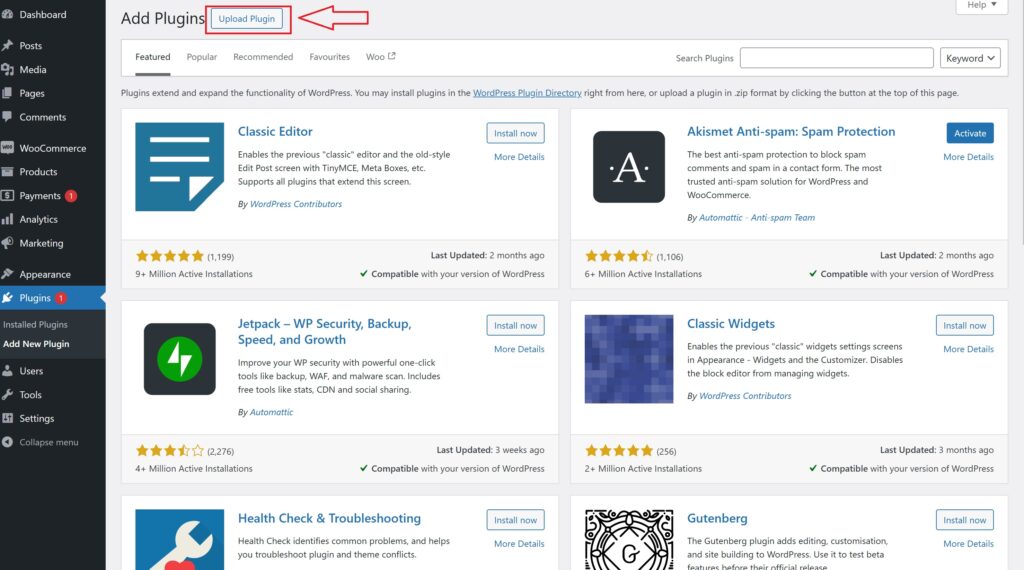
  1. On the Plugins page, look at the top left corner of the screen. You’ll see a button labeled Add New. Click on it.
  2. This will take you to the “Add Plugins” page, where you can search for new plugins or upload one.
  3. At the top of the “Add Plugins” page, find and click on the Upload Plugin button. This option allows you to upload and install a plugin file from your computer.

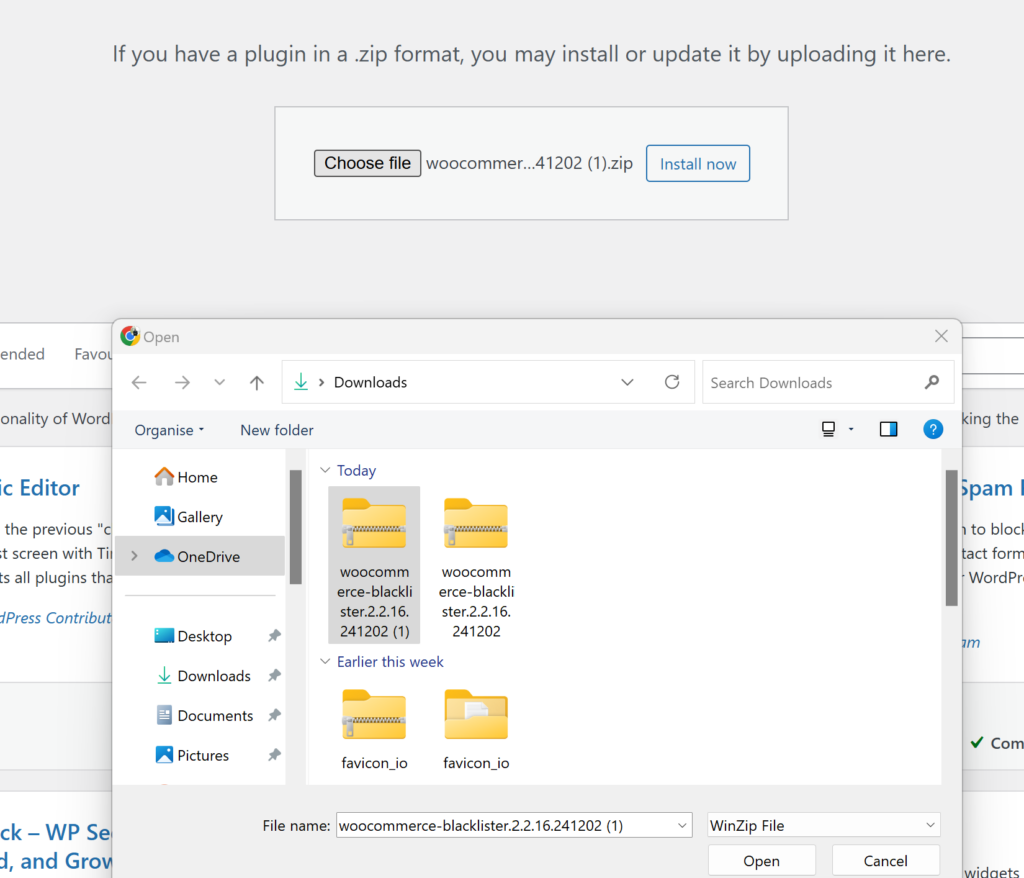
Step 3: Upload the Plugin ZIP File
Fraud Prevention Tactics for WooCommerce
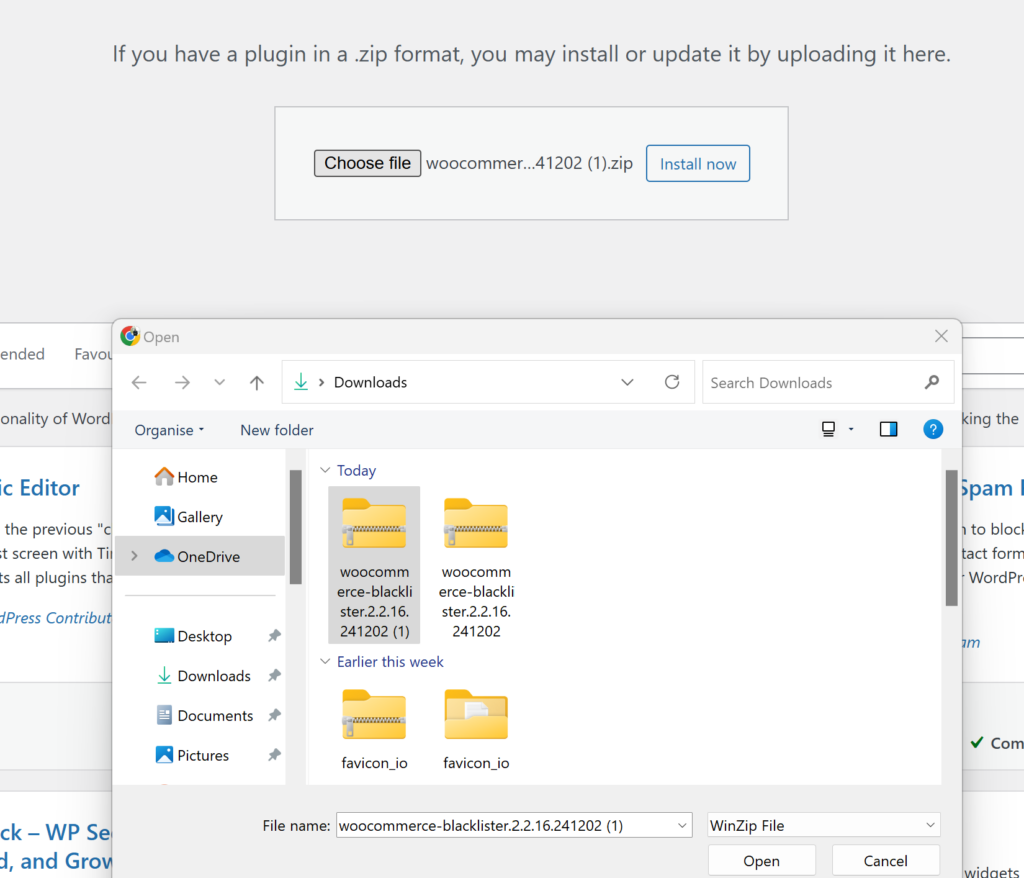
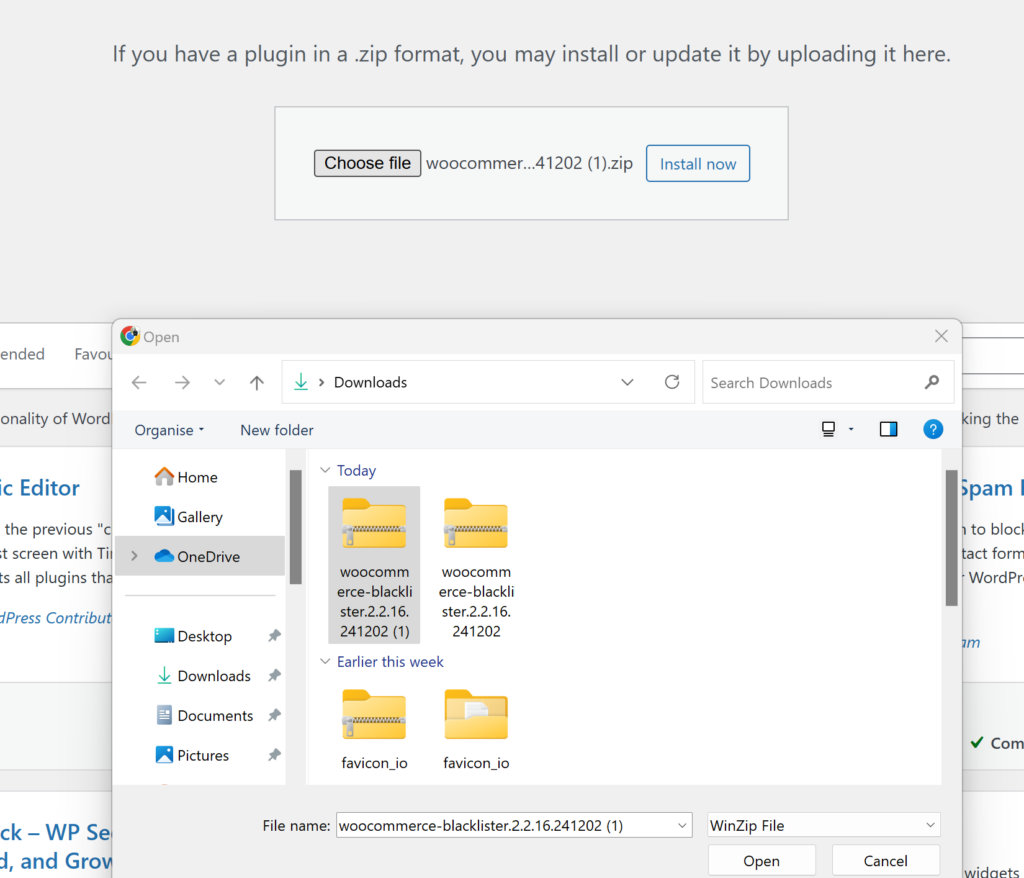
  1. After clicking Upload Plugin, a new section will appear with a button labeled Choose File. Click this button.
  2. A file explorer window will open, allowing you to browse your computer.
  3. Navigate to the folder where you’ve saved the Aelia Blacklister ZIP file (downloaded from the Aelia website).
  4. Select the ZIP file and click Open (or the equivalent button for your system).
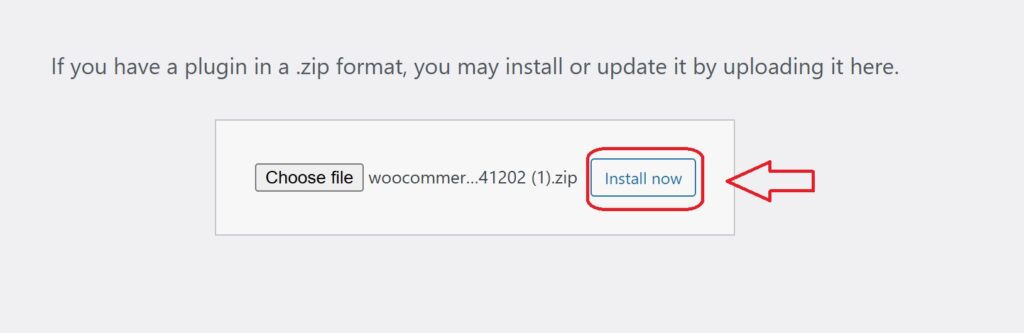
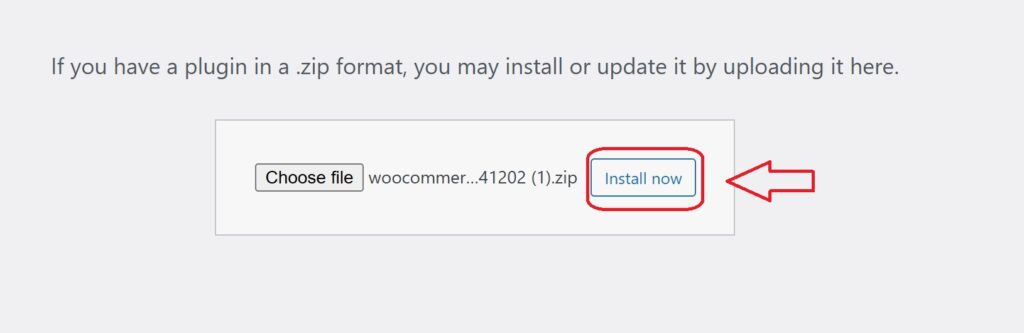
  5. Back in WordPress, confirm that the correct file is selected and click Install Now. WordPress will upload and install the plugin.

Step 4: Activate the Plugin

  1. After the installation, WordPress will display a success message and provide you with the option to Activate Plugin.
  2. Click the Activate Plugin button. This enables the Aelia Blacklister on your WooCommerce store, making it ready for configuration.

Step 5: Access Plugin Settings
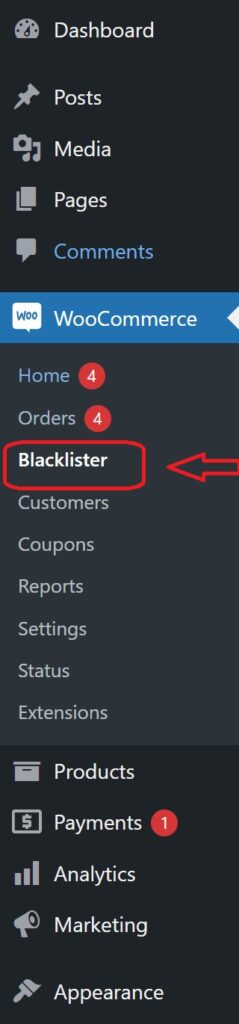
clicking on blacklister tab 1 2
  1. Once the plugin is activated, you’ll need to configure it.
  2. Look for a new menu item in your WordPress dashboard, either under the Settings menu or as a dedicated Aelia Blacklister tab (it may also be under WooCommerce > Settings).
  3. Click on this tab to open the Aelia Blacklister settings page.
  4. Here, you can configure the plugin’s options, such as blacklisting criteria (e.g., names, addresses, email addresses, phone numbers, and IPs), and customize the settings to suit your store’s needs.

Methods to Prevent Fraudulent Activity in WooCommerce

Blocking by Email Address
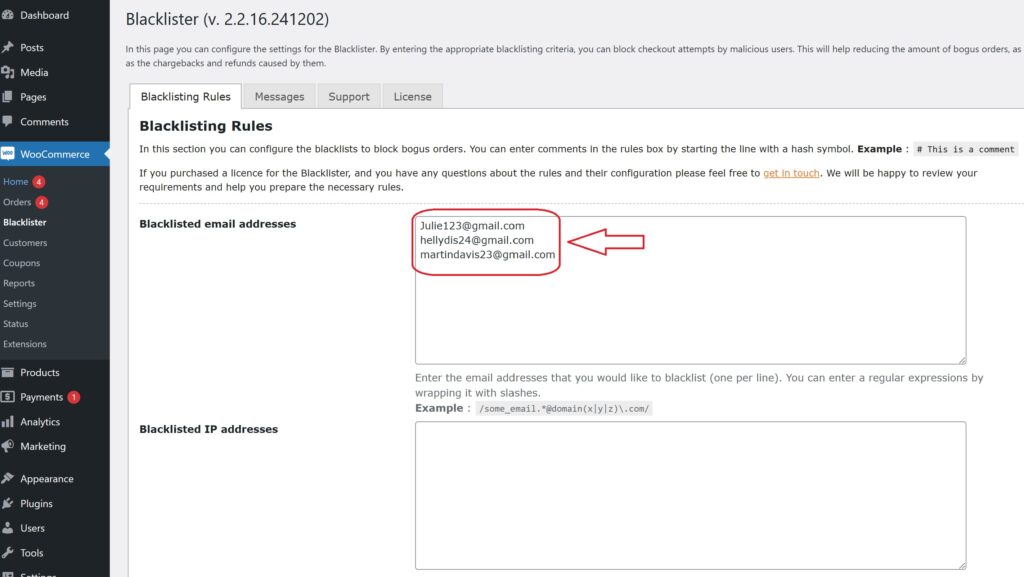
email address to blacklist 1 1

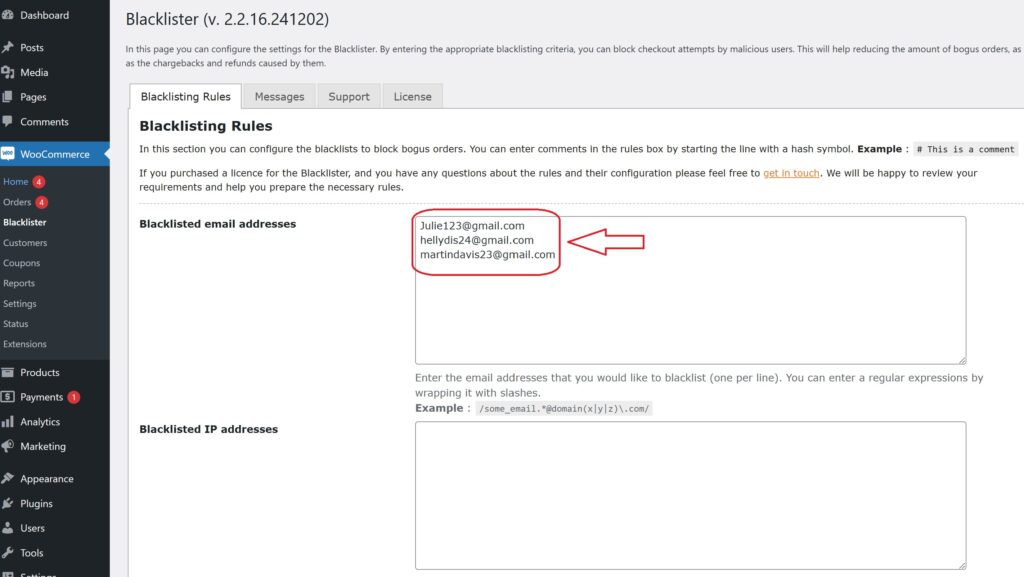
Using the Aelia Blacklister plugin, you can block fraudulent customers by manually entering their email addresses into the blacklist. Here’s how to do it:

  1. Access the Blacklister Settings
    • From the WordPress Dashboard, go to WooCommerce > Blacklister.
    • Click on the Blacklisting Rules tab.
  2. Add Email Addresses to the Blacklist
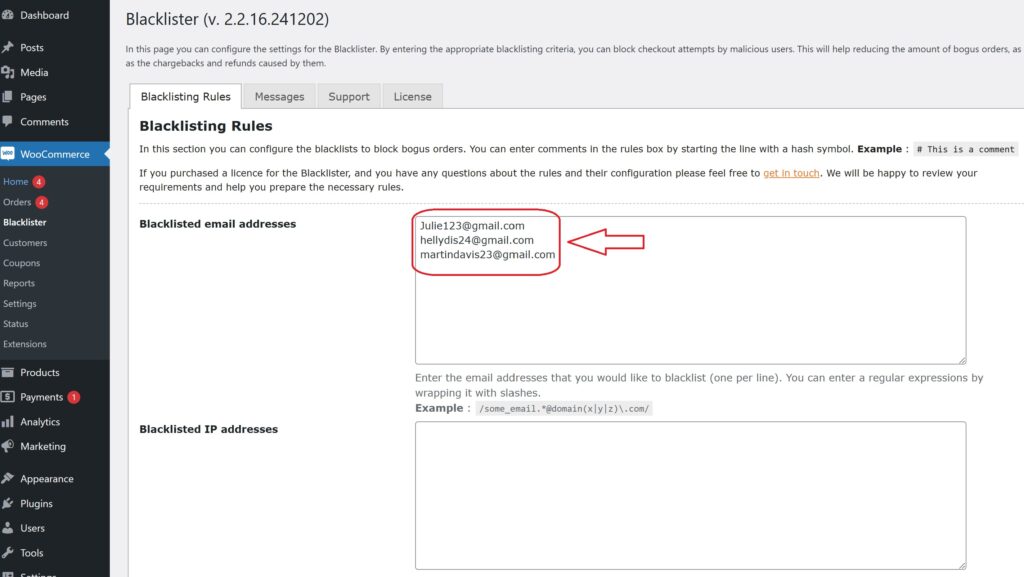
    • In the Blacklisted email addresses field, manually type each email address you want to block, one per line.
  3. Save Changes
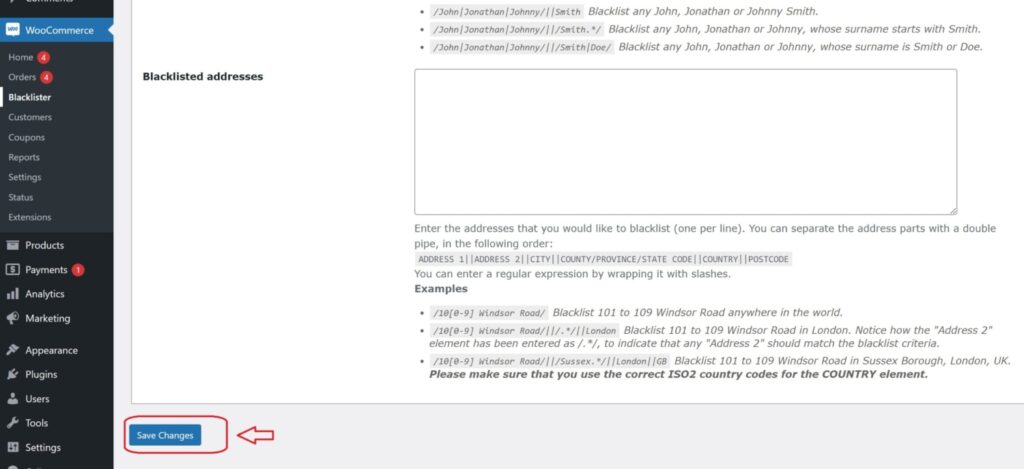
    • After entering the email addresses, scroll to the bottom of the page and click Save Changes to update the blacklist.
  4. Verify the Block
    • Attempting to register or checkout using a blacklisted email will trigger a custom error message notifying the user that their email is not allowed.

Blocking by IP Address

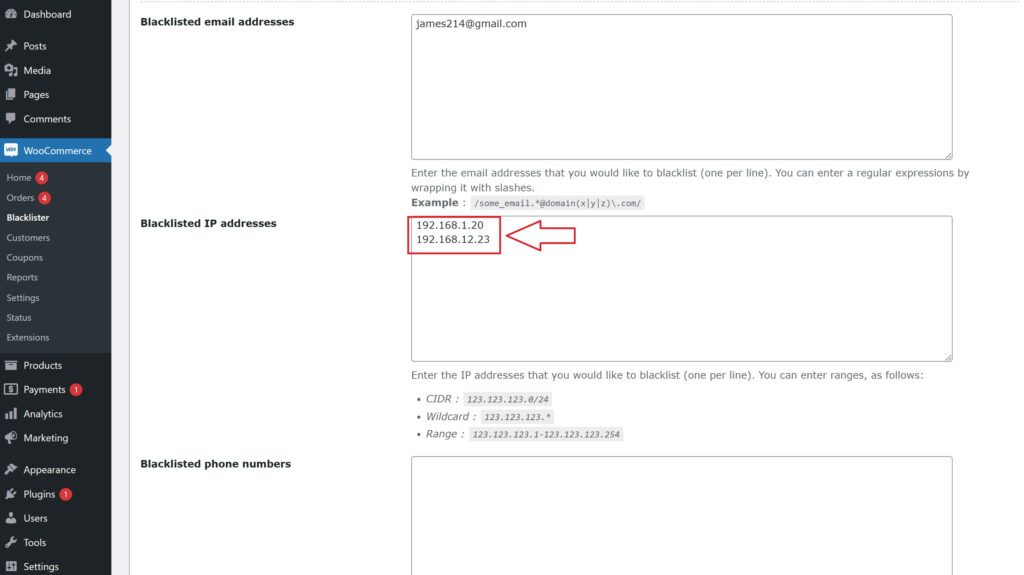
The Aelia Blacklister plugin allows you to manually block IP addresses to prevent fraudulent activity. Here’s how to set it up:
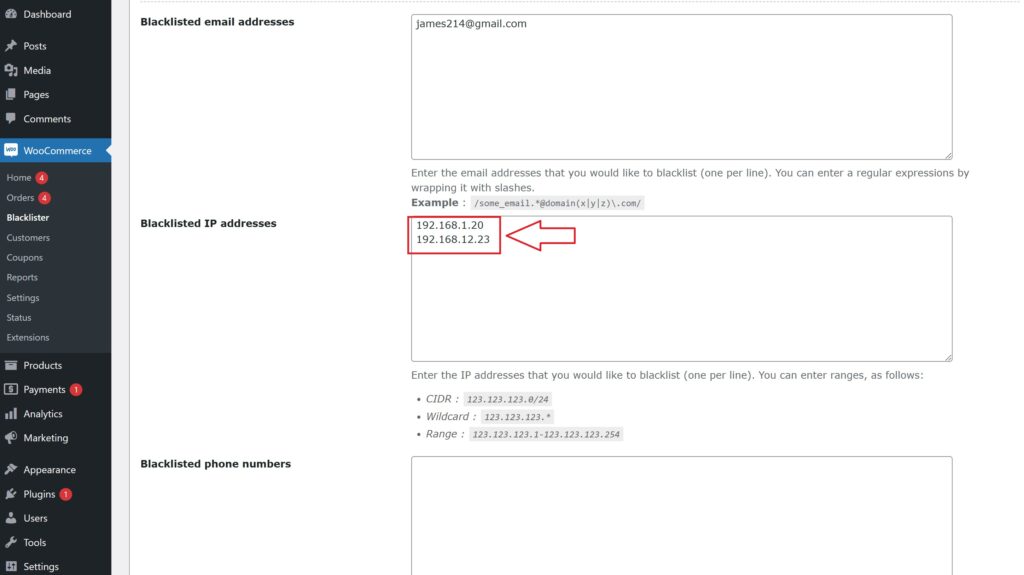
Blocking list of IP address 2
  1. Access the Blacklister Settings
    • Go to WooCommerce > Blacklister from your WordPress Dashboard.
    • Click on the Blacklisting Rules tab.
  2. Manually Add IP Addresses
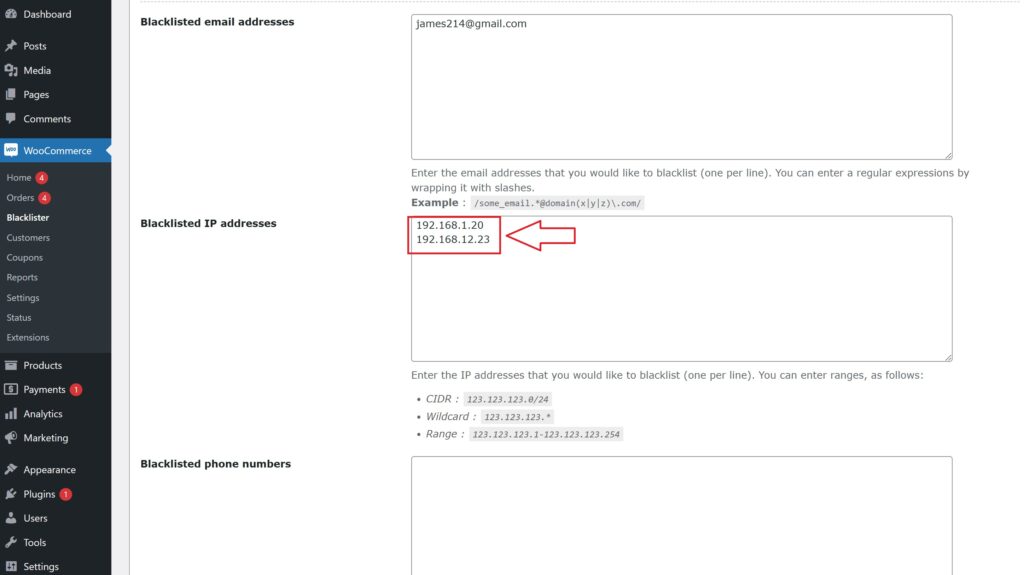
    • Locate the Blacklisted IP addresses field.
    • Manually type in the IP addresses you want to block, one per line.
    • If you want to block a range of IPs, use CIDR notation (e.g., 192.168.0.0/24 to block all addresses from 192.168.0.1 to 192.168.0.255).
  3. Save Changes
    • After entering the IPs, scroll to the bottom of the page and click Save Changes to update the blacklist.
  4. Test the Block
    • Any user attempting to access your site or checkout from a blacklisted IP will be prevented from completing their actions.

Blocking by Location

The Aelia Blacklister plugin allows blocking of specific countries or regions based on geolocation to prevent fraudulent activity.
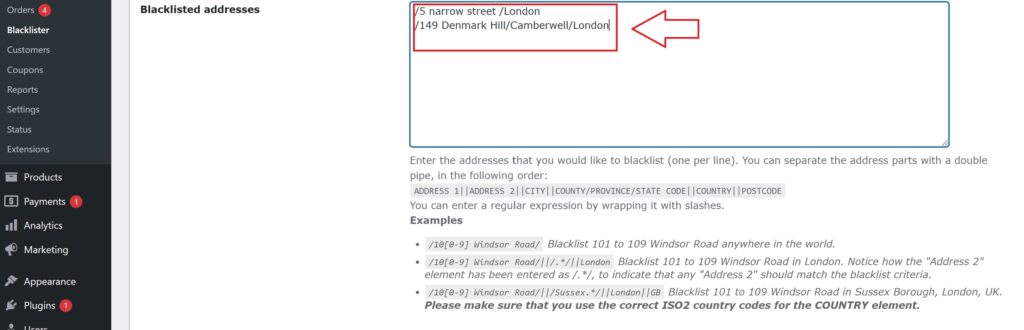
black listing address
  1. Access the Blacklister Settings
    • Navigate to WooCommerce > Blacklister in your WordPress Dashboard.
    • Open the Blacklisting Rules tab.
  2. Manually Block Locations
    • Add countries to the Blacklisted locations field using their two-letter ISO codes (e.g., US for the United States, NG for Nigeria).
    • Multiple country codes should be entered on separate lines.
  3. Save Changes
    • Click Save Changes at the bottom of the page to apply your updated settings.
  4. Effect of Blocking
    • Customers from the listed locations will be unable to proceed with checkout.

Blocking by Phone Number

To block fraudulent phone numbers, follow these steps:

blacklisting phone number
  1. Access the Blacklister Settings
    • From your WordPress Dashboard, go to WooCommerce > Blacklister.
    • Click on the Blacklisting Rules tab.
  2. Add Phone Numbers Manually
    • Find the Blacklisted phone numbers section.
    • Manually enter phone numbers you wish to block, one per line.
    • If your store operates internationally, include country codes for accuracy.
  3. Save Changes
    • Click Save Changes to update the blacklist.
  4. Results of Blocking
    • Blacklisted phone numbers will be restricted from registering or completing purchases, with a notification displayed to users.

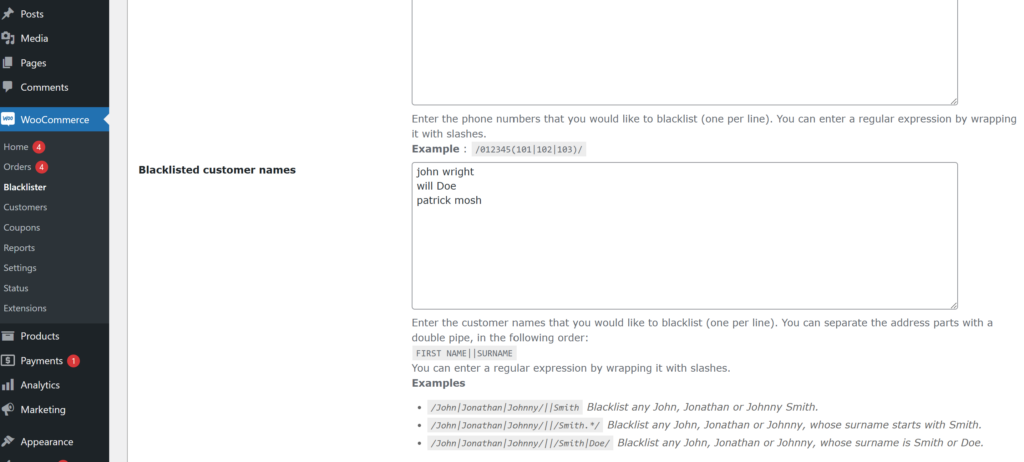
Blocking by Name

The Aelia Blacklister plugin allows you to block specific names manually, adding another layer of fraud prevention. This feature is particularly useful for stopping repeated fraudulent attempts by known offenders.

How to Block Names using Aelia

Blocked list using name
  1. Access the Blacklister Settings
    • Go to WooCommerce > Blacklister in your WordPress Dashboard.
    • Navigate to the Blacklisting Rules tab.
  2. Add Names to the Blacklist
    • Locate the Blacklisted names field.
    • Manually enter the full names you want to block, one per line.
  3. Save Changes
    • Once you’ve entered the names, scroll to the bottom of the page and click Save Changes to update your blacklist.
  4. Effect of Blocking
    • Any user attempting to register or complete a transaction using a blacklisted name will be prevented from proceeding. A custom error message can be configured to notify the user of the restriction.

Why Choose Aelia Blacklister for WooCommerce?

Take full control of your store’s security with precision filtering and seamless integration.

???? Advanced Blacklisting Capabilities

Easily block suspicious orders using a wide range of customizable criteria:

  • Customer Name – Filter by full name to stop known offenders.
  • Address Details – Target specific street names, cities, postal codes, regions, or countries.
  • Email Address – Block individual email addresses or detect patterns using regular expressions.
  • Phone Number – Prevent orders from flagged phone numbers with exact or partial matches.
  • IP Address – Restrict access via specific IPs, masks, or entire ranges.

⚙️ Flexible Matching Rules

  • Supports exact matches and regex-based partial matching for name, address, email, and phone fields.
  • Block IPs using exact values, wildcard masks, or full IP ranges for more robust coverage.

???? Custom Error Messaging

  • Create personalized messages to inform blocked users why their order was declined, keeping the experience clear, professional, and user-friendly.

????️ Seamless WooCommerce Integration

  • Access a dedicated menu within the WooCommerce admin panel to manage blacklist rules easily.
  • Simple to set up, straightforward to maintain—no technical expertise required.

Bonus Tools to Enhance Store Functionality

Combine Aelia Blacklister with other smart plugins for a fully optimized WooCommerce setup:

  • ???? Currency Switcher for WooCommerce
    Offer real-time currency conversion and tailored pricing to international customers for a frictionless checkout.
  • ???? Tax Display by Country
    Automatically show accurate tax rates based on your customer’s location for greater clarity and compliance.

Together, these tools form a powerful trio—boosting your store’s security, performance, and customer experience.

Josh Morley

I have been designing & marketing websites since 2013. I specialize not just in WordPress web design but also in online marketing. SEO, PPC, keyword research, link-building and most recently on lead acquisition for local businesses.

Managing unwanted registrations or spam orders on WooCommerce can be a real headache. Using the WooCommerce block email feature is a great way to keep your store safe. Protecting your business from unwanted emails is simple with Aelia. Its straightforward integration lets you block any address you choose. For more details on setting up WooCommerce international shipping, check out How to Set Up WooCommerce International Shipping.

Using Aelia, you get to choose who shops with you. It keeps out anyone who isn’t a paying customer. Learn how to block email addresses here. WooCommerce’s Aelia Blacklister plugin. Customers enjoy a better experience now that security has been upgraded. For an in-depth explanation on blacklisting malicious users, check out Blacklisting Malicious Users.

What is Email Blocking in WooCommerce?

Blocking emails in WooCommerce plays a vital role in enhancing the security of your store by preventing unwanted registrations and fraudulent orders. This prevents fake sign-ups and keeps fraudulent purchases away. Spam and malicious emails? Stop them by blocking certain addresses or whole domains. Email blocking keeps only real customers buying, protecting your online store’s good name.

Aelia Blacklister Plugin provides an efficient solution to manage blocked emails. Administrators can easily add unwanted email addresses or domains into the plugin settings, such as blocking store@mailjoonix.net or the domain @example.com to prevent these sources from accessing the checkout.

Setting up the plugin is easy and involves three simple steps:

  1. Upload Plugin Files: Upload the plugin to the wp-content/plugins/wc-block-emails directory or install directly through the WordPress plugin screen.
  2. Activate the Plugin: Enable the plugin from the WordPress Plugins interface.
  3. Configure Settings: Go to WooCommerce > Settings > Block Emails and input the email addresses or domains you want to block.

When a blocked email attempts to place an order, the plugin will display a customizable error message, halting the transaction and deterring unauthorized users. This feature helps prevent fraud without disturbing the shopping experience for legitimate customers.

Additionally, the plugin supports bulk uploading of email addresses, making it perfect for large stores that frequently face spam or fraud issues. By integrating Aelia Blacklister for WooCommerce, you can maintain a secure, trustworthy environment for your customers while protecting your business’s reputation. For further enhancing your WooCommerce store’s functionality, if you’re looking to make your site more user-friendly and improve the checkout experience, consider learning how to easily rename country codes in WooCommerce. This simple tweak can help your international customers navigate the store with ease.

Key Features of the Block Emails Plugin:

FeatureDescription
Ease of UseSimple setup and user-friendly interface
CustomizationCustomize error messages for blocked email addresses
Bulk Email BlockingSupports bulk uploading of email addresses and domains
CompatibilityWorks with classic WooCommerce checkout
Security EnhancementPrevents fraudulent orders and spam registrations

Implementing email blocking is a proactive approach to protecting your WooCommerce store from potential threats. With Aelia Blacklister for WooCommerce, you ensure that robust defenses are in place to provide a secure shopping environment for your customers.

Advantages of Blocking Email Addresses

Blocking email addresses in WooCommerce offers several benefits, including improving your store’s overall security and functionality:

Enhanced Security

Blocking unauthorized access helps minimize the risk of malicious activities. By restricting specific email addresses or entire domains, you protect your store from fraudulent users.

Reduced Spam Orders

By blocking unwanted emails, you significantly reduce spam orders, which allows your team to focus on fulfilling legitimate transactions. For stores catering to a global audience, adding features like a Currency Switcher can make the shopping experience even more seamless by allowing customers to view prices in their preferred currency.

Improved Store Reputation

Maintaining a secure store environment builds trust with customers. By eliminating fraudulent activities, your store’s reputation improves, encouraging repeat customers and positive reviews.

Streamlined Order Management

With fewer spam and fraudulent orders, order management becomes more efficient. Your team can focus on processing genuine orders without distractions from fraudulent transactions.

Customized User Experience

Using Aelia Blacklister for WooCommerce, you can tailor the error messages shown to blocked users, maintaining a professional appearance while informing them of access restrictions.

Bulk Email Management

The ability to bulk upload blocked email addresses makes managing large lists of spam or fraudulent users much easier, saving time for administrators.

Cost Savings

By reducing the number of fraudulent transactions, you save on costs related to chargebacks and order processing, which benefits your business’s bottom line.

Compliance and Data Protection

Blocking unauthorized email addresses helps you comply with data protection regulations, ensuring that you adhere to best practices when managing customer data.

Efficient Plugin Use

Integrating a powerful plugin enables you to manage email restrictions effectively without needing to write extensive code, ensuring a smooth and maintainable security system.

Enhanced Customer Trust

A secure store fosters trust among customers. When customers feel that their data is safe and their purchases are protected, they are more likely to engage with your store and make purchases..

Setting Up Aelia to Block Email Addresses

To effectively block email addresses in WooCommerce while using Aelia, integrate the “Aelia Blacklister for WooCommerce” plugin. Follow these steps to set up the necessary plugins and configure the blocking settings.

Step 1: Install the Plugin

  • Go to the Plugins section of your WordPress dashboard.
Blocking Email Addresses
  • Click on Add New Plugin
  • Select Upload Plugin
  • Click Choose File, then select the Aelia Blacklister plugin zip file you downloaded from the Aelia website.
Blocking Email Addresses
  • Click Install Now.
install plugin for aelia 1
  • Once the plugin is installed, click Activate.

Step 2: Access the Plugin Settings

  • After activation, go to WooCommerce and click on it.
  • Look for the Blacklister tab in the settings menu (it might appear under the Aelia tab depending on the version of WordPress).
  • Click on the Blacklister tab to access the plugin’s settings.

Step 3: Block Email Addresses

  • In the Blacklister settings, find the option called  Blacklisted email addresses.
  • Enter the email addresses you want to block in the provided text field (you can block multiple email addresses by separating them with commas or entering them one by one).
Blocking Email Addresses
  • After entering the email addresses, Scroll Down and click Save Changes.
save for aelia 1

Step 4: Test the Configuration

  1. Go to your WooCommerce checkout page.
  2. Try to register or make a purchase using one of the blacklisted email addresses.
  3. If the plugin is correctly set up, the user will not be able to complete the purchase or registration.

How to Get Support for Aelia Blacklister For WooCommerce Plugin

support aelia

You can easily reach out for support directly from the Blacklister for WooCommerce plugin. Just head to the Support section in the plugin settings, where you can submit your issue or provide details about the problem in the comment section. After submission, a member of Aelia’s support team will quickly review your message and offer personalized assistance, ensuring a fast resolution to your concerns.

To further enhance your WooCommerce store, consider exploring the Tax Display by Country for WooCommerce, a seamless solution for managing tax visibility based on customer location, improving the shopping experience. Additionally, check out the Currency Switcher for WooCommerce for a smooth multi-currency shopping experience.

Josh Morley

I have been designing & marketing websites since 2013. I specialize not just in WordPress web design but also in online marketing. SEO, PPC, keyword research, link-building and most recently on lead acquisition for local businesses.

Protecting your WooCommerce store from fraud, fake orders, and malicious users is essential for maintaining a secure and trustworthy shopping environment. Fraudulent activity not only disrupts operations but can also damage your brand’s reputation and lead to revenue loss. Whether you’re encountering suspicious IP addresses, fake customer accounts, or spammy order details, taking proactive measures is key.

One of the most effective strategies to combat these issues is implementing a blacklist system. Using a blacklist plugin—like the Blacklister for WooCommerce—allows you to block users based on specific criteria such as email addresses, phone numbers, IPs, or even billing and shipping countries. This means you can prevent problematic customers from placing orders or even accessing your store entirely.

For instance, if you notice repeated fake orders from a certain region or IP range, you can easily blacklist those users to stop the fraud in its tracks. Plugins like Aelia Blacklister are especially valuable because they integrate directly with WooCommerce and offer flexible, customizable rules that fit your store’s unique needs.

Blacklist tools also pair well with broader security practices, especially if your store handles international shipping. When opening your WooCommerce store to global customers, it’s important to understand how to set up your shipping correctly and securely. Check out our full guide on how to set up WooCommerce international shipping for detailed steps and tips to make sure your store is both accessible and protected worldwide.

By combining robust blacklist features with a well-configured international setup, you can minimize risk and focus on growing your WooCommerce business with confidence.

Why Protecting Your WooCommerce Store Matters

Your WooCommerce store isn’t just a website—it’s a full-fledged business. From handling sensitive customer data to managing secure payment gateways, you carry the responsibility of creating a safe environment for every transaction.

Implementing a blacklist strategy helps to:

  • Block fraudulent purchases and spam orders
  • Protect sensitive customer information
  • Reduce chargebacks and financial loss
  • Maintain trust and brand reputation
  • Comply with data protection regulations

Without proper security measures like IP blocking and blacklisting, your store is vulnerable to automated bots, spam attacks, and even large-scale fraud.

What Is a Blacklist Feature in WooCommerce?

Although WooCommerce doesn’t offer a built-in blacklist tool, third-party plugins like Blacklister for WooCommerce Plugin fill this gap by letting you block users based on:

  • IP addresses
  • Email addresses
  • Names
  • Phone numbers
  • locations

By combining blacklist and allowlist strategies, you create a powerful filter that only lets legitimate customers shop while keeping scammers out.

Setting Up Blacklists in WooCommerce with Aelia Blacklister for WooCommerce

The  Blacklister for WooCommerce plugin allows you to easily manage and block specific customers based on various criteria, such as IP addresses, email addresses, phone numbers, and shipping addresses. By setting up Blacklists, you can improve your WooCommerce store’s security and prevent fraudulent or unwanted transactions.

Here’s a step-by-step guide to setting up Blacklists using the Aelia Blacklister for WooCommerce plugin:

Step 1: Install and Activate the Plugin

zip file for aelia 1 2
  1. Download the Plugin: First, purchase and download the plugin from Aelia.
  2. Upload the Plugin: In your WordPress admin panel, go to Plugins > Add New > Upload Plugin. Select the downloaded .zip file and click Install Now.
  3. Activate the Plugin: After installation, click Activate to enable the plugin on your store.

Step 2: Access the Aelia Blacklister Settings

clicking on blacklister tab 1 1
  1. Once the plugin is activated, navigate to WooCommerce > Settings in your WordPress dashboard.
  2. You will see a new tab titled Aelia Blacklister. Click on it to access the plugin’s settings.

Step 3: Define Blacklist Rules

Blocking list of IP address 1
  1. Add Blacklist Entries: In the Aelia Blacklister settings, you’ll find options to add rules for blocking customers based on various fields:
    • Customer’s Name and Surname: Using regular expressions, you can block customers based on their full name or partial matches.
    • Customer’s Address: Block customers from specific cities, states, or countries by setting the corresponding address field.
    • Customer’s Email Address: Block specific email addresses or domains to prevent unwanted customers from completing the checkout process.
    • Customer’s Phone Number: Block phone numbers from specific regions or individual numbers associated with suspicious behavior.
    • Customer’s IP Address: Block specific IP addresses, or use IP address masks to block ranges of IPs.
  2. You can configure these Blacklist criteria using exact matches or partial matches (with regular expressions for all fields except IP addresses).
  3. Set Match Criteria: Decide whether you want to block customers based on exact matches or partial matches:
    • Exact Match: The customer’s information must exactly match the Blacklisted data.
    • Partial Match: Use regular expressions to match parts of a customer’s information, such as a domain name in an email address.

Step 4: Configure Error Messages

  1. Custom Error Messages: Customise the error message that will be shown to customers when they attempt to place an order using Blacklisted details. This ensures clear communication with blocked users about why their order could not be completed.

Step 5: Save Settings

save for aelia 2
  1. After defining your Blacklist rules and customising error messages, click Save Changes to apply the settings.

Step 6: Test Blacklist Functionality

  1. To verify that the Blacklist is working properly, try to complete an order using details that match the blocked information (such as an email address, phone number, or IP).
  2. If configured correctly, the customer should be blocked from completing the checkout, and the custom error message will be displayed.

By setting up Blacklists with Aelia Blacklister for WooCommerce, you can easily block unwanted customers and prevent fraudulent transactions from occurring on your store. This not only enhances security but also ensures a smoother and more secure shopping experience for legitimate customers.

Best Practices for Using Blacklists Effectively in WooCommerce

To get the most out of your blacklist strategy, it’s important to go beyond simple blocking. Strategic use of blacklists ensures long-term protection, improved user experience, and fewer false positives.

Here are the best practices for using blacklists in WooCommerce:

1. Regularly Update Your Blacklists

Fraud tactics evolve quickly, so it’s essential to keep your blacklist data fresh. Regularly review and update your lists based on:

  • Failed login attempts
  • Refund abuse patterns
  • Suspicious IP geolocations
  • Chargeback claims

Keep a log of flagged users to avoid blocking legitimate customers accidentally.

2. Use Blacklists Alongside Allowlists

While blacklists keep threats out, allowlists let trusted customers in. By combining both:

  • You ensure repeat buyers are never blocked
  • You reduce the chance of false positives
  • You build a more accurate filter for bad actors

Allowlisting VIP customers or verified emails helps you strike a balance between protection and user-friendliness.

3. Leverage Country and Region-Based Blocking

Fraud often originates from specific high-risk countries or regions. Use location-based blacklisting to block entire areas known for chargebacks or spam, while keeping access open for your target market.

Pair this with tools like Aelia Prices by Country to tailor pricing and availability by region while maintaining security.

4. Monitor Activity with Security Logs

Choose a plugin that provides logging features. Monitoring blocked attempts gives you insights into:

  • Frequency of fraudulent attempts
  • Common IPs or email domains
  • Patterns of abuse

These insights help you fine-tune your blacklist criteria and reinforce vulnerable areas of your store.

5. Set Up Alerts for Suspicious Activity

Some blacklist tools allow for custom alerts when suspicious actions occur, such as:

  • Multiple failed transactions
  • Repeated login attempts
  • Orders from blacklisted locations or emails

Set up alerts to act quickly before the fraud impacts your store.

To keep your WooCommerce store secure and protected from fraud, you can use the Aelia Blacklister for WooCommerce plugin. This tool helps you block suspicious users and prevent fake orders from malicious sources. Aelia also offers other helpful plugins, such as the Aelia Currency Switcher for WooCommerce, which enables you to offer multi-currency support, enhancing the shopping experience for international customers. By combining these powerful plugins, you can safeguard your store while offering a smooth, global shopping experience.

Josh Morley

I have been designing & marketing websites since 2013. I specialize not just in WordPress web design but also in online marketing. SEO, PPC, keyword research, link-building and most recently on lead acquisition for local businesses.

Taking your WooCommerce store global can unlock incredible growth opportunities. However, setting up accurate and efficient WooCommerce International Shipping for international customers requires careful planning.

This is where WooCommerce shipping zones come in. These zones allow you to set up tailored shipping methods for different regions, ensuring fair pricing and smooth deliveries.

Have you ever needed to adjust how country names appear in your store? Perhaps you want to use shorter country codes, display names in a different language for clarity, or refine the checkout experience by offering specific shipping options based on location. If you need to adjust how country names appear in your store—whether you want to use shorter country codes or display names in a different language—you can easily rename country codes in WooCommerce. This can help create a more user-friendly experience for customers and align your shipping setup with your business needs.

In this guide, we’ll take you through the steps to create and manage shipping zones effectively. You’ll learn how to set shipping rates, streamline delivery options, and enhance the shopping experience for customers around the world. Whether you’re launching international shipping for the first time or improving your current setup, this guide will help you optimize the process!

Understanding Shipping Zones in WooCommerce

Imagine your e-commerce store as a global network of destinations. Shipping zones act as the blueprint that helps you organize and manage shipping rates and delivery methods for different locations. In WooCommerce, a shipping zone is a defined geographical area where specific shipping rules apply.

These zones can range from broad regions like an entire continent to highly specific locations such as individual countries, states, or postal codes. This flexibility enables you to set up shipping policies that align with your business operations and customer locations.

For example, you might establish:

  • A domestic shipping zone for deliveries within your own country.
  • A regional shipping zone covering nearby countries.
  • An international shipping zone for customers worldwide.

Each zone can have unique shipping rates and delivery methods, ensuring customers receive transparent and accurate shipping costs at checkout.

The Importance of WooCommerce International Shipping Zones

Shipping zones are more than just a way to categorize locations—they’re a powerful tool for optimizing your WooCommerce shipping strategy. Here’s why they matter:

1. Tailored Shipping Rates

Shipping costs can vary significantly based on location. Shipping zones allow you to set precise rates that reflect the actual costs of delivering to each region, ensuring both you and your customers receive fair pricing.

2. Currency-Specific Pricing

If you sell internationally, you can refine pricing further by setting shipping rates in different currencies. For example, you could charge €10 for European customers, $12 for those in the U.S., and £9 for UK shoppers—all within the same zone. This level of customization enhances pricing accuracy and customer trust.

To simplify this process and ensure automatic currency conversion, you can use the Aelia Currency Switcher for WooCommerce. This tool detects customer locations and displays prices in their local currency, making transactions more seamless.

3. Location-Based Shipping Methods

Not every shipping option is available worldwide. With shipping zones, you can offer the most relevant methods to each region. For instance, domestic customers might have access to express shipping, while international buyers only see standard shipping options.

4. A Smoother Checkout Experience

Displaying only applicable shipping methods at checkout streamlines the purchasing process. Customers won’t be confused by unavailable options, reducing cart abandonment and increasing conversion rates.

5. Simplified International Shipping

Expanding to global markets brings logistical challenges. Shipping zones help you organize different shipping policies for various countries, making it easier to comply with regulations, customs fees, and delivery restrictions.

By carefully configuring and refining your shipping zones, you’ll create a professional, efficient, and customer-friendly shipping experience—one that supports both business growth and customer satisfaction.

How to Create Shipping Zones in WooCommerce

#1 – Access Shipping Zones:

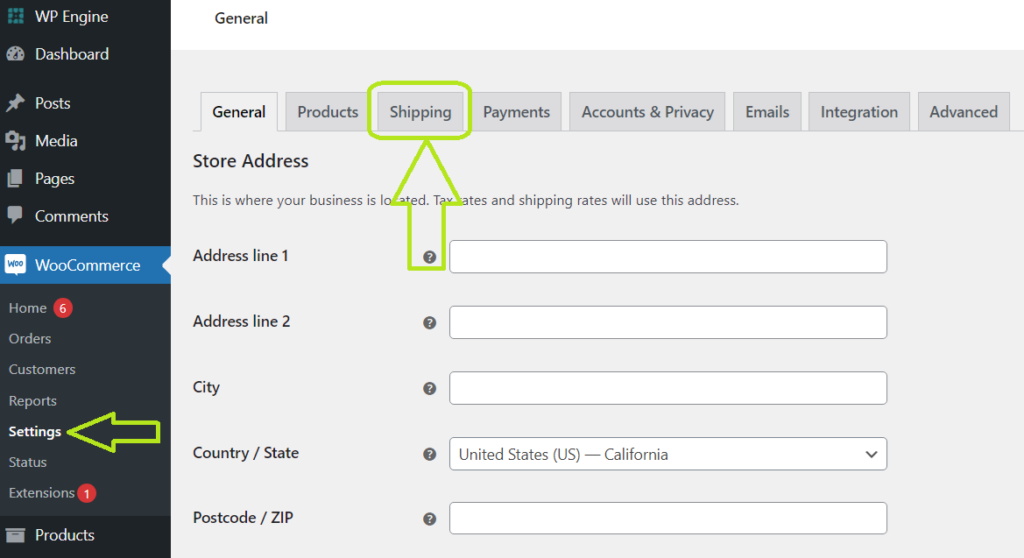
  • Start by logging into your WordPress dashboard. In the left sidebar, hover over WooCommerce and click on Settings.
  • From the tabs at the top, select Shipping. This will take you to the main shipping settings page.
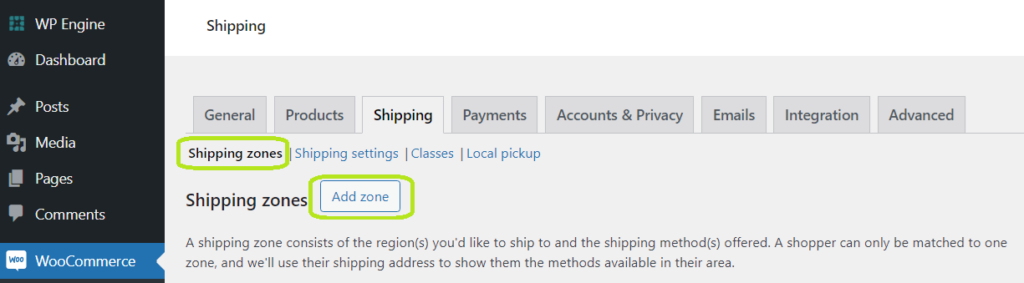
  • Click on the Shipping Zones tab to access the zone management area.
shipping setting

#2 – Add a New Zone:

  • On the Shipping Zones page, click the Add shipping zone button at the top.
  • You’ll be presented with a new screen where you can configure your zone.
add zone for shipping

#3 – Define Zone Regions:

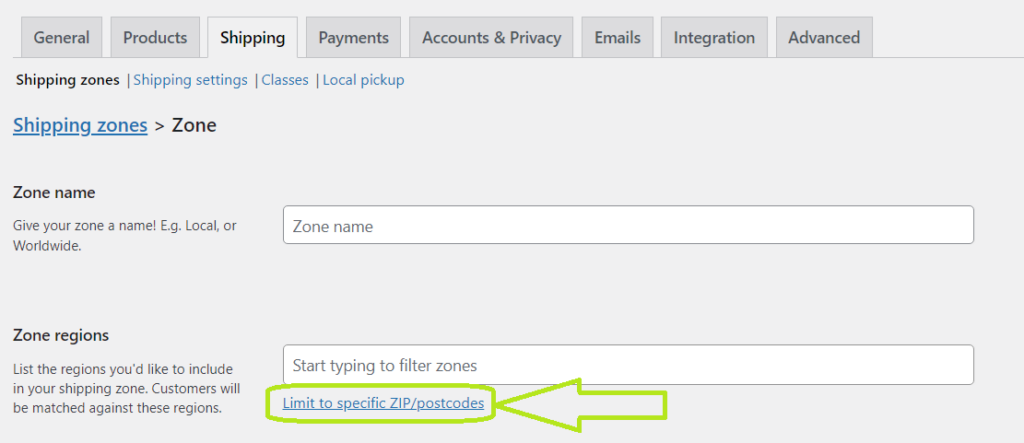
  • Enter a Zone name that clearly describes the geographical area you’re targeting (e.g., “North America,” “Europe,” “Domestic”).
  • Under Zone regions, start typing the name of the country, continent, or region you want to include. WooCommerce will suggest options as you type. You can select multiple regions to include in this zone.
WooCommerce International Shipping

#4 – Limit to Specific Postal Codes (Optional):

  • If you want to narrow down the zone further, click on the Limit to specific zip/postcodes link.
  • Enter the specific postal codes or zip codes, one per line, that you want to include in this zone. You can also use wildcards (e.g., 902*) to match a range of codes.
specific zip postcode

#5 – Add Shipping Methods:

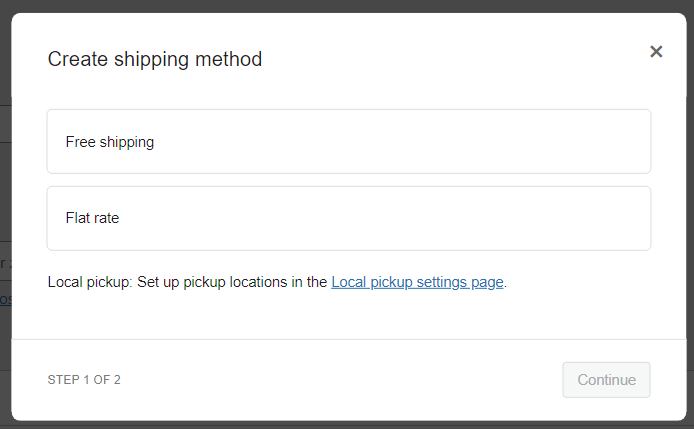
  • Click the Add shipping method button to choose the shipping options you want to offer for this zone.
add shipping method
create shipping method
  • WooCommerce provides built-in options like Flat Rate, Free Shipping, and Local Pickup. If you have installed shipping plugins, you’ll see additional methods available.
  • For each method, click Add shipping method, then configure the settings as needed. 
Pro Tip: If you’re using a tax adjustment plugin like the Aelia Tax Display by Country for WooCommerce, you can take advantage of its ability to automatically adjust tax visibility based on the customer’s location. This ensures accurate tax calculations and compliance with international tax regulations, making your pricing more transparent and customer-friendly.

#6 – Save Changes:

  • Once you’ve configured your shipping methods, click Save changes to finalize your new shipping zone.
save changes for shipping

Best Practices and Tips

Getting your shipping zones set up correctly is key to running an efficient and profitable WooCommerce store. Here are some best practices to ensure smooth operations and optimal customer satisfaction:

1. Start Broad, Then Get Specific

Instead of setting up highly specific shipping zones from the start, begin with broader regions such as entire continents (e.g., “North America”, “Europe”, “Asia”). Then, refine these by adding more specific zones for individual countries or even states where necessary.

For example:

  • A general “Europe” shipping zone can cover multiple countries with standard shipping rates.
  • A separate “United Kingdom” zone within Europe allows for tailored shipping options like express delivery.

This approach keeps your shipping setup organized while allowing flexibility for different regions.

2. Use Flat Rates and Free Shipping Strategically

Flat-rate shipping can simplify your pricing structure and set clear expectations for customers. If offering free shipping, consider:

  • Minimum Order Value – Encourage larger purchases by offering free shipping on orders above a certain amount.
  • Specific Products – Offer free shipping on lightweight or high-margin products.
  • Limited-Time Promotions – Use free shipping as an incentive during seasonal sales or special events.

3. Offer Location-Based Shipping Methods

Not all shipping options are suitable for every region. Tailor shipping methods based on location to avoid confusion at checkout:

  • Domestic zones – Provide multiple options like standard, express, or same-day delivery.
  • International zones – Offer reliable services such as DHL, FedEx, or UPS, while clearly displaying expected delivery times.

4. Test Your Shipping Setup Regularly

Shipping configurations can sometimes break due to plugin updates, new shipping carriers, or changing rates. Regularly test:

  • The checkout process with different addresses to ensure correct shipping rates apply.
  • The accuracy of tax calculations for international customers.
  • Any special shipping rules, such as free shipping thresholds, to confirm they work as expected.

5. Keep Customers Informed with Clear Shipping Policies

Transparency is key when it comes to shipping. Ensure your policies clearly outline:

  • Your return and refund policies related to shipping delays or lost packages.
  • Estimated delivery times for each shipping method.
  • Any additional customs fees or taxes for international orders.

Additional Factors to Consider for International Shipping

While shipping zones are a fantastic way to streamline logistics, there are several other important aspects to consider when expanding your store to international markets. These factors will ensure that your shipping setup is both effective and customer-friendly.

Shipping Zones vs. Shipping Methods: The Key Difference

Shipping zones define where you ship, while shipping methods define how you ship. Both elements need to be configured carefully for a seamless experience. For example, you may have a “Europe” shipping zone but offer various shipping methods within it, such as standard, express, or economy. Offering different shipping methods helps cater to a wider range of customer needs and budgets.

Consider the following:

  • Shipping Zones: Regions where your products are eligible for shipping (i.e., countries, states, or specific postal codes).
  • Shipping Methods: Options available within each shipping zone, which may vary based on service level, speed, or cost.

Navigating International Shipping Challenges

Expanding your store globally comes with its own set of challenges. Here are some common hurdles to be aware of:

1. Customs and Duties

It’s essential to familiarize yourself with customs regulations and duty charges for each country you ship to. These additional costs can significantly impact your customers’ total price, and should therefore be included in your checkout or product pricing to avoid surprises.

2. Currency Conversion

For international customers, presenting prices in their local currency can ease the purchasing decision. Implementing a currency conversion solution can ensure customers see accurate pricing during checkout, helping build trust and transparency.

3. Shipping Times and Tracking

Customers love clarity, so be upfront about estimated delivery times for international orders. Additionally, offering tracking numbers helps customers follow their shipments and reduces anxiety during the waiting period.

Enhancing Your WooCommerce Store with Aelia’s Blacklister Plugin

One essential tool for managing international shipping is the Aelia Blacklister for WooCommerce plugin. This powerful solution helps you manage shipping restrictions by blocking specific countries or regions from accessing your store. Whether it’s due to legal issues, shipping limitations, or other factors, Blacklister ensures you’re not wasting time or resources fulfilling orders to places you can’t ship to.

The Blacklister plugin also integrates well with your overall international shipping strategy, giving you control over where you want to ship and making it easier to manage logistics.

Josh Morley

I have been designing & marketing websites since 2013. I specialize not just in WordPress web design but also in online marketing. SEO, PPC, keyword research, link-building and most recently on lead acquisition for local businesses.

Running a WooCommerce store is about more than just offering high-quality products—it’s also about safeguarding your business from fraud and ensuring a seamless shopping experience for your genuine customers. Unfortunately, the online shopping space attracts malicious actors who exploit vulnerabilities, leading to financial losses with each unauthorized transaction. To protect your WooCommerce store from these threats, implementing effective fraud prevention measures is essential. By utilizing advanced tools like the Aelia Blacklister Plugin, you can block malicious users and secure sensitive data, ensuring your store remains safe and trusted by legitimate customers.

However, relying solely on the default features may not be enough. One of the best ways to enhance your store’s security is by using a specialized plugin designed to protect against fraudulent users. These plugins allow you to quickly detect and block suspicious activities, such as fraudulent email addresses, phone numbers, and IPs. Whether you’re looking for a quick fix or a comprehensive security overhaul, these plugins offer the flexibility you need through easy-to-implement code snippets and dedicated tools to fortify your store against threats. For more about optimizing your store, check out our WooCommerce Web Design services, ensuring that both functionality and security go hand-in-hand.

With these Plugin called Blacklister for WooCommerce at your disposal, you can effectively prevent unwanted transactions and build a stronger relationship with your customers.

Reasons to Blacklist Malicious Users in WooCommerce

Blacklisting malicious users is crucial for maintaining a secure and reliable online store on WordPress. In the world of e-commerce, WooCommerce store owners face constant threats from fraudsters and cybercriminals who attempt to exploit weaknesses in their systems. By blocking these harmful users, you can prevent unauthorized transactions, safeguard sensitive customer data, and maintain a positive reputation. Whether it’s stopping fraudulent chargebacks, protecting promotions, or enhancing customer trust, blacklisting malicious users helps ensure the safety and success of your WooCommerce business Build on WordPress by web designers or other platform. With the right security measures, such as WordPress plugins and WooCommerce features, you can build a safer shopping environment for both you and your customers.

The main reason to Blacklist Malicious user are:-

Prevent Fraudulent Transactions

  • Impact: Chargebacks, unauthorized purchases, and stolen credit card use.
  • Benefit: Blocks fraudulent users before they can affect your sales and cash flow, keeping your WooCommerce store secure on WordPress.

Protect Sensitive Customer Data

  • Impact: Theft of email addresses, phone numbers, and payment information.
  • Benefit: Safeguard personal and financial data with WordPress security plugins and WooCommerce features, ensuring privacy and customer trust.

Improve Store Security

  • Impact: Malicious actors attempting to exploit store vulnerabilities.
  • Benefit: Strengthen security by blocking suspicious IPs, emails, and phone numbers using WordPress security tools and WooCommerce blacklisting features.

Reduce Financial Losses

  • Impact: Fraudulent transactions lead to lost inventory, chargeback fees, and administrative costs.
  • Benefit: Prevent these losses by blocking fraudulent users early, saving money and improving operational efficiency.

Maintain Customer Trust

  • Impact: Fraud can damage your store’s credibility and lead to negative reviews.
  • Benefit: Build customer confidence by using WordPress and WooCommerce to protect data and prevent malicious activity.

Prevent Abuse of Discounts and Promotions

  • Impact: Fraudsters exploit promotions or discount codes.
  • Benefit: Ensure that discounts and promotions are used by legitimate customers, maintaining fairness and profitability.

Protect Website Reputation

  • Impact: A security breach can lead to public incidents, poor reviews, and loss of customer trust.
  • Benefit: Prevent damage to your store’s reputation by blocking fraudulent users, ensuring your site remains secure and trustworthy.

Implementing Blacklister Plugin for WooCommerce

Enhancing the security of your WooCommerce store becomes much easier with the implementation of a blacklist, preventing unwanted transactions and protecting your business from fraudulent activity. Aelia Blacklister offers a powerful solution by utilizing various tools and methods to manage and enforce blacklisting rules effectively.

Aelia Blacklister for WooCommerce

Aelia Blacklister Plugin provides a robust and flexible configuration for blocking orders from specific users. The plugin allows you to filter malicious users based on the following criteria:

  • Name and Surname
  • Address: Street, Postcode, City, Province/State, Country
  • Email Address
  • Phone Number
  • IP Address

How to Set Up Aelia Blacklister for WooCommerce

Setting up Aelia Blacklister is a simple process that allows even those with minimal technical knowledge to boost their store’s security by blocking fraudulent customers.

Step 1: Install the Aelia Blacklister Plugin

Begin by downloading, uploading, and installing the Aelia Blacklister plugin into your WooCommerce store. Here’s how:

Part 1: Download the Plugin

  1. Visit the Aelia Website:
    Go to the official Aelia website to ensure you are downloading the latest, most reliable version of the plugin.
  2. Purchase or Get the Plugin:
    If the plugin is not free, complete the purchase before proceeding. Once the transaction is complete, you’ll be able to download the plugin ZIP file to your computer.
  3. Download the ZIP File:
    After purchase, click the download button to save the ZIP file containing all the plugin files to your computer.

Part 2: Upload the Plugin to Your WordPress Site

Log Into Your WordPress Admin Dashboard:

Start by logging into the Admin Dashboard of your WordPress website.

Navigate to Plugins:

plugin 1

In the left-hand menu, hover over the “Plugins” option, then click on “Add New.” This will open the page where you can search for and upload new plugins.

Click on Upload Plugin:

upload plugin 2

On the Add Plugins page, at the top of the screen, you’ll see an option labeled “Upload Plugin.” Click this to proceed with the manual upload process.

Select the ZIP File:

zip file for aelia 1 1

Once you click “Upload Plugin,” you’ll see a “Choose File” button. Click it to open a file dialog, then locate and select the Aelia Blacklister ZIP file that you downloaded earlier.

Install the Plugin:

install plugin for aelia 1 1

After selecting the file, click “Install Now.” WordPress will begin uploading the plugin file to your website.

Part 3: Install and Activate the Plugin

Wait for the Installation to Complete:

WordPress will now install the plugin. The process may take a few moments, depending on the file size and your internet connection. Once it’s done, you’ll see a success message.

Activate the Plugin:

Once installation is complete, click “Activate” to enable the Aelia Blacklister plugin on your WooCommerce store.

Confirm Plugin Activation:

After activation, you’ll be redirected to the Plugins page, where you should see the Aelia Blacklister plugin listed under your active plugins. Additionally, a new menu item or settings option for Aelia Blacklister will appear under the WooCommerce settings, confirming the plugin is successfully installed and active.

Step 2: Set Up Blocking Rules in Aelia Blacklister

With the Aelia Blacklister plugin now installed and activated, it’s time to configure the settings to block fraudulent users.

1. Block by Name and Surname

How to Block:
Within the plugin settings, you can enter the full name or surname of customers you wish to blacklist. You can block first names, last names, or any combination of both.

Why It’s Important:
Fraudsters often change their contact details, like email or phone number, but keep using the same name. Blocking names helps prevent transactions even if other details are modified.

Blacklisted with customer name

Steps to Block:

  • Go to the “Blacklisted Customer Name” section in the plugin settings.
  • Enter the name(s) you want to block.
  • Click “Save” or “Update.”

2. Block by Address (Street, Postcode, City, Province/State, Country)

How to Block:
Block users by their address, including street, postcode, city, province, or country. This is useful for detecting patterns like fraudsters using the same fake addresses.

Why It’s Important:
Fraudsters may use stolen or fake addresses, especially in regions known for fraudulent activities. Blocking specific addresses prevents them from completing purchases.

black listing address 1

Steps to Block:

  • In the “Address” section, input the full address or parts like postcode or city.
  • Click “Save” to apply the block.

3. Block by Email Address

How to Block:
You can block specific email addresses or entire domains (e.g., *@fakedomain.com) to prevent fraudulent sign-ups.

Why It’s Important:
Many fraudsters rely on disposable email services to create fake accounts. Blocking emails stops them from abusing your store’s offers.

email address to blacklist 1 1

Steps to Block:

  • Under the “Email Address” section, input the email or domain to block (e.g., *@disposablemail.com).
  • Click “Save” to activate the block.

4. Block by Phone Number

How to Block:
You can block specific phone numbers or even area codes. Fraudsters may use stolen phone numbers to complete transactions, and blocking these ensures they can’t proceed with the purchase.

Why It’s Important:
Blocking fraudulent phone numbers adds an additional layer of security, preventing fraudulent transactions tied to these numbers.

blacklisting phone number 1

Steps to Block:

  • In the “Phone Number” section, input the numbers or area codes to block.
  • Click “Save” to apply the changes.

5. Block by IP Address

How to Block:
Block specific IP addresses or ranges to prevent fraudsters from accessing your store using the same network. You can also use wildcards or regular expressions for broader protection.

Why It’s Important:
Blocking IP addresses can prevent repeat fraud from the same source, offering a significant deterrent for fraudulent activity.

Blocking list of IP address 1

Steps to Block:

  • Go to the “IP Address” section in the settings.
  • Enter the specific IP or range to block.
  • Click “Save” to activate the IP block.

Final Step: Save and Apply Changes

Once you’ve entered all the blocking details, click “Save” or “Update” to apply the changes. It’s crucial to regularly monitor and update your blacklist to keep your store protected against new fraudulent attempts.

Why Use the Aelia Blacklister Plugin Compared to Other WooCommerce Plugins

aelia

The Aelia Blacklister Plugin stands out as one of the most effective and flexible solutions for managing fraudulent activity and ensuring the security of your WooCommerce store. While there are numerous plugins available to combat fraud, Aelia Blacklister offers unique features and benefits that make it a top choice for WooCommerce store owners.

Here’s why you should consider using the Aelia Blacklister Plugin compared to other WooCommerce plugins:

1. Comprehensive Blocking Capabilities

Aelia Blacklister enables store owners to blacklist malicious users based on a wide range of factors, including:

  • Name and Surname – Block specific individuals based on their names.
  • Address – Block customers by street, postcode, city, state, or country.
  • Email Address – Block specific email addresses or entire domains.
  • Phone Number – Block specific phone numbers or area codes.
  • IP Address – Block specific IP addresses or ranges for enhanced protection.

Many other plugins may offer a limited selection of blocking criteria, but Aelia Blacklister covers all key aspects to ensure comprehensive protection.

2. Easy Setup and Configuration

Aelia Blacklister is designed for both novice and experienced users, making it easy to set up even for those with minimal technical knowledge. The setup process involves clear instructions and simple steps to get the plugin up and running quickly. This user-friendly approach ensures that store owners can implement security measures quickly and effectively.

3. Flexible and Customizable Rules

One of the standout features of Aelia Blacklister is its ability to create highly customized blocking rules. Whether you need to block individual users, specific geographical locations, or large-scale fraud patterns, Aelia allows store owners to tailor the blocking settings to their unique needs. This level of flexibility is often more limited in other WooCommerce security plugins.

4. Integration with WooCommerce

Aelia Blacklister integrates seamlessly with WooCommerce, allowing for easy management of blacklisted users directly from the WooCommerce dashboard. This tight integration ensures that the plugin works smoothly alongside other WooCommerce features, minimizing potential conflicts and enhancing overall functionality.

5. Detailed Monitoring and Logs

Aelia Blacklister offers robust monitoring features and logs, allowing you to track blacklisted users, view actions taken, and analyze patterns. This detailed insight helps you fine-tune your security settings and identify potential vulnerabilities. Other plugins may not offer such detailed monitoring, which is essential for proactive fraud prevention.

6. Regular Updates and Support

Aelia is known for providing excellent customer support and frequent updates, ensuring that the plugin remains effective against the latest fraudulent techniques and security threats. This commitment to maintaining the plugin is a significant advantage over other plugins that may not receive timely updates or responsive support.

7. No Compromise on Store Performance

While enhancing security, Aelia Blacklister is optimized to run efficiently without impacting your store’s performance. Some security plugins can slow down your website or introduce complex configurations, but Aelia Blacklister is designed with performance in mind, ensuring that your store operates smoothly

Josh Morley

I have been designing & marketing websites since 2013. I specialize not just in WordPress web design but also in online marketing. SEO, PPC, keyword research, link-building and most recently on lead acquisition for local businesses.

Have you ever wanted to change how country names appear in your WooCommerce store? WooCommerce uses standard country names that are widely accepted. However, there are times when you might prefer to change these names to suit your specific needs better. Whether you’re aiming for a more concise version of a country’s name or opting for a term that resonates better with your local audience, WooCommerce allows you to make these adjustments with ease to Rename Country Codes in WooCommerce.

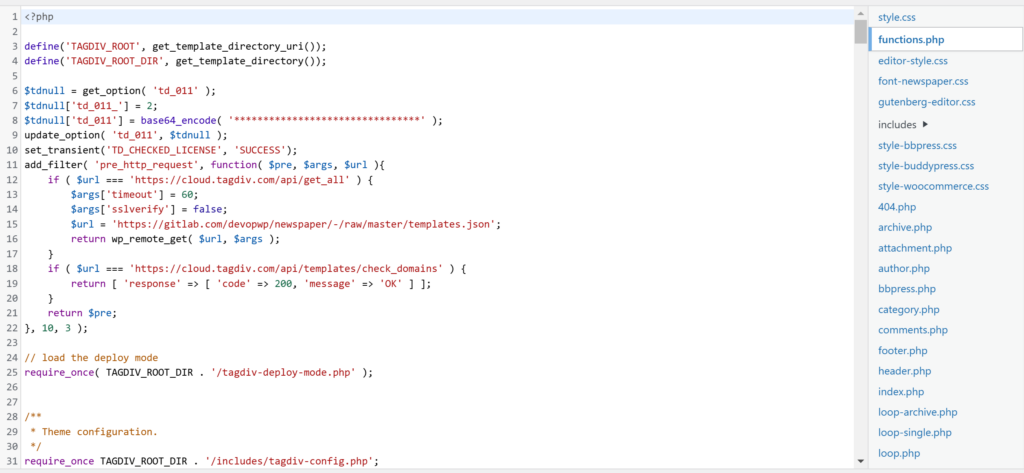
Making these changes is simple and doesn’t require extensive technical knowledge. All it takes is a small snippet of code added to your theme’s functions.php file. You’ll need to make a few adjustments to this code to target the countries you wish to rename.

This straightforward method lets you customize the country names displayed in your store, ensuring they align with your business goals and customer expectations. In this article, we’ll walk you through the process step by step and also introduce some plugins that can provide even more flexibility for those who want advanced options.

For a powerful solution to manage currencies, taxes, and country-based pricing, check out Aelia, a leading provider of WooCommerce plugins designed to enhance your store’s functionality. After you change your country code, you can manage pricing, tax settings, and currency options with greater control, ensuring a seamless shopping experience for your customers.

Step-By-Step Guide to Renaming Country Codes In WooCommerce

Understanding Country Codes in WooCommerce

Country codes are essential in WooCommerce for ensuring the correct handling of shipping, billing, and customer information. These codes follow the ISO 3166-1 alpha-2 standard, which assigns a unique two-letter code to each country (e.g., “US” for the United States and “CA” for Canada).

When a customer enters their address, WooCommerce uses these country codes to identify the appropriate country and apply the correct shipping rates, tax calculations, and regional content. This ensures that the customer’s experience is accurate and tailored to their location.

For a comprehensive list of ISO country codes, you can refer to a trusted online resource on ISO 3166 country codes.

Before we get started, it’s important to understand that modifying the functions.php file can directly affect your theme’s functionality. Be sure to back up your site before proceeding to avoid any accidental changes that could impact your store. The functions.php file is a powerful tool that allows you to add custom code to your site, so it’s crucial to handle it carefully. Once you’re ready, follow the steps below to easily access and modify this file.

Step 1: Open the functions.php File

The first step is to locate and open the functions.php file of your active theme. This is where you’ll add the code snippet to rename country codes in WooCommerce.

Log into your WordPress Dashboard:-

theme file editor 2

After logging into your WordPress admin, go to the sidebar and click on Appearance > Theme Editor. This will bring up the theme files for your active WordPress theme.

Locate the functions.php file. :-

function php file

On the right-hand side of the Theme Editor window, you’ll see a list of template files under Theme Files. Scroll through this list and locate functions.php, which is typically labeled as Theme Functions.

Open the functions.php file:-

open function php file

Click on functions.php to open it in the Theme Editor. This file contains the custom functions for your WordPress theme, where you will add the code snippet.

Step 2: Add the Code Snippet

Now that you’ve opened the functions.php file, it’s time to add the code that will rename a country code in WooCommerce. Follow these steps:

Copy the Code Snippet Below:

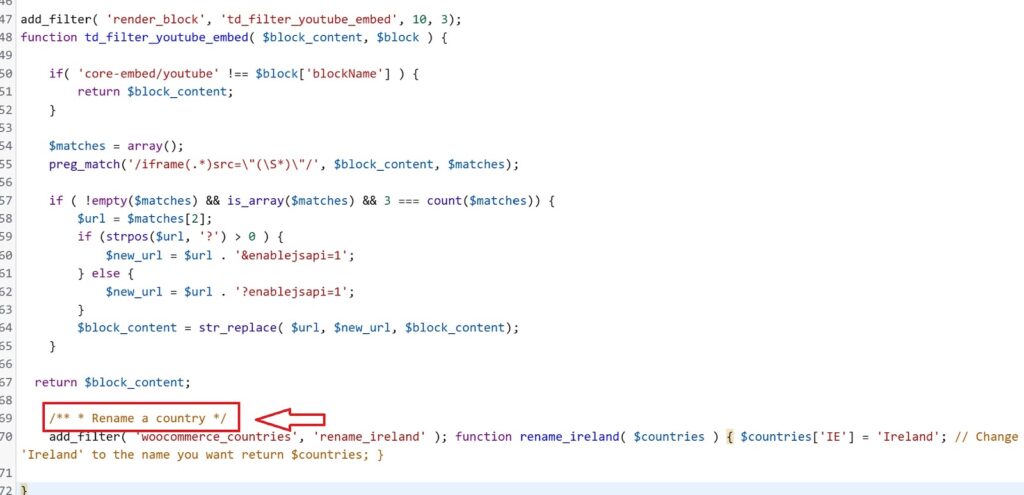
/** * Rename a country */ add_filter( 'woocommerce_countries', 'rename_ireland' ); function rename_ireland( $countries ) { $countries['IE'] = 'Ireland'; // Change 'Ireland' to the name you want return $countries; }

Paste the Code:

paste the code file

Scroll down to the bottom of the functions.php file and paste the above code snippet just before the closing PHP tag (if there is one). This ensures that the snippet is added at the end of the file.

Step 3: Explanation of the Code

If you’re not familiar with PHP or WordPress, the code may look a bit complex at first. However, let’s break it down step by step so you can understand how it works.

PHP Comments :-

rename a country file 1

The first lines are comments. These are not executed but simply provide information to the person reading the code. In this case, they explain that this block of code is used to rename a country.

Binding a Custom Function to the WooCommerce Filter :

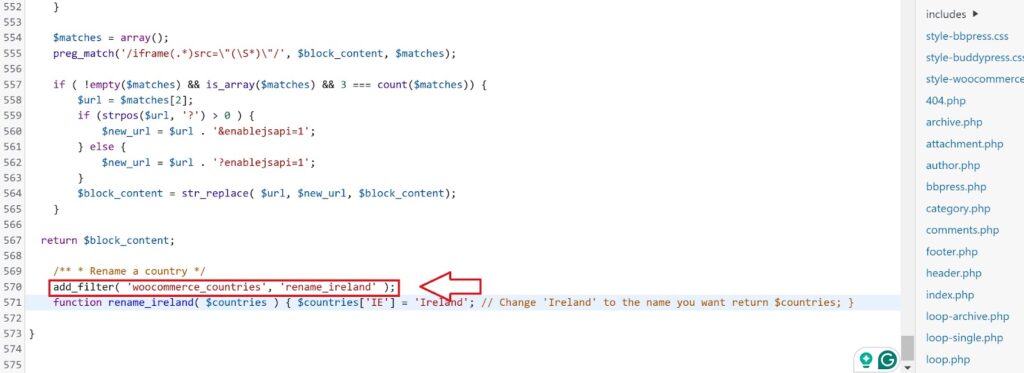
add filter file

The line uses the add_filter() function to bind a new custom function, rename_ireland(), to the woocommerce_countries filter hook. This hook is responsible for altering country data in WooCommerce.

Renaming the Country :
In the custom function rename_ireland(), the country code IE (which represents Ireland in ISO 3166-1) is renamed. The countries[‘IE’] = ‘Ireland’; line is where the country name is modified. You can change the country code and name to anything you’d like, such as renaming the United States or another country in your store.

Step 4: Customizing the Code for Other Countries

To rename a country other than Ireland, you’ll need to make a few small changes to the code:

  1. Change the Country Code: The country code is a two-letter abbreviation used by WooCommerce to identify the country. For example, the country code for the United States is US, for Canada, it’s CA, and for the UK, it’s GB. You can replace ‘IE’ with the code of any other country you want to rename.
  2. Rename the Country: The name after the equal sign is what will display on your website. For instance, if you’re renaming “United States” to “USA,” you would change this line to:
$countries['US'] = 'USA';
  1. Custom Function Name: 
custom function name

It’s always a good idea to give the custom function a name that helps you remember its purpose. For example, if you’re renaming the United States, you could name the function rename_us or rename_united_states.
Here’s how the code would look for renaming the United States:

php
CopyEdit
/** * Rename a country */ add_filter( 'woocommerce_countries', 'rename_us' ); function rename_us( $countries ) { $countries['US'] = 'USA'; // Renaming US to USA return $countries; }


Be sure to change the function name in both the add_filter line and the function definition, or it won’t work correctly.

Step 5: Save and Close the functions.php File

save and close

Once you’ve added the code snippet and made any necessary modifications, it’s time to save your changes:

  1. Save the File: After you’ve added the code, scroll down and click the Update File button to save your changes.
  2. Close the File: After saving the file, you can exit the Theme Editor. Your changes will be live on your website!

Step 6: Verify the Changes

Once the changes are saved, it’s important to verify that the country name has been updated correctly on your WooCommerce store:

  1. Visit the Checkout Page:
    Go to your store’s checkout page and see if the country name has changed in the country selection dropdown.
  2. Test the Functionality:
    Add a product to the cart and proceed to the checkout process. Ensure that the renamed country appears in the list and that it is functioning as expected (i.e., shipping rates and taxes should still apply correctly).

If you need More Help in WordPress, Consider working with expert WordPress website design and development,  working with professionals who specialize in WooCommerce customization. You can explore Marketing The Change for digital marketing solutions to grow your online store efficiently.

Common Issues and Troubleshooting

While renaming country codes in WooCommerce is usually a straightforward process, you might encounter a few common issues:

  1. Incorrect Country Name Displayed:
    Double-check the code you added to ensure you’ve correctly replaced the country code and name. Also, ensure that no other conflicting plugins are overriding these settings.
  2. Code Not Working:
    Ensure the code is placed at the very bottom of the functions.php file, just before the closing ?> tag (if it exists). If there’s a syntax error, it may cause the code to malfunction, so check for any missing semicolons or incorrect characters.
  3. Undoing Changes:
    If you encounter any issues after making the changes, you can easily undo them by simply removing the code snippet from the functions.php file.

Renaming country codes in WooCommerce is straightforward, but customizing your store for different regions can be much more complex.

If you need to adjust product prices by location, restrict access to certain products in specific countries, or implement other advanced location-based customizations, consider using Aelia’s Prices by Country for WooCommerce plugin.

This versatile tool allows you to fine-tune product pricing and visibility based on customer location.

Josh Morley

I have been designing & marketing websites since 2013. I specialize not just in WordPress web design but also in online marketing. SEO, PPC, keyword research, link-building and most recently on lead acquisition for local businesses.

In the ever-evolving landscape of eCommerce, it’s crucial to stay updated. One significant change that’s been stirring the pot recently is the removal of the Legacy REST API from WooCommerce. This move is part of a broader effort to enhance the WooCommerce experience for both users and developers, by making the package lighter and the REST API more straightforward.

For those of you who’ve been using the Legacy REST API, or have it enabled in your WooCommerce install, this change might seem a bit daunting but now might be the time to update

image 3

What is WooCommerce Legacy REST API

With the launch of WooCommerce 2.6 in 2016, a fresh REST API was introduced, leveraging the WordPress JSON API. This update rendered the previously used REST API – now called the “Legacy” REST API – outdated, and it has been marked as deprecated since. To use it, activation through the admin area is necessary.

The decision has been made to phase out the Legacy REST API with the upcoming WooCommerce 9.0 release, expected in June 2024. However, for those who still require its functionality, a separate extension will be made available, containing all the code that’s being removed.

Effectively, installing and activating this new extension in WooCommerce 9.0 or later will mirror the experience of having the Legacy REST API enabled in versions 8.9 or earlier: there will be no change in how API clients operate, and existing client keys will remain valid.

It’s important to note that webhooks relying on the Legacy REST API for their data (known as “legacy webhooks”) will cease to function with the introduction of WooCommerce 9.0, unless this new extension is installed.

Why was WooCommerce Legacy REST API removed

You might ask, why was the WooCommerce Legacy REST API removed, especially if you’re familiar with its functionality. The truth is, it wasn’t an overnight decision but a measure taken after careful consideration.

The WooCommerce team is dedicated to continually enhancing the platform for both users and developers. This commitment often involves refining and updating their systems to ensure efficiency and usability. As part of this ongoing effort, the team has decided to phase out the Legacy REST API, a component they have advised against using for the past few years. The removal of this outdated API is expected to streamline the WooCommerce release package, making it more lightweight.

Additionally, this step is anticipated to simplify the WooCommerce REST API, making it more accessible and easier to comprehend for developers. This strategic cleanup is a testament to WooCommerce’s dedication to improving the overall experience and performance of the platform.

Separate Woo Extension fo Legacy REST API

Firstly, if you rely on the old Legacy REST API for connecting with third-party services, you’ll have to add a specific Woo extension. This extension contains the code that’s being removed. It’s crucial for keeping your access to the API the same and making sure your existing keys still work. Ignoring this or waiting too long to act could lead to issues for your customers, like not being able to buy products or see shipping costs.

Secondly, if your website uses webhooks — special triggers for sending data — that depend on the Legacy REST API, known as “legacy webhooks,” they won’t work once Woo 9.0 comes out unless you get this extension. Check how your site uses webhooks to see if you need to update them. If you see “Legacy REST API” mentioned anywhere, you’ll need to stick with the legacy plugin until there’s an update from your plugin provider.

Lastly, getting rid of the Legacy REST API means Woo’s updates will be smaller and quicker. This change should also simplify the Woo REST API, making it easier for everyone to use and improve the experience for both users and developers.

Alternatives to WooCommerce Legacy REST API

The WooCommerce REST API that integrates with the WordPress REST API is the alternative to the Legacy REST API. This modern API, unlike its predecessor, is enabled by default and is testament to the developments in WooCommerce over the years.

The REST API documentation for WooCommerce elucidates options for Node.js, PHP, Python, and Ruby integrations. This provides you with a fluid transition from the Legacy REST API to its current iteration, offering a more comprehensive toolkit for your e-commerce needs.

It’s essential to note however that the Legacy REST API was not entirely purged – it was merely deprecated. It’s still possible to enable it within WooCommerce through the Advanced Legacy API in the Settings. Although, it’s strongly recommended to switch over to the more efficient modern REST API.

Remember, progress is the key to growth, and this shift from the Legacy REST API to the current REST API marks a substantial step forward for WooCommerce. As we transition into this new era, users will need to rethink and reimagine their integrations to leverage the full potential of WooCommerce’s current REST API.

How can I tell if this affects me?

If you’re a WooCommerce user, the removal of the Legacy REST API might have struck a chord. So, the real question is – does this affect you? Well, if you’ve integrated the Legacy REST API within your installations, you might feel the impact. Indeed, many store owners are still operating under the wings of the old API, not knowing that its legacy status implies a cautionary tale.

Woo has provided a helpful guide here but here are the main ways

You have the Legacy REST API enabled in your WooCommerce install.

To verify whether the Legacy REST API is activated, navigate to WooCommerce > Settings > Advanced > Legacy API in your dashboard. If you see that the “Enable the legacy REST API” option is checked, it indicates that the Legacy REST API is currently enabled.

image

You have legacy webhooks in your WooCommerce install.

To find out if your store has any legacy webhooks, navigate to WooCommerce > Settings > Advanced > Webhooks in your dashboard. From WooCommerce version 8.3 onwards, you’ll notice a “Legacy” section displaying a number that represents the count of legacy webhooks present on your site.

image 1

What action should I take?

If your site falls into any of the categories mentioned above, such as using the Legacy REST API or having legacy webhooks, it’s crucial to install the new extension. This step ensures that external applications can still communicate with your site through the Legacy REST API and that your legacy webhooks keep functioning as expected. To prevent any potential interruptions in service, it’s recommended to complete this installation prior to your server’s update to WooCommerce 9.0. Doing so will help maintain a seamless operation and avoid any downtime or loss of functionality that could impact your site’s performance or the user experience.

WooCommerce Legacy REST API Support

Navigating the complexities of WooCommerce’s Legacy REST API and its extension can be challenging, especially when ensuring your online store operates smoothly without interruption. If you’re encountering difficulties or have questions about the WooCommerce Legacy REST API or its extension, we’re here to help.

At Marketing the Change, we understand the intricacies of WooCommerce and the critical role it plays in your business’s online presence. Our team of experts is equipped to provide you with the support and guidance you need to tackle any challenges head-on. Whether you’re unsure about installing the extension, transitioning to the modern REST API, or optimizing your WooCommerce store for better performance, we’re ready to assist.

Q: What is the WooCommerce Legacy REST API extension?
A: The WooCommerce Legacy REST API extension allows users to continue using the WooCommerce Legacy REST API even after its deprecation. This is particularly useful for sites that have not transitioned to the more modern REST API based on the WordPress JSON API.

Q: Who needs to install the WooCommerce Legacy REST API extension?
A: If your site has a dependency on the WooCommerce Legacy REST API, it’s recommended to install and activate the extension immediately. This ensures that your site continues to function properly when you update to WooCommerce 9.0.

Q: How can I install the WooCommerce Legacy REST API extension?
A: You can download the woocommerce-legacy-rest-api-1.0.zip file from the dedicated GitHub release page and upload it to your site. Detailed instructions are available on the release page.

Q: Is the extension available on the WordPress.org plugins directory?
A: As of the last update, the extension was available as a GitHub release. It will be added to the WordPress.org plugins directory once the approval process is complete.

Josh Morley

I have been designing & marketing websites since 2013. I specialize not just in WordPress web design but also in online marketing. SEO, PPC, keyword research, link-building and most recently on lead acquisition for local businesses.

Managing multiple online stores can be a daunting task, but with WooCommerce Multisite, we’ve found a powerful solution that streamlines the process. It’s a feature that allows us to run several shops from a single WordPress installation, saving us time and resources.

We’ve experienced firsthand how WooCommerce Multisite can simplify our e-commerce operations. It’s perfect for businesses looking to expand their online presence without the hassle of managing separate websites. Whether it’s customizing for different brands or setting up unique product lines, this tool has got us covered.

By leveraging WooCommerce Multisite, we’re able to oversee our network of stores with greater ease and efficiency. It’s a game-changer for anyone looking to scale up their e-commerce business. Join us as we explore the ins and outs of this versatile platform.

What is WooCommerce Multisite?

WooCommerce Multisite is a potent feature of WordPress that allows us, as a digital agency, to create a network of online stores, all managed from a single dashboard. This functionality is built upon the WordPress Multisite feature, which we specialize in harnessing to help business owners streamline their e-commerce operations. The unique aspect of WooCommerce Multisite is its capacity to scale. We’ve seen firsthand how clients can expand their digital footprint without the burden of maintaining numerous separate installations.

Our experience at Marketing the Change tells us that, for website owners and administrators, handling multiple WooCommerce shops can be daunting. WooCommerce Multisite removes these bottlenecks, enabling store managers to share settings, plugins, and themes across various stores within the network. This means significant savings on costs and time for businesses looking to grow.

Centralizing control makes for efficient management of product listings, customer data, and order tracking. The ease of replication is another great advantage; store settings can be copied to new stores, providing a consistent brand experience across all platforms. WooCommerce Multisite is also remarkably flexible, offering the freedom to:

  • Customize each store individually
  • Apply global updates
  • Streamline user roles and permissions

One of the most practical aspects we’ve noted is how WooCommerce Multisite caters to different payment gateways and shipping options for each store. This flexibility is vital for businesses that operate internationally or across diverse market segments.

Here’s a quick glance at some key benefits WooCommerce Multisite offers:

  • Simplified administration
  • Shared resources
  • Easy customization and expansion

By optimizing WooCommerce Multisite for our clients, we’ve witnessed a transformation in how they manage their online business landscape. It is indeed the kind of technology that not only saves time but also opens new avenues for e-commerce growth and sophistication.

Benefits of Using WooCommerce Multisite

f1b2dcff-ccc1-4081-ada2-d335e208dcc0xxlv4zzyvuoycgkwtxkwd-8301330

At Marketing the Change, we understand the challenges business owners face when managing multiple e-commerce stores. That’s why we advocate the use of WooCommerce Multisite, a powerful tool that streamlines your digital presence and maximizes your online potential. Centralized Management is one of the key benefits that WooCommerce Multisite offers. With this capability, you can oversee all your stores from one dashboard. This not only saves significant time but also reduces the complexity associated with managing several separate websites.

We’ve seen firsthand how our clients benefit from Efficient Resource Sharing. By using WooCommerce Multisite, themes and plugins are shared across the network, which means you don’t have to install or update them for each store individually. This ensures uniformity and compatibility and is a smart way to keep operational costs down.

Enhanced Customization is another advantage not to be overlooked. Even though stores share resources, they can be customized to suit their specific audience or region. This tailoring can extend to languages, payment gateways, and shipping methods, adapting easily to the unique demands of each market.

Developing a robust structure for User Roles and Permissions simplifies internal workflow. You can assign site-specific roles to your team members, making sure they have access only to what they need. This fosters a secure environment and keeps operations running smoothly.

Let’s consider the Statistics and Reporting features. By aggregating data from multiple stores, WooCommerce Multisite enables you to analyse performance collectively or drill down into individual store metrics. This functionality provides valuable insights that can inform business decisions.

Our digital agency, based in Liverpool, stands ready to support your WooCommerce Multisite endeavors. We understand the nuances associated with creating a cohesive yet diverse multi-store environment. Choosing WooCommerce Multisite is more than a convenience—it’s a strategic decision that can amplify your growth and redefine your online commerce experience.

Setting Up WooCommerce Multisite

f1b2dcff-ccc1-4081-ada2-d335e208dcc0iftclixc8ufezgb6gafgp-3645424

Embarking on the journey of Setting Up WooCommerce Multisite is straightforward when you have the right steps to follow. We’re here to shed light on the initial setup process, guiding you through each critical phase.

Firstly, you need to enable the Multisite feature within your WordPress installation. It’s as simple as adding a line of code to your wp-config.php file:

define('WP_ALLOW_MULTISITE', true);

Once that’s done, a network setup menu item will appear in your WordPress tools section. Here, you can configure your network settings.

Creating a Network Title and Admin Email Address is the next step. These essential details define the identity of your network and the primary contact for network administration. After saving your settings, WordPress provides further instructions to complete your installation, such as adding specific Multisite rules to your .htaccess file.

It’s vital to plan your network structure. Will you use subdomains or subdirectories? Subdomains require a wildcard DNS record, so confer with your hosting provider to ensure this feature is available.

Next, we’ll tackle the network settings. Through the network admin dashboard, you can manage registration settings, upload limits, and more. This centralized control panel is the heart of your WooCommerce Multisite, empowering you to tailor the network to your business’s needs.

Here at Marketing the Change, we understand the importance of theme and plugin management. Within the network admin, you can choose which themes and plugins are available to your sub-sites. This unified approach to management simplifies updates and maintenance.

Remember, each store within your network can have its unique domain name. By using domain mapping, you can maintain brand consistency and present a professional image across your various online storefronts.

Through these steps, we’ll set up a robust framework for your online empire. With WooCommerce Multisite, we’ll help you manage multiple stores with unparalleled ease, keeping operational hiccups to a minimum and ensuring smooth performance across all your sites.

Managing Multiple Stores with WooCommerce Multisite

f1b2dcff-ccc1-4081-ada2-d335e208dcc08rfm7mhjhxpdmkgivncxu-7113806

Once you’ve successfully set up WooCommerce Multisite, managing multiple online stores becomes a streamlined process. The key to effectively administering your network lies within a few pivotal strategies that we’ve honed at Marketing the Change to ensure your e-commerce ventures thrive.

For starters, site administration becomes simplified. The WooCommerce Multisite network gives us centralised access to each store, allowing for quick updates and consistent oversight. This centralisation means we can:

  • Implement changes to plugins and themes across all stores at once
  • Monitor sales and analytics from a single dashboard
  • Apply uniform security measures to protect all your sites

Moreover, the ability to share data across all stores is one of WooCommerce Multisite’s most advantageous features. This data sharing enables us to:

  • Synchronise inventory levels
  • Coordinate marketing campaigns
  • Leverage customer data to improve user experience

Inventory management is a critical aspect of running multiple stores, and WooCommerce Multisite excels here. Each store can maintain its own unique inventory, or we can opt to share stock levels between stores, depending on business needs. This flexibility lends itself to improved efficiency and can help in avoiding stock discrepancies.

When it comes to expanding your sales strategies, WooCommerce Multisite is invaluable. Let’s say you’re targeting different geographical regions with tailored products; our team can create individual store views to cater to each market, all while managing it from the same network.

It’s also worth noting that as your business grows, WooCommerce Multisite scales with you. Adding a new store to your network is as simple as a few clicks, and you’ll find that the performance remains robust thanks to WooCommerce’s optimised framework.

We are here to provide the expertise and support every step of the way, ensuring that you harness the full potential of your WooCommerce Multisite setup.

Customizing Stores in WooCommerce Multisite

As a digital agency deeply rooted in Liverpool, Marketing the Change understands the importance of a personalised customer experience. We’ve seen firsthand the transformative effect that customisation can have on multiple WooCommerce stores. With WooCommerce Multisite, the ability to tailor each store to specific needs isn’t just possible—it’s streamlined.

Individual branding is key to standing out in a crowded market. Within a multisite network, we can develop custom themes for each storefront, ensuring that no matter the region or target audience, there’s a unique aesthetic appeal in play.

The array of plugins at our disposal further enhances this experience. We’re able to:

  • Implement unique payment gateways based on geographical market preferences
  • Apply language-specific SEO strategies for better local search engine rankings
  • Curate store-specific promotions and product recommendations to drive up conversion rates

Moreover, we can extend the customisation to user roles and capabilities, assigning store managers with specific permissions that allow them to operate autonomously while still maintaining cohesion and control at the network’s admin level.

As for analytics, they’re more dynamic than ever before. We’re tapping into wealths of data from each store that help us make informed decisions to boost performance and customer satisfaction. By analyzing behaviour patterns and sales data individually, we’re able to apply targeted strategies that benefit the network as a whole.

It’s evident that when we talk about scalability and flexibility, WooCommerce Multisite isn’t just meeting expectations, it’s setting new benchmarks. With our help, store owners are equipped to create a robust, customised online presence that evolves with market demand and consumer trends. Whether scaling up inventory for high-demand items or localizing content for niche markets, the opportunities for fine-tuning are boundless.

WooCommerce Multisite Support

WooCommerce Multisite offers a range of benefits for managing multiple e-commerce sites. It simplifies administration while allowing for extensive customization of each store. This makes it an excellent choice for businesses aiming to grow their online presence across different markets. With WooCommerce Multisite, each store can be tailored to meet specific market needs, creating a unique yet unified online shopping experience for customers worldwide. If you’re planning to expand your e-commerce operations and need support with Multi-Site development, Marketing the Change is ready to assist. They specialize in providing tailored solutions for WooCommerce Multisite environments, ensuring your e-commerce network thrives.

Frequently Asked Questions

What is WooCommerce Multisite?

WooCommerce Multisite allows you to manage multiple online stores from a single WordPress installation. It simplifies site administration by providing centralised access to all stores.

What are the main benefits of using WooCommerce Multisite?

The main benefits include simplified site administration, sharing data and inventory across stores, improved inventory management, and the ability to create regional store views.

Can WooCommerce Multisite synchronise inventory levels between stores?

Yes, WooCommerce Multisite can synchronise inventory levels between stores, making inventory management more efficient.

Is it possible to customise each store separately in WooCommerce Multisite?

Yes, you can develop custom themes, implement unique payment gateways, apply language-specific SEO strategies, and curate store-specific promotions for each individual store.

Can store managers be assigned specific permissions in WooCommerce Multisite?

Yes, you can assign store managers with specific permissions within WooCommerce Multisite to maintain effective oversight and control.

Does WooCommerce Multisite allow for dynamic analytics?

Dynamic analytics are supported in WooCommerce Multisite, enabling you to make informed decisions based on real-time data across all stores.

How does WooCommerce Multisite contribute to scalability?

WooCommerce Multisite offers scalability by allowing easy addition of new stores and fine-tuning of each store to meet specific business needs and market demands.

Joshua Morley

Integrating Amazon Pay with WooCommerce has revolutionized the checkout experience for countless online stores. We’ve seen a surge in conversions simply by streamlining the payment process for our customers. Trust and convenience are key, and that’s exactly what Amazon Pay brings to the table.

Amazlon Pay Logo

By adopting this powerful payment gateway, we’re tapping into a vast network of Amazon customers. They can pay using the information already stored in their Amazon accounts, making their shopping experience with us seamless and secure. It’s a game-changer that’s reshaping the way we think about online transactions.

As we dive into the nitty-gritty of Amazon Pay for WooCommerce, we’ll explore how it’s not just about making life easier for our customers, but also about boosting our sales and customer loyalty. Join us as we unpack the benefits and the straightforward setup process that can transform your e-commerce strategy.

WooCommerce Amazon Pay – https://wordpress.org/plugins/woocommerce-gateway-amazon-payments-advanced/

Add Amazon Pay to your WooCommerce store – https://pay.amazon.co.uk/integration/woocommerce

Amazon Pay by Amazon Pay – https://woo.com/products/pay-with-amazon/

WooCommerce Amazon Pay

Benefits of Amazon Pay for WooCommerce

At Marketing the Change, we understand the importance of a smooth payment process for e-commerce success. Amazon Pay integrates seamlessly with WooCommerce, providing several advantages that can elevate your online store’s performance.

One significant benefit is the Enhanced Customer Experience. With Amazon Pay, customers can complete purchases quickly and efficiently, using their Amazon account information. This eliminates the need for tedious data entry, which can often lead to cart abandonment. The convenience of Amazon Pay often results in a more satisfying shopping experience, which translates to repeat business.

Moreover, Amazon Pay offers Improved Security. Amazon’s A-to-z Guarantee backs transactions, giving both customers and business owners peace of mind. This tight security protocol ensures customer data is handled with the highest level of care, increasing trust in your store.

Here are some notable benefits in a glance:

  • Convenience of using Amazon login
  • Reduced cart abandonment rates
  • A-to-z Guarantee of transaction security
  • Enhanced trust and loyalty from customers

Amazon Pay also brings Increased Sales. By streamlining the checkout process, it improves conversion rates, as shoppers are more likely to complete purchases with a payment method they trust. Coupled with the broad user base of Amazon, integrating Amazon Pay can tap into a larger customer pool, thereby potentially boosting sales figures.

For us at Marketing the Change, staying ahead of the curve means leveraging tools that not only improve functionality but also provide strategic benefits. Amazon Pay for WooCommerce offers advanced reporting and analytics, allowing us to track conversions and customer behaviour effectively. This data is invaluable when crafting targeted marketing strategies or optimising the online store for better performance.

As a digital agency in Liverpool, we prioritise supporting business owners by simplifying complex processes like payment integration. Amazon Pay’s ease of setup with WooCommerce means there’s minimal downtime for your store, enabling a swift transition to a more robust payment solution.

Boosting Conversions with Amazon Pay

fab807e3-0913-4790-b9aa-581901738461_pii_whlmtl7jmzmo-sl-7142657

Integrating Amazon Pay into a WooCommerce platform isn’t just about improving the customer experience; it’s about tapping into the power of a streamlined checkout process to increase conversion rates significantly. We at Marketing the Change understand that for online stores, the checkout process is the final and most critical step in the sales funnel. By simplifying this step with Amazon Pay, customers save time, and we see less cart abandonment.

Let’s look at some compelling statistics that back up these claims:

Metric Improvement
Checkout Time 89% Faster
Cart Abandonment Rate Reduced by up to 30%
Customer Conversion Increase Up to 44%

By using Amazon Pay, we’re able to provide customers with a familiar and trusted payment method, which reduces hesitation and fuels quicker purchasing decisions. Moreover, Amazon Pay’s seamless integration means that from the customer’s perspective, the transition from browsing to buying is almost imperceptible, leading to more spontaneous purchases.

One of the standout features that bolster conversions is the shared shipping and payment information from the customer’s Amazon account. This means that there’s no need for repeat information entry—a common friction point that can lead to potential sales slipping through our fingers. The already stored data in Amazon Pay speeds up the checkout process, ensuring effortless transactions.

For our clients, the advantage doesn’t end at the checkout. Amazon Pay offers a sophisticated analytics suite, giving us the ability to analyze purchase patterns and tailor marketing strategies accordingly. This ensures that we’re not just guessing what works—we’re using hard data to refine our approach continuously.

Remember, in an increasingly competitive digital marketplace, the need for an efficient and secure payment system is paramount. Amazon Pay doesn’t just meet this need; it enhances the entire shopping experience, encouraging repeat business and brand loyalty. Through the strategic use of Amazon Pay, we’re excited to see our clients’ WooCommerce stores thrive with improved conversion rates and overall sales growth.

Streamlining the Checkout Process

fab807e3-0913-4790-b9aa-581901738461xkirt90lo5gohslrhhxss-2545855

When we consider the vital elements of an online store, the checkout process stands paramount in the customer’s journey. It’s where the conversion happens, and any friction here can be costly. That’s why we’re advocates of integrating Amazon Pay with WooCommerce; it’s a powerful way to streamline the checkout process.

A smooth checkout is key to reducing cart abandonment. Here’s how Amazon Pay changes the game:

  • Single Sign-On: Customers can use their Amazon credentials to log in and check out, meaning they don’t have to fill in their details repeatedly.
  • Fewer Steps to Payment: With Amazon Pay, the checkout flow is simplified. Customers can confirm their details and complete a purchase in just a few clicks.
  • Familiar Interface: Amazon’s checkout layout is familiar to a vast audience, making the process intuitive and swift.

Our expertise with WooCommerce suggests that having a seamless integration with a trusted payment gateway like Amazon Pay is integral. It ensures that the customer’s journey from cart to confirmation is as smooth as a slide.

Moreover, this integration lets you gather valuable insights. It analyze how users interact with your checkout process, identifying any bottlenecks. With data-driven optimization, you’re constantly improving the experience and, subsequently, conversion rates.

Speed matters, and with Amazon Pay, the ability for customers to checkout rapidly can’t be overstated. It’s like handing your customers a fast pass, skipping the long lines and getting straight to the gratification of a successful purchase. And when it comes to online shopping, fast and secure checkouts are the cornerstone of customer satisfaction.

In practice, by minimizing the steps and time taken to check out, we’re not just offering convenience; we’re building trust and loyalty. These are key metrics for repeat business which is crucial for the growth of any online store.

As we continue to support business owners in Liverpool and beyond with their WordPress and WooCommerce sites, we’re always on the lookout for ways to boost efficiency and sales. Amazon Pay is one such tool in our arsenal, promising enhanced user experiences and contributing to the overall success of the e-commerce platform.

Expanding on its benefits, let’s delve into how Amazon Pay’s adaptability with WooCommerce allows for…

Leveraging the Trust and Convenience of Amazon Pay

fab807e3-0913-4790-b9aa-581901738461h2ayojsxxsvxtellm7x_c-3430128

When we partner with businesses at Marketing the Change, we recognize the importance of leveraging trusted payment gateways. Amazon Pay stands out as a testament to trust and convenience, features that we’ve found to be paramount in increasing customer retention and satisfaction. This secure payment method seamlessly integrates with WooCommerce-powered websites, allowing your customers to transact with familiarity and ease.

By incorporating Amazon Pay, we’ve noticed a clear uptick in the confidence customers have while shopping online. Trust is vital in e-commerce, and the familiar Amazon interface coupled with the A-to-z Guarantee on transactions assures them that their purchases are protected. This assurance often translates into a willingness to spend more and shop more frequently.

The convenience offered by Amazon Pay is another significant factor in its success for the stores we manage. Customers appreciate being able to use their existing Amazon credentials to access their saved shipping and billing information. This single sign-on capability can’t be overstated as it reduces friction by eliminating the need to create new accounts or enter details multiple times.

Moreover, our analytics consistently show that adding Amazon Pay to a WooCommerce site can lead to:

  • A decrease in cart abandonment rates
  • An increase in overall checkout speed
  • Higher customer satisfaction levels

With Amazon’s vast user base, having Amazon Pay as a payment option opens up the chance to attract customers who prefer the Amazon ecosystem. They’re more likely to complete a purchase if they can do so using a payment method they already know and trust.

What’s more, for the businesses we assist, this integration means accessing a suite of tools that go beyond payment processing. Amazon Pay provides detailed insights into buying behaviours, helping us adjust marketing campaigns and operations to better align with customer needs.

Our goal at Marketing the Change is to ensure that your business thrives. Embracing powerful tools like Amazon Pay is a step towards a more robust and flexible e-commerce presence. The aim is not only to meet customer expectations but to exceed them, and by doing so, we help build a solid foundation for your business growth.

Simple Setup Process for Amazon Pay Integration

Integrating Amazon Pay with WooCommerce is a straightforward process that we at Marketing the Change excel in facilitating. Our expertise in WordPress and WooCommerce ensures a smooth integration for business owners looking to enhance their e-commerce platform.

Firstly, installing the Amazon Pay plugin is a breeze. Navigate to your WordPress dashboard, select ‘Plugins’, and then ‘Add New’. By simply searching for ‘Amazon Pay,’ you’ll find the official plugin readily available. Once installed, you need to activate the plugin, which sets the stage for configuration.

Linking Amazon Pay to WooCommerce involves a few simple steps. In the WooCommerce settings, under ‘Payments,’ Amazon Pay will now appear as an option. Selecting it will prompt you for your Amazon merchant credentials – which, if you’re already an Amazon seller, will be the same as your seller account. This ensures that your WooCommerce store and Amazon Pay operate seamlessly together.

Configuration settings are key to tailoring the experience. You’ll find options to customise your button style, set your transaction type, and control whether you want to capture funds immediately or only authorise the amount at checkout, with capture to follow when the order is processed. We help you navigate these options to optimise the checkout experience for your customers.

Moreover, Amazon’s sandbox mode allows us to test transactions before going live, ensuring that everything runs smoothly. This significant feature highlights the due diligence put into the plugin’s design, catering to both the merchant’s and the customer’s needs.

Besides these procedural steps, we ensure that technical support is always at the ready. Amazon provides detailed documentation and customer service to assist with any queries – and we’re here to help, too. Business owners can rest assured that our support extends beyond the setup process, encompassing any troubleshooting and fine-tuning that may be required down the road.

E-commerce Agency

Integrating Amazon Pay into your WooCommerce store offers numerous benefits. This trusted payment method not only enhances customer confidence but also adds robust security to your online transactions. Its easy setup and valuable analytics help refine your sales and marketing strategies, leading to better customer engagement and higher conversion rates. Amazon Pay’s technical support and the availability of a sandbox for testing ensure a smooth, secure checkout experience. For eCommerce businesses, adopting Amazon Pay can be a smart move, potentially boosting sales and customer satisfaction. If you’re looking for expert assistance in integrating this payment gateway or other eCommerce solutions, Marketing the Change is available to help. They specialize in eCommerce strategies and WooCommerce solutions, ensuring your online store excels.
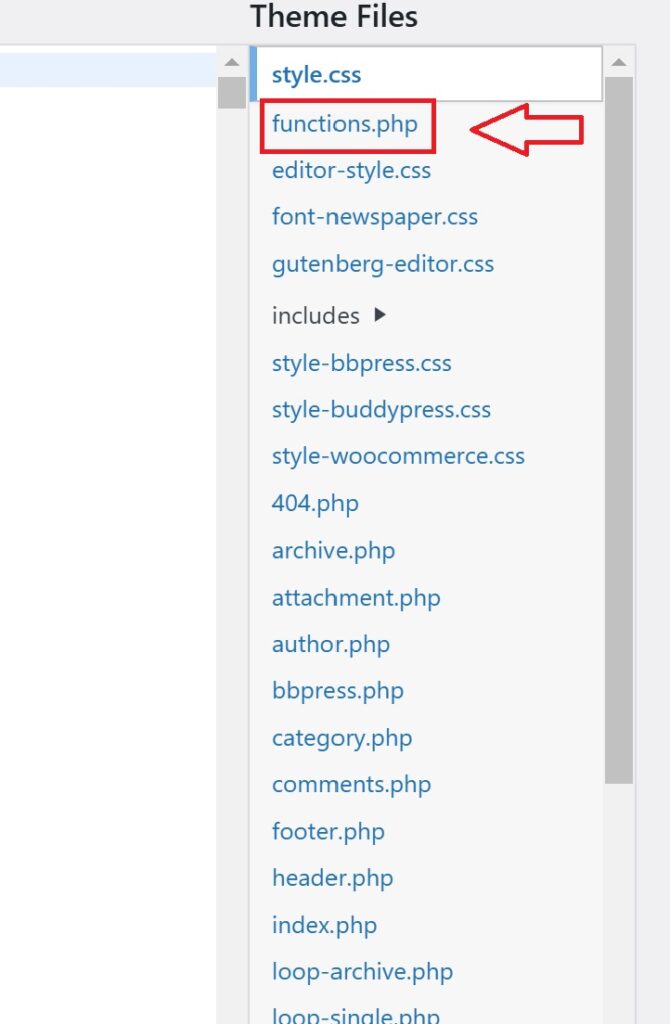
Frequently Asked Questions

What are the main benefits of integrating Amazon Pay with WooCommerce?

Integrating Amazon Pay with WooCommerce can enhance the customer experience thanks to a familiar checkout flow, improve transaction security with Amazon’s A-to-z Guarantee, and potentially increase sales by offering a streamlined payment option to a vast customer base.

How does Amazon Pay improve customer loyalty?

Amazon Pay leverages the trusted Amazon brand, allowing customers to use their existing Amazon login during checkout, which fosters trust and loyalty due to the convenience and perceived security of the payment process.

Can Amazon Pay integration affect online sales?

Yes, integrating Amazon Pay with WooCommerce can positively impact online sales by simplifying the checkout process, reducing cart abandonment, and attracting customers who prefer Amazon’s payment ecosystem.

Does Amazon Pay provide any analytical tools?

Amazon Pay comes with advanced reporting and analytics features, enabling merchants to track conversions, understand customer behavior, and adjust their business strategies accordingly.

Is setting up Amazon Pay with WooCommerce complex?

No, setting up Amazon Pay with WooCommerce is straightforward. It involves installing the Amazon Pay plugin, linking it with your WooCommerce account, and configuring settings to suit your store’s checkout process. Technical support and sandbox mode testing are also available if needed.

Joshua Morley


Managing product WooCommerce Product Categories is like organising your shop’s shelves. It’s crucial for both user experience and SEO. We’ll guide you through setting up your categories to ensure customers find exactly what they’re looking for with ease.

Understanding WooCommerce product categories is a game-changer for any e-commerce site. They not only tidy up your inventory but also boost your site’s searchability. Let’s dive into how we can leverage them to enhance our online store’s performance.

WooCommerce Product Categories

Why are Product Categories Important in WooCommerce?

At Marketing the Change, we’ve seen firsthand the significant role product categories play in WooCommerce. User navigation and SEO potency are two pivotal aspects that hinge on well-structured product categories. First and foremost, categories simplify the browsing process for our clients’ customers. We know that when shoppers can easily navigate an online store, they’re more likely to convert into paying customers. It’s about creating a logical flow that guides users to precisely what they’re searching for with minimal effort.

Furthermore, categories constitute a key part of WooCommerce SEO strategies. They help search engines understand the structure and content of an e-commerce site, enhancing visibility in search results. By carefully crafting category names and descriptions with targeted keywords, we optimize our clients’ online shops for search algorithms, paving the way for increased organic traffic.

Through our experience in digital marketing in Liverpool, we’ve gathered that effectively using product categories can lead to:

  • Higher click-through rates from search engines
  • Improved user engagement
  • Lower bounce rates due to enhanced user experience
  • Increased sales through effective product discovery

Lastly, WooCommerce product categories act as a cornerstone for site analytics. With well-defined categories, we can better track which products are performing well and where our clients might need to adjust their strategies. This data-driven approach ensures that businesses stay ahead of the curve and can make swift, informed decisions regarding inventory management and promotional activities.

Keeping your product categories organized and strategically planned is not just a matter of tidiness; it’s a crucial component of a successful online storefront. What we strive for is crafting an online experience that’s not only user-friendly but also aligned with best SEO practices to help our clients’ businesses flourish in the digital marketplace.

How to Create Product Categories in WooCommerce

e3ae730e-1dfa-4aaa-b98b-7ea1aaf64f579elmrscjmy2uf6dnegc5z-5484659

Creating a well-constructed framework of product categories in WooCommerce isn’t just a matter of organization – it’s a fundamental step to ensure our clients’ online stores thrive. We’ll walk through the key steps to establish product categories effectively, boosting both user experience and search engine visibility.

Firstly, we must log in to the WordPress dashboard, which is the control center for managing a WooCommerce store. Once inside, navigate to ‘Products‘ and then to ‘Categories‘. Here, we can start defining our product categories.

Crafting the Perfect Category Name: We recommend thinking carefully about category names. They need to be intuitive and familiar to the customers while also being keyword-rich for SEO benefits. For example, a fashion store might have ‘Women’s Casualwear’ or ‘Outdoor Adventure Gear’.

Description and Slug: Each category should possess a brief yet descriptive summary and a slug, a URL-friendly version of the name. This helps with indexing and can significantly improve search rankings.

Display Type and Thumbnail: To enhance the browsing experience further, we can set a display type for how products are shown within the category. Choices include default, products, subcategories, or both. Including a representative thumbnail can entice customers and give a visual cue about the category’s contents.

Parent Categories: For stores with broad inventories, we can organize categories into hierarchies using parent categories. This adds structure, aiding users to navigate complex arrays of products with ease.

Sorting Products: To maintain a compelling product display, we can sort items within categories based on popularity, newness, ratings, or price.

Ordering categories logically and purposefully can greatly influence customer engagement and sales conversion rates. Being deliberate about this structure can make a significant difference. Here’s a quick checklist to review before finalizing a category:
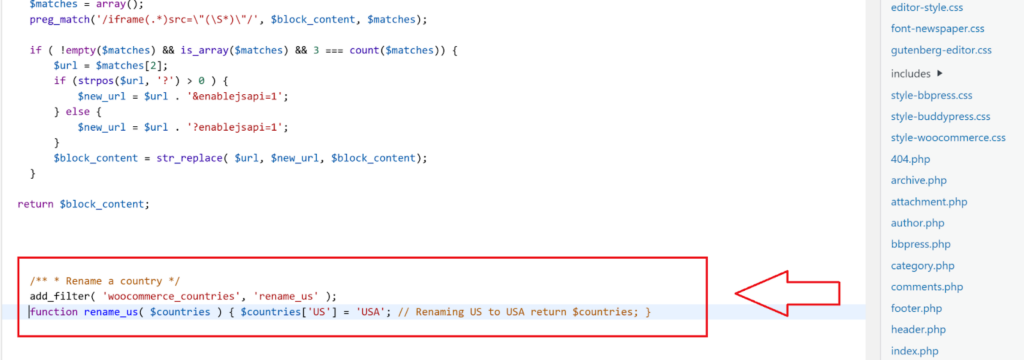
  • Intuitive name selection
  • Clear and concise descriptions
  • SEO-friendly slugs
  • Appropriate display settings
  • Correct parent category assignment
  • Optimized product sorting

We ensure that throughout this process, we’re always considering our clients’ unique brands and the shopping experience they wish to deliver to their customer base. With these guidelines, WooCommerce product categories become powerful tools in streamlining navigation and sharpening the site’s SEO edge.

Best Practices for Organizing Product Categories

e3ae730e-1dfa-4aaa-b98b-7ea1aaf64f571apib-tuovn1hbjwrsk9r-5647448

When tackling WooCommerce product categories, it’s imperative that we employ best practices to ensure not only a seamless shopping experience but also to bolster search engine visibility. Here are some of the most effective tactics:

  • Prioritize User Experience: Think like a customer when you’re organizing your categories. They should be logical and simple to navigate, typically reflecting the way someone would naturally search for products.
  • Consistent Naming Conventions: Uniformity in naming helps users find what they’re looking for quickly. Stick to one naming style to avoid confusion and enhance your site’s professionalism.
  • Leverage SEO Techniques: We can’t stress enough the importance of integrating target keywords into category names and descriptions. This promotes better indexing by search engines and helps potential customers find your products with ease.
  • Streamline Product Discovery:
  • Use filters and attributes to narrow product searches.
  • Optimize category pages with engaging content and high-quality images.
  • Ensure that product thumbnails are uniformly sized for a cleaner look.
  • Regularly Evaluate Category Performance: Keep track of which categories are the most visited and which products are gaining popularity. Regularly updating and optimizing your categories based on these insights can greatly enhance your store’s appeal.
  • Plan for Growth: As your inventory expands, we make sure your category structure is scalable. It’s easier to manage and evolve a well-organized category system as you introduce more products.

By adopting these best practices, we’re setting our WooCommerce stores up for success. Not only will these strategies help in creating a user-friendly shopping environment, but they’ll also improve search engine rankings, leading to increased visibility and potentially more sales. It’s about crafting a thoughtful and organized category system that evolves with our business and meets the ever-changing demands of our customers.

Should you let Google index product Categories?

Yes, you should let Google index product categories in your WooCommerce store. Optimizing and indexing product categories can significantly benefit your store’s SEO, making it easier for customers to find what they’re looking for. Here are some reasons and best practices:

  1. SEO Optimization: Product categories help organize your store and make it user-friendly. By optimizing these categories, you can increase their keyword density, making them more likely to rank for related search terms​​​​​​.
  2. Avoiding Keyword Cannibalization: Instead of trying to rank individual product pages for a common keyword, it’s more effective to rank a single category page. This approach prevents individual products from competing against each other for the same keywords in search rankings​​.
  3. Using Categories and Tags: Both categories and tags play a crucial role in helping shoppers discover products. They also assist search engines in understanding and listing your product structure. Categories are meant for broad grouping, while tags are for specific keywords that describe a product’s properties​​.
  4. Unique SEO Titles and Descriptions: Just like individual products, your category pages should have unique SEO titles and descriptions. This helps optimize them for search engines and improves their chances of ranking higher​​.
  5. Breadcrumbs for SEO: Implementing breadcrumbs on your site, including categories, can improve both user experience and SEO. Breadcrumbs help define a clear path to the page the user is on, and they also appear in search results, giving your site an advantage in rankings​​​​.
  6. Alt Text for Images: Adding alt text to product images in categories can also boost your SEO, as many customers use image search to find products. Alt text helps search engines understand what the image is about and rank them in image search results​​​​.
  7. Internal Linking: By linking to your category pages from other pages on your website, you can pass authority to those pages and help them rank higher. This internal linking strategy should use relevant, keyword-rich anchor text and link from high-traffic pages​​.

Optimizing Product Categories for SEO

e3ae730e-1dfa-4aaa-b98b-7ea1aaf64f57lns6ikoxogriepof0t9dm-1830643

While it’s crucial to have a well-organized category system for user experience, we can’t overlook the importance of SEO in our approach. Product category optimization plays a vital role in how search engines understand and rank our WooCommerce store’s content. We’ve uncovered several techniques to ensure our product categories are not just shopper-friendly but also search engine-ready.

Incorporating Keywords in category names and descriptions is one of the first steps in SEO optimization. We conduct thorough keyword research to identify terms that potential customers are using to find products like ours. By weaving these keywords naturally into our category titles and metadata, we make it easier for search engines to index and rank our product pages.

Meta Titles and Descriptions are also an integral part of our SEO strategy. We craft unique and descriptive meta titles and descriptions for each product category. This not only improves click-through rates from search engine results pages but also provides clear relevancy signals to search engines about the content of our categories.

Creating Rich Content within our category pages can further enhance our SEO efforts. We provide detailed yet concise descriptions for our product categories, incorporating relevant keywords without overstuffing. Additionally, we keep our URLs streamlined and easy to read; complex URLs with unnecessary parameters can confuse search engines and users alike.

SEO Factor Implementation in Product Categories
Keywords In names and descriptions
Meta Titles and Descriptions Unique for each category
Rich Content Detailed descriptions with relevant keywords
URL Structure Streamlined and readable URLs

We also keep an eye on Technical SEO aspects. This includes ensuring our site’s structure allows search engines to crawl and index our product categories efficiently. We use internal linking strategically to distribute page authority throughout the site and use breadcrumb navigation to reinforce the structure of our store in the eyes of both users and search engines.

Staying updated with Current SEO Trends, like voice search optimization and understanding intent-based queries, ensures that our category optimizations remain effective over time. Let’s not forget the power of Mobile Optimization; with more users shopping on mobile devices, we ensure that our category pages are responsive and load quickly across all platforms.

Through these combined efforts, we aim to achieve top-ranking category pages that not only draw in traffic but also convert visitors into loyal customers.

eCommerce Website Design

We’ve taken a close look at how SEO can make a big difference for your WooCommerce product categories. By using what we’ve learned, you can really improve your category pages. It’s about more than just bringing people to your site; it’s about turning them into regular customers. Keep up with your SEO efforts to see your WooCommerce store succeed. And remember, if you ever need a hand with WooCommerce maintenance, Marketing the Change is there to help. They’re experts in making sure your online store runs smoothly and successfully.

Frequently Asked Questions

What are the best practices for incorporating keywords in WooCommerce product category names?

Keywords should be relevant to the category and naturally incorporated into the names. It’s important to research and use keywords that prospective customers are likely to search for when looking for products in that category.

How can I create unique meta titles and descriptions for WooCommerce category pages?

To create unique meta titles and descriptions, include targeted keywords, and provide accurate, concise content that clearly describes the category. Make sure they are enticing to encourage clicks from the search results.

Why is content important within WooCommerce category pages, and how should I add it?

Content is crucial for providing context and information to both customers and search engines. Add rich, valuable content that includes keywords and is helpful to customers. This improves the relevance of your category pages and can positively impact SEO.

What is the significance of maintaining a streamlined URL structure in WooCommerce?

A streamlined URL structure helps search engines and users understand the hierarchy of your website. Keep URLs short, relevant, and consistent—include category names and avoid unnecessary parameters or numbers for better SEO performance.
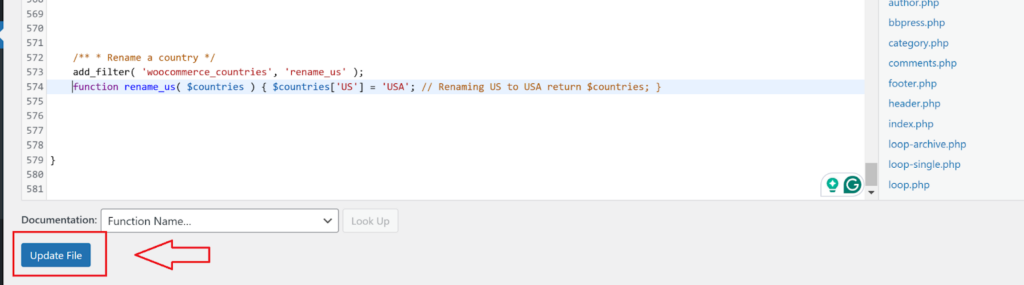
How do technical SEO aspects contribute to WooCommerce category page ranking?

Technical SEO ensures that your website meets the technical requirements of modern search engines. Speed, mobile-friendliness, structured data, and proper indexing are key factors that can affect the ranking of your category pages.

Is it necessary to follow current SEO trends for WooCommerce product categories?

Yes, it is essential to stay updated with SEO trends as search engine algorithms constantly evolve. By adopting current best practices, you can maintain or improve the visibility and ranking of your WooCommerce product categories.

Why is mobile optimization important for WooCommerce category pages?

Mobile optimization is vital because more users are shopping on mobile devices. Ensuring category pages are responsive and load quickly on mobiles can lead to a better user experience, higher engagement rates, and improved search engine rankings.

Joshua Morley