In today’s fast-paced e-commerce environment, safeguarding your WooCommerce store is more critical than ever. Cyber threats and fraudulent transactions can cause severe financial damage and erode customer trust.

That’s where the Aelia Blacklister plugin comes in. This powerful tool enhances your store’s security by blocking suspicious users based on customizable filters like IP addresses and email domains. By proactively filtering out high-risk traffic, you reduce the likelihood of fraud while ensuring a seamless shopping experience for genuine customers.

Designed to integrate effortlessly with WooCommerce, the plugin offers detailed logging and reporting features, giving you full visibility and control. The result? Smarter order management, effective traffic monitoring, and optimal store performance without compromising usability.

Why WooCommerce Security Matters

Ensuring the security of our WooCommerce store is essential for protecting sensitive customer information and preserving brand trust. With over 2,000 cyberattacks targeting e-commerce sites every day in 2024, it’s more important than ever to implement strong security protocols to prevent data breaches that could lead to financial loss and reputational harm [R].

One effective way to boost our defenses is by using the Aelia Blacklister For WoCommerce. This powerful tool helps identify and block malicious users in real-time by filtering specific IP addresses, phone numbers, locations, and email domains. By doing so, it reduces the likelihood of fraudulent activities and unauthorized access, supporting a smooth and secure shopping experience for genuine customers.

Geographic restrictions offer another layer of protection. For businesses focused on domestic markets, limiting purchases to a single country helps block irrelevant and potentially harmful international traffic. This strategy not only mitigates regional cyber risks but also keeps our sales efforts aligned with target audiences.

Strengthening WooCommerce security with solutions like the Aelia Blacklister plugin is a smart move to defend your online store against modern cyber threats. This tool helps maintain your website as a safe and reliable space for customers, ultimately supporting long-term success and business growth. You can download the plugin directly from the official Aelia website. Want to understand why blocking email addresses and IPs is so important for your store? Check out this simple method for blocking email addresses in WooCommerce.

Enhance Your WooCommerce Store Security with Aelia Blacklister

WooCommerce Security

The Aelia Blacklister plugin is a powerful WooCommerce security tool designed to help store owners proactively block unwanted or suspicious orders. It enables precise control over who can place orders, using a range of customizable filters to identify and restrict access from high-risk users.

???? What Makes Aelia Blacklister Stand Out?

1. Block Customer Data with Precision

  • Name & Surname: Prevent specific individuals from placing orders by filtering based on full or partial names.
  • Address Details: Blacklist users by street name, postal code, city, region, or even entire countries.
  • Email Filtering: Use full or partial email matches (including regex support) to stop known fraudulent addresses.
  • Phone Numbers: Restrict access by exact or pattern-matching phone numbers.

2. IP-Based Blocking
Safeguard your store by blocking individual IP addresses or entire ranges. Use IP masks to target broader segments, making it harder for repeat offenders to bypass restrictions.

3. Flexible Match Rules with Regex
All filters (aside from IP addresses) support regular expressions, allowing advanced users to define powerful and specific rules tailored to their unique needs.

4. Custom Error Messaging
If a shopper is blocked during checkout, they’ll receive a tailored message explaining why their order couldn’t be processed. You can customize this notification from the settings panel to match your brand tone.

????️ How It Works

Once installed, the plugin integrates seamlessly into your WooCommerce dashboard. You’ll gain access to a dedicated settings area where you can manage blacklisted entries, including names, addresses, email addresses, phone numbers, and IPs.

Whenever a customer attempts to place an order, the plugin scans their details against your blacklist. If a match is found, the checkout process is halted and the customer is notified immediately.

This streamlined yet robust system offers a practical solution for reducing fraud and maintaining control over your WooCommerce orders.

Pair It with Country-Based Pricing for Even More Control

Looking to further tailor your customer experience? Combine the Aelia Blacklister with the Aelia Prices by Country plugin, allowing you to display different prices based on customer location while still blocking unwanted regions. This duo enhances both security and sales strategy.

Setting Up Aelia Blacklister

Installation

Download the Aelia Blacklister plugin from the official Aelia website. Install the plugin through the WordPress dashboard by navigating to Plugins > Add New > Upload Plugin and uploading the plugin file. Activate the plugin after installation.

Adding Blacklist Rules

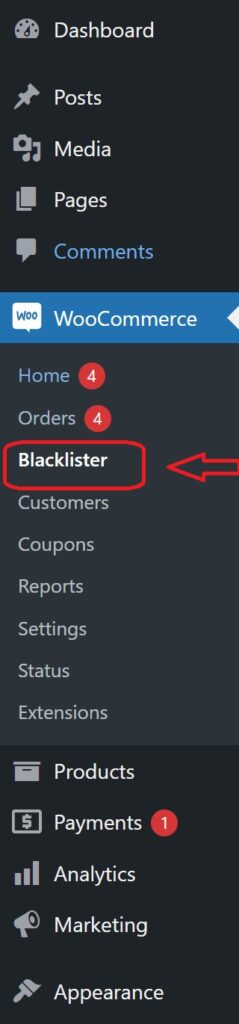
A new menu item for Aelia Blacklister appears in the WooCommerce backend. Navigate to this menu to specify blacklist entries.

Blacklisting Rules Configuration

This section allows you to define specific criteria for blocking fraudulent or unwanted orders by blacklisting certain types of customer data. Here’s an overview of the rules and how you can configure them:

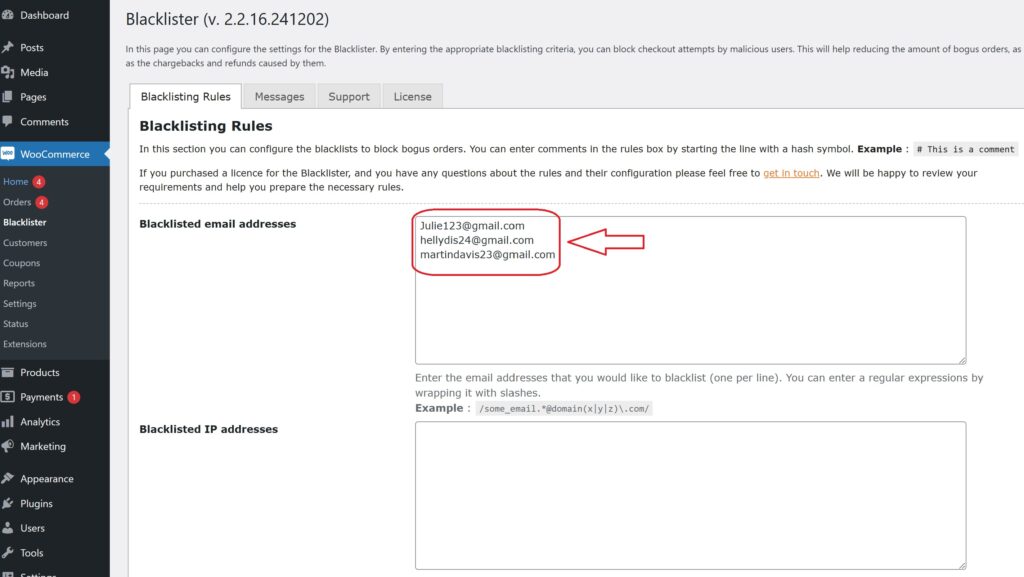
Blacklisted Email Addresses

Enter the email addresses you wish to block, one per line. You can also use regular expressions (regex) to block a group of email addresses. Simply wrap the regex in slashes.
WooCommerce Security

Example:

  • james214@gmail.com
  • /some_email.*@domain(x|y|z)\.com/ – Blocks any email from the domains “x.com”, “y.com”, or “z.com”.

Blacklisted IP Addresses

Enter the IP addresses or ranges you want to block, one per line. You can use the following formats for precise control:

WooCommerce Security
  • CIDR Notation: 123.123.123.0/24 – Blocks the entire range of IPs from 123.123.123.0 to 123.123.123.255.
  • Wildcard Format: 123.123.123.* – Blocks all IPs starting with 123.123.123.
  • IP Range: 123.123.123.1-123.123.123.254 – Blocks IPs in the specific range.

Blacklisted Phone Numbers

You can blacklist specific phone numbers or ranges using exact matches or regular expressions.

Example:

  • 0123456789 – Blocks this exact phone number.
  • /012345(101|102|103)/ – Blocks phone numbers that start with 012345 and end with 101, 102, or 103.

Blacklisted Customer Names

This field allows you to block orders from customers with certain names. Separate the first name and surname with a double pipe (||). You can also use regular expressions for flexibility.

WooCommerce Security

Example:

  • /John|Jonathan|Johnny/||Smith – Blocks any customer named John, Jonathan, or Johnny Smith.
  • /John|Jonathan|Johnny/||/Smith.*/ – Blocks any customer named John, Jonathan, or Johnny whose surname starts with “Smith”.
  • /John|Jonathan|Johnny/||/Smith|Doe/ – Blocks customers named John, Jonathan, or Johnny, with a surname of either Smith or Doe.

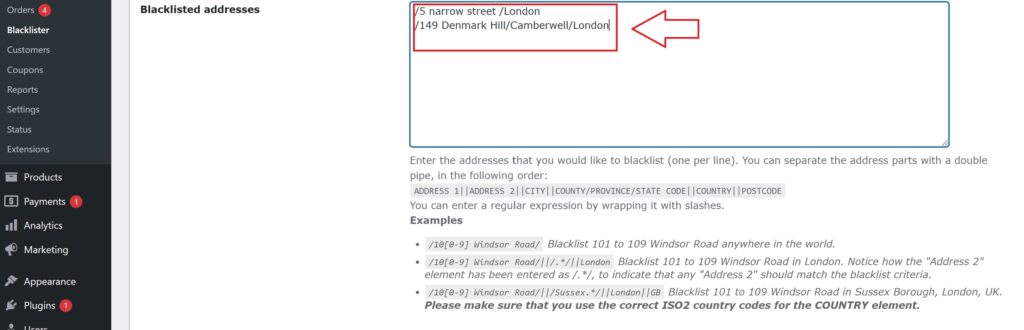
Blacklisted Addresses

You can block orders based on specific address components (address line 1, address line 2, city, state, country, and postcode). Use regular expressions for more specific targeting.

black listing address

Example:

  • /10[0-9] Windsor Road/ – Blocks addresses on Windsor Road numbered from 101 to 109 anywhere in the world.
  • /10[0-9] Windsor Road/||/.*/||London/ – Blocks addresses on Windsor Road numbered from 101 to 109 in London (the second address part can match any value).
  • /10[0-9] Windsor Road/||/Sussex.*/||London||GB/ – Blocks addresses on Windsor Road numbered from 101 to 109 in Sussex Borough, London, UK. The country code GB is used for the UK.

Comments in Rules
You can add comments to any line of the blacklist rules by starting the line with a hash symbol (#). This helps you document your rules for easier reference.

Example:

  • # Blocking fraudulent email domains
  • # Block all IPs from region X

Customizing Error Messages

Display custom error messages when a blacklisted user attempts to checkout. Inform them why their order is blocked, enhancing transparency and user experience.

Logging and Reporting

Enable detailed logging to track blacklisted attempts. Monitor these logs to analyze patterns and adjust security measures accordingly.

Integration with Other Security Plugins

Integrate Aelia Blacklister with existing security plugins to enhance your store’s safety. Combine multiple security measures for a robust protection system.

Other Powerful Aelia Plugins for WooCommerce

1. Prices by Country for WooCommerce

This plugin allows you to set product prices based on the customer’s billing country. It’s perfect for international stores that need to adjust pricing strategies due to regional taxes, currency differences, or market demands. When paired with a currency switcher, it automatically detects the customer’s location and displays the correct price.

Key Features:

  • Set custom prices per country or region.
  • Automatically detects customer location.
  • Seamlessly integrates with Aelia Currency Switcher.
  • Supports tax-inclusive or exclusive pricing.

2. Currency Switcher for WooCommerce

This is one of Aelia’s flagship plugins and a must-have for global WooCommerce stores. It allows customers to shop and check out in their preferred currency. The plugin detects the visitor’s location and switches currencies automatically, or allows them to select it manually.

Key Features:

  • Real-time currency conversion via open exchange rate APIs.
  • Automatic currency selection based on geolocation.
  • Manual switcher widget for user convenience.
  • Full support for multi-currency checkout.

3. Tax Display by Country for WooCommerce

This plugin dynamically shows product prices with or without tax, depending on the customer’s location. It’s ideal for stores selling to both B2C and B2B customers across different regions with varying tax laws.

Key Features:

  • Automatically adjusts tax display based on country.
  • Shows both tax-inclusive and tax-exclusive prices if needed.
  • Works smoothly with the Prices by Country plugin.

Josh Morley

I have been designing & marketing websites since 2013. I specialize not just in WordPress web design but also in online marketing. SEO, PPC, keyword research, link-building and most recently on lead acquisition for local businesses.

As fraud becomes more sophisticated in the digital marketplace, WooCommerce store owners must take proactive steps to defend their businesses. With rising threats ranging from stolen credit card usage to account takeovers, implementing strong Fraud Prevention Tactics for WooCommerce is no longer optional—it’s essential for long-term success and sustainability.

Why Fraud Prevention Matters in WooCommerce

Fraudulent activity can severely damage your store’s revenue, reputation, and customer trust. When malicious actors place fake or suspicious orders, the result is often costly chargebacks, lost merchandise, and wasted operational resources. That’s why every WooCommerce merchant should have a fraud prevention strategy in place. In addition to fraud prevention, making your store more user-friendly, like renaming country codes in WooCommerce, can improve the checkout experience and enhance security by reducing confusion around shipping or billing details

Understanding the Common Types of WooCommerce Fraud

Here are a few of the most common fraud risks store owners face:

Fraud TypeDescription
Payment FraudUse of stolen or unauthorized payment details.
Account TakeoversCriminals access real customer accounts to place fake orders.
Phishing AttemptsScammers trick customers into revealing sensitive information.
Friendly FraudA customer disputes a valid transaction to get a refund while keeping the product.

Aelia Blacklister Plugin: Your First Line of Defense

Fraud Prevention Tactics for WooCommerce

The Aelia Blacklister for WooCommerce is a powerful security plugin that allows you to block orders from problematic users using flexible, customizable filters. Whether you’re dealing with spam, abuse, or repeat offenders, this tool helps you take back control of your store by filtering traffic based on specific criteria.

Powerful Fraud Filters with Aelia Blacklister

The Blacklister Plugin is built to safeguard your WooCommerce store with a suite of intelligent features that effectively stop fraudulent orders in their tracks. Its flexible configuration options let you block high-risk users before they can do any damage.

Customizable Blacklisting Options

  • Full Name Filtering
    Instantly block individuals by their first and last names to stop known offenders from placing orders.
  • Address-Based Blocking
    Apply filters based on street address, postal code, city, region, or even entire countries to limit high-risk zones or repeat scam locations. This becomes especially useful when combined with well-structured shipping strategies, such as setting up WooCommerce international shipping, to clearly manage where you do and don’t ship.
  • Email Address Restrictions
    Deny transactions from specific email addresses, or use advanced pattern matching (regex) to catch broader trends in malicious behavior.
  • Phone Number Screening
    Identify and block fraudulent phone numbers, using both exact matches and partial number detection through pattern-based rules.
  • IP Address Control
    Strengthen your store’s defenses by blacklisting suspicious IP addresses or entire ranges using subnet masks and filters.

Implementing Aelia Blacklister Plugin in WooCommerce

We implement the Blacklister to secure our WooCommerce store against fraudulent activities. This process involves installing the plugin and configuring specific settings to block malicious users effectively. Download the Blacklister Plugin From official website of Aelia.

Installation and Setup

Step 1: Open the WordPress Admin Panel

Fraud Prevention Tactics for WooCommerce
  1. Open your web browser and go to your WordPress login page (typically found at your website.com/wp-admin).
  2. Enter your Username and Password and click the login button.
  3. Once logged in, you’ll see the WordPress dashboard.
  4. Look at the menu on the left-hand side. Locate and click on the Plugins section. This will take you to a page showing all the plugins currently installed on your website.

Step 2: Add New Plugin

plugin add new
  1. On the Plugins page, look at the top left corner of the screen. You’ll see a button labeled Add New. Click on it.
  2. This will take you to the “Add Plugins” page, where you can search for new plugins or upload one.
  3. At the top of the “Add Plugins” page, find and click on the Upload Plugin button. This option allows you to upload and install a plugin file from your computer.

Step 3: Upload the Plugin ZIP File

Fraud Prevention Tactics for WooCommerce
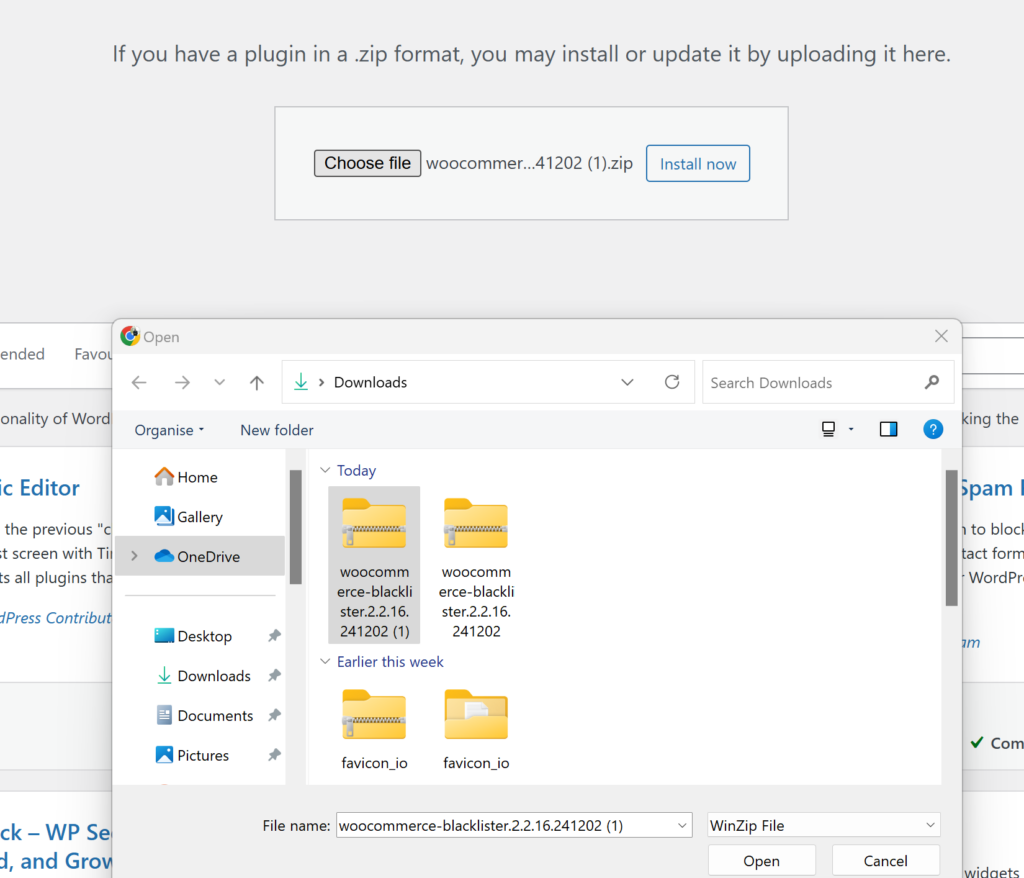
  1. After clicking Upload Plugin, a new section will appear with a button labeled Choose File. Click this button.
  2. A file explorer window will open, allowing you to browse your computer.
  3. Navigate to the folder where you’ve saved the Aelia Blacklister ZIP file (downloaded from the Aelia website).
  4. Select the ZIP file and click Open (or the equivalent button for your system).
  5. Back in WordPress, confirm that the correct file is selected and click Install Now. WordPress will upload and install the plugin.

Step 4: Activate the Plugin

  1. After the installation, WordPress will display a success message and provide you with the option to Activate Plugin.
  2. Click the Activate Plugin button. This enables the Aelia Blacklister on your WooCommerce store, making it ready for configuration.

Step 5: Access Plugin Settings

clicking on blacklister tab 1 2
  1. Once the plugin is activated, you’ll need to configure it.
  2. Look for a new menu item in your WordPress dashboard, either under the Settings menu or as a dedicated Aelia Blacklister tab (it may also be under WooCommerce > Settings).
  3. Click on this tab to open the Aelia Blacklister settings page.
  4. Here, you can configure the plugin’s options, such as blacklisting criteria (e.g., names, addresses, email addresses, phone numbers, and IPs), and customize the settings to suit your store’s needs.

Methods to Prevent Fraudulent Activity in WooCommerce

Blocking by Email Address

email address to blacklist 1 1

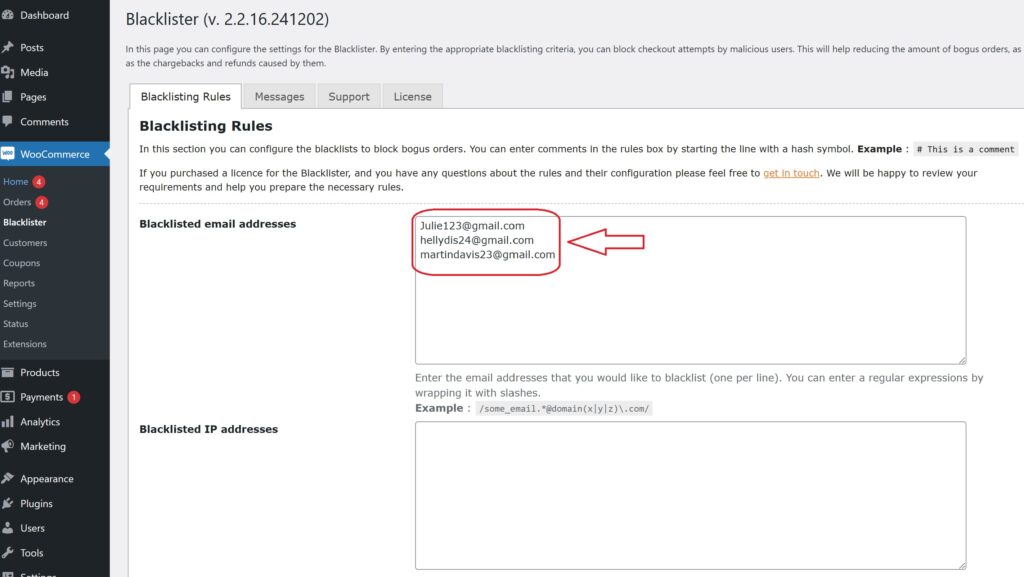
Using the Aelia Blacklister plugin, you can block fraudulent customers by manually entering their email addresses into the blacklist. Here’s how to do it:

  1. Access the Blacklister Settings
    • From the WordPress Dashboard, go to WooCommerce > Blacklister.
    • Click on the Blacklisting Rules tab.
  2. Add Email Addresses to the Blacklist
    • In the Blacklisted email addresses field, manually type each email address you want to block, one per line.
  3. Save Changes
    • After entering the email addresses, scroll to the bottom of the page and click Save Changes to update the blacklist.
  4. Verify the Block
    • Attempting to register or checkout using a blacklisted email will trigger a custom error message notifying the user that their email is not allowed.

Blocking by IP Address

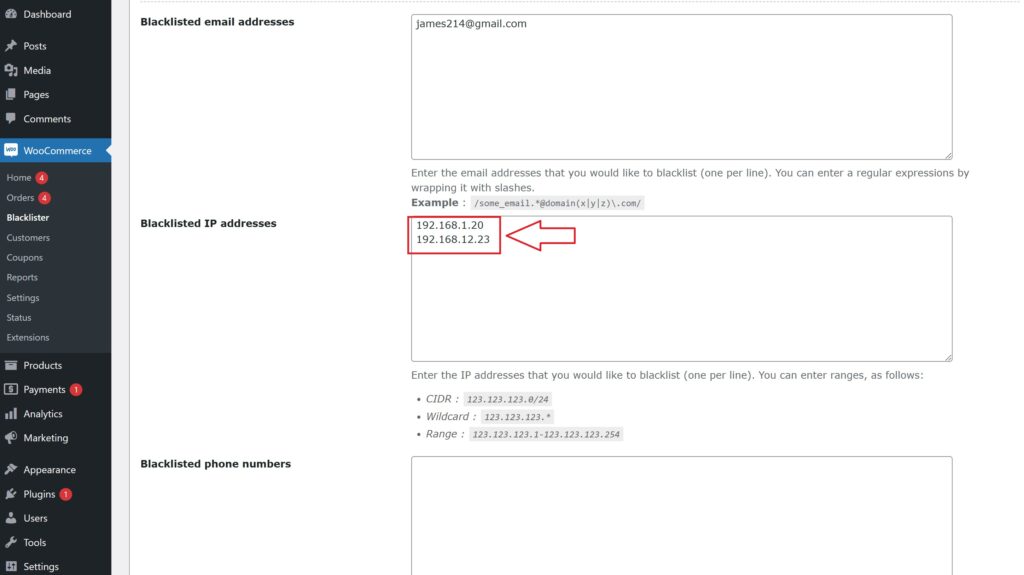
The Aelia Blacklister plugin allows you to manually block IP addresses to prevent fraudulent activity. Here’s how to set it up:

Blocking list of IP address 2
  1. Access the Blacklister Settings
    • Go to WooCommerce > Blacklister from your WordPress Dashboard.
    • Click on the Blacklisting Rules tab.
  2. Manually Add IP Addresses
    • Locate the Blacklisted IP addresses field.
    • Manually type in the IP addresses you want to block, one per line.
    • If you want to block a range of IPs, use CIDR notation (e.g., 192.168.0.0/24 to block all addresses from 192.168.0.1 to 192.168.0.255).
  3. Save Changes
    • After entering the IPs, scroll to the bottom of the page and click Save Changes to update the blacklist.
  4. Test the Block
    • Any user attempting to access your site or checkout from a blacklisted IP will be prevented from completing their actions.

Blocking by Location

The Aelia Blacklister plugin allows blocking of specific countries or regions based on geolocation to prevent fraudulent activity.

black listing address
  1. Access the Blacklister Settings
    • Navigate to WooCommerce > Blacklister in your WordPress Dashboard.
    • Open the Blacklisting Rules tab.
  2. Manually Block Locations
    • Add countries to the Blacklisted locations field using their two-letter ISO codes (e.g., US for the United States, NG for Nigeria).
    • Multiple country codes should be entered on separate lines.
  3. Save Changes
    • Click Save Changes at the bottom of the page to apply your updated settings.
  4. Effect of Blocking
    • Customers from the listed locations will be unable to proceed with checkout.

Blocking by Phone Number

To block fraudulent phone numbers, follow these steps:

blacklisting phone number
  1. Access the Blacklister Settings
    • From your WordPress Dashboard, go to WooCommerce > Blacklister.
    • Click on the Blacklisting Rules tab.
  2. Add Phone Numbers Manually
    • Find the Blacklisted phone numbers section.
    • Manually enter phone numbers you wish to block, one per line.
    • If your store operates internationally, include country codes for accuracy.
  3. Save Changes
    • Click Save Changes to update the blacklist.
  4. Results of Blocking
    • Blacklisted phone numbers will be restricted from registering or completing purchases, with a notification displayed to users.

Blocking by Name

The Aelia Blacklister plugin allows you to block specific names manually, adding another layer of fraud prevention. This feature is particularly useful for stopping repeated fraudulent attempts by known offenders.

How to Block Names using Aelia

Blocked list using name
  1. Access the Blacklister Settings
    • Go to WooCommerce > Blacklister in your WordPress Dashboard.
    • Navigate to the Blacklisting Rules tab.
  2. Add Names to the Blacklist
    • Locate the Blacklisted names field.
    • Manually enter the full names you want to block, one per line.
  3. Save Changes
    • Once you’ve entered the names, scroll to the bottom of the page and click Save Changes to update your blacklist.
  4. Effect of Blocking
    • Any user attempting to register or complete a transaction using a blacklisted name will be prevented from proceeding. A custom error message can be configured to notify the user of the restriction.

Why Choose Aelia Blacklister for WooCommerce?

Take full control of your store’s security with precision filtering and seamless integration.

???? Advanced Blacklisting Capabilities

Easily block suspicious orders using a wide range of customizable criteria:

  • Customer Name – Filter by full name to stop known offenders.
  • Address Details – Target specific street names, cities, postal codes, regions, or countries.
  • Email Address – Block individual email addresses or detect patterns using regular expressions.
  • Phone Number – Prevent orders from flagged phone numbers with exact or partial matches.
  • IP Address – Restrict access via specific IPs, masks, or entire ranges.

⚙️ Flexible Matching Rules

  • Supports exact matches and regex-based partial matching for name, address, email, and phone fields.
  • Block IPs using exact values, wildcard masks, or full IP ranges for more robust coverage.

???? Custom Error Messaging

  • Create personalized messages to inform blocked users why their order was declined, keeping the experience clear, professional, and user-friendly.

????️ Seamless WooCommerce Integration

  • Access a dedicated menu within the WooCommerce admin panel to manage blacklist rules easily.
  • Simple to set up, straightforward to maintain—no technical expertise required.

Bonus Tools to Enhance Store Functionality

Combine Aelia Blacklister with other smart plugins for a fully optimized WooCommerce setup:

  • ???? Currency Switcher for WooCommerce
    Offer real-time currency conversion and tailored pricing to international customers for a frictionless checkout.
  • ???? Tax Display by Country
    Automatically show accurate tax rates based on your customer’s location for greater clarity and compliance.

Together, these tools form a powerful trio—boosting your store’s security, performance, and customer experience.

Josh Morley

I have been designing & marketing websites since 2013. I specialize not just in WordPress web design but also in online marketing. SEO, PPC, keyword research, link-building and most recently on lead acquisition for local businesses.