In today’s fast-paced e-commerce environment, safeguarding your WooCommerce store is more critical than ever. Cyber threats and fraudulent transactions can cause severe financial damage and erode customer trust.

That’s where the Aelia Blacklister plugin comes in. This powerful tool enhances your store’s security by blocking suspicious users based on customizable filters like IP addresses and email domains. By proactively filtering out high-risk traffic, you reduce the likelihood of fraud while ensuring a seamless shopping experience for genuine customers.

Designed to integrate effortlessly with WooCommerce, the plugin offers detailed logging and reporting features, giving you full visibility and control. The result? Smarter order management, effective traffic monitoring, and optimal store performance without compromising usability.

Why WooCommerce Security Matters

Ensuring the security of our WooCommerce store is essential for protecting sensitive customer information and preserving brand trust. With over 2,000 cyberattacks targeting e-commerce sites every day in 2024, it’s more important than ever to implement strong security protocols to prevent data breaches that could lead to financial loss and reputational harm [R].

One effective way to boost our defenses is by using the Aelia Blacklister For WoCommerce. This powerful tool helps identify and block malicious users in real-time by filtering specific IP addresses, phone numbers, locations, and email domains. By doing so, it reduces the likelihood of fraudulent activities and unauthorized access, supporting a smooth and secure shopping experience for genuine customers.

Geographic restrictions offer another layer of protection. For businesses focused on domestic markets, limiting purchases to a single country helps block irrelevant and potentially harmful international traffic. This strategy not only mitigates regional cyber risks but also keeps our sales efforts aligned with target audiences.

Strengthening WooCommerce security with solutions like the Aelia Blacklister plugin is a smart move to defend your online store against modern cyber threats. This tool helps maintain your website as a safe and reliable space for customers, ultimately supporting long-term success and business growth. You can download the plugin directly from the official Aelia website. Want to understand why blocking email addresses and IPs is so important for your store? Check out this simple method for blocking email addresses in WooCommerce.

Enhance Your WooCommerce Store Security with Aelia Blacklister

WooCommerce Security

The Aelia Blacklister plugin is a powerful WooCommerce security tool designed to help store owners proactively block unwanted or suspicious orders. It enables precise control over who can place orders, using a range of customizable filters to identify and restrict access from high-risk users.

???? What Makes Aelia Blacklister Stand Out?

1. Block Customer Data with Precision

  • Name & Surname: Prevent specific individuals from placing orders by filtering based on full or partial names.
  • Address Details: Blacklist users by street name, postal code, city, region, or even entire countries.
  • Email Filtering: Use full or partial email matches (including regex support) to stop known fraudulent addresses.
  • Phone Numbers: Restrict access by exact or pattern-matching phone numbers.

2. IP-Based Blocking
Safeguard your store by blocking individual IP addresses or entire ranges. Use IP masks to target broader segments, making it harder for repeat offenders to bypass restrictions.

3. Flexible Match Rules with Regex
All filters (aside from IP addresses) support regular expressions, allowing advanced users to define powerful and specific rules tailored to their unique needs.

4. Custom Error Messaging
If a shopper is blocked during checkout, they’ll receive a tailored message explaining why their order couldn’t be processed. You can customize this notification from the settings panel to match your brand tone.

????️ How It Works

Once installed, the plugin integrates seamlessly into your WooCommerce dashboard. You’ll gain access to a dedicated settings area where you can manage blacklisted entries, including names, addresses, email addresses, phone numbers, and IPs.

Whenever a customer attempts to place an order, the plugin scans their details against your blacklist. If a match is found, the checkout process is halted and the customer is notified immediately.

This streamlined yet robust system offers a practical solution for reducing fraud and maintaining control over your WooCommerce orders.

Pair It with Country-Based Pricing for Even More Control

Looking to further tailor your customer experience? Combine the Aelia Blacklister with the Aelia Prices by Country plugin, allowing you to display different prices based on customer location while still blocking unwanted regions. This duo enhances both security and sales strategy.

Setting Up Aelia Blacklister

Installation

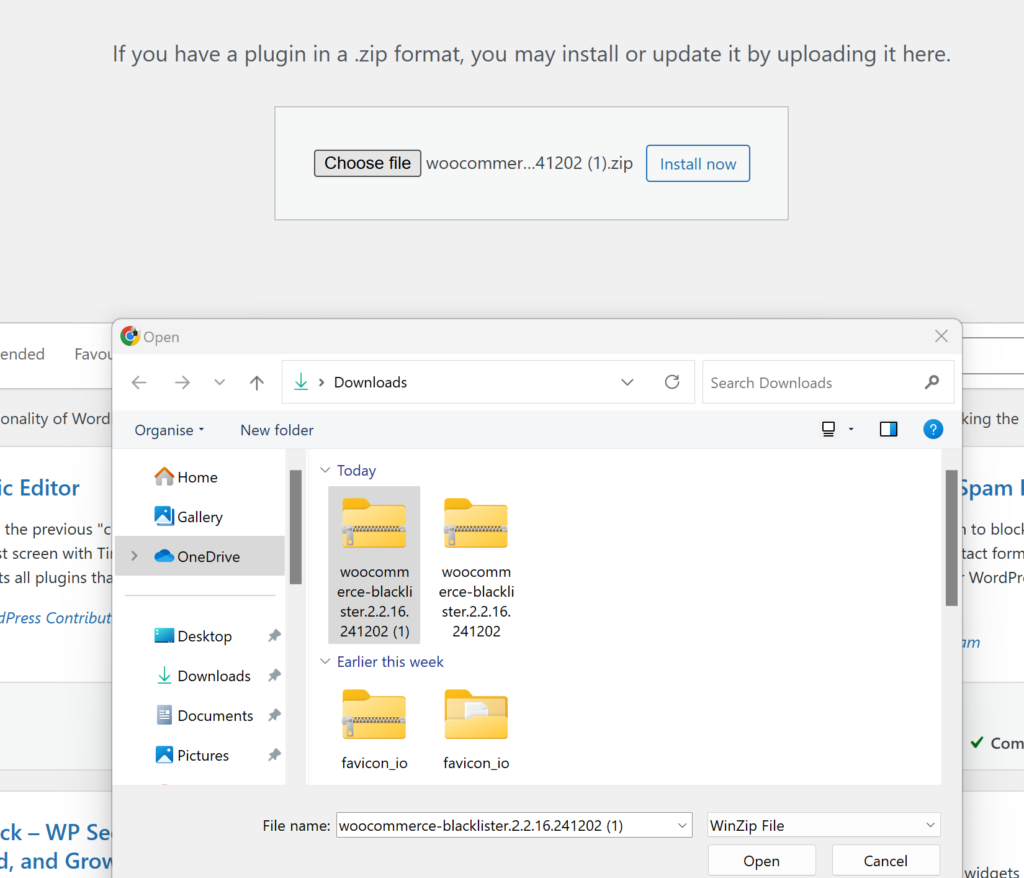
Download the Aelia Blacklister plugin from the official Aelia website. Install the plugin through the WordPress dashboard by navigating to Plugins > Add New > Upload Plugin and uploading the plugin file. Activate the plugin after installation.

Adding Blacklist Rules

A new menu item for Aelia Blacklister appears in the WooCommerce backend. Navigate to this menu to specify blacklist entries.

Blacklisting Rules Configuration

This section allows you to define specific criteria for blocking fraudulent or unwanted orders by blacklisting certain types of customer data. Here’s an overview of the rules and how you can configure them:

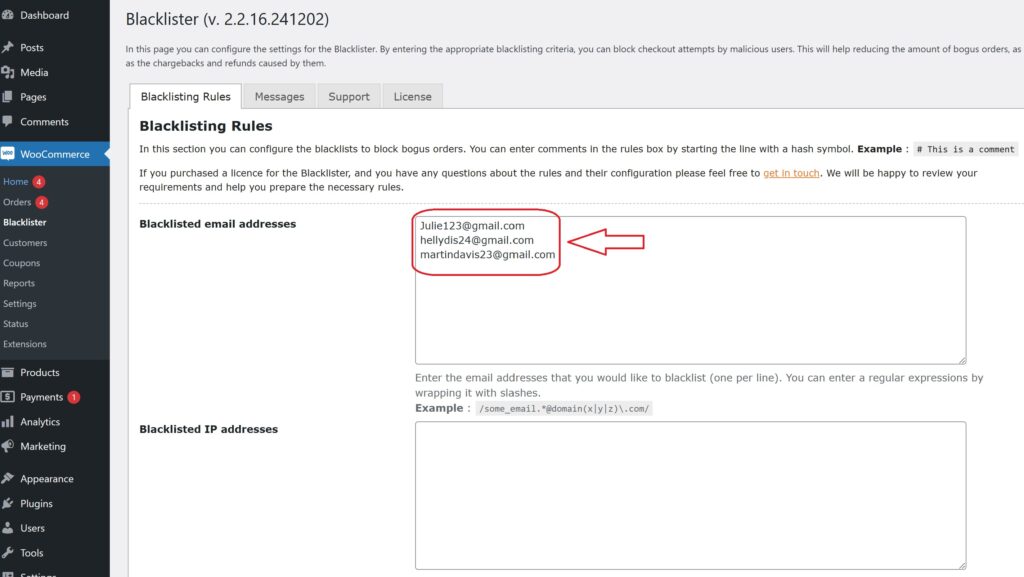
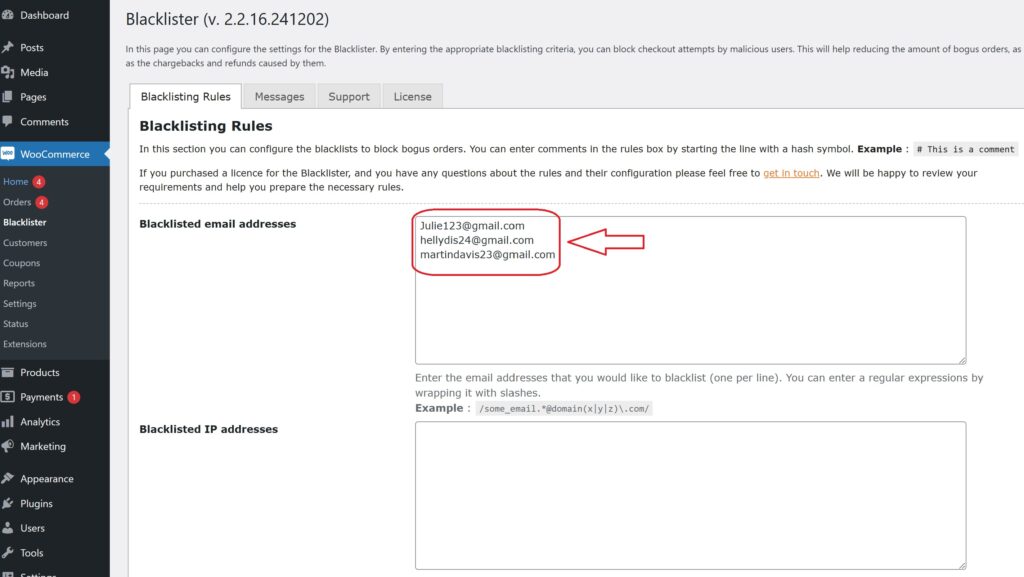
Blacklisted Email Addresses

Enter the email addresses you wish to block, one per line. You can also use regular expressions (regex) to block a group of email addresses. Simply wrap the regex in slashes.
WooCommerce Security

Example:

  • james214@gmail.com
  • /some_email.*@domain(x|y|z)\.com/ – Blocks any email from the domains “x.com”, “y.com”, or “z.com”.

Blacklisted IP Addresses

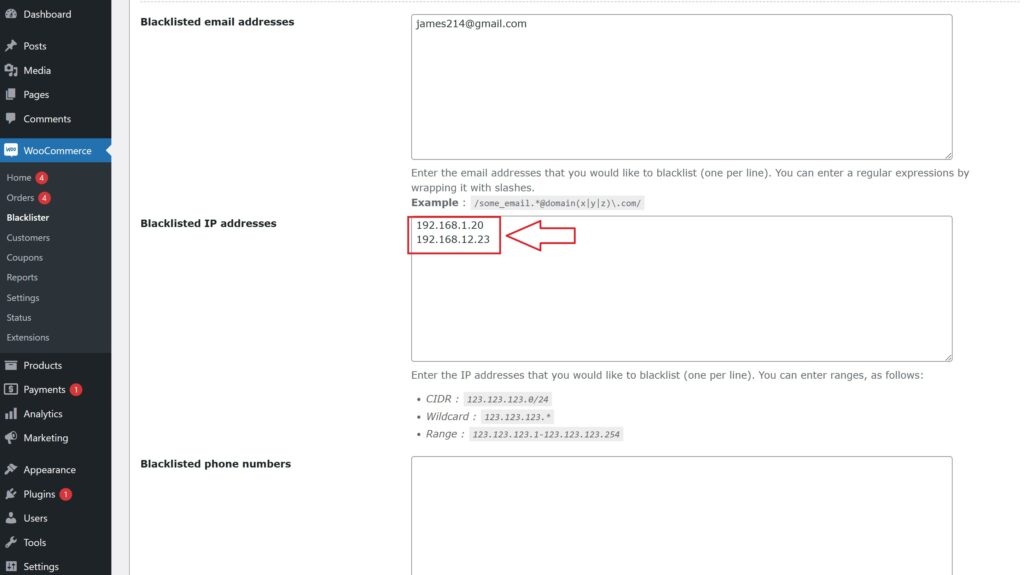
Enter the IP addresses or ranges you want to block, one per line. You can use the following formats for precise control:

WooCommerce Security
  • CIDR Notation: 123.123.123.0/24 – Blocks the entire range of IPs from 123.123.123.0 to 123.123.123.255.
  • Wildcard Format: 123.123.123.* – Blocks all IPs starting with 123.123.123.
  • IP Range: 123.123.123.1-123.123.123.254 – Blocks IPs in the specific range.

Blacklisted Phone Numbers

You can blacklist specific phone numbers or ranges using exact matches or regular expressions.

Example:

  • 0123456789 – Blocks this exact phone number.
  • /012345(101|102|103)/ – Blocks phone numbers that start with 012345 and end with 101, 102, or 103.

Blacklisted Customer Names

This field allows you to block orders from customers with certain names. Separate the first name and surname with a double pipe (||). You can also use regular expressions for flexibility.

WooCommerce Security

Example:

  • /John|Jonathan|Johnny/||Smith – Blocks any customer named John, Jonathan, or Johnny Smith.
  • /John|Jonathan|Johnny/||/Smith.*/ – Blocks any customer named John, Jonathan, or Johnny whose surname starts with “Smith”.
  • /John|Jonathan|Johnny/||/Smith|Doe/ – Blocks customers named John, Jonathan, or Johnny, with a surname of either Smith or Doe.

Blacklisted Addresses

You can block orders based on specific address components (address line 1, address line 2, city, state, country, and postcode). Use regular expressions for more specific targeting.

black listing address

Example:

  • /10[0-9] Windsor Road/ – Blocks addresses on Windsor Road numbered from 101 to 109 anywhere in the world.
  • /10[0-9] Windsor Road/||/.*/||London/ – Blocks addresses on Windsor Road numbered from 101 to 109 in London (the second address part can match any value).
  • /10[0-9] Windsor Road/||/Sussex.*/||London||GB/ – Blocks addresses on Windsor Road numbered from 101 to 109 in Sussex Borough, London, UK. The country code GB is used for the UK.

Comments in Rules
You can add comments to any line of the blacklist rules by starting the line with a hash symbol (#). This helps you document your rules for easier reference.

Example:

  • # Blocking fraudulent email domains
  • # Block all IPs from region X

Customizing Error Messages

Display custom error messages when a blacklisted user attempts to checkout. Inform them why their order is blocked, enhancing transparency and user experience.

Logging and Reporting

Enable detailed logging to track blacklisted attempts. Monitor these logs to analyze patterns and adjust security measures accordingly.

Integration with Other Security Plugins

Integrate Aelia Blacklister with existing security plugins to enhance your store’s safety. Combine multiple security measures for a robust protection system.

Other Powerful Aelia Plugins for WooCommerce

1. Prices by Country for WooCommerce

This plugin allows you to set product prices based on the customer’s billing country. It’s perfect for international stores that need to adjust pricing strategies due to regional taxes, currency differences, or market demands. When paired with a currency switcher, it automatically detects the customer’s location and displays the correct price.

Key Features:

  • Set custom prices per country or region.
  • Automatically detects customer location.
  • Seamlessly integrates with Aelia Currency Switcher.
  • Supports tax-inclusive or exclusive pricing.

2. Currency Switcher for WooCommerce

This is one of Aelia’s flagship plugins and a must-have for global WooCommerce stores. It allows customers to shop and check out in their preferred currency. The plugin detects the visitor’s location and switches currencies automatically, or allows them to select it manually.

Key Features:

  • Real-time currency conversion via open exchange rate APIs.
  • Automatic currency selection based on geolocation.
  • Manual switcher widget for user convenience.
  • Full support for multi-currency checkout.

3. Tax Display by Country for WooCommerce

This plugin dynamically shows product prices with or without tax, depending on the customer’s location. It’s ideal for stores selling to both B2C and B2B customers across different regions with varying tax laws.

Key Features:

  • Automatically adjusts tax display based on country.
  • Shows both tax-inclusive and tax-exclusive prices if needed.
  • Works smoothly with the Prices by Country plugin.

Josh Morley

I have been designing & marketing websites since 2013. I specialize not just in WordPress web design but also in online marketing. SEO, PPC, keyword research, link-building and most recently on lead acquisition for local businesses.

In the world of e-commerce, fraudulent activities have become a growing concern, putting online store owners at risk. Fake accounts, fraudulent orders, spam, and the use of fraudulent IP addresses and email addresses can tarnish your store’s reputation and lead to significant financial setbacks. For WooCommerce store owners, protecting your platform from these threats is crucial. One of the most effective strategies for safeguarding your store is blocking suspicious IP addresses and email addresses. This helps prevent scammers from placing fraudulent orders or interacting with your site, ensuring a secure and reliable shopping experience for your customers.

In addition to blocking suspicious users, implementing tools like the Tax Display by Country for WooCommerce can further enhance your store’s security. This feature ensures that tax information is correctly displayed based on the customer’s location, helping to minimize chargebacks and unauthorized transactions. By combining these security measures with the blocking of fraudulent IPs and emails, you can strengthen your store’s defenses and provide a safe, smooth shopping environment for legitimate buyers.

When you’re securing your store, it’s also important to optimize your WooCommerce international shipping settings to handle a broader range of customers while minimizing the risk of fraud. Learn more about setting up WooCommerce international shipping to ensure a seamless experience for customers across the globe.

By integrating these strategies into your store’s security system, you’ll be well-equipped to prevent malicious activity and create a trustworthy shopping environment.

Why Blocking IPs and Emails is Crucial for WooCommerce Store Security

As the e-commerce industry grows, so does the risk of fraudulent activities. Fraudulent orders, fake accounts, and spam can damage the integrity of your WooCommerce store, leading to financial losses and a tarnished reputation. One of the best ways to protect your online store from these threats is by blocking suspicious IP addresses and email addresses. Let’s explore why these measures are essential and how they can significantly enhance the security of your store.

The Role of IP Address Blocking in WooCommerce Security

An IP address is a unique identifier assigned to every device connected to the internet. Fraudsters often use fake or disposable IPs to carry out malicious activities such as submitting fake reviews, making fraudulent orders, and initiating chargebacks. Blocking suspicious IP addresses can help prevent these activities, offering your store robust protection against scammers.

How Blocking IP Addresses Safeguards Your WooCommerce Store:

  1. Prevents Fraudulent Orders: Scammers tend to use the same IP addresses to place fake orders repeatedly. By blocking these addresses, you can stop fraudulent transactions from being completed.
  2. Preserves Your Store’s Reputation: Chargebacks and other malicious activities can damage your store’s reputation. Blocking high-risk IPs helps maintain a positive brand image by minimizing these issues.
  3. Target High-Risk Regions: Some regions are more prone to fraudulent activities. By blocking access from high-risk countries, you can mitigate the risk of scams.
  4. Reduces Chargebacks: Blocking fraud-prone IP addresses reduces the likelihood of chargebacks by preventing fraudulent purchases from being processed in the first place.

How to Block IP Addresses in WooCommerce:

You can manually block suspicious IPs or use automated security plugins like Aelia Blacklister for WooCommerce to simplify the process. These plugins scan for fraudulent activities and block malicious IP addresses with ease.

The Importance of Blocking Emails for Enhanced WooCommerce Security

Emails are a significant source of fraud in the online store space. Scammers often use disposable email addresses to create multiple fake accounts, exploit promotions, or even engage in refund abuse. Blocking these fraudulent email addresses is vital for preventing unauthorized access to your store.

How Blocking Emails Enhances WooCommerce Store Protection:

  1. Prevents Fake Account Creations: Fraudsters create fake accounts to take advantage of promotions, discounts, and loyalty rewards. Blocking suspicious email addresses helps prevent this.
  2. Protects Your Store from Spam: Spammers often flood stores with fake inquiries, reviews, or comments. Blocking their email addresses ensures your store remains spam-free and professional.
  3. Stop Discount and Promotion Abuse: Scammers may create multiple accounts to exploit discount codes and offers. Blocking problematic emails prevents this abuse.
  4. Prevents Refund Exploitation: Fraudsters may use different email addresses for fraudulent orders and refunds. Blocking them helps reduce the risk of financial losses due to refund abuse.

How to Block Emails in WooCommerce:

Blocking emails can be done manually or by using custom rules and regular expressions to filter out suspicious email addresses. Plugins such as Blacklister for WooCommerce provide an easy solution to block emails by setting specific criteria.

Combining IP and Email Blocking for Maximum Protection

By combining both IP and email blocking strategies, you create a comprehensive defense mechanism for your WooCommerce store. These measures work together to identify and prevent fraudulent activities from different angles, ensuring that your store remains safe, secure, and trustworthy for legitimate customers.

Key Benefits:

  • Improved Security: Blocking suspicious IPs and emails prevents a wide range of fraudulent activities, including fake orders, spam, and account exploitation.
  • Better Customer Experience: By reducing the presence of fraudsters, you improve the overall experience for genuine customers, enhancing their trust in your store.
  • Cost Efficiency: Preventing chargebacks and fraud-related issues helps reduce unnecessary costs, allowing you to allocate resources towards growing your business.

By regularly monitoring and updating your blocking strategies, you can stay ahead of fraudsters and maintain a seamless shopping experience for your customers.

Introducing Aelia Blacklister for WooCommerce

Aelia Blacklister plugin is a powerful tool designed to help you protect your online store from suspicious users, including those attempting fraudulent activity using fake IP addresses and emails. This plugin offers a seamless way to boost your store’s security by automatically blocking malicious users during the checkout process, ensuring a smoother and safer shopping experience for your genuine customers.

Why Choose Aelia Blacklister:

  • Easy to Use: The plugin integrates seamlessly with your WooCommerce store and doesn’t require advanced technical skills.
  • Real-Time Blocking: It provides real-time blocking, preventing malicious users from completing orders before any damage occurs.
  • Prevents Fraud at Checkout: By analyzing customer details during checkout, it ensures that no fraudulent orders are processed.

How to Set Up Aelia Blacklister for WooCommerce

Setting up Aelia Blacklister is a straightforward process, ensuring that even store owners with minimal technical knowledge can enhance their store’s security.

Step 1: Install the Plugin

IP Addresses and Emails
  • Download the Aelia Blacklister plugin from the Aelia.
  • Go to your WordPress admin dashboard, navigate to the “Plugins” section, and click “Add New.”
  • Upload the plugin ZIP file and click “Install Now.”
  • After installation, click “Activate.”

Step 2: Configure the Blocking Rules

Once you’ve located the Aelia Blacklister settings within WooCommerce, you’ll see an interface where you can set your blocking rules. The plugin gives you several options for blacklisting based on customer information, helping you target specific fraudsters. Here’s how to set each of them up:

Block by IP Address:

IP Addresses and Emails
  • Add Suspicious IPs: In the settings panel, you’ll find an option to add IP addresses to the blacklist. Simply input the IP addresses you want to block. These could be associated with known fraudsters or users who have been flagged for suspicious behavior.
  • How to Block: Click on the option to add a new IP address. You can add multiple IPs if necessary. Once added, these users will not be able to complete the checkout process on your store.
  • Why It’s Important: Fraudulent users often use specific IP addresses repeatedly to place fake orders. Blocking these IPs proactively reduces the risk of further fraudulent activity.

Block by Email Address:

IP Addresses and Emails
  • Add Email Addresses to Block: You can add email addresses that are linked to fake accounts or suspicious activities. This can be especially useful for preventing scammers from creating multiple accounts to exploit your store’s promotions or loyalty programs.
  • How to Block: Simply add the email addresses (or domains) in the designated field within the settings. You can block individual addresses or even an entire domain (e.g., block all @fakedomain.com addresses).
  • Why It’s Important: Scammers often use disposable email services to create fake accounts. By blocking these addresses, you can stop them from using the same emails for repeated fraudulent purchases.

Block by Phone Number:

IP Addresses and Emails
    • Add Phone Numbers to Block: In addition to IPs and emails, Aelia Blacklister allows you to block phone numbers that are often used for fraudulent activities. If a particular phone number is known to be linked to scams, you can block it from completing any transactions.
    • How to Block: Simply enter the phone numbers you want to blacklist in the provided field. It’s easy to block a specific phone number or even certain area codes if you suspect fraud from a particular region.
    • Why It’s Important: Fraudsters might use fake or stolen phone numbers to bypass identification processes. Blocking them ensures they can’t complete purchases.

Block by Customer Name:

Blocked list using name
  • Add Customer Names to Block: In cases where you notice repeated fraudulent behavior from certain customer names (even if the emails, IPs, or phone numbers differ), you can choose to block certain customer names.
  • How to Block: Simply input the specific names in the provided box. This will prevent customers with those names from completing checkout, even if they use different contact details (email, phone number, etc.).
  • Why It’s Important: Fraudulent users may try to change their contact details but keep their names the same. Blocking names ensures that they can’t trick your system.

Step 3: Customize the Error Message

Under the plugin settings, you can customize the error messages that will be shown to blocked users. This ensures that customers understand why their order was rejected.

Step 4: Monitor and Update the Blacklist

After initial setup, you should regularly monitor blocked users and update your blacklist as necessary. Aelia Blacklister allows you to add new entries as fraudsters attempt to breach your store.

Key Benefits of Aelia Blacklister for WooCommerce

  1. Enhanced Security
    Block fraudulent users before they can make harmful transactions, protecting your store from financial losses and reputational damage.
  2. Fraud Prevention
    Automatically prevent scammers from completing purchases, reducing chargebacks, refunds, and disputes.
  3. Time-Saving Automation
    Let Aelia Blacklister handle the blocking of suspicious users, so you can focus on running your business.
  4. Customizable & Flexible
    Set rules to block users based on various details like emails, IPs, and phone numbers, with the flexibility to apply custom filters.
  5. Fewer Fraudulent Orders
    Reduce fraudulent purchases by blocking high-risk users at checkout, saving your store from inventory losses and chargebacks.
  6. Improved Trust
    A secure shopping experience builds trust with genuine customers, encouraging repeat business.

To optimize your WooCommerce store, consider integrating the Prices by Country for WooCommerce plugin. This tool allows you to set different prices based on the customer’s country, ensuring that you can tailor your pricing strategy for international customers. It simplifies managing different taxes, currencies, and pricing, providing a seamless experience for customers worldwide while optimizing your store’s performance.

Josh Morley

I have been designing & marketing websites since 2013. I specialize not just in WordPress web design but also in online marketing. SEO, PPC, keyword research, link-building and most recently on lead acquisition for local businesses.