Managing unwanted registrations and spam orders can be one of the most frustrating aspects of running a WooCommerce store. That’s why implementing email blacklisting in WooCommerce is a smart and effective way to keep your eCommerce site secure, trustworthy, and efficient. With tools like the Aelia Blacklister Plugin, you can easily integrate robust email blocking into your WooCommerce setup, safeguarding your business from suspicious activity.

By using the Aelia Blacklister, store owners gain precise control over who can interact with their online shop. This means only legitimate customers are allowed through, helping to reduce fraud, protect sensitive data, and improve overall store performance. In this guide, we’ll show you how to effectively use Aelia’s plugin to block unwanted email addresses, enhancing your store’s security and user experience at the same time.  For a simple step-by-step method, check out this helpful guide on blocking fraudulent User in WooCommerce.

Why Email Blacklisting Matters in WooCommerce

Email blacklisting is a crucial feature in WooCommerce for reducing spam, fake registrations, and fraudulent orders. By blocking specific email addresses or entire domains, you prevent malicious users from accessing your checkout, creating fake accounts, or initiating harmful transactions. This proactive step ensures your customer base remains authentic and your backend stays clean. To dive deeper into protecting your WooCommerce store from suspicious users, including blocking by IPs, check out this detailed guide on Protecting Your WooCommerce Store with IP Addresses

How does the Aelia Blacklister for WooCommerce help?

The Block Emails for WooCommerce plugin by Aelia offers a simple yet powerful solution for managing email restrictions. Store administrators can easily enter specific email addresses—like storebot@mailjoonix.net—or block full domains, such as @example.com, directly within the plugin settings. Once blacklisted, users from those sources will be prevented from completing registrations or purchases on your site.

Whether you’re dealing with persistent spam bots or suspicious-looking domains, Aelia’s plugin helps you maintain a safe and professional WooCommerce environment with minimal effort.

How to Set Up the Aelia Blacklister Plugin in WooCommerce

Getting started with Aelia’s Block Emails for WooCommerce plugin is quick and hassle-free. The setup involves just three simple steps:

  1. Upload the Plugin Files: Add the plugin to your WordPress site by placing it in the wp-content/plugins/wc-block-emails directory or installing it directly through the WordPress plugin dashboard.
  2. Activate the Plugin: Go to the Plugins page in your WordPress admin panel and activate the plugin.
  3. Configure Your Settings: Navigate to WooCommerce > Settings > Block Emails to begin adding email addresses or domains you want to block.

Once set up, whenever a blacklisted email attempts to make a purchase, the plugin automatically blocks the transaction and displays a customizable error message. This real-time response helps deter suspicious users without disrupting the experience of genuine customers.

The plugin also supports bulk uploading of email addresses, allowing store owners to import large blocklists effortlessly—a key feature for high-traffic stores facing frequent spam or fraud attempts.

A Quick Look at Key Features

FeatureDescription
Ease of UseSimple installation and intuitive user interface
CustomizationCreate personalized error messages for blocked users
Bulk Email BlockingUpload large lists of emails and domains with ease
CompatibilityFully supports classic WooCommerce checkout
Security EnhancementPrevents fake registrations and fraudulent orders effectively

Why Email Blacklisting Is a Smart Move in WooCommerce

Adding email blacklisting is a proactive security measure every WooCommerce store should consider. It helps eliminate fake users before they can place fraudulent orders, preserving your store’s integrity and saving time on backend management.

Benefits of Email Blacklisting in WooCommerce

Implementing email blacklisting with tools like Aelia’s plugin offers a wide range of benefits:

  • Enhanced Security: Prevent unauthorized access and transactions.
  • Reduced Spam Orders: Keep fake or bot-generated orders out of your system.
  • Better Store Reputation: Maintain customer trust by providing a safe shopping environment.
  • Streamlined Order Management: Eliminate time wasted on handling fraudulent purchases.
  • Custom Error Messages: Tailor user feedback when blocking occurs.
  • Bulk List Support: Easily upload and manage large email blocklists.
  • Cost Savings: Reduce chargeback incidents and fraud-related losses.
  • Compliance Support: Contribute to data protection and privacy standards.
  • Seamless Integration: Use without needing complex configurations or custom code.
  • Increased Customer Trust: Promote repeat business with a secure checkout process.

Introduction to Aelia Blacklister for WooCommerce

Beyond just blocking emails, the Aelia Blacklister for WooCommerce plugin provides comprehensive tools for identifying and stopping suspicious users at multiple touchpoints. Its features include:

  • Email Address Blocking: Use regular expressions to block specific emails or entire domains (e.g., all users from @frauddomain.com).
  • IP Address Restrictions: Deny access based on individual IPs or IP ranges using CIDR, wildcard, or range formats.
  • Phone Number Blocking: Stop users with phone numbers flagged in past fraudulent activity.
  • Customer Name Filtering: Prevent known scam names from completing transactions.
  • Flexible Rule Settings: Customize and fine-tune your blacklist rules with precision.
  • Easy Installation: Quickly install and activate from the WordPress dashboard.
  • Bulk Upload Support: Import large datasets of blocked emails, IPs, and more.

By combining multiple layers of protection, Aelia Blacklister helps store owners maintain a fraud-free environment, preserving revenue, enhancing customer trust, and ensuring smooth operations.

Running a secure and professional eCommerce setup goes beyond managing email filters — it’s also about building better communication with your audience. If webinars are part of your marketing or training strategy, read our in-depth post on How to Pick the Right Virtual Webinar Platform for Your Business – Insights from ClickMeeting to learn how to choose the right tool for hosting seamless, branded virtual sessions that engage and convert.

Setting Up Aelia to Block Email Addresses in WooCommerce

To efficiently block unwanted or suspicious email addresses in your WooCommerce store, the best approach is to use the Aelia Blacklister for WooCommerce plugin. This powerful tool offers a streamlined way to filter out fraudulent users and spam registrations before they can affect your business.

Follow these simple steps to get started:

Step 1: Install the Plugin

  • Go to the Plugins section of your WordPress dashboard.
plugin
  • Click on Add New Plugin
plugin add new 1
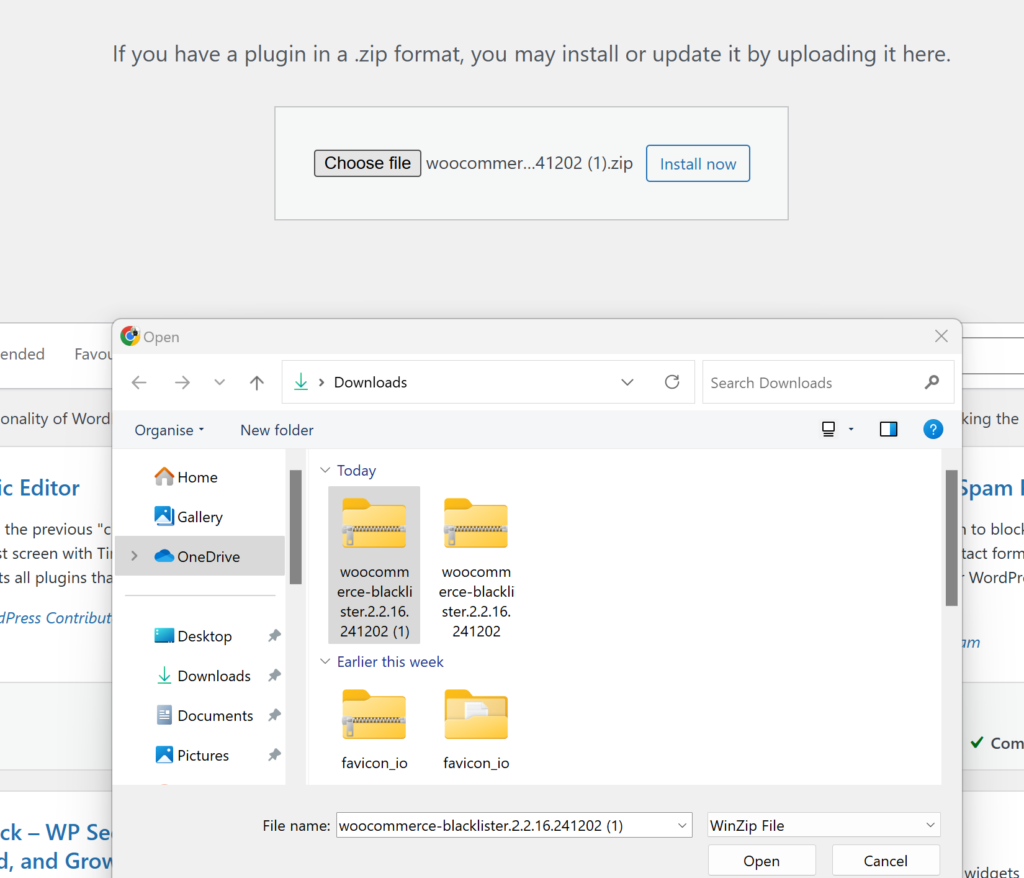
  • Select Upload Plugin
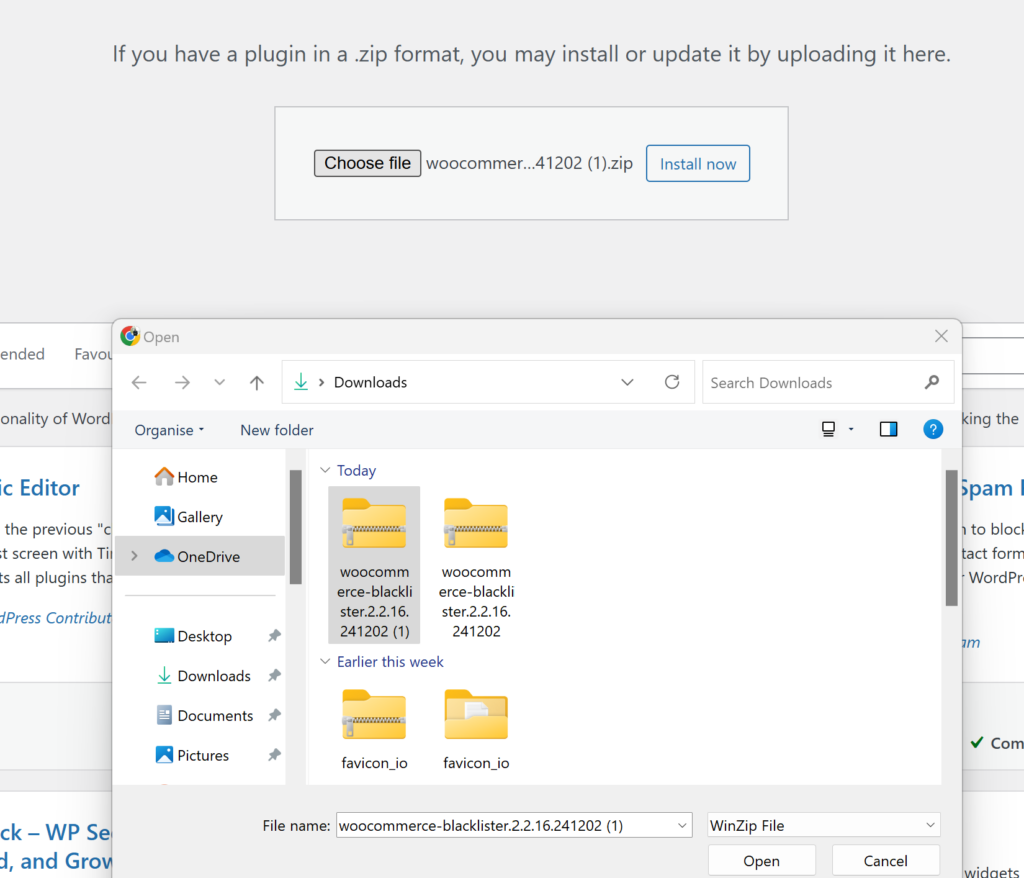
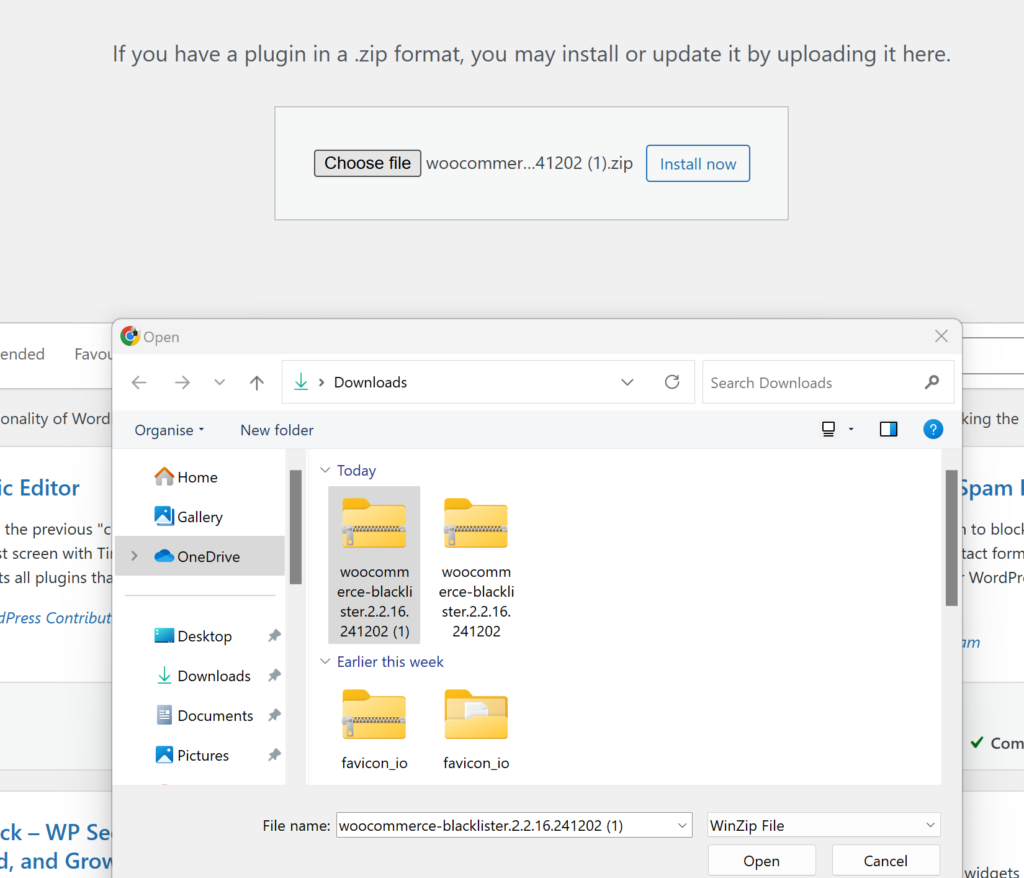
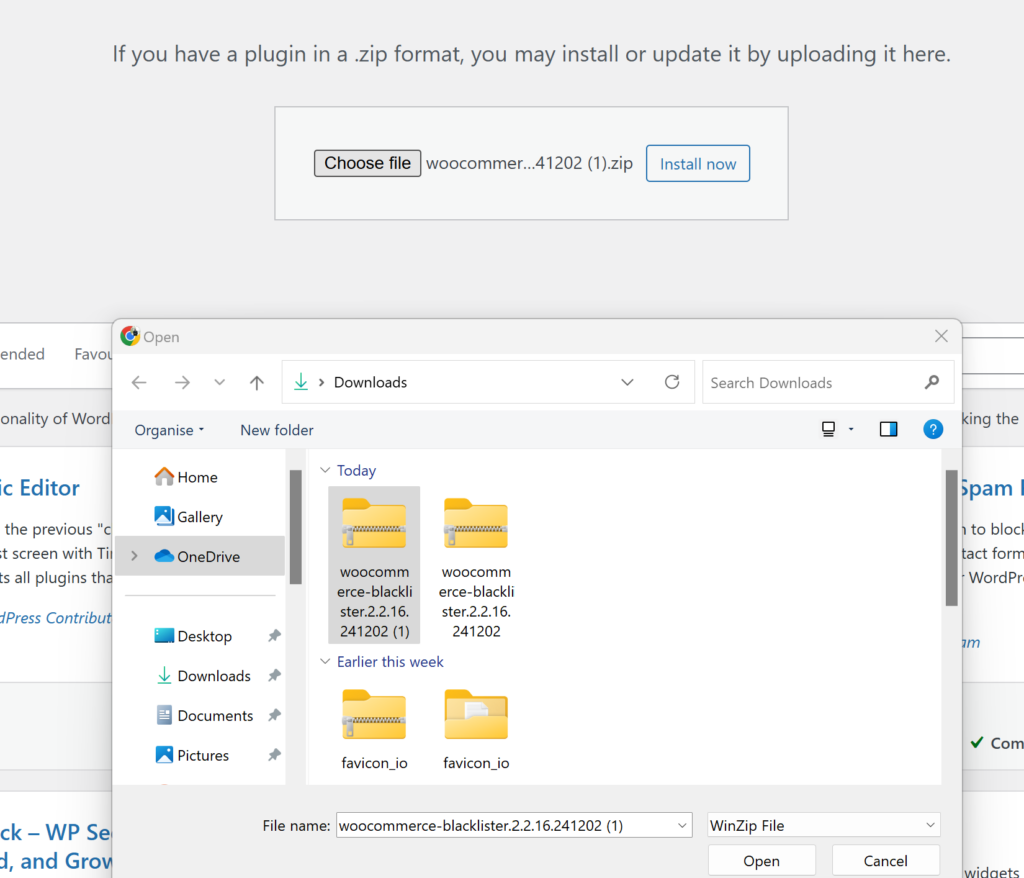
  • Click Choose File, then select the Aelia Blacklister plugin zip file you downloaded from the Aelia website.
  • Click Install Now.
  • Once the plugin is installed, click Activate.

Step 2: Access the Plugin Settings

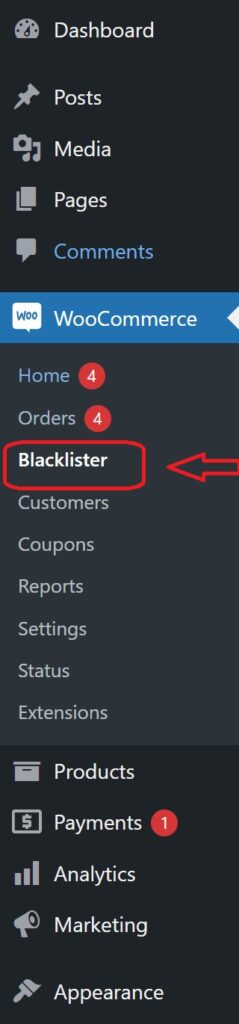
  • After activation, go to WooCommerce and click on it.
  • Look for the Blacklister tab in the settings menu (it might appear under the Aelia tab depending on the version of WordPress).
  • Click on the Blacklister tab to access the plugin’s settings.

Step 3: Block Email Addresses
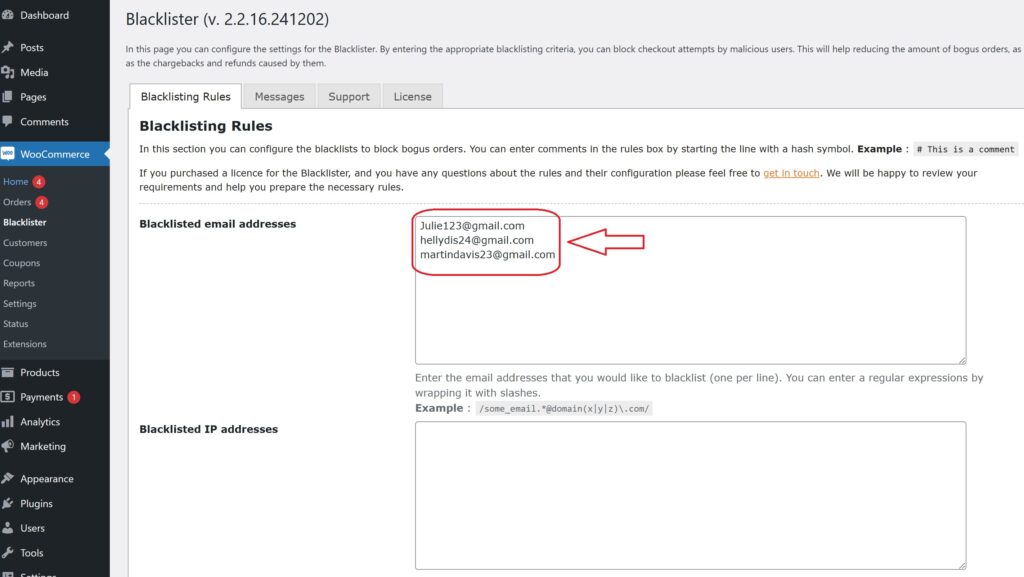
email address to blacklist 1 1
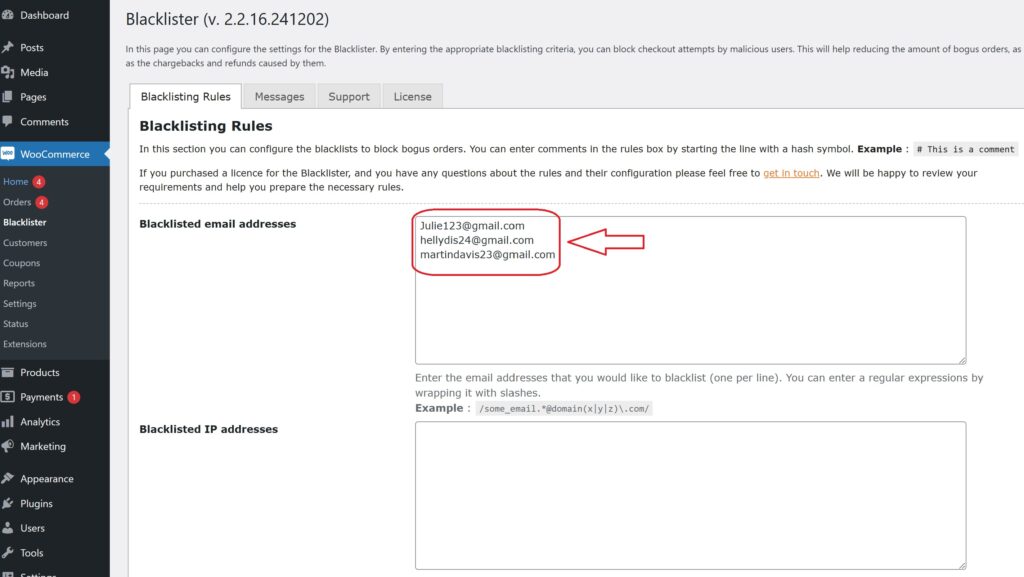
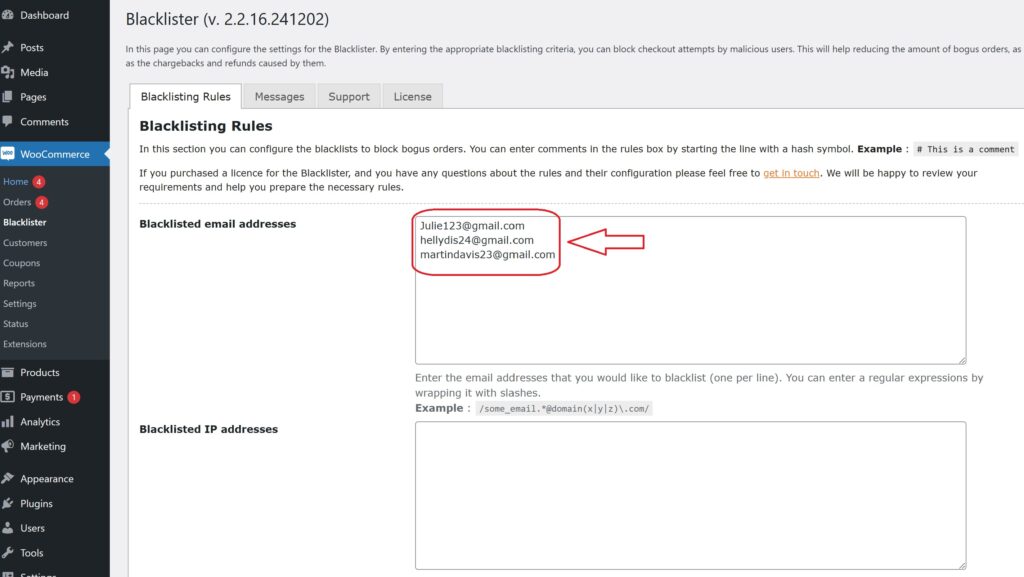
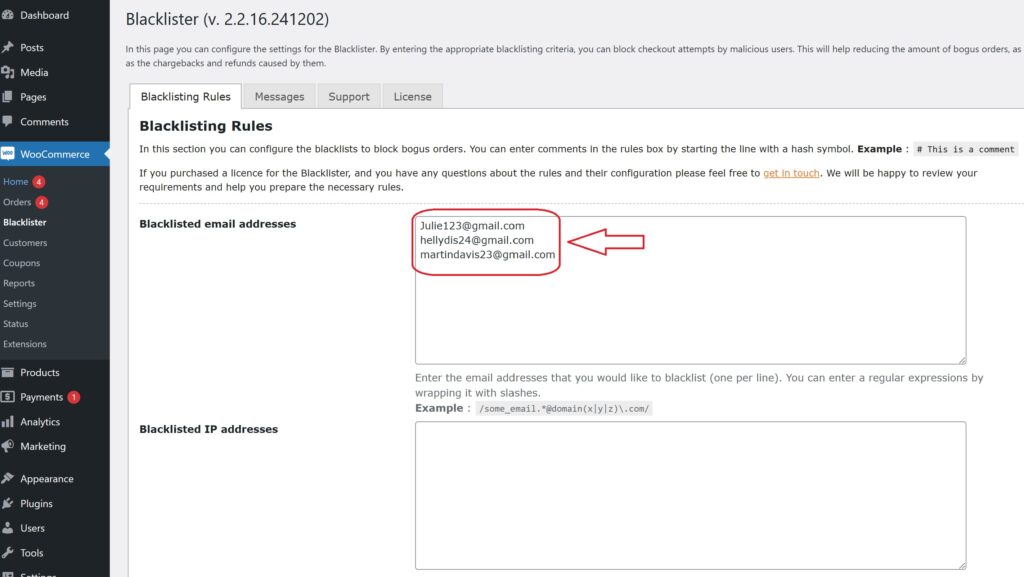
  • In the Blacklister settings, find the option called  Blacklisted email addresses.
  • Enter the email addresses you want to block in the provided text field (you can block multiple email addresses by separating them with commas or entering them one by one).
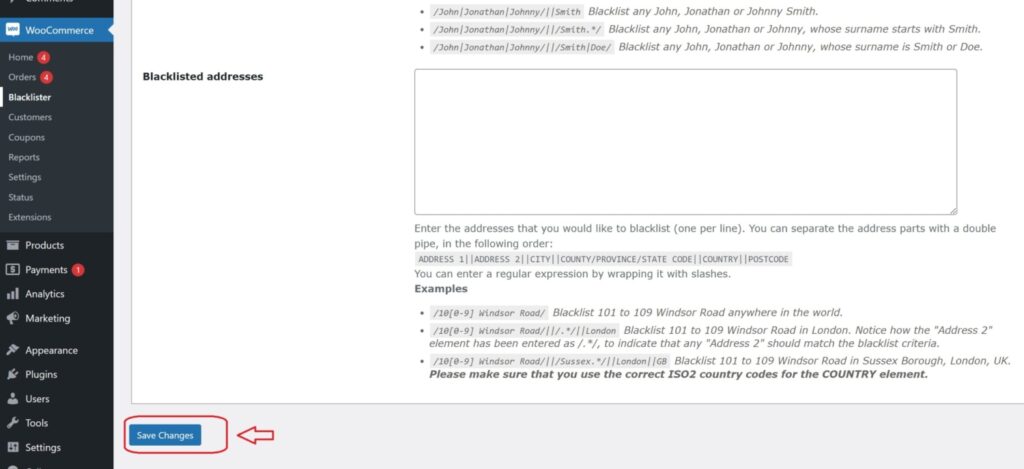
  • After entering the email addresses, Scroll Down and click Save Changes.

Step 4: Test the Configuration

  1. Go to your WooCommerce checkout page.
  2. Try to register or make a purchase using one of the blacklisted email addresses.
  3. If the plugin is correctly set up, the user will not be able to complete the purchase or registration.

How to Get Support for the Aelia Blacklister for WooCommerce Plugin
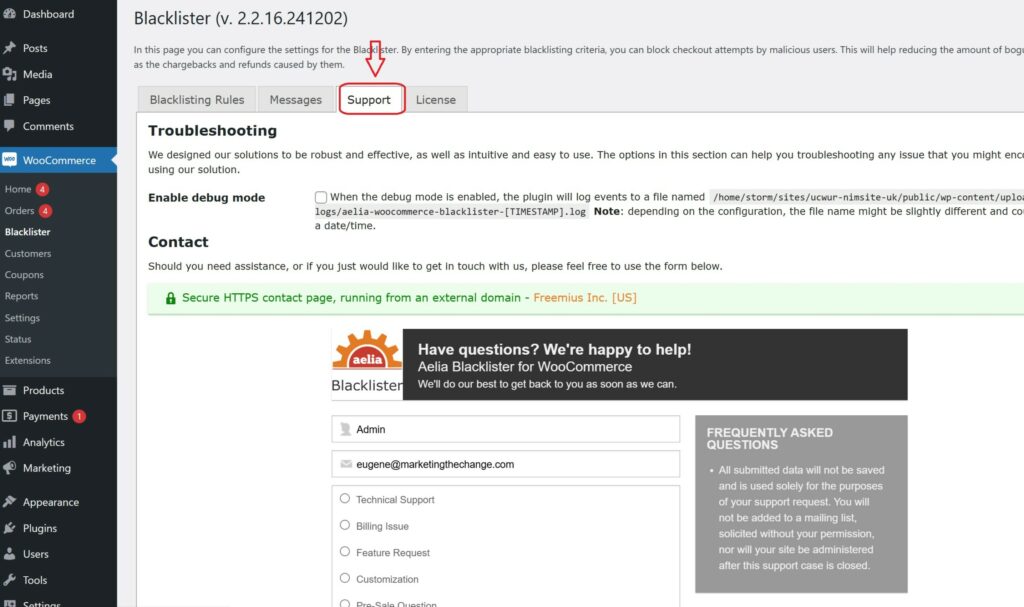
support aelia

Getting support for the Aelia Blacklister for WooCommerce plugin is simple and user-friendly. Within the plugin’s settings, navigate to the Support section, where you’ll find a comment box to describe any issues or questions you may have. Once submitted, Aelia’s dedicated support team will review your request and provide personalized assistance to help resolve your concerns promptly.

To further enhance your WooCommerce store’s functionality, you might also want to explore the Tax Display by Country for WooCommerce plugin. This powerful tool lets you control tax visibility based on the customer’s geographic location, offering a more localized and seamless shopping experience.

Josh Morley

I have been designing & marketing websites since 2013. I specialize not just in WordPress web design but also in online marketing. SEO, PPC, keyword research, link-building and most recently on lead acquisition for local businesses.

Running a WooCommerce store requires more than just selling products—it demands vigilant protection against fraud. Malicious users can compromise your store by using stolen credit cards, exploiting coupon codes, initiating chargebacks, or placing fake orders to exploit shipping loopholes. These activities don’t just impact revenue; they also erode your relationship with payment gateways and tarnish your store’s credibility.

To stay ahead of these threats, it’s vital to implement smart, automated tools that monitor and restrict access based on risk factors like IP addresses, suspicious email domains, billing locations, and user behavior. Integrating these security tools with other helpful features—such as a Currency Switcher for WooCommerce for global pricing—allows you to serve genuine customers seamlessly while keeping threats at bay.

By proactively blocking risky users and blacklisting known offenders, you safeguard your store, your customers, and your brand’s long-term reputation.

Understanding the Real Cost of WooCommerce Fraud

Fraud isn’t just an inconvenience—it can cause serious and lasting damage to your business. Here’s why proactive fraud prevention Tactics for WooCommerce are a must:

Significant Financial Impact
Fraudulent orders often result in chargebacks, refunds, and inventory losses—all of which directly eat into your profit margins.

Loss of Customer Trust
If your store becomes a frequent target for fraud, legitimate customers may question your security and choose not to return.

Wasted Time and Resources
Manually investigating fraudulent activity, processing chargebacks, and resolving disputes can take hours of your team’s time.

Legal and Compliance Risks
Failing to prevent fraud can breach your payment processor’s terms and expose you to legal penalties or account restrictions.

Robust fraud prevention tools help avoid these scenarios by keeping your operations smooth and your customers protected.

How to Identify and Block Fraudulent Users in WooCommerce

To effectively stop fraud in its tracks, you need to know what to look for. Here are key indicators and red flags that signal suspicious activity:

Problematic Payment Patterns

  • Orders with unusually high values.
  • Billing details that don’t match shipping information.
  • Multiple failed payment attempts—common with stolen card testing.

Frequent Order Modifications
Repeated changes to order details post-purchase can signal an attempt to exploit billing or shipping systems.

Suspicious IP or Location Data

  • Orders from unfamiliar or high-risk countries.
  • Multiple purchases from a single IP address within a short timeframe.
  • Use of proxies or VPNs to disguise the true location.

Incomplete or Inconsistent User Profiles
Accounts lacking valid contact information or displaying conflicting details often suggest fraudulent intent.

To prevent access from these high-risk users, consider IP blocking and region-based restrictions. These tactics are effective additions to any WooCommerce security strategy.

Implementing a Blacklisting System in WooCommerce

A proactive way to combat fraud is to establish a blacklist within your WooCommerce store. Tools like the Aelia Blacklister for WooCommerce allow you to block users based on key identifiers such as:

  • IP address
  • Email domain
  • Phone number
  • Customer name
  • Billing or shipping address

With Aelia’s intuitive interface, you can easily configure blacklist rules and prevent high-risk users from placing orders—no coding knowledge required.

Take Control of Your WooCommerce Security

Whether you’re dealing with fraud, abuse, or policy violators, blacklisting tools give you a powerful layer of defense. Combine this with IP blocking and behavior monitoring to build a robust fraud prevention framework.

For additional support, explore this guide to blocking unwanted IP addresses in WooCommerce—an essential resource for store owners serious about online safety.

Aelia Plugin for WooCommerce: Block Fraudulent Users with Precision

Aelia For WooCommerce is a powerful plugin designed to help store owners effectively block fraud and blacklist users based on specific, customizable criteria. Whether you’re dealing with fake orders, chargebacks, or abusive behavior, this plugin gives you complete control over who can place orders in your store.

What Makes Aelia Blacklister Effective?

This WooCommerce blacklist plugin allows you to filter and prevent malicious activity by targeting a wide range of user data, including:

  • Full Name: Block specific individuals using their first and last names.
  • Address Details: Prevent orders from flagged street addresses, postal codes, cities, states/provinces, or even entire countries.
  • Email Address: Stop repeat offenders using the same email or domain.
  • Phone Number: Block suspicious phone numbers linked to fraud or abuse.
  • IP Address: Filter traffic from risky or blacklisted IPs to prevent access from bots or high-risk regions.

How to Configure the Aelia Blacklister Plugin in WooCommerce

Setting up Aelia Blacklister is straightforward and doesn’t require advanced technical skills. Designed with ease of use in mind, the plugin seamlessly integrates into your WooCommerce dashboard, allowing you to:

Step 1: Download and Install the Aelia Blacklister Plugin

Part 1: Download the Plugin

  • Visit the Official Aelia Website:
    Head over to Aelia’s official site to obtain the most recent and authentic version of the plugin.
  • Purchase or Access the Plugin:
    If the plugin requires payment, complete your purchase first. After payment, you will be able to download the plugin as a ZIP file.
  • Download the ZIP Archive:
    Click the download button to save the compressed ZIP file containing all necessary plugin files to your computer.

Note: The ZIP file includes everything needed to install the plugin on your WordPress site.

Part 2: Upload the Plugin to Your WordPress Site

  • Log in to WordPress Admin:
    Access your WordPress admin dashboard by logging in with your credentials.
  • Go to Plugins > Add New:

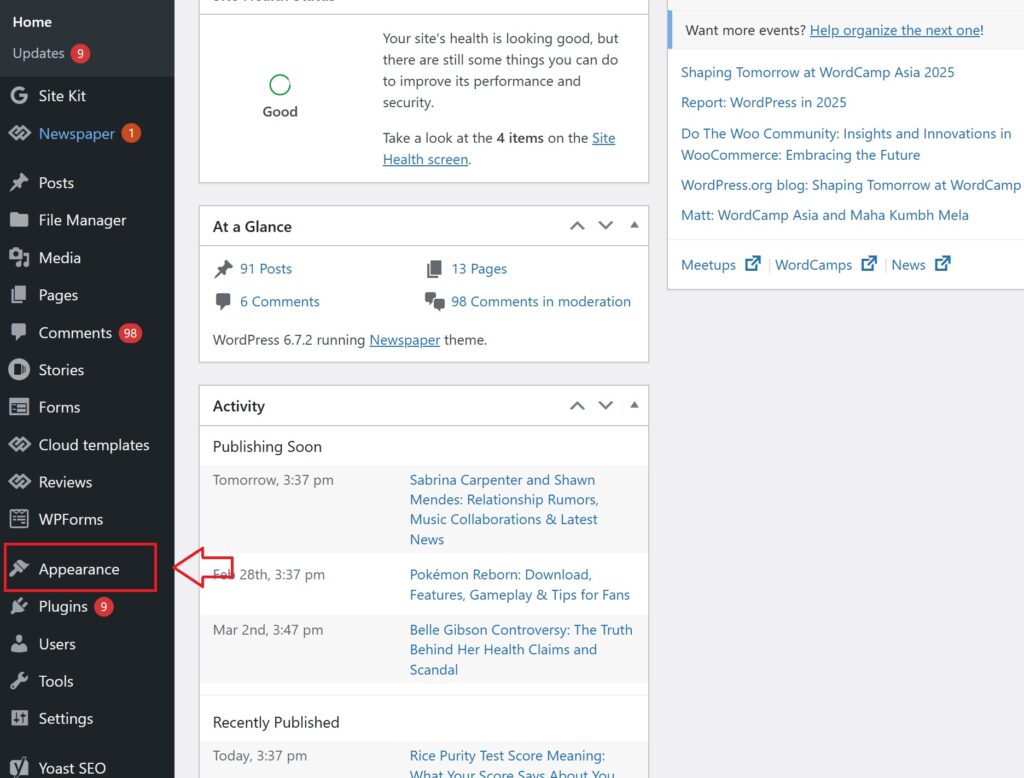
                From the left-hand menu, hover over Plugins and select Add New to open the plugin installation page.

  • Click ‘Upload Plugin’:
    At the top of the page, find and click the Upload Plugin button to start uploading manually.
  • Select the ZIP File:

        Click Choose File, locate the Aelia Blacklister ZIP file you downloaded, and select it.

  • Install the Plugin:
    After selecting the file, click Install Now. WordPress will upload and unpack the plugin for installation.

Part 3: Activate the Plugin

  • Wait for Installation to Finish:
    The installation process will take a few seconds. Once done, a confirmation message will appear.
  • Activate the Plugin:
    Click Activate Plugin to enable Aelia Blacklister on your WooCommerce store.
  • Verify Activation:
    After activation, you’ll be redirected to the Plugins page where Aelia Blacklister should be listed as active. You’ll also find a new menu or settings option for Aelia Blacklister within the WooCommerce settings, confirming the plugin is ready to use.

Step 2: Configure Blocking Rules in Aelia Blacklister

After installing and activating the Aelia Blacklister plugin, the next step is to set up the blocking rules to protect your store from fraudulent activity.

1. Block by Name and Surname

How to Block:

Blocked list using name

Navigate to the blacklist settings and enter the full names or surnames of individuals you want to block. You can target first names, last names, or a combination of both.

Why It Matters:
Fraudsters may change their contact information like email or IP but often reuse the same names. Blocking by name prevents them from bypassing your security even when other details change.

Steps:

  • Open the Blacklist Customer section in the plugin settings.
  • Add the names you want to block.
  • Save or update the settings.

2. Block by Address (Street, Postcode, City, Province/State, Country)

How to Block:

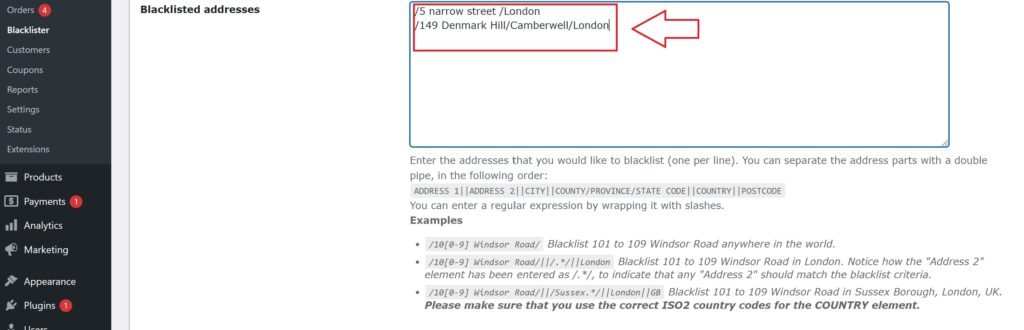
black listing address

You can block specific address components such as street, postal code, city, state/province, or country. This helps identify and block fraudulent users who reuse fake or stolen addresses.

Why It Matters:
Fraudsters frequently use bogus or stolen addresses from high-risk regions. Blocking these locations helps prevent fraudulent purchases.

Steps:

  • Enter the full or partial address details in the Address section.
  • Specify the level of detail to block (e.g., street, postcode, region).
  • Save your changes.

3. Block by Email Address

How to Block:

email address to blacklist 1

Enter specific email addresses or entire domains to block. For example, blocking all addresses from disposable email providers by using domain wildcards (e.g., *@tempmail.com).

Why It Matters:
Many fraudsters use temporary or disposable email accounts to create fake user profiles. Blocking these emails stops them from abusing your store.

Steps:

  • In the Email Address field, add the exact emails or domains you want to block.
  • Save the settings to apply the restrictions.

4. Block by Phone Number

How to Block:

blacklisting phone number

Input individual phone numbers or entire area codes to block fraudulent contact numbers.

Why It Matters:
Fraudsters often use fake or stolen phone numbers to place orders. Blocking suspicious numbers adds another protective layer.

Steps:

  • Go to the Phone Number section.
  • Add phone numbers or area codes you want to restrict.
  • Save the updates.

5. Block by IP Address

How to Block:

Blocking list of IP address 2

Block single IP addresses or whole IP ranges using wildcards or regular expressions to cover patterns of abusive behavior.

Why It Matters:
Blocking IP addresses stops fraudsters from accessing your store repeatedly from the same networks, limiting repeat offenses.

Steps:

  • Access the IP Address settings.
  • Enter specific IPs or use wildcards to block entire ranges.
  • For advanced rules, apply regex patterns.
  • Save the configuration.

Final Step: Save and Activate Your Rules

save for aelia 1

Once you have entered all the blocking criteria, make sure to Save or Update your settings to activate the blacklist rules. Regularly review and update your blacklist to stay ahead of new fraud attempts and keep your WooCommerce store secure.

With these steps, store owners can instantly reduce risk and block fraudulent activity, ensuring smoother operations and safer transactions.

Enhance Your Store Security with Additional Aelia Tools

While Aelia Blacklister offers robust protection against fraudulent users, pairing it with other Aelia plugins can further elevate your WooCommerce store’s security, functionality, and global reach.

Aelia Prices by Country for WooCommerce

This plugin enables you to display different product prices based on the visitor’s location. It’s an ideal solution for businesses selling internationally, helping to:

  • Prevent pricing abuse by aligning product costs with regional economic conditions.
  • Improve customer experience by displaying location-specific pricing automatically.
  • Optimize revenue through tailored pricing strategies across different markets.

Learn more and explore pricing options here

Pro Tip:
By combining Aelia Blacklister with Prices by Country For WooCommerce, you not only secure your store from fraudulent transactions but also offer a more personalized and seamless experience for genuine customers around the world.

Josh Morley

I have been designing & marketing websites since 2013. I specialize not just in WordPress web design but also in online marketing. SEO, PPC, keyword research, link-building and most recently on lead acquisition for local businesses.

In today’s competitive e-commerce landscape, WooCommerce store owners are increasingly targeted by fraudulent activities, ranging from fake orders and spam to malicious bot traffic. These threats not only disrupt operations but can also damage your brand’s reputation and lead to financial loss. One of the most effective security strategies is to block IP address WooCommerce. By restricting access from suspicious or high-risk IP addresses, you can stop bad actors before they cause harm, reduce spam, and create a safer shopping experience for your genuine customers

Pairing IP blocking with additional tools—like Tax Display by Country for WooCommerce—adds another layer of protection by ensuring accurate tax calculations based on customer location. This comprehensive security strategy not only safeguards your revenue but also enhances the overall shopping experience.

What Is an IP Address?

An IP address Internet Protocol address, is a unique string of numbers assigned to every device connected to the Internet. Think of it as a digital street address—it tells websites where to send and receive data, just like your home address directs mail to your door.

There are two main types of IP addresses:

  • IPv4: The most common format, consisting of four number sets separated by periods (e.g., 192.168.0.1).
  • IPv6: A newer version designed to support the growing number of internet-connected devices, offering a vastly larger address range.

For WooCommerce store owners, IP addresses play a key role in tracking user behavior and identifying potential threats. Monitoring visitor IPs allows you to spot suspicious activity and block malicious users before they can harm your store, as explained in this detailed guide on blocking fraudulent users in WooCommerce.

Why Blocking IP Addresses Is Crucial for Your WooCommerce Store

Every device that connects to your store leaves a digital fingerprint—its IP address. Unfortunately, cybercriminals often exploit fake or temporary IPs to commit fraud, spam your site with fake reviews, or place bogus orders that lead to costly chargebacks.

Blocking these IP addresses helps you take control of your store’s safety. It’s a simple yet powerful way to stop fraud at the source, long before it affects your business operations or customer trust.

For even tighter security, combine IP blocking with other WooCommerce protection strategies—like using a plugin to block suspicious activity, as outlined in this step-by-step guide— Plugin to Block Suspicious Activity to stay ahead of evolving threats.

How IP Blocking Protects Your WooCommerce Store

Here’s how blocking harmful IP addresses can help secure your e-commerce site:

  • Prevents Fraudulent Orders: Many scammers use the same IPs repeatedly. Blocking them cuts off their access instantly.
  • Protects Your Brand Reputation: Avoiding fraud means fewer chargebacks and disputes, keeping your store’s credibility intact.
  • Mitigates Geographic Risk: If fraud is common from certain regions, IP blocking lets you restrict traffic from those locations.
  • Reduces Chargebacks: By blocking known bad actors, you reduce the risk of unauthorized transactions and related costs.

How to Block IP Addresses in WooCommerce

There are two primary ways to block IPs in WooCommerce:

  1. Manual Blocking: Add suspicious IPs to your server or security plugin settings.
  2. Plugin-Based Blocking: Use dedicated tools like the Aelia Blacklister Plugin. These plugins automate detection and blocking, giving you full control over blacklisted IPs, emails, and more.

For even greater protection, learn how to block email addresses in WooCommerce. Combining both strategies helps you defend against repeat offenders and bots, making your store a harder target for fraud.

Securing your WooCommerce store starts with smarter tools and proactive strategies. IP blocking is one of the simplest yet most effective ways to keep malicious users out, giving you peace of mind and your customers a safer shopping experience.

Introducing the Aelia Tools for WooCommerce: Effortlessly Block Suspicious Users and IP Addresses

The Aelia Blacklister for WooCommerce plugin is a powerful, intuitive tool designed to help store owners block unwanted users and safeguard their business. Whether it’s fraudulent IP addresses, suspicious emails, or flagged customer details, this plugin empowers you to stop malicious activity before it reaches your checkout.

With real-time protection and customizable rules, Aelia Blacklister enhances your WooCommerce store’s security while ensuring a seamless experience for legitimate customers.

Key Features of Aelia Blacklister

Customizable Blocking Rules
Easily create rules to block users based on:

  • IP addresses
  • Email addresses
  • Phone numbers
  • Customer names
  • Shipping or billing addresses

Use exact matches or regular expressions (regex) for flexible partial matching.

Multiple Blocking Methods
Choose the right method for your needs:

  • Exact Match – Block specific IPs, emails, or phone numbers.
  • Partial Match (Regex) – Identify patterns like disposable email domains or phone number prefixes.

Multi-Layered Protection
Block across several identifiers at once—IP, email, phone number, and location—creating a robust defense against all forms of fraudulent activity.

Customizable Denial Messages
Display tailored error messages when blocking users, offering clarity without compromising security.

Geolocation-Based Blocking
Restrict orders from high-risk regions or countries using geolocation data to minimize your exposure to international fraud.

Chargeback Prevention
By automatically blocking known fraudsters and repeat offenders, the plugin helps reduce the risk of chargebacks and unauthorized refund claims.

Why Choose Aelia Blacklister?

User-Friendly Interface
Designed to integrate seamlessly with WooCommerce, no technical background is required for setup and management.

Real-Time Blocking at Checkout
Malicious users are stopped instantly—before they can place an order—ensuring your store processes only legitimate transactions.

Proven Fraud Protection
Aelia Blacklister actively scans customer input in real time, making it an essential tool for maintaining a secure and trustworthy online store.

How to Install the Aelia Blacklister Plugin for WooCommerce

Getting started with Aelia Blacklister is simple. Before you can start blocking suspicious users and securing your WooCommerce store, you’ll need to install the plugin. Follow these quick steps to set it up:

Step 1: Purchase and Download the Plugin

  • Visit the Aelia product page and purchase the Blacklister plugin.
  • Once your purchase is complete, you’ll receive a downloadable ZIP file containing the plugin.

Step 2: Log into Your WordPress Dashboard

Block IP Address WooCommerce
  • Open your web browser and go to your WordPress login page (typically www.yoursite.com/wp-admin).
  • Enter your login credentials and click Log In to access your admin panel.

Step 3: Navigate to Plugins → Add New

Block IP Address WooCommerce
  • In the WordPress admin sidebar, hover over Plugins.
  • Click on Add New from the dropdown menu to access the plugin installation page.

Step 4: Upload the Plugin ZIP File

Block IP Address WooCommerce
  • At the top of the page, click the Upload Plugin button.
  • Click Choose File, then locate and select the Aelia Blacklister ZIP file from your computer.

Step 5: Install the Plugin

  • After selecting the file, click Install Now.
  • WordPress will begin installing the plugin. This may take a few moments.

Step 6: Activate the Plugin

  • Once installation is complete, click the Activate button to enable the plugin on your WooCommerce store.

Setting Up IP Blocking with Aelia Blacklister

With the plugin activated, you can now configure your blacklisting rules to block unwanted or suspicious users.

Blocking by IP Address

Blocking list of IP address 1
  • Go to the Aelia Blacklister settings within your WooCommerce admin panel.
  • Locate the IP Address Blocking section.
  • Enter any known suspicious or fraudulent IP addresses you wish to block.
  • You can add multiple IPs. These users will automatically be prevented from completing purchases.

Why This Matters:
Fraudsters often use the same IP addresses repeatedly. Blocking them early helps stop chargebacks, fake orders, and other forms of abuse.

 Additional Blocking Options with Aelia Blacklister

Aelia Blacklister goes beyond simple IP blocking. It allows you to create custom rules that target a wide range of user data, giving you full control over who can access your store.

You can block users based on:

  • Email Addresses – Stop spam accounts and known fraudulent emails.
  • Usernames – Block problematic or abusive users by their login names.
  • Phone Numbers – Filter out suspicious or repeat offenders using the same number.
  • Billing & Shipping Addresses – Prevent fraudulent orders linked to flagged locations.
  • Regions or Countries (via Geolocation) – Automatically block high-risk areas from placing orders.

This comprehensive, multi-layered defense helps protect your WooCommerce store from fraud, abuse, and unwanted activity, ensuring a smoother and safer shopping experience for your real customers.

Josh Morley

I have been designing & marketing websites since 2013. I specialize not just in WordPress web design but also in online marketing. SEO, PPC, keyword research, link-building and most recently on lead acquisition for local businesses.

Trusted by millions worldwide, WooCommerce has established itself as one of the leading platforms for online stores. However, its popularity also attracts phishing threats targeting store owners. Its open-source foundation, adaptability, and seamless integration with WordPress make it a go-to solution for businesses of all sizes—from solo entrepreneurs to global retailers.

Phishing Threats
@Builtwitch

However, this widespread adoption has made WooCommerce a growing target for cybercriminals. As its user base expands, so does the risk, especially for store owners who rely on the platform’s strong reputation and may overlook emerging threats.

In April 2025, a new wave of phishing attacks surfaced, specifically targeting WooCommerce users. These attacks arrive as deceptive emails masked as legitimate security warnings. The messages claim a “critical vulnerability” has been found on the recipient’s store and urge them to download a security patch—one that, in reality, installs malicious software designed to steal data, create backdoors, and severely compromise the website’s functionality.

The level of sophistication in these phishing attempts has raised serious concerns within the WordPress and eCommerce communities. One store owner even reported their direct experience receiving such an email, highlighting just how convincing these scams can appear at first glance.

Phishing Threats
image 11 1

I just received a phishing email (see image). It looked suspicious, coming from mail-woocommerce.com. I followed the link on a virtual machine, and the page looks almost authentic. They even have fake reviews. I downloaded the proposed ‘patch’, and it’s clearly malicious, with cryptic code. It creates one or more admin users, fetching data from somewhere. The funny thing is that the domain from which they serve the patch is almost identical to woocommerce.com, it’s ‘woocommerċe.com’ with the tiny diacritic on the last ‘c’. On a black on white screen, it could be overlooked as a speck of dust. That is clever, in twisted, wicked way.

One WooCommerce store owner’s experience highlights just how convincing this phishing campaign really is. It serves as a clear warning—these scams are easy to fall for if you’re not paying close attention. Cybercriminals are now using advanced techniques like homograph domain spoofing, where visually deceptive characters (like a special “ċ” instead of a normal “c”) are used to trick users into clicking fake links.

As phishing tactics become increasingly refined, WooCommerce users must be proactive: double-check email sources, avoid clicking unknown links, and learn to recognize signs of a scam.

In the sections below, we’ll break down:

  • How the phishing attack operates
  • What red flags to look for
  • Steps to take if you’ve been targeted
  • How to secure your WooCommerce store from future threats

Inside the Targeted Phishing Campaign Against WooCommerce Stores

In April 2025, cybersecurity researchers and the WooCommerce team discovered a sophisticated phishing scheme aimed specifically at WooCommerce store owners. Disguised as urgent security notifications, these fake emails prey on users’ fear and pressure them to install a so-called “patch” that’s actually embedded with malware.

How This WooCommerce Scam Unfolds

1. Convincing Phishing Emails

Victims receive emails from spoofed addresses like:

  • help@security-woocommerce.com
  • incident@notify-woocommerce.com
  • support@woocommerce-security.net

The emails typically claim that a critical vulnerability has been found on the recipient’s WooCommerce site, and often include the store’s actual domain name to make the warning feel more credible.

2. Homograph (IDN) Domain Spoofing

A key tactic used is punycode-based domain manipulation—also known as a homograph attack. For example:

  • Attackers register https://xn--woocommere-7ib.com
  • This renders as woocommerċe.com in many browsers

At first glance, the domain looks legitimate. The small dot below the “ċ” is hard to detect and easily overlooked, making the spoofed site appear trustworthy.

3. Malicious “Security Patch”

The email includes a link to download a fake plugin or patch. Once installed:

  • It creates hidden administrator accounts
  • Backdoors are embedded for ongoing access
  • Sensitive site data is exfiltrated to a remote server

4. Highly Convincing Website Design

The phishing site closely mirrors the official WooCommerce website, complete with:

  • Familiar branding and UI
  • Fake user reviews and testimonials
  • Download buttons that mimic real WooCommerce assets

This professional-level mimicry is designed to lull users into a false sense of trust, increasing the likelihood they’ll proceed with the download and unknowingly compromise their site.

How to Spot a Phishing Email Targeting WooCommerce Store Owners

Phishing emails are crafted to appear legitimate, often mimicking official security alerts. However, they contain subtle but identifiable red flags. Knowing what to look for can help you avoid falling victim to these scams. Here’s how to identify a fraudulent WooCommerce phishing email:

1. Unofficial and Suspicious Sender Addresses

One of the first warning signs is the email address the message comes from. These phishing attempts often use addresses that appear credible at a glance but do not belong to WooCommerce or Automattic (WooCommerce’s parent company).
Examples of spoofed addresses include:

  • help@security-woocommerce.com
  • incident@notify-woocommerce.com
  • help@support-woocommerce.com

While they mention “WooCommerce,” these domains are not registered by the official WooCommerce team. Always verify the domain name by hovering over the sender’s address and checking for inconsistencies.

2. Lookalike URLs and Punycode (Homograph) Attacks

Another common tactic is the use of visually deceptive links that rely on Punycode—a method of disguising characters in domain names. These links may appear normal but redirect you to malicious sites.

For instance:

  • The URL https://xn--woocommere-7ib.com renders in browsers as woocommerċe.com.
  • The character “ċ” (with a dot) closely resembles a regular “c,” especially on mobile or small screens.

This technique, known as a homograph attack, tricks users into clicking fake links by exploiting near-identical characters.

3. Urgent Security Warnings

Scammers use urgency and fear to manipulate recipients. These emails often claim a “critical security vulnerability” has been found on your WooCommerce store, sometimes referencing a specific date like “April 14, 2025” to increase perceived credibility.

The message may even include your store’s actual domain name to personalize the alert, making the threat feel targeted and real. The goal? To push you into acting without verifying the legitimacy of the email.

4. Fake “Security Patch” Downloads

Perhaps the most dangerous part of these phishing attempts is the inclusion of a link or attachment disguised as a WooCommerce security update or plugin. You’re urged to download and install it immediately to “protect your site.”

In reality, these files contain malware. Once installed, the malicious code can:

  • Create hidden admin users
  • Open backdoors for long-term access
  • Steal sensitive data like customer info and payment details
  • Disable or hijack your site

Always be wary of unsolicited requests to download files or update plugins via email. Real WooCommerce security notices are usually handled through your WordPress dashboard or verified support channels.

The Real Threat Behind the “Download Patch” Scam in WooCommerce Phishing Emails

Phishing Threats

Clicking the fake “Download Patch” link in a phishing email might seem harmless at first, but it triggers a full-scale security breach. While the file may appear to be a routine WooCommerce update (e.g., woocommerce-security-patch.zipIt’s a dangerous malware installer disguised to look legitimate.

Once downloaded and activated, the malware quietly begins compromising your WooCommerce store in several stages:

Step 1: Silent Malware Installation

After uploading and activating the plugin through the WordPress admin panel, the malware executes hidden, often encrypted code. This code is specifically designed to evade basic security scanners and embed itself deep within your site’s core files or database, often without leaving immediate signs of compromise.

Step 2: Creation of Stealth Admin Account

One of the malware’s first tasks is to create unauthorized administrator accounts. These hidden users often have names like:

  • wp-support
  • admin-helper
  • Slight variations of existing usernames

These stealth accounts allow the attacker to retain control over your website, even if you remove the original infected file, creating a persistent backdoor into your store.

Step 3: Installing Hidden Backdoors

Next, the malware installs backdoor access points, typically disguised as:

  • Plugin or theme files
  • Template files
  • Cron jobs (automated tasks)

These backdoors enable attackers to re-enter your site at any time without detection, even after cleanup attempts. This ensures long-term access and re-infection potential.

Step 4: Data Theft in the Background

With access secured, the compromised site begins transmitting sensitive data to an external command-and-control (C2) server. Information commonly targeted includes:

  • Customer profiles and email addresses
  • Order history and purchase details
  • Login credentials
  • Payment information

This can lead to major privacy breaches, potential identity theft, and violations of regulations like GDPR or CCPA.

Step 5: Expanding the Attack

Once in full control, attackers can exploit your WooCommerce site in several destructive ways, such as:

  • Sending spam from your server to damage your reputation
  • Redirecting shoppers to scam sites or counterfeit product pages
  • Injecting malicious scripts into your storefront to target visitors
  • Deploying ransomware to lock you out of your admin area

The longer the malware remains undetected, the more devastating the impact—financially, operationally, and reputationally.

How to Spot Fake WooCommerce Emails

WooCommerce will never send plugin files, security patches, or updates through email attachments or third-party download links. If you receive an email that claims to contain a WooCommerce update, it’s likely a phishing attempt.

Official WooCommerce Communications Will Always:

  • Be sent from an @woocommerce.com or @automattic.com email address
  • Direct you to official sources like WooCommerce.com or WordPress.org
  • Include detailed documentation, clear verification steps, and transparent instructions

???? If an email does not follow these guidelines, do not trust it.

Received a Suspicious Email? Here’s What to Do

If you suspect an email is a phishing attempt, don’t interact with it. Instead, follow these essential steps to protect your WooCommerce store:

1. Avoid Clicking on Any Links

Even seemingly harmless links may lead to malicious websites or auto-trigger malware downloads. Do not click buttons or hyperlinks in suspicious emails.

2. Never Download Attachments

Do not download or install any file unless you’re 100% certain it’s from a verified source. Malicious attachments may:

  • Install malware or spyware
  • Create unauthorized admin users
  • Alter your site’s code to establish long-term backdoors

If you’ve already downloaded the file, do not open or execute it.

3. Report the Email Immediately

Use your email provider’s built-in tools to flag the message as phishing (e.g., “Report phishing” in Gmail or Outlook). You can also:

  • Report the domain to your hosting provider
  • Notify WooCommerce support about the phishing attempt

Your report helps protect other store owners from falling victim.

How to Keep Your WooCommerce Store Safe

Being proactive is the best defense against phishing and fraud. Here’s how to fortify your online store:

1. Only Install Updates from Official Sources

Always update WooCommerce and related plugins directly through your WordPress dashboard or official sites like WooCommerce.com. Avoid installing anything from email links or unknown third-party websites.

2. Enable Automatic Security Updates

Let WooCommerce and trusted plugins auto-update when security patches are released. This ensures your store is always protected—even if you’re not monitoring it daily.

3. Strengthen Login Security

Use strong, unique passwords and enable two-factor authentication (2FA) for all admin users. These two steps greatly reduce the risk of unauthorized access if credentials are exposed.

4. Use Verified Plugins and Extensions Only

Only download plugins and themes from reputable sources like:

  • WooCommerce Marketplace
  • WordPress.org Plugin Directory

Unverified plugins may contain hidden code designed to exploit your site.

5. Block Suspicious Users with Aelia Blacklister for WooCommerce

aelia blacklister plugin

Enhance your security by installing the Aelia Blacklister plugin. It allows you to automatically block orders from users based on specific criteria, including:

  • Names, addresses, or emails
  • Phone numbers or IP ranges
  • Known fraud patterns

When a rule is triggered, the plugin halts the checkout process and displays a customizable warning message. This tool is ideal for preventing repeat fraud attempts and filtering suspicious activity before it causes harm.

???? Need more help identifying or blocking fraudulent users?
Check out our guide: How to Block Malicious Users in WooCommerce

Josh Morley

I have been designing & marketing websites since 2013. I specialize not just in WordPress web design but also in online marketing. SEO, PPC, keyword research, link-building and most recently on lead acquisition for local businesses.

Running a WooCommerce store involves a range of challenges, and one of the most crucial is protecting your business from fraudulent activity. From chargebacks and scam orders to abusive behavior and unwanted users, these issues can seriously affect your store’s performance and reputation. That’s why knowing the top ways to block and blacklist fraudulent users in WooCommerce is essential. With the right tools and criteria in place, you can control who has access to your store, reduce risks, and ensure a safer experience for both you and your customers.

While WooCommerce doesn’t provide a built-in feature for blacklisting, you can use the Aelia Blacklister for WooCommerce plugin, which offers a comprehensive solution to prevent fraudulent users and problematic orders. For stores operating internationally, the Aelia Prices by Country for WooCommerce plugin can also be a valuable addition, allowing you to customize pricing based on a user’s location and even fine-tune regional access if needed.

For better performance and reliability of your store, consider implementing the WooCommerce Cache Handler. This tool helps optimize your store’s loading speed and ensures that blacklisting actions, along with other site functions, run smoothly—especially during periods of high traffic.

Together, these tools provide a seamless, secure, and efficient shopping experience for both store owners and customers.

Why You Should Block or Blacklist Fraudulent Users in WooCommerce

Managing a WooCommerce store means staying vigilant against threats that could harm your business. One of the most effective ways to protect your store is by blocking or blacklisting users who engage in malicious or disruptive behavior. Here are the key reasons why this practice is essential:

  • Prevent Fraud: Online fraud remains a serious threat to e-commerce businesses. Blocking users associated with suspicious transactions or stolen credit card use can help protect your store from financial loss.
  • Avoid Chargebacks: Repeated chargebacks not only impact your bottom line but can also hurt your payment processor relationship. By blacklisting users who frequently file chargebacks, you can minimize these costly disputes.
  • Stop Abusive Behavior: If a user consistently harasses your support team or violates your store’s policies, blocking them can preserve your team’s well-being and maintain a respectful shopping environment.
  • Enforce Store Policies: Some users may repeatedly breach your terms and conditions. Blacklisting ensures they can no longer disrupt your operations or take advantage of your store.
  • Enhance Store Security: Users or IP addresses showing unusual or harmful behavior may pose a security risk. Blocking access can help prevent data breaches or unauthorized activity.

Additionally, if you’re customizing your WooCommerce setup to enhance user experience or security, check out this useful guide on how to easily rename country codes in WooCommerce. This can help tailor your settings and streamline your store’s checkout process based on specific regional requirements.

How to Block or Blacklist Fraud Users in WooCommerce

The plugin provides a simple and efficient way to block problematic Users based on various criteria. Let’s go through the steps to configure this plugin.

Step 1: Install the Aelia Blacklister for WooCommerce Plugin

Block and Blacklist Fraudulent Users
  1. Download and Install the Plugin: Go to the Blacklister for WooCommerce plugin and purchase the plugin. Once downloaded, you can upload the plugin through your WordPress admin panel by navigating to Plugins > Add New and then selecting Upload Plugin.
  2. Activate the Plugin: After installation, activate the plugin to start configuring the blacklisting rules.

Step 2: Configure Blacklisting Rules

Once activated, the plugin adds a new menu in the WooCommerce settings where you can specify the criteria to block users. The plugin allows you to block Users based on the following details:

Block and Blacklist Fraudulent Users
  • Customer’s Name and Surname: Block User using their full name or just a part of it.
  • Customer’s Address: Block based on the User’s street, postcode, city, province/state, or country.
  • Customer’s Email Address: Block User using specific email addresses or partial matches.
  • Customer’s Phone Number: Block based on the full or partial phone number.
  • Customer’s IP Address: You can block specific IP addresses or even entire IP ranges.

You can also configure whether the matching should be an exact match or a partial match. The plugin supports regular expressions for all fields except IP addresses. For IP addresses, you can apply IP address masks or IP address ranges.

Step 3: How the Blacklisting Process Works

Once the rules are set, the plugin automatically compares the information provided by the User at checkout with the configured blacklisting rules. If there is a match, the plugin will block the order and stop the checkout process.

A customizable error message will then be displayed to the User, explaining why their order was blocked. This ensures that the User knows the reason for the denial, providing a professional and transparent experience.

Step 4: Customizing Messages

One of the plugin’s most valuable features is the ability to customize the error messages shown to blocked users. Whether you want to explain the reason behind the block or provide user support contact details, you can create a personalized message to keep the interaction courteous and professional.

Why Use the Aelia Blacklister Plugin for WooCommerce?

Block and Blacklist Fraudulent Users

If you’re looking for an effective way to secure your WooCommerce store from unwanted users and fraudulent activity, the Aelia Blacklister Plugin is a powerful and flexible solution. This plugin gives you full control over who can complete a purchase, boosting both security and peace of mind.

Key Features That Make Aelia Blacklister a Smart Choice:

  • Versatile User Filtering: Block users based on multiple criteria such as name, email, phone number, IP address, or shipping/billing address—giving you the power to prevent high-risk transactions.
  • Regex Support for Advanced Matching: Use regular expressions (regex) to define specific patterns for blacklisting. This allows more granular control when targeting recurring fraud behaviors or suspicious data entries.
  • Simple Setup: With a user-friendly interface and straightforward configuration, even non-technical store owners can implement blacklisting with ease.
  • Custom Error Messages: Deliver clear, branded messages to blocked users so your communication remains professional and consistent.
  • IP Address Masking: Block specific IP addresses or entire ranges, enabling you to prevent known threats or malicious bots from accessing your checkout.
  • Set-and-Forget Automation: Once your blacklist rules are defined, the plugin enforces them automatically—no ongoing manual effort required.

Want more functionality from the same ecosystem? You can also enhance your global eCommerce setup with tools like the Aelia Currency Switcher for WooCommerce, which allows your customers to shop in their local currency.

Together, these plugins make your WooCommerce store smarter, more secure, and truly optimized for global reach and fraud prevention.

Josh Morley

I have been designing & marketing websites since 2013. I specialize not just in WordPress web design but also in online marketing. SEO, PPC, keyword research, link-building and most recently on lead acquisition for local businesses.

In today’s fast-paced e-commerce environment, safeguarding your WooCommerce store is more critical than ever. Cyber threats and fraudulent transactions can cause severe financial damage and erode customer trust.

That’s where the Aelia Blacklister plugin comes in. This powerful tool enhances your store’s security by blocking suspicious users based on customizable filters like IP addresses and email domains. By proactively filtering out high-risk traffic, you reduce the likelihood of fraud while ensuring a seamless shopping experience for genuine customers.

Designed to integrate effortlessly with WooCommerce, the plugin offers detailed logging and reporting features, giving you full visibility and control. The result? Smarter order management, effective traffic monitoring, and optimal store performance without compromising usability.

Why WooCommerce Security Matters

Ensuring the security of our WooCommerce store is essential for protecting sensitive customer information and preserving brand trust. With over 2,000 cyberattacks targeting e-commerce sites every day in 2024, it’s more important than ever to implement strong security protocols to prevent data breaches that could lead to financial loss and reputational harm [R].

One effective way to boost our defenses is by using the Aelia Blacklister For WoCommerce. This powerful tool helps identify and block malicious users in real-time by filtering specific IP addresses, phone numbers, locations, and email domains. By doing so, it reduces the likelihood of fraudulent activities and unauthorized access, supporting a smooth and secure shopping experience for genuine customers.

Geographic restrictions offer another layer of protection. For businesses focused on domestic markets, limiting purchases to a single country helps block irrelevant and potentially harmful international traffic. This strategy not only mitigates regional cyber risks but also keeps our sales efforts aligned with target audiences.

Strengthening WooCommerce security with solutions like the Aelia Blacklister plugin is a smart move to defend your online store against modern cyber threats. This tool helps maintain your website as a safe and reliable space for customers, ultimately supporting long-term success and business growth. You can download the plugin directly from the official Aelia website. Want to understand why blocking email addresses and IPs is so important for your store? Check out this simple method for blocking email addresses in WooCommerce.

Enhance Your WooCommerce Store Security with Aelia Blacklister

WooCommerce Security

The Aelia Blacklister plugin is a powerful WooCommerce security tool designed to help store owners proactively block unwanted or suspicious orders. It enables precise control over who can place orders, using a range of customizable filters to identify and restrict access from high-risk users.

???? What Makes Aelia Blacklister Stand Out?

1. Block Customer Data with Precision

  • Name & Surname: Prevent specific individuals from placing orders by filtering based on full or partial names.
  • Address Details: Blacklist users by street name, postal code, city, region, or even entire countries.
  • Email Filtering: Use full or partial email matches (including regex support) to stop known fraudulent addresses.
  • Phone Numbers: Restrict access by exact or pattern-matching phone numbers.

2. IP-Based Blocking
Safeguard your store by blocking individual IP addresses or entire ranges. Use IP masks to target broader segments, making it harder for repeat offenders to bypass restrictions.

3. Flexible Match Rules with Regex
All filters (aside from IP addresses) support regular expressions, allowing advanced users to define powerful and specific rules tailored to their unique needs.

4. Custom Error Messaging
If a shopper is blocked during checkout, they’ll receive a tailored message explaining why their order couldn’t be processed. You can customize this notification from the settings panel to match your brand tone.

????️ How It Works

Once installed, the plugin integrates seamlessly into your WooCommerce dashboard. You’ll gain access to a dedicated settings area where you can manage blacklisted entries, including names, addresses, email addresses, phone numbers, and IPs.

Whenever a customer attempts to place an order, the plugin scans their details against your blacklist. If a match is found, the checkout process is halted and the customer is notified immediately.

This streamlined yet robust system offers a practical solution for reducing fraud and maintaining control over your WooCommerce orders.

Pair It with Country-Based Pricing for Even More Control

Looking to further tailor your customer experience? Combine the Aelia Blacklister with the Aelia Prices by Country plugin, allowing you to display different prices based on customer location while still blocking unwanted regions. This duo enhances both security and sales strategy.

Setting Up Aelia Blacklister

Installation

Download the Aelia Blacklister plugin from the official Aelia website. Install the plugin through the WordPress dashboard by navigating to Plugins > Add New > Upload Plugin and uploading the plugin file. Activate the plugin after installation.

Adding Blacklist Rules

A new menu item for Aelia Blacklister appears in the WooCommerce backend. Navigate to this menu to specify blacklist entries.

Blacklisting Rules Configuration

This section allows you to define specific criteria for blocking fraudulent or unwanted orders by blacklisting certain types of customer data. Here’s an overview of the rules and how you can configure them:

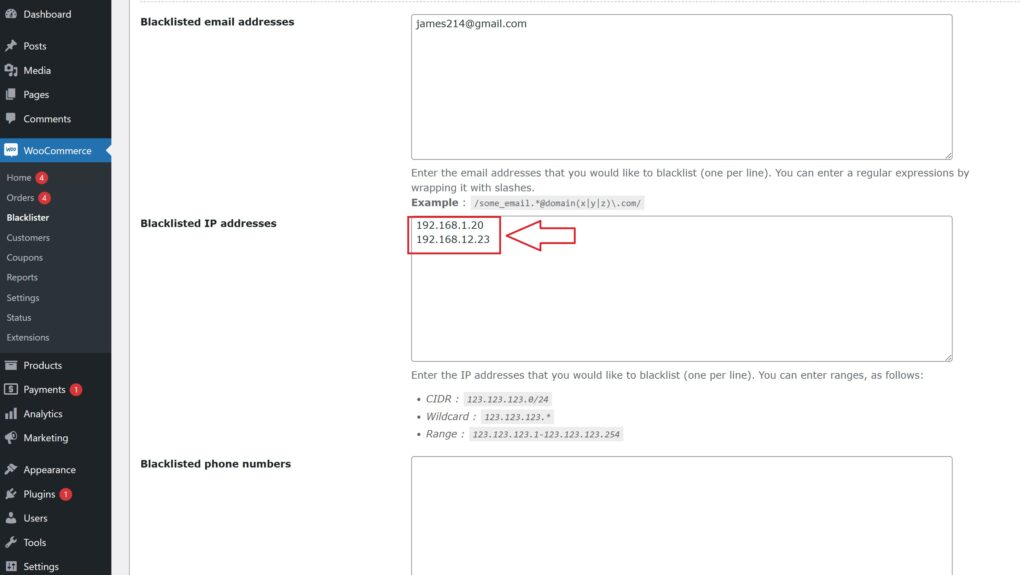
Blacklisted Email Addresses

Enter the email addresses you wish to block, one per line. You can also use regular expressions (regex) to block a group of email addresses. Simply wrap the regex in slashes.

WooCommerce Security

Example:

  • james214@gmail.com
  • /some_email.*@domain(x|y|z)\.com/ – Blocks any email from the domains “x.com”, “y.com”, or “z.com”.

Blacklisted IP Addresses

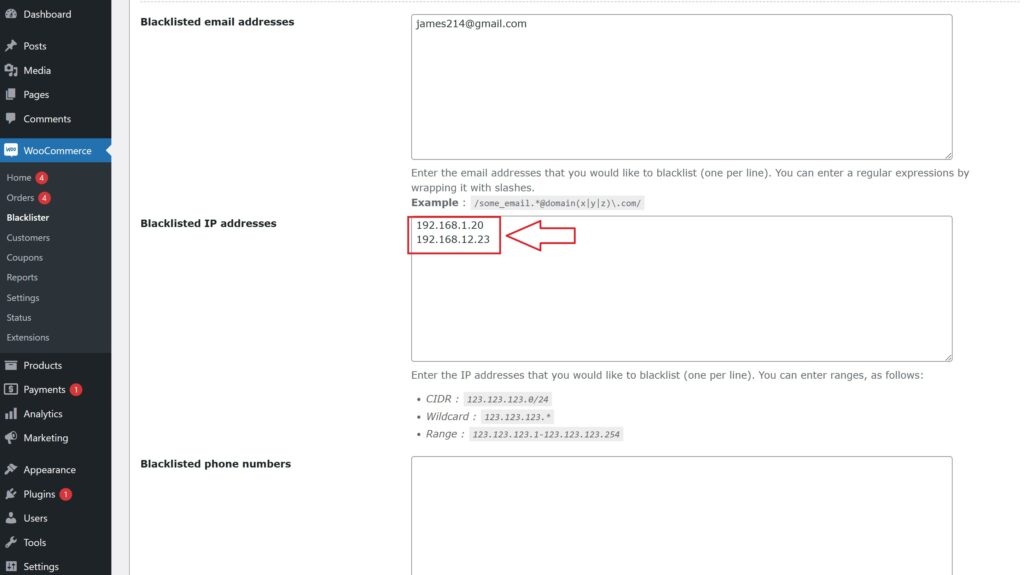
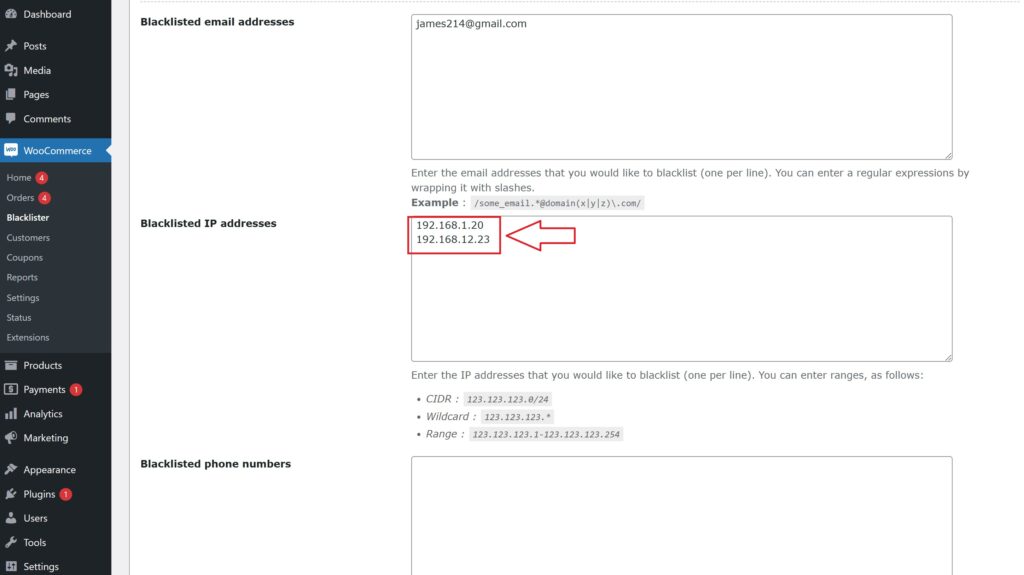
Enter the IP addresses or ranges you want to block, one per line. You can use the following formats for precise control:

WooCommerce Security
  • CIDR Notation: 123.123.123.0/24 – Blocks the entire range of IPs from 123.123.123.0 to 123.123.123.255.
  • Wildcard Format: 123.123.123.* – Blocks all IPs starting with 123.123.123.
  • IP Range: 123.123.123.1-123.123.123.254 – Blocks IPs in the specific range.

Blacklisted Phone Numbers

You can blacklist specific phone numbers or ranges using exact matches or regular expressions.

Example:

  • 0123456789 – Blocks this exact phone number.
  • /012345(101|102|103)/ – Blocks phone numbers that start with 012345 and end with 101, 102, or 103.

Blacklisted Customer Names

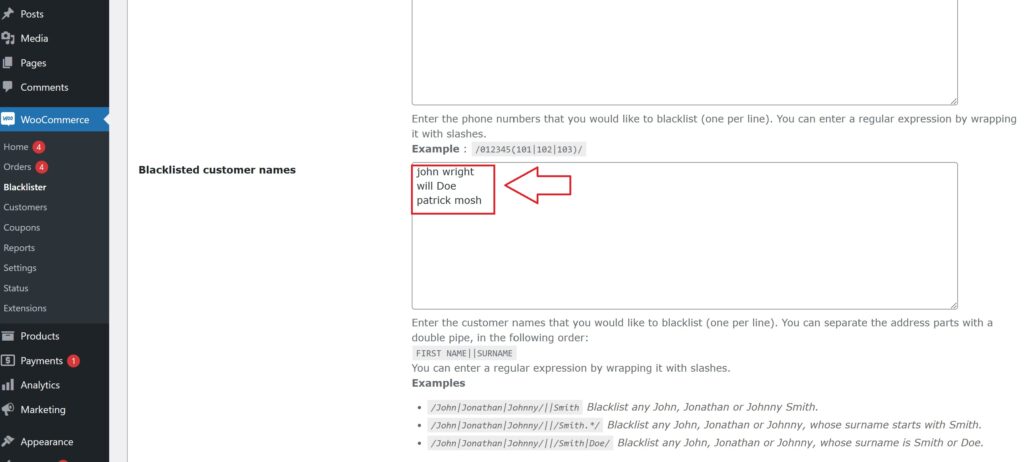
This field allows you to block orders from customers with certain names. Separate the first name and surname with a double pipe (||). You can also use regular expressions for flexibility.

WooCommerce Security

Example:

  • /John|Jonathan|Johnny/||Smith – Blocks any customer named John, Jonathan, or Johnny Smith.
  • /John|Jonathan|Johnny/||/Smith.*/ – Blocks any customer named John, Jonathan, or Johnny whose surname starts with “Smith”.
  • /John|Jonathan|Johnny/||/Smith|Doe/ – Blocks customers named John, Jonathan, or Johnny, with a surname of either Smith or Doe.

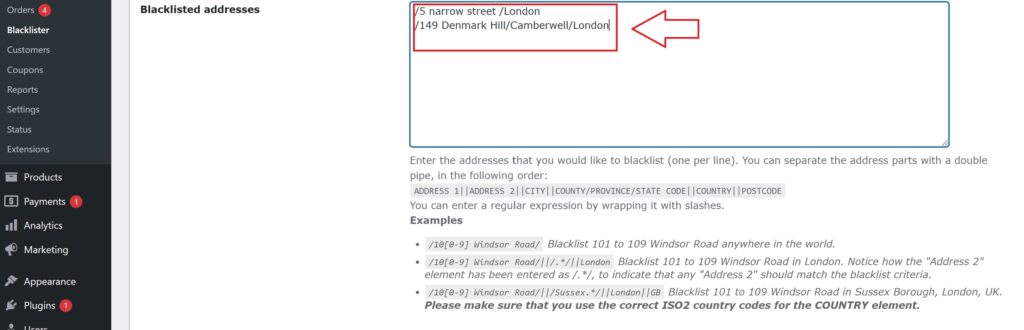
Blacklisted Addresses

You can block orders based on specific address components (address line 1, address line 2, city, state, country, and postcode). Use regular expressions for more specific targeting.

black listing address

Example:

  • /10[0-9] Windsor Road/ – Blocks addresses on Windsor Road numbered from 101 to 109 anywhere in the world.
  • /10[0-9] Windsor Road/||/.*/||London/ – Blocks addresses on Windsor Road numbered from 101 to 109 in London (the second address part can match any value).
  • /10[0-9] Windsor Road/||/Sussex.*/||London||GB/ – Blocks addresses on Windsor Road numbered from 101 to 109 in Sussex Borough, London, UK. The country code GB is used for the UK.

Comments in Rules
You can add comments to any line of the blacklist rules by starting the line with a hash symbol (#). This helps you document your rules for easier reference.

Example:

  • # Blocking fraudulent email domains
  • # Block all IPs from region X

Customizing Error Messages

Display custom error messages when a blacklisted user attempts to checkout. Inform them why their order is blocked, enhancing transparency and user experience.

Logging and Reporting

Enable detailed logging to track blacklisted attempts. Monitor these logs to analyze patterns and adjust security measures accordingly.

Integration with Other Security Plugins

Integrate Aelia Blacklister with existing security plugins to enhance your store’s safety. Combine multiple security measures for a robust protection system.

Other Powerful Aelia Plugins for WooCommerce

1. Prices by Country for WooCommerce

This plugin allows you to set product prices based on the customer’s billing country. It’s perfect for international stores that need to adjust pricing strategies due to regional taxes, currency differences, or market demands. When paired with a currency switcher, it automatically detects the customer’s location and displays the correct price.

Key Features:

  • Set custom prices per country or region.
  • Automatically detects customer location.
  • Seamlessly integrates with Aelia Currency Switcher.
  • Supports tax-inclusive or exclusive pricing.

2. Currency Switcher for WooCommerce

This is one of Aelia’s flagship plugins and a must-have for global WooCommerce stores. It allows customers to shop and check out in their preferred currency. The plugin detects the visitor’s location and switches currencies automatically, or allows them to select it manually.

Key Features:

  • Real-time currency conversion via open exchange rate APIs.
  • Automatic currency selection based on geolocation.
  • Manual switcher widget for user convenience.
  • Full support for multi-currency checkout.

3. Tax Display by Country for WooCommerce

This plugin dynamically shows product prices with or without tax, depending on the customer’s location. It’s ideal for stores selling to both B2C and B2B customers across different regions with varying tax laws.

Key Features:

  • Automatically adjusts tax display based on country.
  • Shows both tax-inclusive and tax-exclusive prices if needed.
  • Works smoothly with the Prices by Country plugin.

Josh Morley

I have been designing & marketing websites since 2013. I specialize not just in WordPress web design but also in online marketing. SEO, PPC, keyword research, link-building and most recently on lead acquisition for local businesses.

In the world of e-commerce, fraudulent activities have become a growing concern, putting online store owners at risk. Fake accounts, fraudulent orders, spam, and the use of fraudulent IP addresses and email addresses can tarnish your store’s reputation and lead to significant financial setbacks. For WooCommerce store owners, protecting your platform from these threats is crucial. One of the most effective strategies for safeguarding your store is blocking suspicious IP addresses and email addresses. This helps prevent scammers from placing fraudulent orders or interacting with your site, ensuring a secure and reliable shopping experience for your customers.

In addition to blocking suspicious users, implementing tools like the Tax Display by Country for WooCommerce can further enhance your store’s security. This feature ensures that tax information is correctly displayed based on the customer’s location, helping to minimize chargebacks and unauthorized transactions. By combining these security measures with the blocking of fraudulent IPs and emails, you can strengthen your store’s defenses and provide a safe, smooth shopping environment for legitimate buyers.

When you’re securing your store, it’s also important to optimize your WooCommerce international shipping settings to handle a broader range of customers while minimizing the risk of fraud. Learn more about setting up WooCommerce international shipping to ensure a seamless experience for customers across the globe.

By integrating these strategies into your store’s security system, you’ll be well-equipped to prevent malicious activity and create a trustworthy shopping environment.

Why Blocking IPs and Emails is Crucial for WooCommerce Store Security

As the e-commerce industry grows, so does the risk of fraudulent activities. Fraudulent orders, fake accounts, and spam can damage the integrity of your WooCommerce store, leading to financial losses and a tarnished reputation. One of the best ways to protect your online store from these threats is by blocking suspicious IP addresses and email addresses. Let’s explore why these measures are essential and how they can significantly enhance the security of your store.

The Role of IP Address Blocking in WooCommerce Security

An IP address is a unique identifier assigned to every device connected to the internet. Fraudsters often use fake or disposable IPs to carry out malicious activities such as submitting fake reviews, making fraudulent orders, and initiating chargebacks. Blocking suspicious IP addresses can help prevent these activities, offering your store robust protection against scammers.

How Blocking IP Addresses Safeguards Your WooCommerce Store:

  1. Prevents Fraudulent Orders: Scammers tend to use the same IP addresses to place fake orders repeatedly. By blocking these addresses, you can stop fraudulent transactions from being completed.
  2. Preserves Your Store’s Reputation: Chargebacks and other malicious activities can damage your store’s reputation. Blocking high-risk IPs helps maintain a positive brand image by minimizing these issues.
  3. Target High-Risk Regions: Some regions are more prone to fraudulent activities. By blocking access from high-risk countries, you can mitigate the risk of scams.
  4. Reduces Chargebacks: Blocking fraud-prone IP addresses reduces the likelihood of chargebacks by preventing fraudulent purchases from being processed in the first place.

How to Block IP Addresses in WooCommerce:

You can manually block suspicious IPs or use automated security plugins like Aelia Blacklister for WooCommerce to simplify the process. These plugins scan for fraudulent activities and block malicious IP addresses with ease.

The Importance of Blocking Emails for Enhanced WooCommerce Security

Emails are a significant source of fraud in the online store space. Scammers often use disposable email addresses to create multiple fake accounts, exploit promotions, or even engage in refund abuse. Blocking these fraudulent email addresses is vital for preventing unauthorized access to your store.

How Blocking Emails Enhances WooCommerce Store Protection:

  1. Prevents Fake Account Creations: Fraudsters create fake accounts to take advantage of promotions, discounts, and loyalty rewards. Blocking suspicious email addresses helps prevent this.
  2. Protects Your Store from Spam: Spammers often flood stores with fake inquiries, reviews, or comments. Blocking their email addresses ensures your store remains spam-free and professional.
  3. Stop Discount and Promotion Abuse: Scammers may create multiple accounts to exploit discount codes and offers. Blocking problematic emails prevents this abuse.
  4. Prevents Refund Exploitation: Fraudsters may use different email addresses for fraudulent orders and refunds. Blocking them helps reduce the risk of financial losses due to refund abuse.

How to Block Emails in WooCommerce:

Blocking emails can be done manually or by using custom rules and regular expressions to filter out suspicious email addresses. Plugins such as Blacklister for WooCommerce provide an easy solution to block emails by setting specific criteria.

Combining IP and Email Blocking for Maximum Protection

By combining both IP and email blocking strategies, you create a comprehensive defense mechanism for your WooCommerce store. These measures work together to identify and prevent fraudulent activities from different angles, ensuring that your store remains safe, secure, and trustworthy for legitimate customers.

Key Benefits:

  • Improved Security: Blocking suspicious IPs and emails prevents a wide range of fraudulent activities, including fake orders, spam, and account exploitation.
  • Better Customer Experience: By reducing the presence of fraudsters, you improve the overall experience for genuine customers, enhancing their trust in your store.
  • Cost Efficiency: Preventing chargebacks and fraud-related issues helps reduce unnecessary costs, allowing you to allocate resources towards growing your business.

By regularly monitoring and updating your blocking strategies, you can stay ahead of fraudsters and maintain a seamless shopping experience for your customers.

Introducing Aelia Blacklister for WooCommerce

Aelia Blacklister plugin is a powerful tool designed to help you protect your online store from suspicious users, including those attempting fraudulent activity using fake IP addresses and emails. This plugin offers a seamless way to boost your store’s security by automatically blocking malicious users during the checkout process, ensuring a smoother and safer shopping experience for your genuine customers.

Why Choose Aelia Blacklister:

  • Easy to Use: The plugin integrates seamlessly with your WooCommerce store and doesn’t require advanced technical skills.
  • Real-Time Blocking: It provides real-time blocking, preventing malicious users from completing orders before any damage occurs.
  • Prevents Fraud at Checkout: By analyzing customer details during checkout, it ensures that no fraudulent orders are processed.

How to Set Up Aelia Blacklister for WooCommerce

Setting up Aelia Blacklister is a straightforward process, ensuring that even store owners with minimal technical knowledge can enhance their store’s security.

Step 1: Install the Plugin

IP Addresses and Emails
  • Download the Aelia Blacklister plugin from the Aelia.
  • Go to your WordPress admin dashboard, navigate to the “Plugins” section, and click “Add New.”
  • Upload the plugin ZIP file and click “Install Now.”
  • After installation, click “Activate.”

Step 2: Configure the Blocking Rules

Once you’ve located the Aelia Blacklister settings within WooCommerce, you’ll see an interface where you can set your blocking rules. The plugin gives you several options for blacklisting based on customer information, helping you target specific fraudsters. Here’s how to set each of them up:

Block by IP Address:

IP Addresses and Emails
  • Add Suspicious IPs: In the settings panel, you’ll find an option to add IP addresses to the blacklist. Simply input the IP addresses you want to block. These could be associated with known fraudsters or users who have been flagged for suspicious behavior.
  • How to Block: Click on the option to add a new IP address. You can add multiple IPs if necessary. Once added, these users will not be able to complete the checkout process on your store.
  • Why It’s Important: Fraudulent users often use specific IP addresses repeatedly to place fake orders. Blocking these IPs proactively reduces the risk of further fraudulent activity.

Block by Email Address:

IP Addresses and Emails
  • Add Email Addresses to Block: You can add email addresses that are linked to fake accounts or suspicious activities. This can be especially useful for preventing scammers from creating multiple accounts to exploit your store’s promotions or loyalty programs.
  • How to Block: Simply add the email addresses (or domains) in the designated field within the settings. You can block individual addresses or even an entire domain (e.g., block all @fakedomain.com addresses).
  • Why It’s Important: Scammers often use disposable email services to create fake accounts. By blocking these addresses, you can stop them from using the same emails for repeated fraudulent purchases.

Block by Phone Number:

IP Addresses and Emails
    • Add Phone Numbers to Block: In addition to IPs and emails, Aelia Blacklister allows you to block phone numbers that are often used for fraudulent activities. If a particular phone number is known to be linked to scams, you can block it from completing any transactions.
    • How to Block: Simply enter the phone numbers you want to blacklist in the provided field. It’s easy to block a specific phone number or even certain area codes if you suspect fraud from a particular region.
    • Why It’s Important: Fraudsters might use fake or stolen phone numbers to bypass identification processes. Blocking them ensures they can’t complete purchases.

Block by Customer Name:

Blocked list using name
  • Add Customer Names to Block: In cases where you notice repeated fraudulent behavior from certain customer names (even if the emails, IPs, or phone numbers differ), you can choose to block certain customer names.
  • How to Block: Simply input the specific names in the provided box. This will prevent customers with those names from completing checkout, even if they use different contact details (email, phone number, etc.).
  • Why It’s Important: Fraudulent users may try to change their contact details but keep their names the same. Blocking names ensures that they can’t trick your system.

Step 3: Customize the Error Message

Under the plugin settings, you can customize the error messages that will be shown to blocked users. This ensures that customers understand why their order was rejected.

Step 4: Monitor and Update the Blacklist

After initial setup, you should regularly monitor blocked users and update your blacklist as necessary. Aelia Blacklister allows you to add new entries as fraudsters attempt to breach your store.

Key Benefits of Aelia Blacklister for WooCommerce

  1. Enhanced Security
    Block fraudulent users before they can make harmful transactions, protecting your store from financial losses and reputational damage.
  2. Fraud Prevention
    Automatically prevent scammers from completing purchases, reducing chargebacks, refunds, and disputes.
  3. Time-Saving Automation
    Let Aelia Blacklister handle the blocking of suspicious users, so you can focus on running your business.
  4. Customizable & Flexible
    Set rules to block users based on various details like emails, IPs, and phone numbers, with the flexibility to apply custom filters.
  5. Fewer Fraudulent Orders
    Reduce fraudulent purchases by blocking high-risk users at checkout, saving your store from inventory losses and chargebacks.
  6. Improved Trust
    A secure shopping experience builds trust with genuine customers, encouraging repeat business.

To optimize your WooCommerce store, consider integrating the Prices by Country for WooCommerce plugin. This tool allows you to set different prices based on the customer’s country, ensuring that you can tailor your pricing strategy for international customers. It simplifies managing different taxes, currencies, and pricing, providing a seamless experience for customers worldwide while optimizing your store’s performance.

Josh Morley

I have been designing & marketing websites since 2013. I specialize not just in WordPress web design but also in online marketing. SEO, PPC, keyword research, link-building and most recently on lead acquisition for local businesses.

As fraud becomes more sophisticated in the digital marketplace, WooCommerce store owners must take proactive steps to defend their businesses. With rising threats ranging from stolen credit card usage to account takeovers, implementing strong Fraud Prevention Tactics for WooCommerce is no longer optional—it’s essential for long-term success and sustainability.

Why Fraud Prevention Matters in WooCommerce

Fraudulent activity can severely damage your store’s revenue, reputation, and customer trust. When malicious actors place fake or suspicious orders, the result is often costly chargebacks, lost merchandise, and wasted operational resources. That’s why every WooCommerce merchant should have a fraud prevention strategy in place. In addition to fraud prevention, making your store more user-friendly, like renaming country codes in WooCommerce, can improve the checkout experience and enhance security by reducing confusion around shipping or billing details

Understanding the Common Types of WooCommerce Fraud

Here are a few of the most common fraud risks store owners face:

Fraud TypeDescription
Payment FraudUse of stolen or unauthorized payment details.
Account TakeoversCriminals access real customer accounts to place fake orders.
Phishing AttemptsScammers trick customers into revealing sensitive information.
Friendly FraudA customer disputes a valid transaction to get a refund while keeping the product.

Aelia Blacklister Plugin: Your First Line of Defense

Fraud Prevention Tactics for WooCommerce

The Aelia Blacklister for WooCommerce is a powerful security plugin that allows you to block orders from problematic users using flexible, customizable filters. Whether you’re dealing with spam, abuse, or repeat offenders, this tool helps you take back control of your store by filtering traffic based on specific criteria.

Powerful Fraud Filters with Aelia Blacklister

The Blacklister Plugin is built to safeguard your WooCommerce store with a suite of intelligent features that effectively stop fraudulent orders in their tracks. Its flexible configuration options let you block high-risk users before they can do any damage.

Customizable Blacklisting Options

  • Full Name Filtering
    Instantly block individuals by their first and last names to stop known offenders from placing orders.
  • Address-Based Blocking
    Apply filters based on street address, postal code, city, region, or even entire countries to limit high-risk zones or repeat scam locations. This becomes especially useful when combined with well-structured shipping strategies, such as setting up WooCommerce international shipping, to clearly manage where you do and don’t ship.
  • Email Address Restrictions
    Deny transactions from specific email addresses, or use advanced pattern matching (regex) to catch broader trends in malicious behavior.
  • Phone Number Screening
    Identify and block fraudulent phone numbers, using both exact matches and partial number detection through pattern-based rules.
  • IP Address Control
    Strengthen your store’s defenses by blacklisting suspicious IP addresses or entire ranges using subnet masks and filters.

Implementing Aelia Blacklister Plugin in WooCommerce

We implement the Blacklister to secure our WooCommerce store against fraudulent activities. This process involves installing the plugin and configuring specific settings to block malicious users effectively. Download the Blacklister Plugin From official website of Aelia.

Installation and Setup

Step 1: Open the WordPress Admin Panel

Fraud Prevention Tactics for WooCommerce
  1. Open your web browser and go to your WordPress login page (typically found at your website.com/wp-admin).
  2. Enter your Username and Password and click the login button.
  3. Once logged in, you’ll see the WordPress dashboard.
  4. Look at the menu on the left-hand side. Locate and click on the Plugins section. This will take you to a page showing all the plugins currently installed on your website.

Step 2: Add New Plugin

plugin add new
  1. On the Plugins page, look at the top left corner of the screen. You’ll see a button labeled Add New. Click on it.
  2. This will take you to the “Add Plugins” page, where you can search for new plugins or upload one.
  3. At the top of the “Add Plugins” page, find and click on the Upload Plugin button. This option allows you to upload and install a plugin file from your computer.

Step 3: Upload the Plugin ZIP File

Fraud Prevention Tactics for WooCommerce
  1. After clicking Upload Plugin, a new section will appear with a button labeled Choose File. Click this button.
  2. A file explorer window will open, allowing you to browse your computer.
  3. Navigate to the folder where you’ve saved the Aelia Blacklister ZIP file (downloaded from the Aelia website).
  4. Select the ZIP file and click Open (or the equivalent button for your system).
  5. Back in WordPress, confirm that the correct file is selected and click Install Now. WordPress will upload and install the plugin.

Step 4: Activate the Plugin

  1. After the installation, WordPress will display a success message and provide you with the option to Activate Plugin.
  2. Click the Activate Plugin button. This enables the Aelia Blacklister on your WooCommerce store, making it ready for configuration.

Step 5: Access Plugin Settings

clicking on blacklister tab 1 2
  1. Once the plugin is activated, you’ll need to configure it.
  2. Look for a new menu item in your WordPress dashboard, either under the Settings menu or as a dedicated Aelia Blacklister tab (it may also be under WooCommerce > Settings).
  3. Click on this tab to open the Aelia Blacklister settings page.
  4. Here, you can configure the plugin’s options, such as blacklisting criteria (e.g., names, addresses, email addresses, phone numbers, and IPs), and customize the settings to suit your store’s needs.

Methods to Prevent Fraudulent Activity in WooCommerce

Blocking by Email Address

email address to blacklist 1 1

Using the Aelia Blacklister plugin, you can block fraudulent customers by manually entering their email addresses into the blacklist. Here’s how to do it:

  1. Access the Blacklister Settings
    • From the WordPress Dashboard, go to WooCommerce > Blacklister.
    • Click on the Blacklisting Rules tab.
  2. Add Email Addresses to the Blacklist
    • In the Blacklisted email addresses field, manually type each email address you want to block, one per line.
  3. Save Changes
    • After entering the email addresses, scroll to the bottom of the page and click Save Changes to update the blacklist.
  4. Verify the Block
    • Attempting to register or checkout using a blacklisted email will trigger a custom error message notifying the user that their email is not allowed.

Blocking by IP Address

The Aelia Blacklister plugin allows you to manually block IP addresses to prevent fraudulent activity. Here’s how to set it up:

Blocking list of IP address 2
  1. Access the Blacklister Settings
    • Go to WooCommerce > Blacklister from your WordPress Dashboard.
    • Click on the Blacklisting Rules tab.
  2. Manually Add IP Addresses
    • Locate the Blacklisted IP addresses field.
    • Manually type in the IP addresses you want to block, one per line.
    • If you want to block a range of IPs, use CIDR notation (e.g., 192.168.0.0/24 to block all addresses from 192.168.0.1 to 192.168.0.255).
  3. Save Changes
    • After entering the IPs, scroll to the bottom of the page and click Save Changes to update the blacklist.
  4. Test the Block
    • Any user attempting to access your site or checkout from a blacklisted IP will be prevented from completing their actions.

Blocking by Location

The Aelia Blacklister plugin allows blocking of specific countries or regions based on geolocation to prevent fraudulent activity.

black listing address
  1. Access the Blacklister Settings
    • Navigate to WooCommerce > Blacklister in your WordPress Dashboard.
    • Open the Blacklisting Rules tab.
  2. Manually Block Locations
    • Add countries to the Blacklisted locations field using their two-letter ISO codes (e.g., US for the United States, NG for Nigeria).
    • Multiple country codes should be entered on separate lines.
  3. Save Changes
    • Click Save Changes at the bottom of the page to apply your updated settings.
  4. Effect of Blocking
    • Customers from the listed locations will be unable to proceed with checkout.

Blocking by Phone Number

To block fraudulent phone numbers, follow these steps:

blacklisting phone number
  1. Access the Blacklister Settings
    • From your WordPress Dashboard, go to WooCommerce > Blacklister.
    • Click on the Blacklisting Rules tab.
  2. Add Phone Numbers Manually
    • Find the Blacklisted phone numbers section.
    • Manually enter phone numbers you wish to block, one per line.
    • If your store operates internationally, include country codes for accuracy.
  3. Save Changes
    • Click Save Changes to update the blacklist.
  4. Results of Blocking
    • Blacklisted phone numbers will be restricted from registering or completing purchases, with a notification displayed to users.

Blocking by Name

The Aelia Blacklister plugin allows you to block specific names manually, adding another layer of fraud prevention. This feature is particularly useful for stopping repeated fraudulent attempts by known offenders.

How to Block Names using Aelia

Blocked list using name
  1. Access the Blacklister Settings
    • Go to WooCommerce > Blacklister in your WordPress Dashboard.
    • Navigate to the Blacklisting Rules tab.
  2. Add Names to the Blacklist
    • Locate the Blacklisted names field.
    • Manually enter the full names you want to block, one per line.
  3. Save Changes
    • Once you’ve entered the names, scroll to the bottom of the page and click Save Changes to update your blacklist.
  4. Effect of Blocking
    • Any user attempting to register or complete a transaction using a blacklisted name will be prevented from proceeding. A custom error message can be configured to notify the user of the restriction.

Why Choose Aelia Blacklister for WooCommerce?

Take full control of your store’s security with precision filtering and seamless integration.

???? Advanced Blacklisting Capabilities

Easily block suspicious orders using a wide range of customizable criteria:

  • Customer Name – Filter by full name to stop known offenders.
  • Address Details – Target specific street names, cities, postal codes, regions, or countries.
  • Email Address – Block individual email addresses or detect patterns using regular expressions.
  • Phone Number – Prevent orders from flagged phone numbers with exact or partial matches.
  • IP Address – Restrict access via specific IPs, masks, or entire ranges.

⚙️ Flexible Matching Rules

  • Supports exact matches and regex-based partial matching for name, address, email, and phone fields.
  • Block IPs using exact values, wildcard masks, or full IP ranges for more robust coverage.

???? Custom Error Messaging

  • Create personalized messages to inform blocked users why their order was declined, keeping the experience clear, professional, and user-friendly.

????️ Seamless WooCommerce Integration

  • Access a dedicated menu within the WooCommerce admin panel to manage blacklist rules easily.
  • Simple to set up, straightforward to maintain—no technical expertise required.

Bonus Tools to Enhance Store Functionality

Combine Aelia Blacklister with other smart plugins for a fully optimized WooCommerce setup:

  • ???? Currency Switcher for WooCommerce
    Offer real-time currency conversion and tailored pricing to international customers for a frictionless checkout.
  • ???? Tax Display by Country
    Automatically show accurate tax rates based on your customer’s location for greater clarity and compliance.

Together, these tools form a powerful trio—boosting your store’s security, performance, and customer experience.

Josh Morley

I have been designing & marketing websites since 2013. I specialize not just in WordPress web design but also in online marketing. SEO, PPC, keyword research, link-building and most recently on lead acquisition for local businesses.