
As fraud becomes more sophisticated in the digital marketplace, WooCommerce store owners must take proactive steps to defend their businesses. With rising threats ranging from stolen credit card usage to account takeovers, implementing strong Fraud Prevention Tactics for WooCommerce is no longer optional—it’s essential for long-term success and sustainability.
Why Fraud Prevention Matters in WooCommerce
Fraudulent activity can severely damage your store’s revenue, reputation, and customer trust. When malicious actors place fake or suspicious orders, the result is often costly chargebacks, lost merchandise, and wasted operational resources. That’s why every WooCommerce merchant should have a fraud prevention strategy in place. In addition to fraud prevention, making your store more user-friendly, like renaming country codes in WooCommerce, can improve the checkout experience and enhance security by reducing confusion around shipping or billing details
Understanding the Common Types of WooCommerce Fraud
Here are a few of the most common fraud risks store owners face:
| Fraud Type | Description |
|---|---|
| Payment Fraud | Use of stolen or unauthorized payment details. |
| Account Takeovers | Criminals access real customer accounts to place fake orders. |
| Phishing Attempts | Scammers trick customers into revealing sensitive information. |
| Friendly Fraud | A customer disputes a valid transaction to get a refund while keeping the product. |
Aelia Blacklister Plugin: Your First Line of Defense

The Aelia Blacklister for WooCommerce is a powerful security plugin that allows you to block orders from problematic users using flexible, customizable filters. Whether you’re dealing with spam, abuse, or repeat offenders, this tool helps you take back control of your store by filtering traffic based on specific criteria.
Powerful Fraud Filters with Aelia Blacklister
The Blacklister Plugin is built to safeguard your WooCommerce store with a suite of intelligent features that effectively stop fraudulent orders in their tracks. Its flexible configuration options let you block high-risk users before they can do any damage.
Customizable Blacklisting Options
- Full Name Filtering
Instantly block individuals by their first and last names to stop known offenders from placing orders. - Address-Based Blocking
Apply filters based on street address, postal code, city, region, or even entire countries to limit high-risk zones or repeat scam locations. This becomes especially useful when combined with well-structured shipping strategies, such as setting up WooCommerce international shipping, to clearly manage where you do and don’t ship. - Email Address Restrictions
Deny transactions from specific email addresses, or use advanced pattern matching (regex) to catch broader trends in malicious behavior. - Phone Number Screening
Identify and block fraudulent phone numbers, using both exact matches and partial number detection through pattern-based rules. - IP Address Control
Strengthen your store’s defenses by blacklisting suspicious IP addresses or entire ranges using subnet masks and filters.
Implementing Aelia Blacklister Plugin in WooCommerce
We implement the Blacklister to secure our WooCommerce store against fraudulent activities. This process involves installing the plugin and configuring specific settings to block malicious users effectively. Download the Blacklister Plugin From official website of Aelia.
Installation and Setup
Step 1: Open the WordPress Admin Panel

- Open your web browser and go to your WordPress login page (typically found at your website.com/wp-admin).
- Enter your Username and Password and click the login button.
- Once logged in, you’ll see the WordPress dashboard.
- Look at the menu on the left-hand side. Locate and click on the Plugins section. This will take you to a page showing all the plugins currently installed on your website.
Step 2: Add New Plugin

- On the Plugins page, look at the top left corner of the screen. You’ll see a button labeled Add New. Click on it.
- This will take you to the “Add Plugins” page, where you can search for new plugins or upload one.
- At the top of the “Add Plugins” page, find and click on the Upload Plugin button. This option allows you to upload and install a plugin file from your computer.
Step 3: Upload the Plugin ZIP File
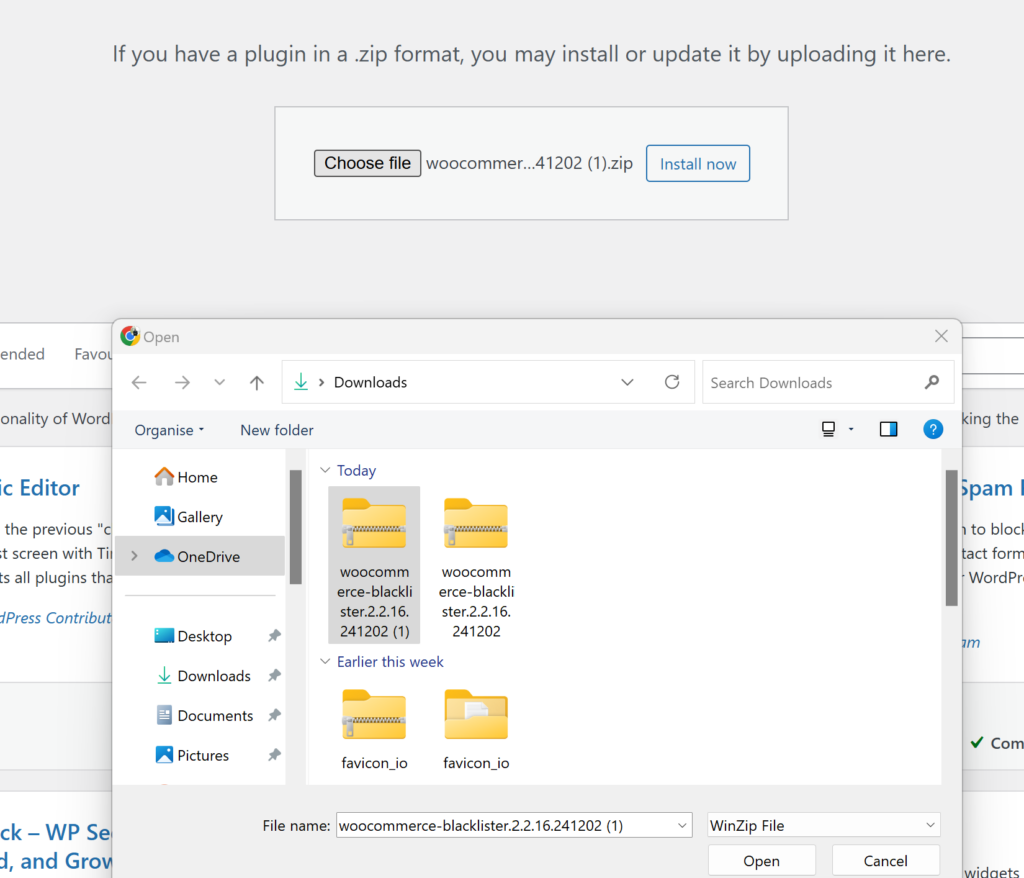
- After clicking Upload Plugin, a new section will appear with a button labeled Choose File. Click this button.
- A file explorer window will open, allowing you to browse your computer.
- Navigate to the folder where you’ve saved the Aelia Blacklister ZIP file (downloaded from the Aelia website).
- Select the ZIP file and click Open (or the equivalent button for your system).
- Back in WordPress, confirm that the correct file is selected and click Install Now. WordPress will upload and install the plugin.
Step 4: Activate the Plugin
- After the installation, WordPress will display a success message and provide you with the option to Activate Plugin.
- Click the Activate Plugin button. This enables the Aelia Blacklister on your WooCommerce store, making it ready for configuration.
Step 5: Access Plugin Settings
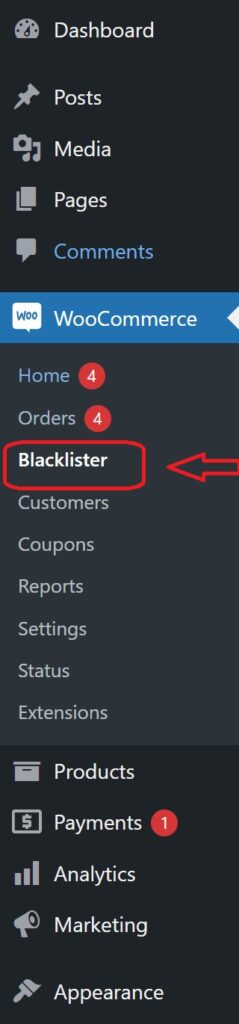
- Once the plugin is activated, you’ll need to configure it.
- Look for a new menu item in your WordPress dashboard, either under the Settings menu or as a dedicated Aelia Blacklister tab (it may also be under WooCommerce > Settings).
- Click on this tab to open the Aelia Blacklister settings page.
- Here, you can configure the plugin’s options, such as blacklisting criteria (e.g., names, addresses, email addresses, phone numbers, and IPs), and customize the settings to suit your store’s needs.
Methods to Prevent Fraudulent Activity in WooCommerce
Blocking by Email Address
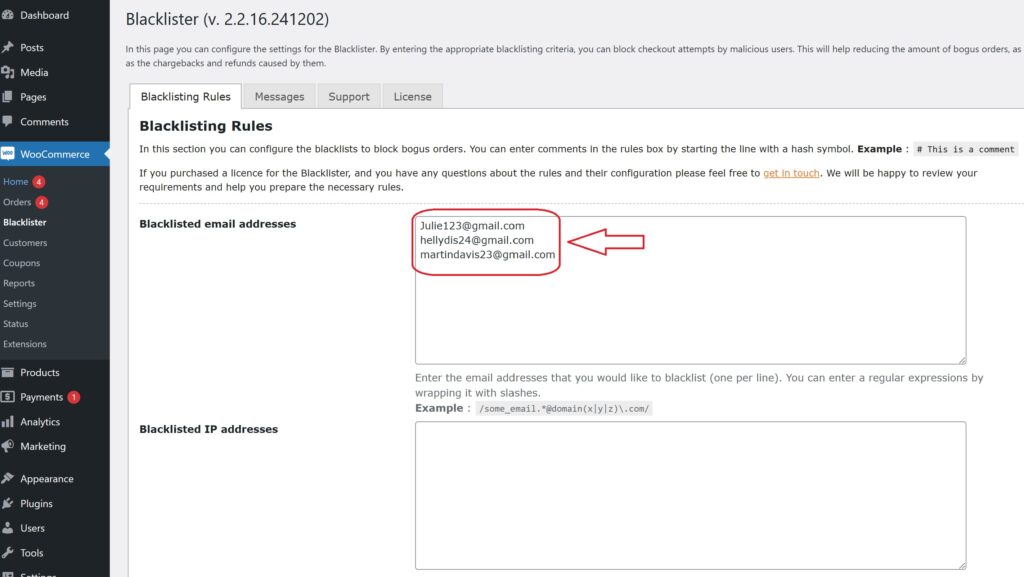
Using the Aelia Blacklister plugin, you can block fraudulent customers by manually entering their email addresses into the blacklist. Here’s how to do it:
- Access the Blacklister Settings
- From the WordPress Dashboard, go to WooCommerce > Blacklister.
- Click on the Blacklisting Rules tab.
- Add Email Addresses to the Blacklist
- In the Blacklisted email addresses field, manually type each email address you want to block, one per line.
- Save Changes
- After entering the email addresses, scroll to the bottom of the page and click Save Changes to update the blacklist.
- Verify the Block
- Attempting to register or checkout using a blacklisted email will trigger a custom error message notifying the user that their email is not allowed.
Blocking by IP Address
The Aelia Blacklister plugin allows you to manually block IP addresses to prevent fraudulent activity. Here’s how to set it up:
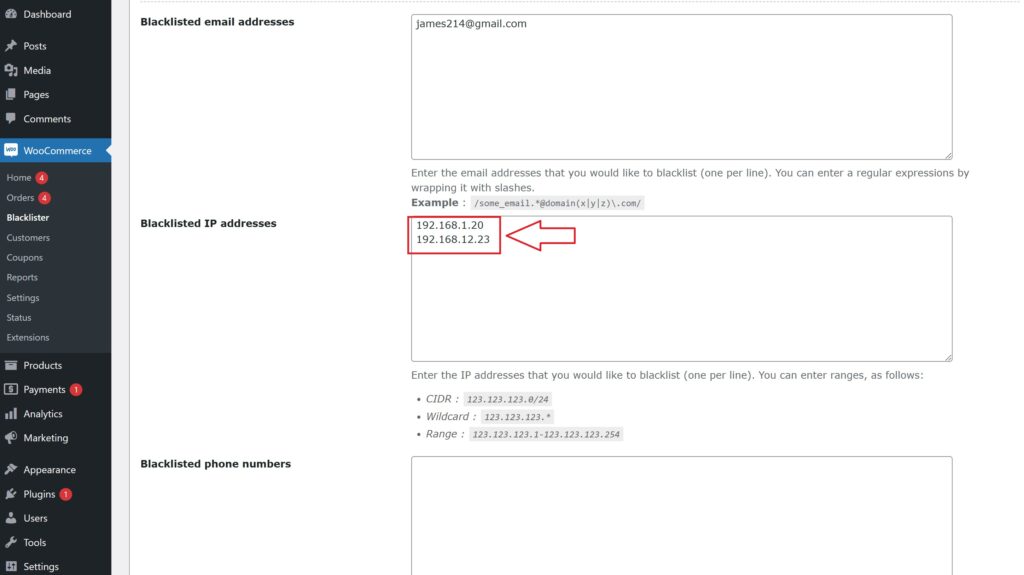
- Access the Blacklister Settings
- Go to WooCommerce > Blacklister from your WordPress Dashboard.
- Click on the Blacklisting Rules tab.
- Manually Add IP Addresses
- Locate the Blacklisted IP addresses field.
- Manually type in the IP addresses you want to block, one per line.
- If you want to block a range of IPs, use CIDR notation (e.g., 192.168.0.0/24 to block all addresses from 192.168.0.1 to 192.168.0.255).
- Save Changes
- After entering the IPs, scroll to the bottom of the page and click Save Changes to update the blacklist.
- Test the Block
- Any user attempting to access your site or checkout from a blacklisted IP will be prevented from completing their actions.
Blocking by Location
The Aelia Blacklister plugin allows blocking of specific countries or regions based on geolocation to prevent fraudulent activity.
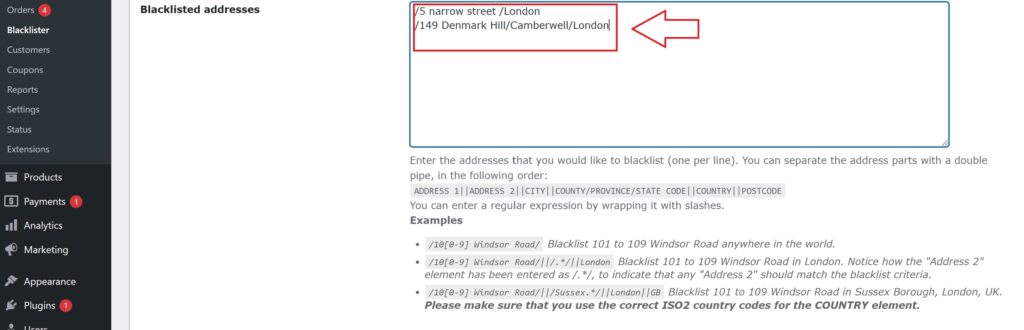
- Access the Blacklister Settings
- Navigate to WooCommerce > Blacklister in your WordPress Dashboard.
- Open the Blacklisting Rules tab.
- Manually Block Locations
- Add countries to the Blacklisted locations field using their two-letter ISO codes (e.g., US for the United States, NG for Nigeria).
- Multiple country codes should be entered on separate lines.
- Save Changes
- Click Save Changes at the bottom of the page to apply your updated settings.
- Effect of Blocking
- Customers from the listed locations will be unable to proceed with checkout.
Blocking by Phone Number
To block fraudulent phone numbers, follow these steps:

- Access the Blacklister Settings
- From your WordPress Dashboard, go to WooCommerce > Blacklister.
- Click on the Blacklisting Rules tab.
- Add Phone Numbers Manually
- Find the Blacklisted phone numbers section.
- Manually enter phone numbers you wish to block, one per line.
- If your store operates internationally, include country codes for accuracy.
- Save Changes
- Click Save Changes to update the blacklist.
- Results of Blocking
- Blacklisted phone numbers will be restricted from registering or completing purchases, with a notification displayed to users.
Blocking by Name
The Aelia Blacklister plugin allows you to block specific names manually, adding another layer of fraud prevention. This feature is particularly useful for stopping repeated fraudulent attempts by known offenders.
How to Block Names using Aelia

- Access the Blacklister Settings
- Go to WooCommerce > Blacklister in your WordPress Dashboard.
- Navigate to the Blacklisting Rules tab.
- Add Names to the Blacklist
- Locate the Blacklisted names field.
- Manually enter the full names you want to block, one per line.
- Save Changes
- Once you’ve entered the names, scroll to the bottom of the page and click Save Changes to update your blacklist.
- Effect of Blocking
- Any user attempting to register or complete a transaction using a blacklisted name will be prevented from proceeding. A custom error message can be configured to notify the user of the restriction.
Why Choose Aelia Blacklister for WooCommerce?
Take full control of your store’s security with precision filtering and seamless integration.
???? Advanced Blacklisting Capabilities
Easily block suspicious orders using a wide range of customizable criteria:
- Customer Name – Filter by full name to stop known offenders.
- Address Details – Target specific street names, cities, postal codes, regions, or countries.
- Email Address – Block individual email addresses or detect patterns using regular expressions.
- Phone Number – Prevent orders from flagged phone numbers with exact or partial matches.
- IP Address – Restrict access via specific IPs, masks, or entire ranges.
⚙️ Flexible Matching Rules
- Supports exact matches and regex-based partial matching for name, address, email, and phone fields.
- Block IPs using exact values, wildcard masks, or full IP ranges for more robust coverage.
???? Custom Error Messaging
- Create personalized messages to inform blocked users why their order was declined, keeping the experience clear, professional, and user-friendly.
????️ Seamless WooCommerce Integration
- Access a dedicated menu within the WooCommerce admin panel to manage blacklist rules easily.
- Simple to set up, straightforward to maintain—no technical expertise required.
Bonus Tools to Enhance Store Functionality
Combine Aelia Blacklister with other smart plugins for a fully optimized WooCommerce setup:
- ???? Currency Switcher for WooCommerce
Offer real-time currency conversion and tailored pricing to international customers for a frictionless checkout. - ???? Tax Display by Country
Automatically show accurate tax rates based on your customer’s location for greater clarity and compliance.
Together, these tools form a powerful trio—boosting your store’s security, performance, and customer experience.
