Managing unwanted registrations or spam orders on WooCommerce can be a real headache. Using the WooCommerce block email feature is a great way to keep your store safe. Protecting your business from unwanted emails is simple with Aelia. Its straightforward integration lets you block any address you choose. For more details on setting up WooCommerce international shipping, check out How to Set Up WooCommerce International Shipping.

Using Aelia, you get to choose who shops with you. It keeps out anyone who isn’t a paying customer. Learn how to block email addresses here. WooCommerce’s Aelia Blacklister plugin. Customers enjoy a better experience now that security has been upgraded. For an in-depth explanation on blacklisting malicious users, check out Blacklisting Malicious Users.

What is Email Blocking in WooCommerce?

Blocking emails in WooCommerce plays a vital role in enhancing the security of your store by preventing unwanted registrations and fraudulent orders. This prevents fake sign-ups and keeps fraudulent purchases away. Spam and malicious emails? Stop them by blocking certain addresses or whole domains. Email blocking keeps only real customers buying, protecting your online store’s good name.

Aelia Blacklister Plugin provides an efficient solution to manage blocked emails. Administrators can easily add unwanted email addresses or domains into the plugin settings, such as blocking store@mailjoonix.net or the domain @example.com to prevent these sources from accessing the checkout.

Setting up the plugin is easy and involves three simple steps:

  1. Upload Plugin Files: Upload the plugin to the wp-content/plugins/wc-block-emails directory or install directly through the WordPress plugin screen.
  2. Activate the Plugin: Enable the plugin from the WordPress Plugins interface.
  3. Configure Settings: Go to WooCommerce > Settings > Block Emails and input the email addresses or domains you want to block.

When a blocked email attempts to place an order, the plugin will display a customizable error message, halting the transaction and deterring unauthorized users. This feature helps prevent fraud without disturbing the shopping experience for legitimate customers.

Additionally, the plugin supports bulk uploading of email addresses, making it perfect for large stores that frequently face spam or fraud issues. By integrating Aelia Blacklister for WooCommerce, you can maintain a secure, trustworthy environment for your customers while protecting your business’s reputation. For further enhancing your WooCommerce store’s functionality, if you’re looking to make your site more user-friendly and improve the checkout experience, consider learning how to easily rename country codes in WooCommerce. This simple tweak can help your international customers navigate the store with ease.

Key Features of the Block Emails Plugin:

FeatureDescription
Ease of UseSimple setup and user-friendly interface
CustomizationCustomize error messages for blocked email addresses
Bulk Email BlockingSupports bulk uploading of email addresses and domains
CompatibilityWorks with classic WooCommerce checkout
Security EnhancementPrevents fraudulent orders and spam registrations

Implementing email blocking is a proactive approach to protecting your WooCommerce store from potential threats. With Aelia Blacklister for WooCommerce, you ensure that robust defenses are in place to provide a secure shopping environment for your customers.

Advantages of Blocking Email Addresses

Blocking email addresses in WooCommerce offers several benefits, including improving your store’s overall security and functionality:

Enhanced Security

Blocking unauthorized access helps minimize the risk of malicious activities. By restricting specific email addresses or entire domains, you protect your store from fraudulent users.

Reduced Spam Orders

By blocking unwanted emails, you significantly reduce spam orders, which allows your team to focus on fulfilling legitimate transactions. For stores catering to a global audience, adding features like a Currency Switcher can make the shopping experience even more seamless by allowing customers to view prices in their preferred currency.

Improved Store Reputation

Maintaining a secure store environment builds trust with customers. By eliminating fraudulent activities, your store’s reputation improves, encouraging repeat customers and positive reviews.

Streamlined Order Management

With fewer spam and fraudulent orders, order management becomes more efficient. Your team can focus on processing genuine orders without distractions from fraudulent transactions.

Customized User Experience

Using Aelia Blacklister for WooCommerce, you can tailor the error messages shown to blocked users, maintaining a professional appearance while informing them of access restrictions.

Bulk Email Management

The ability to bulk upload blocked email addresses makes managing large lists of spam or fraudulent users much easier, saving time for administrators.

Cost Savings

By reducing the number of fraudulent transactions, you save on costs related to chargebacks and order processing, which benefits your business’s bottom line.

Compliance and Data Protection

Blocking unauthorized email addresses helps you comply with data protection regulations, ensuring that you adhere to best practices when managing customer data.

Efficient Plugin Use

Integrating a powerful plugin enables you to manage email restrictions effectively without needing to write extensive code, ensuring a smooth and maintainable security system.

Enhanced Customer Trust

A secure store fosters trust among customers. When customers feel that their data is safe and their purchases are protected, they are more likely to engage with your store and make purchases..

Setting Up Aelia to Block Email Addresses

To effectively block email addresses in WooCommerce while using Aelia, integrate the “Aelia Blacklister for WooCommerce” plugin. Follow these steps to set up the necessary plugins and configure the blocking settings.

Step 1: Install the Plugin

  • Go to the Plugins section of your WordPress dashboard.
Blocking Email Addresses
  • Click on Add New Plugin
  • Select Upload Plugin
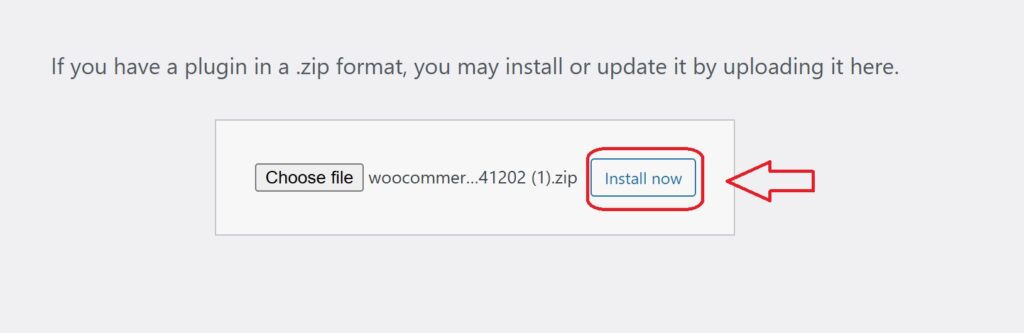
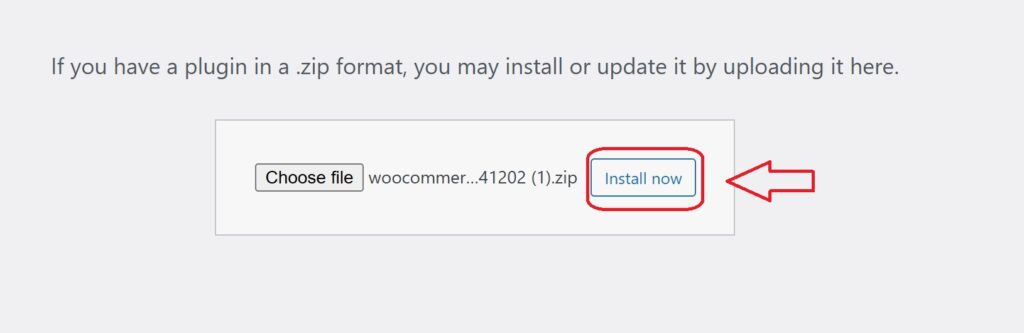
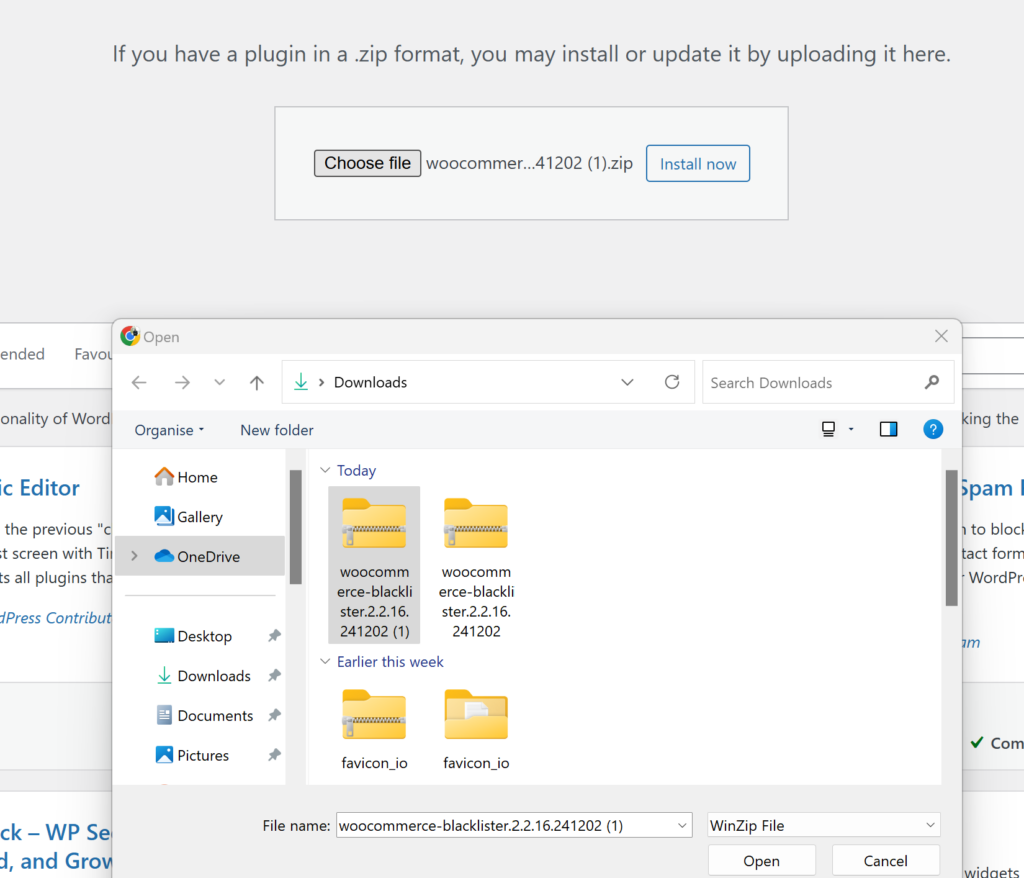
  • Click Choose File, then select the Aelia Blacklister plugin zip file you downloaded from the Aelia website.
Blocking Email Addresses
  • Click Install Now.
install plugin for aelia 1
  • Once the plugin is installed, click Activate.

Step 2: Access the Plugin Settings

  • After activation, go to WooCommerce and click on it.
  • Look for the Blacklister tab in the settings menu (it might appear under the Aelia tab depending on the version of WordPress).
  • Click on the Blacklister tab to access the plugin’s settings.

Step 3: Block Email Addresses

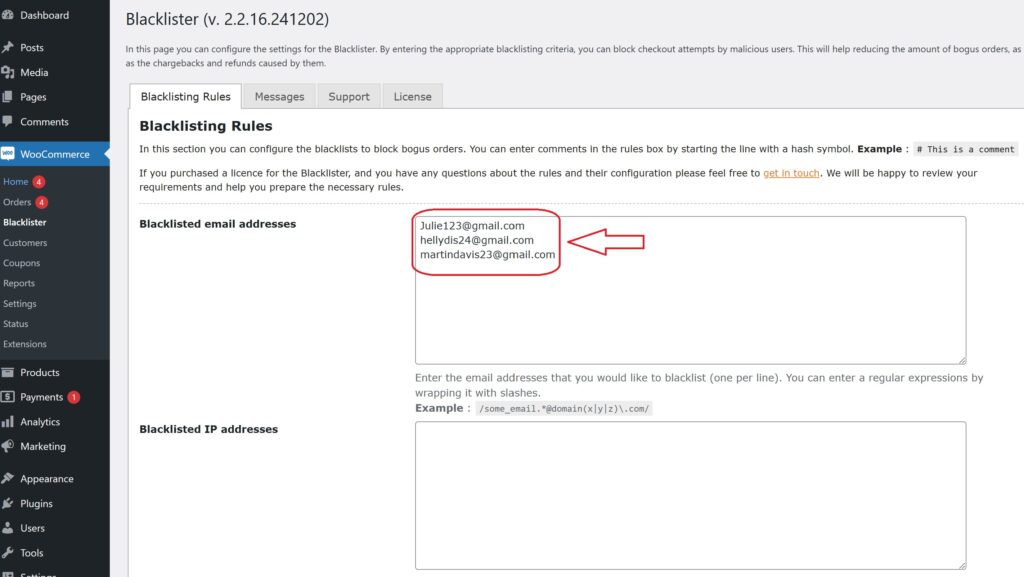
  • In the Blacklister settings, find the option called  Blacklisted email addresses.
  • Enter the email addresses you want to block in the provided text field (you can block multiple email addresses by separating them with commas or entering them one by one).
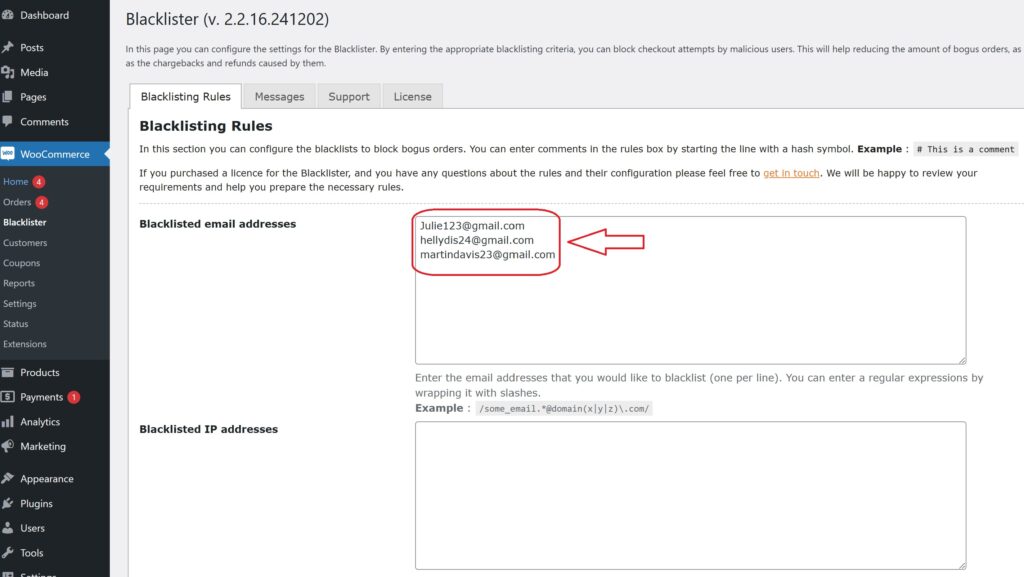
Blocking Email Addresses
  • After entering the email addresses, Scroll Down and click Save Changes.
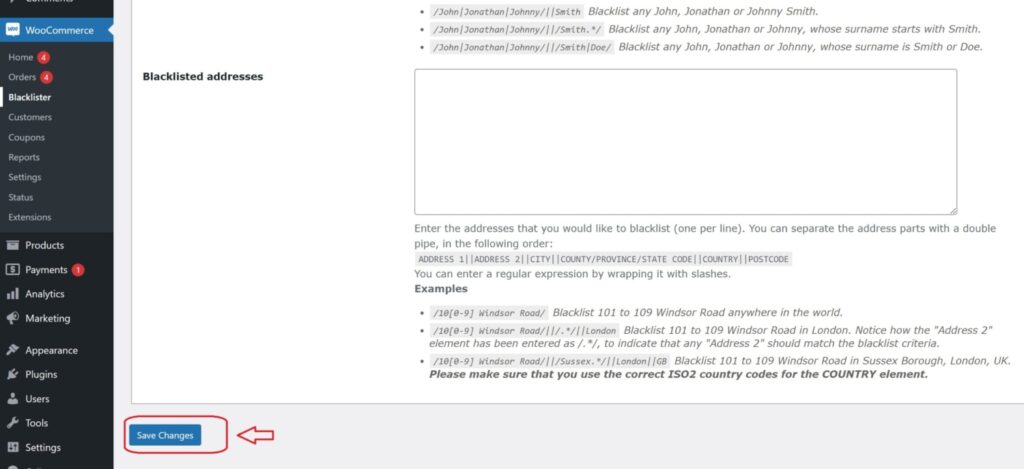
save for aelia 1

Step 4: Test the Configuration

  1. Go to your WooCommerce checkout page.
  2. Try to register or make a purchase using one of the blacklisted email addresses.
  3. If the plugin is correctly set up, the user will not be able to complete the purchase or registration.

How to Get Support for Aelia Blacklister For WooCommerce Plugin

support aelia

You can easily reach out for support directly from the Blacklister for WooCommerce plugin. Just head to the Support section in the plugin settings, where you can submit your issue or provide details about the problem in the comment section. After submission, a member of Aelia’s support team will quickly review your message and offer personalized assistance, ensuring a fast resolution to your concerns.

To further enhance your WooCommerce store, consider exploring the Tax Display by Country for WooCommerce, a seamless solution for managing tax visibility based on customer location, improving the shopping experience. Additionally, check out the Currency Switcher for WooCommerce for a smooth multi-currency shopping experience.

Josh Morley

I have been designing & marketing websites since 2013. I specialize not just in WordPress web design but also in online marketing. SEO, PPC, keyword research, link-building and most recently on lead acquisition for local businesses.

Protecting your WooCommerce store from fraud, fake orders, and malicious users is essential for maintaining a secure and trustworthy shopping environment. Fraudulent activity not only disrupts operations but can also damage your brand’s reputation and lead to revenue loss. Whether you’re encountering suspicious IP addresses, fake customer accounts, or spammy order details, taking proactive measures is key.

One of the most effective strategies to combat these issues is implementing a blacklist system. Using a blacklist plugin—like the Blacklister for WooCommerce—allows you to block users based on specific criteria such as email addresses, phone numbers, IPs, or even billing and shipping countries. This means you can prevent problematic customers from placing orders or even accessing your store entirely.

For instance, if you notice repeated fake orders from a certain region or IP range, you can easily blacklist those users to stop the fraud in its tracks. Plugins like Aelia Blacklister are especially valuable because they integrate directly with WooCommerce and offer flexible, customizable rules that fit your store’s unique needs.

Blacklist tools also pair well with broader security practices, especially if your store handles international shipping. When opening your WooCommerce store to global customers, it’s important to understand how to set up your shipping correctly and securely. Check out our full guide on how to set up WooCommerce international shipping for detailed steps and tips to make sure your store is both accessible and protected worldwide.

By combining robust blacklist features with a well-configured international setup, you can minimize risk and focus on growing your WooCommerce business with confidence.

Why Protecting Your WooCommerce Store Matters

Your WooCommerce store isn’t just a website—it’s a full-fledged business. From handling sensitive customer data to managing secure payment gateways, you carry the responsibility of creating a safe environment for every transaction.

Implementing a blacklist strategy helps to:

  • Block fraudulent purchases and spam orders
  • Protect sensitive customer information
  • Reduce chargebacks and financial loss
  • Maintain trust and brand reputation
  • Comply with data protection regulations

Without proper security measures like IP blocking and blacklisting, your store is vulnerable to automated bots, spam attacks, and even large-scale fraud.

What Is a Blacklist Feature in WooCommerce?

Although WooCommerce doesn’t offer a built-in blacklist tool, third-party plugins like Blacklister for WooCommerce Plugin fill this gap by letting you block users based on:

  • IP addresses
  • Email addresses
  • Names
  • Phone numbers
  • locations

By combining blacklist and allowlist strategies, you create a powerful filter that only lets legitimate customers shop while keeping scammers out.

Setting Up Blacklists in WooCommerce with Aelia Blacklister for WooCommerce

The  Blacklister for WooCommerce plugin allows you to easily manage and block specific customers based on various criteria, such as IP addresses, email addresses, phone numbers, and shipping addresses. By setting up Blacklists, you can improve your WooCommerce store’s security and prevent fraudulent or unwanted transactions.

Here’s a step-by-step guide to setting up Blacklists using the Aelia Blacklister for WooCommerce plugin:

Step 1: Install and Activate the Plugin

zip file for aelia 1 2
  1. Download the Plugin: First, purchase and download the plugin from Aelia.
  2. Upload the Plugin: In your WordPress admin panel, go to Plugins > Add New > Upload Plugin. Select the downloaded .zip file and click Install Now.
  3. Activate the Plugin: After installation, click Activate to enable the plugin on your store.

Step 2: Access the Aelia Blacklister Settings

clicking on blacklister tab 1 1
  1. Once the plugin is activated, navigate to WooCommerce > Settings in your WordPress dashboard.
  2. You will see a new tab titled Aelia Blacklister. Click on it to access the plugin’s settings.

Step 3: Define Blacklist Rules

Blocking list of IP address 1
  1. Add Blacklist Entries: In the Aelia Blacklister settings, you’ll find options to add rules for blocking customers based on various fields:
    • Customer’s Name and Surname: Using regular expressions, you can block customers based on their full name or partial matches.
    • Customer’s Address: Block customers from specific cities, states, or countries by setting the corresponding address field.
    • Customer’s Email Address: Block specific email addresses or domains to prevent unwanted customers from completing the checkout process.
    • Customer’s Phone Number: Block phone numbers from specific regions or individual numbers associated with suspicious behavior.
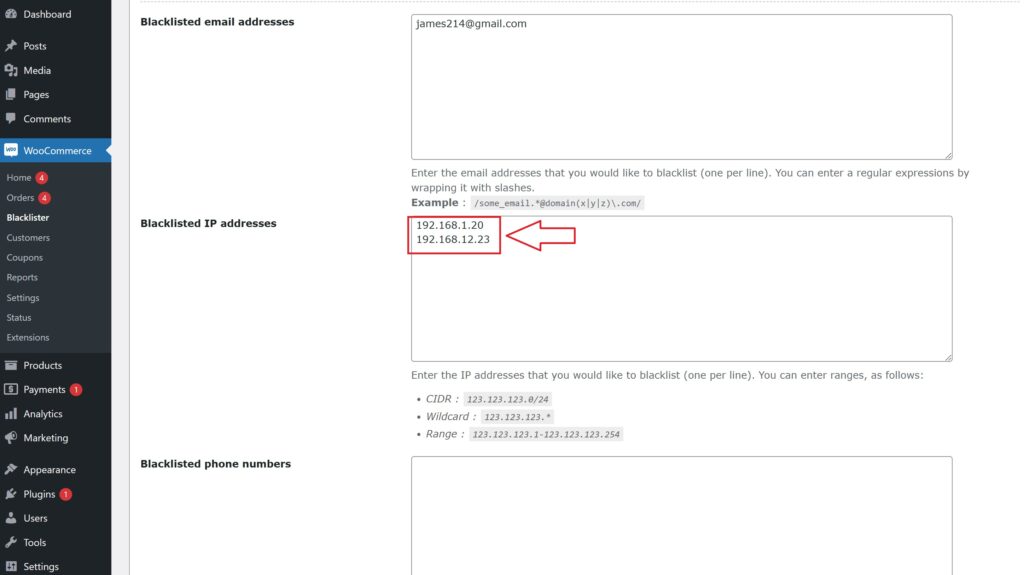
    • Customer’s IP Address: Block specific IP addresses, or use IP address masks to block ranges of IPs.
  2. You can configure these Blacklist criteria using exact matches or partial matches (with regular expressions for all fields except IP addresses).
  3. Set Match Criteria: Decide whether you want to block customers based on exact matches or partial matches:
    • Exact Match: The customer’s information must exactly match the Blacklisted data.
    • Partial Match: Use regular expressions to match parts of a customer’s information, such as a domain name in an email address.

Step 4: Configure Error Messages

  1. Custom Error Messages: Customise the error message that will be shown to customers when they attempt to place an order using Blacklisted details. This ensures clear communication with blocked users about why their order could not be completed.

Step 5: Save Settings

save for aelia 2
  1. After defining your Blacklist rules and customising error messages, click Save Changes to apply the settings.

Step 6: Test Blacklist Functionality

  1. To verify that the Blacklist is working properly, try to complete an order using details that match the blocked information (such as an email address, phone number, or IP).
  2. If configured correctly, the customer should be blocked from completing the checkout, and the custom error message will be displayed.

By setting up Blacklists with Aelia Blacklister for WooCommerce, you can easily block unwanted customers and prevent fraudulent transactions from occurring on your store. This not only enhances security but also ensures a smoother and more secure shopping experience for legitimate customers.

Best Practices for Using Blacklists Effectively in WooCommerce

To get the most out of your blacklist strategy, it’s important to go beyond simple blocking. Strategic use of blacklists ensures long-term protection, improved user experience, and fewer false positives.

Here are the best practices for using blacklists in WooCommerce:

1. Regularly Update Your Blacklists

Fraud tactics evolve quickly, so it’s essential to keep your blacklist data fresh. Regularly review and update your lists based on:

  • Failed login attempts
  • Refund abuse patterns
  • Suspicious IP geolocations
  • Chargeback claims

Keep a log of flagged users to avoid blocking legitimate customers accidentally.

2. Use Blacklists Alongside Allowlists

While blacklists keep threats out, allowlists let trusted customers in. By combining both:

  • You ensure repeat buyers are never blocked
  • You reduce the chance of false positives
  • You build a more accurate filter for bad actors

Allowlisting VIP customers or verified emails helps you strike a balance between protection and user-friendliness.

3. Leverage Country and Region-Based Blocking

Fraud often originates from specific high-risk countries or regions. Use location-based blacklisting to block entire areas known for chargebacks or spam, while keeping access open for your target market.

Pair this with tools like Aelia Prices by Country to tailor pricing and availability by region while maintaining security.

4. Monitor Activity with Security Logs

Choose a plugin that provides logging features. Monitoring blocked attempts gives you insights into:

  • Frequency of fraudulent attempts
  • Common IPs or email domains
  • Patterns of abuse

These insights help you fine-tune your blacklist criteria and reinforce vulnerable areas of your store.

5. Set Up Alerts for Suspicious Activity

Some blacklist tools allow for custom alerts when suspicious actions occur, such as:

  • Multiple failed transactions
  • Repeated login attempts
  • Orders from blacklisted locations or emails

Set up alerts to act quickly before the fraud impacts your store.

To keep your WooCommerce store secure and protected from fraud, you can use the Aelia Blacklister for WooCommerce plugin. This tool helps you block suspicious users and prevent fake orders from malicious sources. Aelia also offers other helpful plugins, such as the Aelia Currency Switcher for WooCommerce, which enables you to offer multi-currency support, enhancing the shopping experience for international customers. By combining these powerful plugins, you can safeguard your store while offering a smooth, global shopping experience.
Josh Morley

I have been designing & marketing websites since 2013. I specialize not just in WordPress web design but also in online marketing. SEO, PPC, keyword research, link-building and most recently on lead acquisition for local businesses.

Taking your WooCommerce store global can unlock incredible growth opportunities. However, setting up accurate and efficient WooCommerce International Shipping for international customers requires careful planning.

This is where WooCommerce shipping zones come in. These zones allow you to set up tailored shipping methods for different regions, ensuring fair pricing and smooth deliveries.

Have you ever needed to adjust how country names appear in your store? Perhaps you want to use shorter country codes, display names in a different language for clarity, or refine the checkout experience by offering specific shipping options based on location. If you need to adjust how country names appear in your store—whether you want to use shorter country codes or display names in a different language—you can easily rename country codes in WooCommerce. This can help create a more user-friendly experience for customers and align your shipping setup with your business needs.

In this guide, we’ll take you through the steps to create and manage shipping zones effectively. You’ll learn how to set shipping rates, streamline delivery options, and enhance the shopping experience for customers around the world. Whether you’re launching international shipping for the first time or improving your current setup, this guide will help you optimize the process!

Understanding Shipping Zones in WooCommerce

Imagine your e-commerce store as a global network of destinations. Shipping zones act as the blueprint that helps you organize and manage shipping rates and delivery methods for different locations. In WooCommerce, a shipping zone is a defined geographical area where specific shipping rules apply.

These zones can range from broad regions like an entire continent to highly specific locations such as individual countries, states, or postal codes. This flexibility enables you to set up shipping policies that align with your business operations and customer locations.

For example, you might establish:

  • A domestic shipping zone for deliveries within your own country.
  • A regional shipping zone covering nearby countries.
  • An international shipping zone for customers worldwide.

Each zone can have unique shipping rates and delivery methods, ensuring customers receive transparent and accurate shipping costs at checkout.

The Importance of WooCommerce International Shipping Zones

Shipping zones are more than just a way to categorize locations—they’re a powerful tool for optimizing your WooCommerce shipping strategy. Here’s why they matter:

1. Tailored Shipping Rates

Shipping costs can vary significantly based on location. Shipping zones allow you to set precise rates that reflect the actual costs of delivering to each region, ensuring both you and your customers receive fair pricing.

2. Currency-Specific Pricing

If you sell internationally, you can refine pricing further by setting shipping rates in different currencies. For example, you could charge €10 for European customers, $12 for those in the U.S., and £9 for UK shoppers—all within the same zone. This level of customization enhances pricing accuracy and customer trust.

To simplify this process and ensure automatic currency conversion, you can use the Aelia Currency Switcher for WooCommerce. This tool detects customer locations and displays prices in their local currency, making transactions more seamless.

3. Location-Based Shipping Methods

Not every shipping option is available worldwide. With shipping zones, you can offer the most relevant methods to each region. For instance, domestic customers might have access to express shipping, while international buyers only see standard shipping options.

4. A Smoother Checkout Experience

Displaying only applicable shipping methods at checkout streamlines the purchasing process. Customers won’t be confused by unavailable options, reducing cart abandonment and increasing conversion rates.

5. Simplified International Shipping

Expanding to global markets brings logistical challenges. Shipping zones help you organize different shipping policies for various countries, making it easier to comply with regulations, customs fees, and delivery restrictions.

By carefully configuring and refining your shipping zones, you’ll create a professional, efficient, and customer-friendly shipping experience—one that supports both business growth and customer satisfaction.

How to Create Shipping Zones in WooCommerce

#1 – Access Shipping Zones:

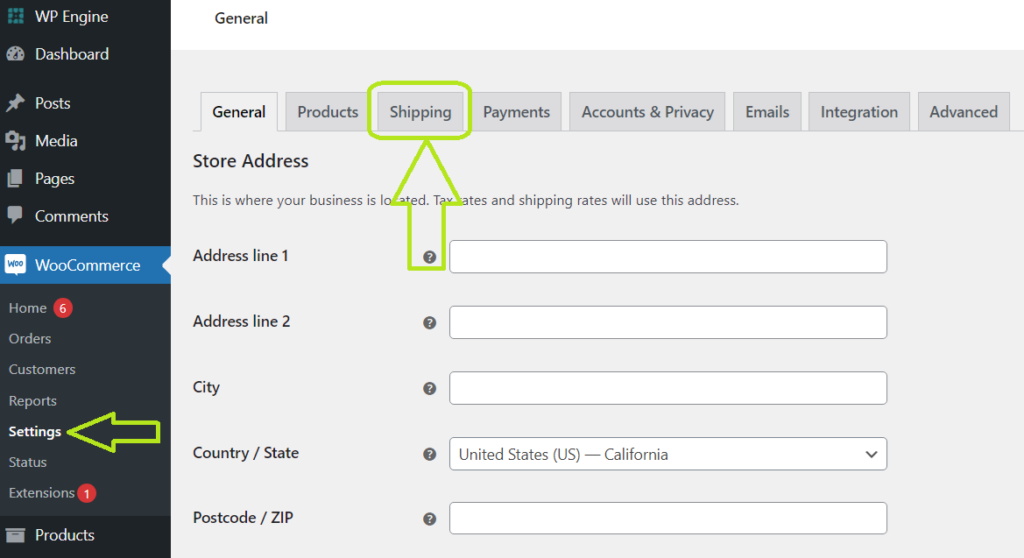
  • Start by logging into your WordPress dashboard. In the left sidebar, hover over WooCommerce and click on Settings.
  • From the tabs at the top, select Shipping. This will take you to the main shipping settings page.
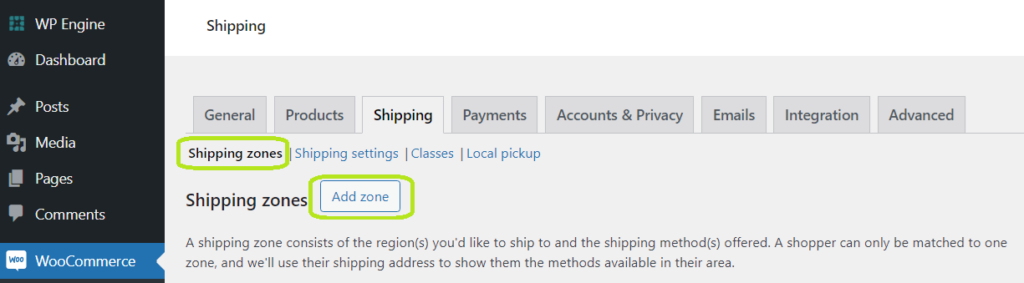
  • Click on the Shipping Zones tab to access the zone management area.
shipping setting

#2 – Add a New Zone:

  • On the Shipping Zones page, click the Add shipping zone button at the top.
  • You’ll be presented with a new screen where you can configure your zone.
add zone for shipping

#3 – Define Zone Regions:

  • Enter a Zone name that clearly describes the geographical area you’re targeting (e.g., “North America,” “Europe,” “Domestic”).
  • Under Zone regions, start typing the name of the country, continent, or region you want to include. WooCommerce will suggest options as you type. You can select multiple regions to include in this zone.
WooCommerce International Shipping

#4 – Limit to Specific Postal Codes (Optional):

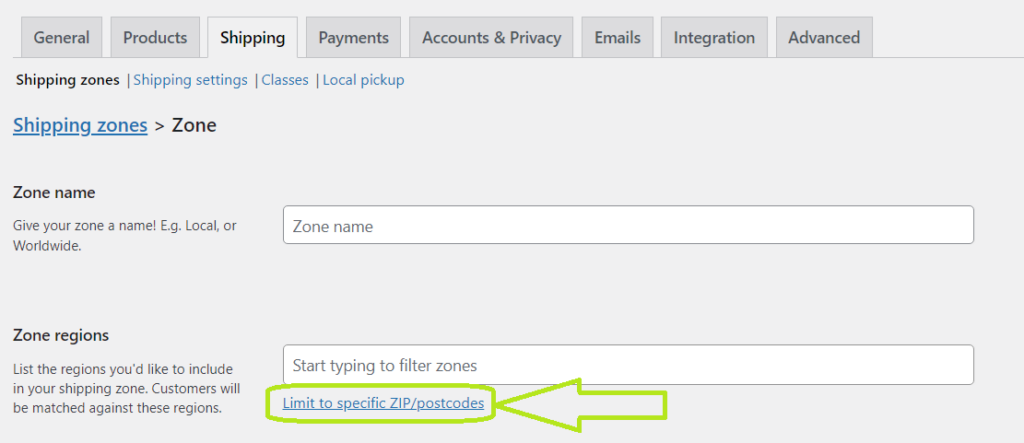
  • If you want to narrow down the zone further, click on the Limit to specific zip/postcodes link.
  • Enter the specific postal codes or zip codes, one per line, that you want to include in this zone. You can also use wildcards (e.g., 902*) to match a range of codes.
specific zip postcode

#5 – Add Shipping Methods:

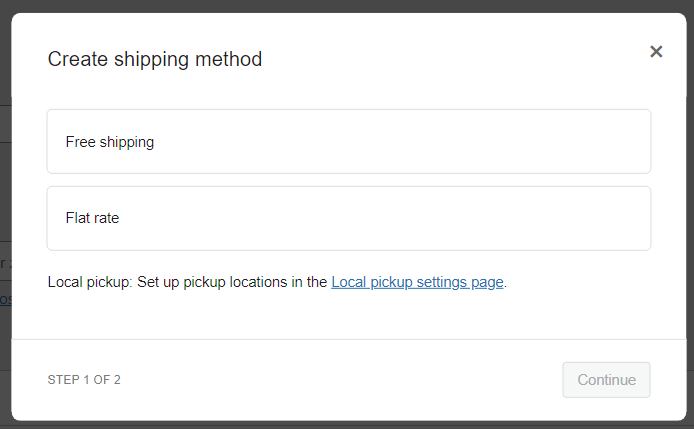
  • Click the Add shipping method button to choose the shipping options you want to offer for this zone.
add shipping method
create shipping method
  • WooCommerce provides built-in options like Flat Rate, Free Shipping, and Local Pickup. If you have installed shipping plugins, you’ll see additional methods available.
  • For each method, click Add shipping method, then configure the settings as needed. 
Pro Tip: If you’re using a tax adjustment plugin like the Aelia Tax Display by Country for WooCommerce, you can take advantage of its ability to automatically adjust tax visibility based on the customer’s location. This ensures accurate tax calculations and compliance with international tax regulations, making your pricing more transparent and customer-friendly.

#6 – Save Changes:

  • Once you’ve configured your shipping methods, click Save changes to finalize your new shipping zone.
save changes for shipping

Best Practices and Tips

Getting your shipping zones set up correctly is key to running an efficient and profitable WooCommerce store. Here are some best practices to ensure smooth operations and optimal customer satisfaction:

1. Start Broad, Then Get Specific

Instead of setting up highly specific shipping zones from the start, begin with broader regions such as entire continents (e.g., “North America”, “Europe”, “Asia”). Then, refine these by adding more specific zones for individual countries or even states where necessary.

For example:

  • A general “Europe” shipping zone can cover multiple countries with standard shipping rates.
  • A separate “United Kingdom” zone within Europe allows for tailored shipping options like express delivery.

This approach keeps your shipping setup organized while allowing flexibility for different regions.

2. Use Flat Rates and Free Shipping Strategically

Flat-rate shipping can simplify your pricing structure and set clear expectations for customers. If offering free shipping, consider:

  • Minimum Order Value – Encourage larger purchases by offering free shipping on orders above a certain amount.
  • Specific Products – Offer free shipping on lightweight or high-margin products.
  • Limited-Time Promotions – Use free shipping as an incentive during seasonal sales or special events.

3. Offer Location-Based Shipping Methods

Not all shipping options are suitable for every region. Tailor shipping methods based on location to avoid confusion at checkout:

  • Domestic zones – Provide multiple options like standard, express, or same-day delivery.
  • International zones – Offer reliable services such as DHL, FedEx, or UPS, while clearly displaying expected delivery times.

4. Test Your Shipping Setup Regularly

Shipping configurations can sometimes break due to plugin updates, new shipping carriers, or changing rates. Regularly test:

  • The checkout process with different addresses to ensure correct shipping rates apply.
  • The accuracy of tax calculations for international customers.
  • Any special shipping rules, such as free shipping thresholds, to confirm they work as expected.

5. Keep Customers Informed with Clear Shipping Policies

Transparency is key when it comes to shipping. Ensure your policies clearly outline:

  • Your return and refund policies related to shipping delays or lost packages.
  • Estimated delivery times for each shipping method.
  • Any additional customs fees or taxes for international orders.

Additional Factors to Consider for International Shipping

While shipping zones are a fantastic way to streamline logistics, there are several other important aspects to consider when expanding your store to international markets. These factors will ensure that your shipping setup is both effective and customer-friendly.

Shipping Zones vs. Shipping Methods: The Key Difference

Shipping zones define where you ship, while shipping methods define how you ship. Both elements need to be configured carefully for a seamless experience. For example, you may have a “Europe” shipping zone but offer various shipping methods within it, such as standard, express, or economy. Offering different shipping methods helps cater to a wider range of customer needs and budgets.
Consider the following:

  • Shipping Zones: Regions where your products are eligible for shipping (i.e., countries, states, or specific postal codes).
  • Shipping Methods: Options available within each shipping zone, which may vary based on service level, speed, or cost.

Navigating International Shipping Challenges

Expanding your store globally comes with its own set of challenges. Here are some common hurdles to be aware of:

1. Customs and Duties

It’s essential to familiarize yourself with customs regulations and duty charges for each country you ship to. These additional costs can significantly impact your customers’ total price, and should therefore be included in your checkout or product pricing to avoid surprises.

2. Currency Conversion

For international customers, presenting prices in their local currency can ease the purchasing decision. Implementing a currency conversion solution can ensure customers see accurate pricing during checkout, helping build trust and transparency.

3. Shipping Times and Tracking

Customers love clarity, so be upfront about estimated delivery times for international orders. Additionally, offering tracking numbers helps customers follow their shipments and reduces anxiety during the waiting period.

Enhancing Your WooCommerce Store with Aelia’s Blacklister Plugin

One essential tool for managing international shipping is the Aelia Blacklister for WooCommerce plugin. This powerful solution helps you manage shipping restrictions by blocking specific countries or regions from accessing your store. Whether it’s due to legal issues, shipping limitations, or other factors, Blacklister ensures you’re not wasting time or resources fulfilling orders to places you can’t ship to.

The Blacklister plugin also integrates well with your overall international shipping strategy, giving you control over where you want to ship and making it easier to manage logistics.

Josh Morley

I have been designing & marketing websites since 2013. I specialize not just in WordPress web design but also in online marketing. SEO, PPC, keyword research, link-building and most recently on lead acquisition for local businesses.

Running a WooCommerce store is about more than just offering high-quality products—it’s also about safeguarding your business from fraud and ensuring a seamless shopping experience for your genuine customers. Unfortunately, the online shopping space attracts malicious actors who exploit vulnerabilities, leading to financial losses with each unauthorized transaction. To protect your WooCommerce store from these threats, implementing effective fraud prevention measures is essential. By utilizing advanced tools like the Aelia Blacklister Plugin, you can block malicious users and secure sensitive data, ensuring your store remains safe and trusted by legitimate customers.

However, relying solely on the default features may not be enough. One of the best ways to enhance your store’s security is by using a specialized plugin designed to protect against fraudulent users. These plugins allow you to quickly detect and block suspicious activities, such as fraudulent email addresses, phone numbers, and IPs. Whether you’re looking for a quick fix or a comprehensive security overhaul, these plugins offer the flexibility you need through easy-to-implement code snippets and dedicated tools to fortify your store against threats. For more about optimizing your store, check out our WooCommerce Web Design services, ensuring that both functionality and security go hand-in-hand.

With these Plugin called Blacklister for WooCommerce at your disposal, you can effectively prevent unwanted transactions and build a stronger relationship with your customers.

Reasons to Blacklist Malicious Users in WooCommerce

Blacklisting malicious users is crucial for maintaining a secure and reliable online store on WordPress. In the world of e-commerce, WooCommerce store owners face constant threats from fraudsters and cybercriminals who attempt to exploit weaknesses in their systems. By blocking these harmful users, you can prevent unauthorized transactions, safeguard sensitive customer data, and maintain a positive reputation. Whether it’s stopping fraudulent chargebacks, protecting promotions, or enhancing customer trust, blacklisting malicious users helps ensure the safety and success of your WooCommerce business Build on WordPress by web designers or other platform. With the right security measures, such as WordPress plugins and WooCommerce features, you can build a safer shopping environment for both you and your customers.

The main reason to Blacklist Malicious user are:-

Prevent Fraudulent Transactions

  • Impact: Chargebacks, unauthorized purchases, and stolen credit card use.
  • Benefit: Blocks fraudulent users before they can affect your sales and cash flow, keeping your WooCommerce store secure on WordPress.

Protect Sensitive Customer Data

  • Impact: Theft of email addresses, phone numbers, and payment information.
  • Benefit: Safeguard personal and financial data with WordPress security plugins and WooCommerce features, ensuring privacy and customer trust.

Improve Store Security

  • Impact: Malicious actors attempting to exploit store vulnerabilities.
  • Benefit: Strengthen security by blocking suspicious IPs, emails, and phone numbers using WordPress security tools and WooCommerce blacklisting features.

Reduce Financial Losses

  • Impact: Fraudulent transactions lead to lost inventory, chargeback fees, and administrative costs.
  • Benefit: Prevent these losses by blocking fraudulent users early, saving money and improving operational efficiency.

Maintain Customer Trust

  • Impact: Fraud can damage your store’s credibility and lead to negative reviews.
  • Benefit: Build customer confidence by using WordPress and WooCommerce to protect data and prevent malicious activity.

Prevent Abuse of Discounts and Promotions

  • Impact: Fraudsters exploit promotions or discount codes.
  • Benefit: Ensure that discounts and promotions are used by legitimate customers, maintaining fairness and profitability.

Protect Website Reputation

  • Impact: A security breach can lead to public incidents, poor reviews, and loss of customer trust.
  • Benefit: Prevent damage to your store’s reputation by blocking fraudulent users, ensuring your site remains secure and trustworthy.

Implementing Blacklister Plugin for WooCommerce

Enhancing the security of your WooCommerce store becomes much easier with the implementation of a blacklist, preventing unwanted transactions and protecting your business from fraudulent activity. Aelia Blacklister offers a powerful solution by utilizing various tools and methods to manage and enforce blacklisting rules effectively.

Aelia Blacklister for WooCommerce

Aelia Blacklister Plugin provides a robust and flexible configuration for blocking orders from specific users. The plugin allows you to filter malicious users based on the following criteria:

  • Name and Surname
  • Address: Street, Postcode, City, Province/State, Country
  • Email Address
  • Phone Number
  • IP Address

How to Set Up Aelia Blacklister for WooCommerce

Setting up Aelia Blacklister is a simple process that allows even those with minimal technical knowledge to boost their store’s security by blocking fraudulent customers.

Step 1: Install the Aelia Blacklister Plugin

Begin by downloading, uploading, and installing the Aelia Blacklister plugin into your WooCommerce store. Here’s how:

Part 1: Download the Plugin

  1. Visit the Aelia Website:
    Go to the official Aelia website to ensure you are downloading the latest, most reliable version of the plugin.
  2. Purchase or Get the Plugin:
    If the plugin is not free, complete the purchase before proceeding. Once the transaction is complete, you’ll be able to download the plugin ZIP file to your computer.
  3. Download the ZIP File:
    After purchase, click the download button to save the ZIP file containing all the plugin files to your computer.

Part 2: Upload the Plugin to Your WordPress Site

Log Into Your WordPress Admin Dashboard:

Start by logging into the Admin Dashboard of your WordPress website.

Navigate to Plugins:

plugin 1

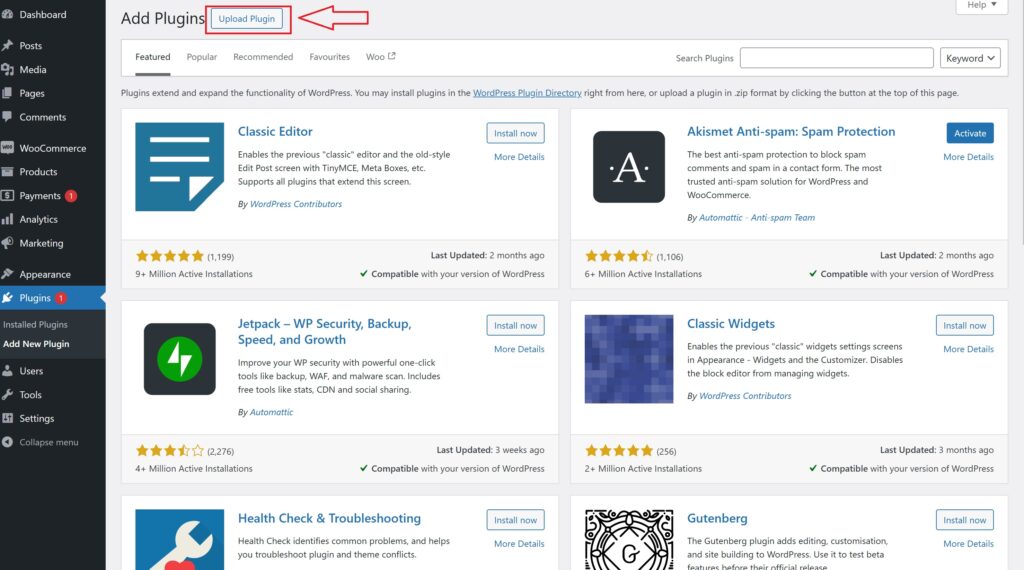
In the left-hand menu, hover over the “Plugins” option, then click on “Add New.” This will open the page where you can search for and upload new plugins.

Click on Upload Plugin:

upload plugin 2

On the Add Plugins page, at the top of the screen, you’ll see an option labeled “Upload Plugin.” Click this to proceed with the manual upload process.

Select the ZIP File:

zip file for aelia 1 1

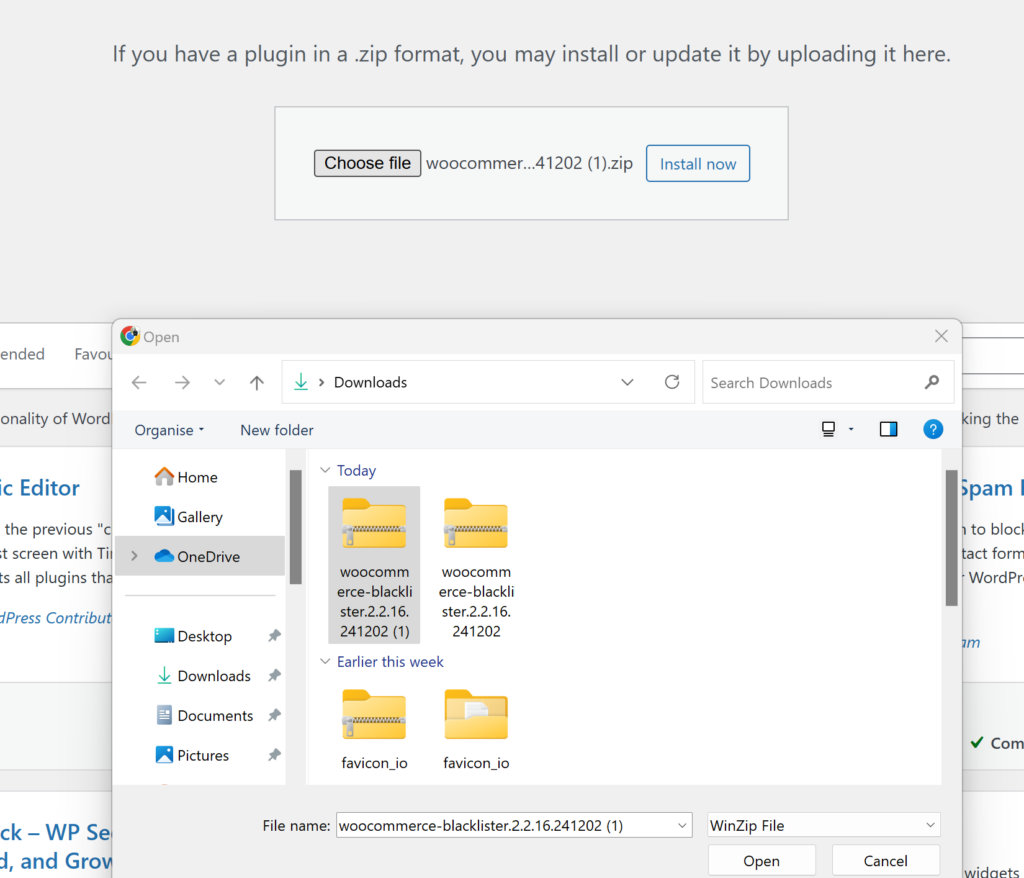
Once you click “Upload Plugin,” you’ll see a “Choose File” button. Click it to open a file dialog, then locate and select the Aelia Blacklister ZIP file that you downloaded earlier.

Install the Plugin:

install plugin for aelia 1 1

After selecting the file, click “Install Now.” WordPress will begin uploading the plugin file to your website.

Part 3: Install and Activate the Plugin

Wait for the Installation to Complete:

WordPress will now install the plugin. The process may take a few moments, depending on the file size and your internet connection. Once it’s done, you’ll see a success message.

Activate the Plugin:

Once installation is complete, click “Activate” to enable the Aelia Blacklister plugin on your WooCommerce store.

Confirm Plugin Activation:

After activation, you’ll be redirected to the Plugins page, where you should see the Aelia Blacklister plugin listed under your active plugins. Additionally, a new menu item or settings option for Aelia Blacklister will appear under the WooCommerce settings, confirming the plugin is successfully installed and active.

Step 2: Set Up Blocking Rules in Aelia Blacklister

With the Aelia Blacklister plugin now installed and activated, it’s time to configure the settings to block fraudulent users.

1. Block by Name and Surname

How to Block:
Within the plugin settings, you can enter the full name or surname of customers you wish to blacklist. You can block first names, last names, or any combination of both.

Why It’s Important:
Fraudsters often change their contact details, like email or phone number, but keep using the same name. Blocking names helps prevent transactions even if other details are modified.

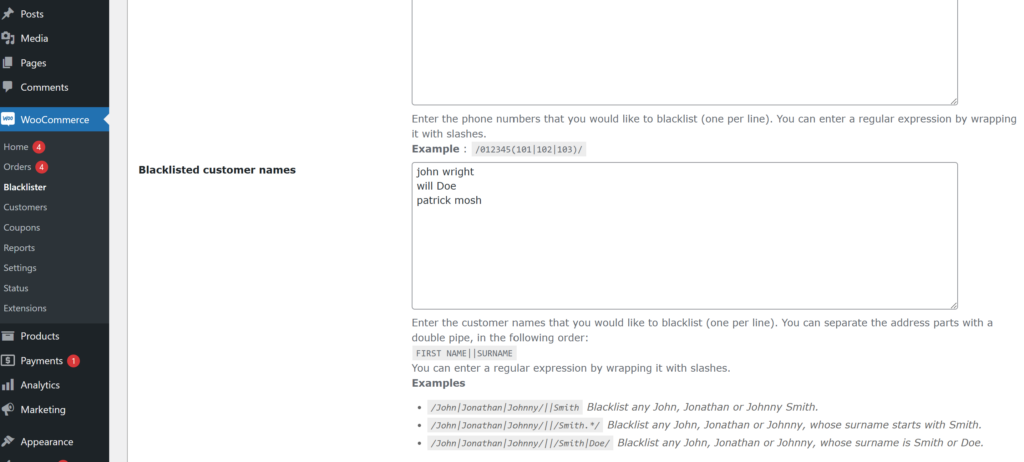
Blacklisted with customer name

Steps to Block:

  • Go to the “Blacklisted Customer Name” section in the plugin settings.
  • Enter the name(s) you want to block.
  • Click “Save” or “Update.”

2. Block by Address (Street, Postcode, City, Province/State, Country)

How to Block:
Block users by their address, including street, postcode, city, province, or country. This is useful for detecting patterns like fraudsters using the same fake addresses.

Why It’s Important:
Fraudsters may use stolen or fake addresses, especially in regions known for fraudulent activities. Blocking specific addresses prevents them from completing purchases.

black listing address 1

Steps to Block:

  • In the “Address” section, input the full address or parts like postcode or city.
  • Click “Save” to apply the block.

3. Block by Email Address

How to Block:
You can block specific email addresses or entire domains (e.g., *@fakedomain.com) to prevent fraudulent sign-ups.

Why It’s Important:
Many fraudsters rely on disposable email services to create fake accounts. Blocking emails stops them from abusing your store’s offers.

email address to blacklist 1 1

Steps to Block:

  • Under the “Email Address” section, input the email or domain to block (e.g., *@disposablemail.com).
  • Click “Save” to activate the block.

4. Block by Phone Number

How to Block:
You can block specific phone numbers or even area codes. Fraudsters may use stolen phone numbers to complete transactions, and blocking these ensures they can’t proceed with the purchase.

Why It’s Important:
Blocking fraudulent phone numbers adds an additional layer of security, preventing fraudulent transactions tied to these numbers.

blacklisting phone number 1

Steps to Block:

  • In the “Phone Number” section, input the numbers or area codes to block.
  • Click “Save” to apply the changes.

5. Block by IP Address

How to Block:
Block specific IP addresses or ranges to prevent fraudsters from accessing your store using the same network. You can also use wildcards or regular expressions for broader protection.

Why It’s Important:
Blocking IP addresses can prevent repeat fraud from the same source, offering a significant deterrent for fraudulent activity.

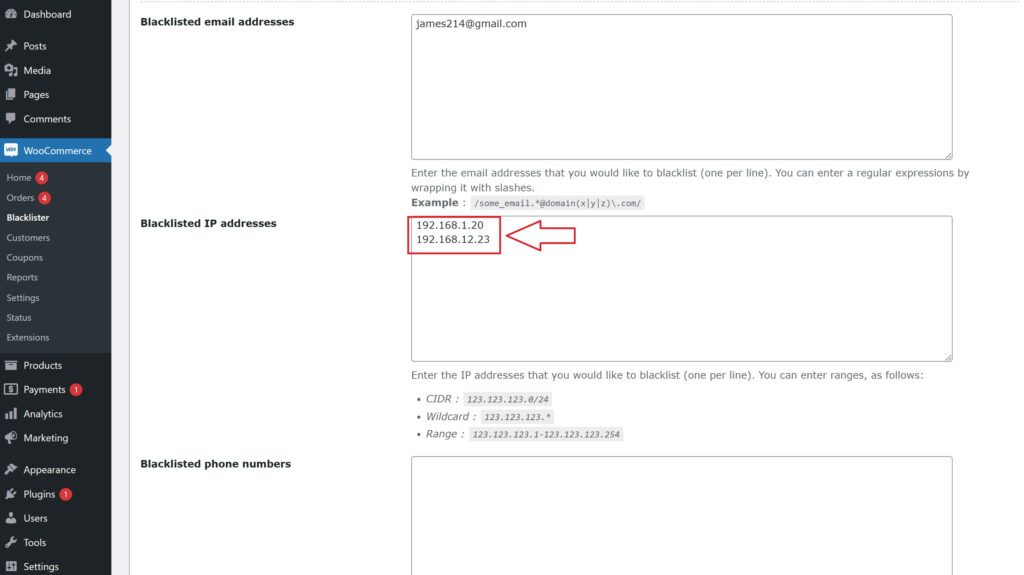
Blocking list of IP address 1

Steps to Block:

  • Go to the “IP Address” section in the settings.
  • Enter the specific IP or range to block.
  • Click “Save” to activate the IP block.

Final Step: Save and Apply Changes

Once you’ve entered all the blocking details, click “Save” or “Update” to apply the changes. It’s crucial to regularly monitor and update your blacklist to keep your store protected against new fraudulent attempts.

Why Use the Aelia Blacklister Plugin Compared to Other WooCommerce Plugins

aelia

The Aelia Blacklister Plugin stands out as one of the most effective and flexible solutions for managing fraudulent activity and ensuring the security of your WooCommerce store. While there are numerous plugins available to combat fraud, Aelia Blacklister offers unique features and benefits that make it a top choice for WooCommerce store owners.

Here’s why you should consider using the Aelia Blacklister Plugin compared to other WooCommerce plugins:

1. Comprehensive Blocking Capabilities

Aelia Blacklister enables store owners to blacklist malicious users based on a wide range of factors, including:

  • Name and Surname – Block specific individuals based on their names.
  • Address – Block customers by street, postcode, city, state, or country.
  • Email Address – Block specific email addresses or entire domains.
  • Phone Number – Block specific phone numbers or area codes.
  • IP Address – Block specific IP addresses or ranges for enhanced protection.

Many other plugins may offer a limited selection of blocking criteria, but Aelia Blacklister covers all key aspects to ensure comprehensive protection.

2. Easy Setup and Configuration

Aelia Blacklister is designed for both novice and experienced users, making it easy to set up even for those with minimal technical knowledge. The setup process involves clear instructions and simple steps to get the plugin up and running quickly. This user-friendly approach ensures that store owners can implement security measures quickly and effectively.

3. Flexible and Customizable Rules

One of the standout features of Aelia Blacklister is its ability to create highly customized blocking rules. Whether you need to block individual users, specific geographical locations, or large-scale fraud patterns, Aelia allows store owners to tailor the blocking settings to their unique needs. This level of flexibility is often more limited in other WooCommerce security plugins.

4. Integration with WooCommerce

Aelia Blacklister integrates seamlessly with WooCommerce, allowing for easy management of blacklisted users directly from the WooCommerce dashboard. This tight integration ensures that the plugin works smoothly alongside other WooCommerce features, minimizing potential conflicts and enhancing overall functionality.

5. Detailed Monitoring and Logs

Aelia Blacklister offers robust monitoring features and logs, allowing you to track blacklisted users, view actions taken, and analyze patterns. This detailed insight helps you fine-tune your security settings and identify potential vulnerabilities. Other plugins may not offer such detailed monitoring, which is essential for proactive fraud prevention.

6. Regular Updates and Support

Aelia is known for providing excellent customer support and frequent updates, ensuring that the plugin remains effective against the latest fraudulent techniques and security threats. This commitment to maintaining the plugin is a significant advantage over other plugins that may not receive timely updates or responsive support.

7. No Compromise on Store Performance

While enhancing security, Aelia Blacklister is optimized to run efficiently without impacting your store’s performance. Some security plugins can slow down your website or introduce complex configurations, but Aelia Blacklister is designed with performance in mind, ensuring that your store operates smoothly

Josh Morley

I have been designing & marketing websites since 2013. I specialize not just in WordPress web design but also in online marketing. SEO, PPC, keyword research, link-building and most recently on lead acquisition for local businesses.

Have you ever wanted to change how country names appear in your WooCommerce store? WooCommerce uses standard country names that are widely accepted. However, there are times when you might prefer to change these names to suit your specific needs better. Whether you’re aiming for a more concise version of a country’s name or opting for a term that resonates better with your local audience, WooCommerce allows you to make these adjustments with ease to Rename Country Codes in WooCommerce.

Making these changes is simple and doesn’t require extensive technical knowledge. All it takes is a small snippet of code added to your theme’s functions.php file. You’ll need to make a few adjustments to this code to target the countries you wish to rename.

This straightforward method lets you customize the country names displayed in your store, ensuring they align with your business goals and customer expectations. In this article, we’ll walk you through the process step by step and also introduce some plugins that can provide even more flexibility for those who want advanced options.

For a powerful solution to manage currencies, taxes, and country-based pricing, check out Aelia, a leading provider of WooCommerce plugins designed to enhance your store’s functionality. After you change your country code, you can manage pricing, tax settings, and currency options with greater control, ensuring a seamless shopping experience for your customers.

Step-By-Step Guide to Renaming Country Codes In WooCommerce

Understanding Country Codes in WooCommerce

Country codes are essential in WooCommerce for ensuring the correct handling of shipping, billing, and customer information. These codes follow the ISO 3166-1 alpha-2 standard, which assigns a unique two-letter code to each country (e.g., “US” for the United States and “CA” for Canada).

When a customer enters their address, WooCommerce uses these country codes to identify the appropriate country and apply the correct shipping rates, tax calculations, and regional content. This ensures that the customer’s experience is accurate and tailored to their location.

For a comprehensive list of ISO country codes, you can refer to a trusted online resource on ISO 3166 country codes.

Before we get started, it’s important to understand that modifying the functions.php file can directly affect your theme’s functionality. Be sure to back up your site before proceeding to avoid any accidental changes that could impact your store. The functions.php file is a powerful tool that allows you to add custom code to your site, so it’s crucial to handle it carefully. Once you’re ready, follow the steps below to easily access and modify this file.

Step 1: Open the functions.php File

The first step is to locate and open the functions.php file of your active theme. This is where you’ll add the code snippet to rename country codes in WooCommerce.

Log into your WordPress Dashboard:-

theme file editor 2

After logging into your WordPress admin, go to the sidebar and click on Appearance > Theme Editor. This will bring up the theme files for your active WordPress theme.

Locate the functions.php file. :-

function php file

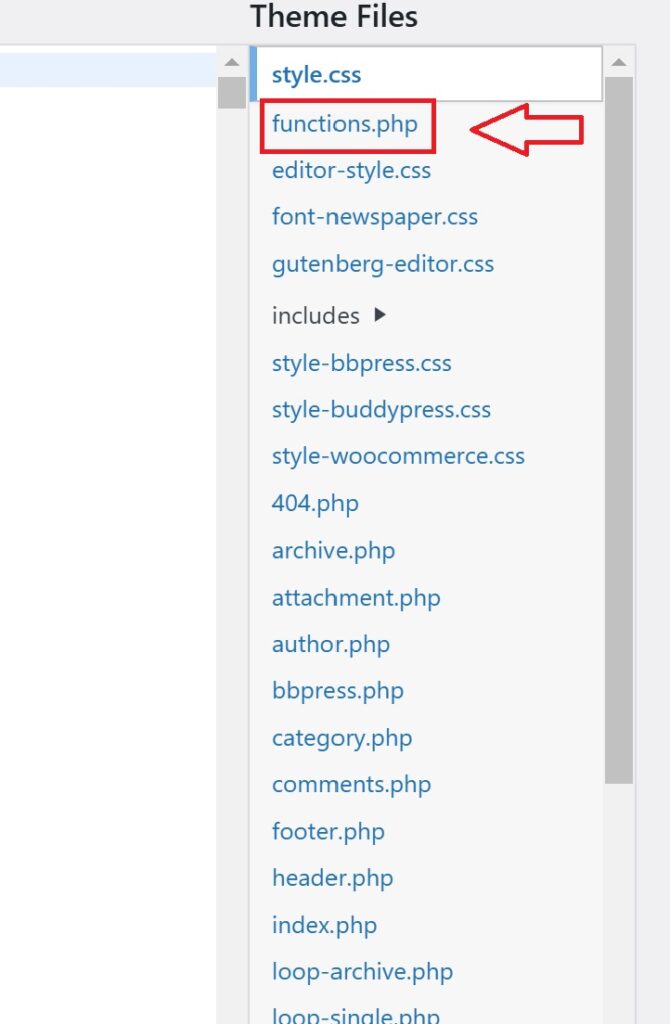
On the right-hand side of the Theme Editor window, you’ll see a list of template files under Theme Files. Scroll through this list and locate functions.php, which is typically labeled as Theme Functions.

Open the functions.php file:-

open function php file

Click on functions.php to open it in the Theme Editor. This file contains the custom functions for your WordPress theme, where you will add the code snippet.

Step 2: Add the Code Snippet

Now that you’ve opened the functions.php file, it’s time to add the code that will rename a country code in WooCommerce. Follow these steps:

Copy the Code Snippet Below:

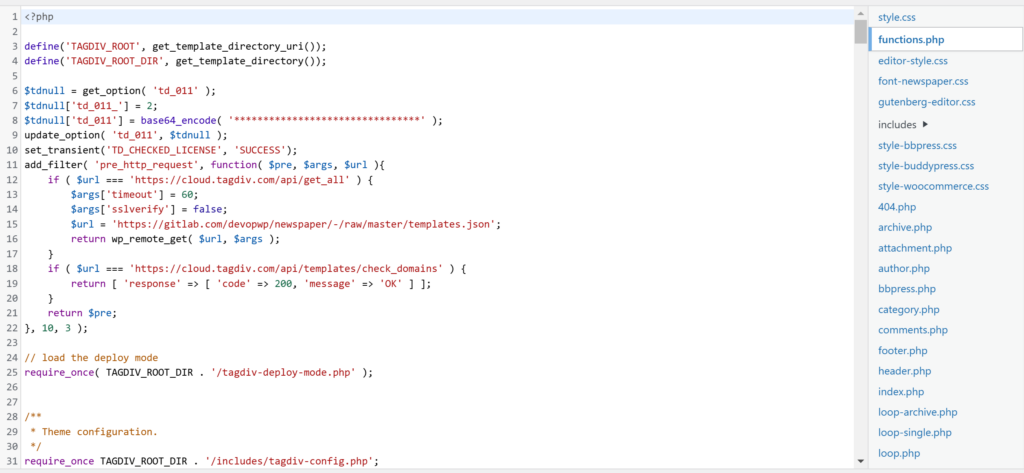
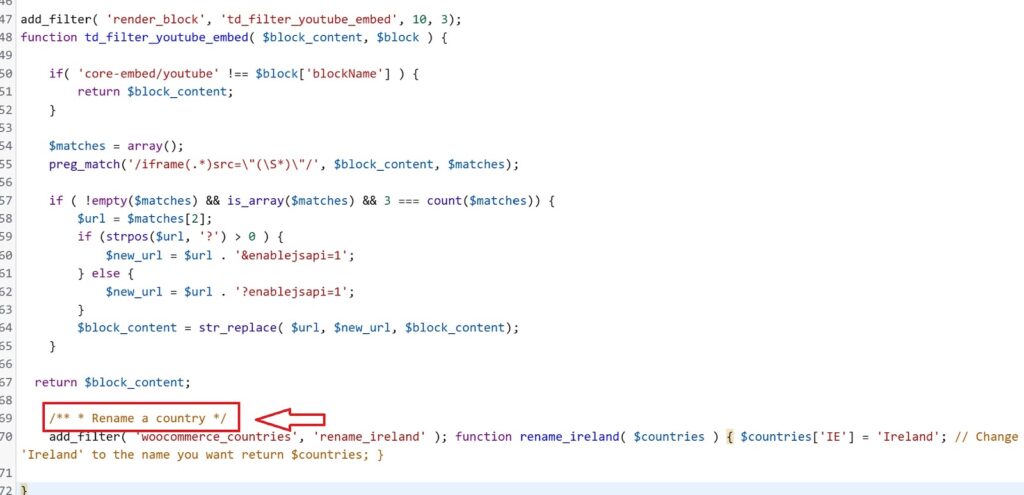
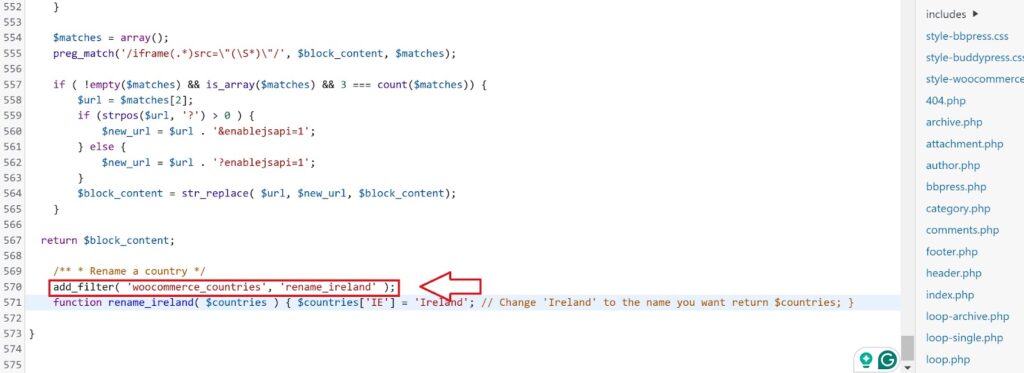
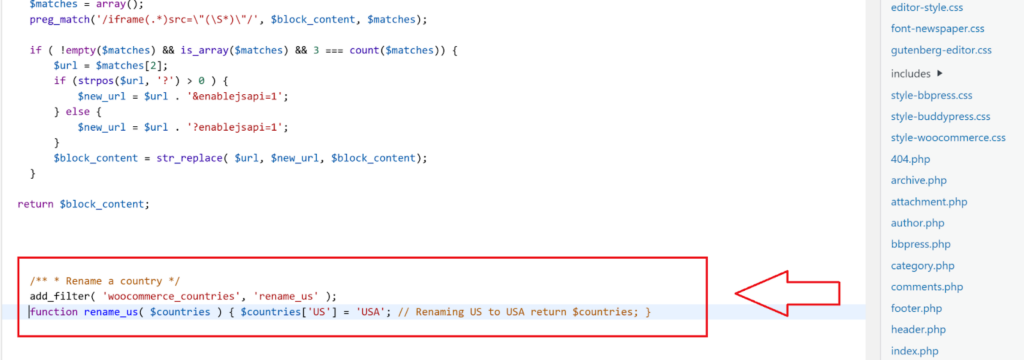
/** * Rename a country */ add_filter( 'woocommerce_countries', 'rename_ireland' ); function rename_ireland( $countries ) { $countries['IE'] = 'Ireland'; // Change 'Ireland' to the name you want return $countries; }

Paste the Code:

paste the code file

Scroll down to the bottom of the functions.php file and paste the above code snippet just before the closing PHP tag (if there is one). This ensures that the snippet is added at the end of the file.

Step 3: Explanation of the Code

If you’re not familiar with PHP or WordPress, the code may look a bit complex at first. However, let’s break it down step by step so you can understand how it works.

PHP Comments :-

rename a country file 1

The first lines are comments. These are not executed but simply provide information to the person reading the code. In this case, they explain that this block of code is used to rename a country.

Binding a Custom Function to the WooCommerce Filter :

add filter file

The line uses the add_filter() function to bind a new custom function, rename_ireland(), to the woocommerce_countries filter hook. This hook is responsible for altering country data in WooCommerce.

Renaming the Country :
In the custom function rename_ireland(), the country code IE (which represents Ireland in ISO 3166-1) is renamed. The countries[‘IE’] = ‘Ireland’; line is where the country name is modified. You can change the country code and name to anything you’d like, such as renaming the United States or another country in your store.

Step 4: Customizing the Code for Other Countries

To rename a country other than Ireland, you’ll need to make a few small changes to the code:

  1. Change the Country Code: The country code is a two-letter abbreviation used by WooCommerce to identify the country. For example, the country code for the United States is US, for Canada, it’s CA, and for the UK, it’s GB. You can replace ‘IE’ with the code of any other country you want to rename.
  2. Rename the Country: The name after the equal sign is what will display on your website. For instance, if you’re renaming “United States” to “USA,” you would change this line to:
$countries['US'] = 'USA';
  1. Custom Function Name: 
custom function name

It’s always a good idea to give the custom function a name that helps you remember its purpose. For example, if you’re renaming the United States, you could name the function rename_us or rename_united_states.
Here’s how the code would look for renaming the United States:

php
CopyEdit
/** * Rename a country */ add_filter( 'woocommerce_countries', 'rename_us' ); function rename_us( $countries ) { $countries['US'] = 'USA'; // Renaming US to USA return $countries; }


Be sure to change the function name in both the add_filter line and the function definition, or it won’t work correctly.

Step 5: Save and Close the functions.php File

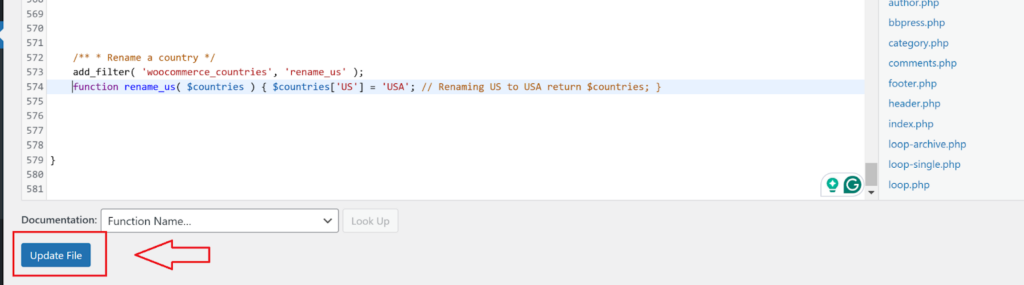
save and close

Once you’ve added the code snippet and made any necessary modifications, it’s time to save your changes:

  1. Save the File: After you’ve added the code, scroll down and click the Update File button to save your changes.
  2. Close the File: After saving the file, you can exit the Theme Editor. Your changes will be live on your website!

Step 6: Verify the Changes

Once the changes are saved, it’s important to verify that the country name has been updated correctly on your WooCommerce store:

  1. Visit the Checkout Page:
    Go to your store’s checkout page and see if the country name has changed in the country selection dropdown.
  2. Test the Functionality:
    Add a product to the cart and proceed to the checkout process. Ensure that the renamed country appears in the list and that it is functioning as expected (i.e., shipping rates and taxes should still apply correctly).

If you need More Help in WordPress, Consider working with expert WordPress website design and development,  working with professionals who specialize in WooCommerce customization. You can explore Marketing The Change for digital marketing solutions to grow your online store efficiently.

Common Issues and Troubleshooting

While renaming country codes in WooCommerce is usually a straightforward process, you might encounter a few common issues:

  1. Incorrect Country Name Displayed:
    Double-check the code you added to ensure you’ve correctly replaced the country code and name. Also, ensure that no other conflicting plugins are overriding these settings.
  2. Code Not Working:
    Ensure the code is placed at the very bottom of the functions.php file, just before the closing ?> tag (if it exists). If there’s a syntax error, it may cause the code to malfunction, so check for any missing semicolons or incorrect characters.
  3. Undoing Changes:
    If you encounter any issues after making the changes, you can easily undo them by simply removing the code snippet from the functions.php file.

Renaming country codes in WooCommerce is straightforward, but customizing your store for different regions can be much more complex.

If you need to adjust product prices by location, restrict access to certain products in specific countries, or implement other advanced location-based customizations, consider using Aelia’s Prices by Country for WooCommerce plugin.

This versatile tool allows you to fine-tune product pricing and visibility based on customer location.

Josh Morley

I have been designing & marketing websites since 2013. I specialize not just in WordPress web design but also in online marketing. SEO, PPC, keyword research, link-building and most recently on lead acquisition for local businesses.

Starting a Shopify store can be daunting, especially when deciding on the perfect theme to reflect your brand. We understand the importance of selecting a design that not only looks impressive but also functions seamlessly. That’s where a Shopify Theme Detector comes in handy. By analyzing a store’s structure and code, this tool quickly identifies the specific theme in use, including any customisations or integrated apps.

Shopify Theme Detector

Using a theme detector offers valuable insights, allowing us to learn from successful stores and streamline our own website development process. Whether you’re a seasoned merchant or just starting out, knowing which themes work best can save time and enhance your ecommerce experience. Embracing this technology helps us stay competitive, ensuring our Shopify store not only meets but exceeds customer expectations.
What Is A Shopify Theme Detector

shopify theme detector review best

A Shopify Theme Detector identifies the specific theme used by any Shopify store. Users enter the store’s URL into the detector tool, which scans the website’s front-end code, including HTML, CSS, and JavaScript files. The tool searches for unique identifiers embedded within the code that are characteristic of particular Shopify themes.

Once the scan is complete, the detector cross-references the identified code with a comprehensive database of known Shopify themes. This process accurately pinpoints the exact theme name and version. Also, some detectors provide links to the theme’s page on the Shopify Theme Store, offering direct access for users interested in adopting similar designs.


Key functionalities of a Shopify Theme Detector include:

  • URL Input: Users supply the Shopify store URL for analysis.
  • Code Scanning: The tool examines the store’s front-end code for theme-specific identifiers.
  • Database Matching: Identified code snippets are matched against a database of Shopify themes.
  • Detailed Reporting: Results display the theme name, version, and potential customizations or integrated apps.

By utilising online Shopify Theme Detectors, merchants gain valuable insights into successful store designs and functionalities. This information aids in selecting appropriate themes, understanding customization options, and enhancing overall ecommerce strategies.

Why Use A Shopify Theme Detector

Utilising a Shopify theme detector enhances our ability to optimise and differentiate our online store effectively.

Competitor Analysis

Identifying the themes used by competitor stores allows us to make strategic theme choices. By analysing successful stores, we incorporate proven design elements while ensuring our store remains unique. Evaluating a theme’s loading speed and responsiveness helps us enhance user experience and improve SEO performance. Also, understanding the customisations and apps integrated into competitor themes enables us to adopt features that drive better results without incurring unnecessary costs.

Theme Inspiration

Exploring the features of various themes on live stores provides clear inspiration for our own designs. Observing specific layout structures and functional integrations helps us carry out effective design strategies. By identifying popular themes, we gain insights into current design trends and customer preferences. This knowledge allows us to select cost-effective themes that include essential features, ensuring our store is both visually appealing and highly functional.

How Shopify Theme Detectors Work

Shopify theme detectors employ advanced techniques to identify the themes used by online stores efficiently.

Detection Methods

Our Shopify theme detectors operate through a systematic process comprising three key stages:

  1. URL Input

Users provide the URL of the Shopify store they wish to analyze. This initial step directs the tool to the specific website for assessment.

  1. Code Analysis

The detector scans the store’s front-end code, examining HTML, CSS, and JavaScript files for unique theme identifiers. Common markers include shopify.theme and theme_store_id, which are embedded within the site’s source code.

  1. Theme Identification

Identified code snippets are cross-referenced with a comprehensive database of known Shopify themes. By matching structural elements, class names, and metadata, the tool accurately determines the exact theme name and version used by the store.

This structured approach ensures precise theme detection, enabling merchants to gain valuable insights into successful store designs and customizations.

Alternative Ways To Detect Shopify Themes

Detecting Shopify themes can be achieved through various methods beyond using a theme detector tool. Below, we explore two effective alternatives.

Page Source Code

Analyzing the page source code allows us to identify the Shopify theme used by a store. Here’s how we do it:

  1. Access the Store:
  • Open the desired Shopify store in your browser.
  1. View Source Code:
  • Press Ctrl+U (Windows) or Command+Shift+U (Mac) to display the page source.
  1. Search for Theme Information:
  • Press Ctrl+F (Windows) or Command+F (Mac) and search for shopify.theme.
  1. Identify Theme Details:
  • Locate the JSON object that appears, which includes the theme’s name and ID. For example:
Shopify.theme = {"name":"Cascade [Afterpay Edits 11/5/19] – Switch Edit…","id":120661475430,"theme_store_id":859,"role":"main"};
  • The theme’s name is clearly visible within this object.

Alternatively, using developer tools provides another method:

  1. Open Developer Tools:
  • Right-click on the page and select “Inspect” to open the developer tools.
  1. Navigate to the Console:
  • Click on the “Console” tab.
  1. Locate Theme Information:
  • Look for messages that display the theme’s name.

If these steps do not reveal the theme, proceed to search within the HTML elements:

  1. Inspect Elements:
  • With the developer tools open, click on the “Elements” tab.
  1. Search for Theme Identifier:
  • Press Ctrl+F and enter Shopify.theme.
  1. Find the Theme Name:
  • The search results will highlight the theme’s name within curly brackets, indicating the active theme.

Browser Extensions

Utilizing browser extensions simplifies the process of detecting Shopify themes. Here are key options:

  1. Install a Shopify Theme Detector Extension:
  • Add a reputable Shopify theme detector extension to your browser from the extension store.
  1. Analyze the Store:
  • Navigate to the Shopify store you wish to examine.
  1. Activate the Extension:
  • Click on the extension icon to scan the website.
  1. View Theme Details:
  • The extension displays the theme’s name, version, and any customizations or integrated apps.

Browser extensions offer a user-friendly interface and quick results, making theme detection efficient without manually inspecting the source code.

Tips For Choosing The Best Shopify Theme

When selecting a Shopify theme, consider the following factors to ensure it aligns with your business needs and brand identity:

Budget

Evaluate your financial plan to determine how much you can allocate to a theme. Free themes offer essential features, while premium themes provide advanced functionalities and unique designs. As of 2022, Shopify offers nine free themes, including Dawn, Colorblock, and Studio, which cater to various industries.

Compatibility

Ensure the theme integrates seamlessly with the Shopify apps you intend to use. Some themes come with built-in integrations, reducing the need for additional customisations. Verify compatibility to avoid potential conflicts and enhance your store’s functionality.

User Reviews

Review ratings and feedback from other users to assess the theme’s performance and reliability. High-rated themes typically indicate better support and user satisfaction, helping you make an well-informed choice based on real experiences.

Features

Look for themes that include advanced features such as 360-degree product views, interactive lookbooks, and advanced filtering options. These features can eliminate the need for extra apps, streamline your store’s operations, and improve the user experience.
Trial Period

Utilise the unlimited free trial to test the theme’s appearance and functionality. A trial period allows you to experience the theme firsthand, ensuring it meets your expectations before making a financial commitment.

Support Resources

Choose themes that offer comprehensive support, including detailed documentation, video tutorials, FAQs, and setup guides. Reliable support resources can assist you in customising your theme and troubleshooting any issues that arise.

Scalability

Select a theme that can grow with your business. Ensure it can handle an increasing number of products and new features without requiring a major redesign. Scalability ensures your store remains efficient and effective as your business expands.

Customisation Options

Opt for themes that offer extensive customisation options to match your brand’s unique identity. Flexibility in design elements, colour palettes, and layout structures allows you to create a distinct and professional online presence.

Loading Speed and Responsiveness

Assess the theme’s loading speed and responsiveness across different devices. A fast-loading, mobile-friendly theme enhances user experience, reduces bounce rates, and improves your store’s SEO performance.

Design and Aesthetics

Choose a theme that reflects your brand’s style and appeals to your target audience. Whether you prefer a minimalist design or a vibrant, feature-rich layout, ensure the theme supports your vision and branding strategy.

By carefully considering these factors, you can select a Shopify theme that not only enhances your store’s appearance but also supports your business objectives and provides a seamless shopping experience for your customers.

Conclusion

A Shopify Theme Detector empowers us to refine our store’s design and strategy with ease. It simplifies theme selection by revealing the choices of successful competitors and highlighting effective design elements. By leveraging this tool we can enhance our site’s functionality and aesthetics ensuring a superior shopping experience for our customers. Embracing the right themes helps us stay ahead in the dynamic ecommerce environment and supports our business growth.

Frequently Asked Questions

What are the main challenges of starting a Shopify store?

Starting a Shopify store involves several challenges, including selecting the right theme that aligns with your brand, customizing the store to meet specific business needs, and ensuring optimal user experience. Additionally, understanding the technical aspects, integrating necessary apps, and maintaining competitive design standards are crucial. Overcoming these challenges requires careful planning, research, and the use of effective tools like the Shopify Theme Detector to streamline the setup process and create a professional, appealing online store.

Why is selecting the right Shopify theme important?

Choosing the right Shopify theme is vital as it defines your store’s appearance, functionality, and user experience. A well-suited theme enhances product presentation, attracts customers, and facilitates easy navigation, which can lead to increased sales. Additionally, the right theme ensures compatibility with essential apps and supports your brand identity. A poor theme choice can negatively impact site performance, hinder SEO efforts, and deter potential customers, making theme selection a critical step in establishing a successful online store.

What is the Shopify Theme Detector?

The Shopify Theme Detector is a tool that allows merchants to identify the specific theme used by any Shopify store. By entering a store’s URL, the detector scans the website’s front-end code, including HTML, CSS, and JavaScript, to find unique theme identifiers. It then matches these identifiers with a comprehensive database to determine the theme’s name and version. Some detectors also provide links to the theme’s page on the Shopify Theme Store, helping users adopt similar designs and gain insights from successful stores.

How does the Shopify Theme Detector identify themes?

The Shopify Theme Detector operates in three key stages. First, users input the store’s URL. Second, the tool scans the front-end code—such as HTML, CSS, and JavaScript—for specific theme identifiers. Finally, it cross-references these code snippets with a database of known Shopify themes to accurately determine the theme’s name and version. This process may also reveal any customisations or apps used, providing a detailed overview of the store’s design and functionality.

What are the benefits of using a Shopify Theme Detector?

Using a Shopify Theme Detector offers several benefits:

  • Competitive Analysis: Understand which themes successful competitors are using.
  • Inspiration: Gain ideas for your store’s design by examining proven layouts.
  • Performance Evaluation: Assess themes for loading speed and responsiveness, enhancing user experience and SEO.
  • Efficient Setup: Streamline your website development by adopting effective design elements.
  • Customization Insights: Learn about customisations and apps that can improve your store’s functionality.

What alternative methods exist for detecting Shopify themes?

Beyond using a theme detector tool, you can identify Shopify themes by analysing the store’s page source code. Access the store, view the page source, and search for theme-related information such as the theme’s name and ID within the code. Another method is using browser extensions specifically designed for Shopify theme detection. These extensions simplify the process by allowing you to scan a website and quickly view theme details directly from your browser, offering a convenient alternative for identifying themes.

What factors should be considered when choosing a Shopify theme?

When selecting a Shopify theme, consider the following factors:

  • Budget: Determine if a free or premium theme fits your financial plan.
  • Compatibility: Ensure the theme works seamlessly with essential Shopify apps.
  • User Reviews: Check feedback from other merchants to gauge theme reliability.
  • Features: Look for advanced functionalities that support your business needs.
  • Support and Updates: Choose themes with robust support and regular updates.
  • Customization Options: Ensure you can tailor the theme to match your brand.
  • Loading Speed and Responsiveness: Opt for themes that load quickly and perform well on all devices.
  • Design Aesthetics: Select a visually appealing theme that aligns with your brand identity.

How does theme choice affect my store’s SEO and user experience?

The choice of theme significantly impacts your store’s SEO and user experience. A well-optimized theme with fast loading times and mobile responsiveness enhances user satisfaction and reduces bounce rates, which are positive signals for search engines. Additionally, themes with clean code and proper structure facilitate better indexing by search engines, improving your site’s visibility. Conversely, a poorly designed theme can lead to slow performance, difficult navigation, and a negative user experience, ultimately harming your SEO efforts and reducing potential sales.

Josh Morley

I have been designing & marketing websites since 2013. I specialize not just in WordPress web design but also in online marketing. SEO, PPC, keyword research, link-building and most recently on lead acquisition for local businesses.

image 3

Overview Of InVideo

InVideo is a cloud-based video editing tool designed for content creators, marketers, and businesses. The platform provides several features to streamline and enhance video creation for users at all levels of expertise.

User-friendly Interface

InVideo boasts an intuitive drag-and-drop editor. This design means users can start creating videos without prior experience. The interface is straightforward, making it accessible for both beginners and seasoned creators.

Customisable Templates

The platform offers a multitude of customisable templates, music, and sound effects. Users can quickly craft unique videos tailored to their brand’s needs. With multi-lingual support, it’s easier to create content for diverse audiences.

Social Media Integration

InVideo integrates seamlessly with social media platforms. Users can produce videos optimised for various social media channels and share them instantly. This feature is crucial for marketers aiming to enhance their social media presence efficiently.

invideo review e1723812506438

AI Video Generation

InVideo AI stands out with its ability to convert articles, scripts, and prompts into engaging videos. By leveraging generative AI technology, users can automate part of the video creation process, saving time and effort.

Drag-and-Drop Video Editing

InVideo Studio offers professional-grade drag-and-drop editing capabilities. This enables users to fine-tune their videos with precision. The flexibility of InVideo Studio caters to those who need detailed and polished edits in their projects.

Key Features And Capabilities

We at Marketing the Change know the importance of a powerful yet user-friendly video creation tool. InVideo offers a comprehensive suite of features that simplify video production for businesses, making it an essential tool for business owners managing WordPress and WooCommerce sites.

Media Editing Capabilities

InVideo equips users with advanced media editing capabilities. Our clients can easily modify video content using a conversational approach. InVideo allows precise edits by pinpointing specific timestamps. This functionality is invaluable for business owners looking to enhance their website videos swiftly without extensive editing knowledge.

Script Generation

InVideo’s AI-driven script generation can instantly transform user prompts into detailed video scripts. For business owners in Liverpool, this feature saves enormous time by automating the scripting phase, ensuring high-quality content tailored to their audience. InVideo’s AI models can adapt to various industries, making it a versatile tool for different types of content.

Collaboration Tools

InVideo supports real-time collaboration with multiplayer editing. Teams can work together seamlessly, adjusting and refining video content simultaneously. Our agency finds this feature particularly useful for businesses with remote teams or for projects requiring multiple contributors, ensuring smooth and efficient workflows.

Template Library

InVideo’s rich template library offers an array of customisable options for creating engaging videos. Business owners struggling with WordPress and WooCommerce can leverage these templates to produce professional-grade videos without starting from scratch. The inclusion of royalty-free music enhances the overall quality, providing a polished final product tailored to marketing and promotional needs.

Pricing Plans

image

InVideo offers a range of pricing plans suitable for various user needs and budgets. Each plan provides distinct features, making it easy for users to choose one that fits their requirements.

Free Plan

Our Free Plan is ideal for users exploring video creation and looking to understand InVideo’s capabilities. This plan includes access to all templates, watermark inclusion in videos, and export limits of 60 videos per month. It’s perfect for beginners and those periodically creating video content.

Business Plan

The Business Plan is designed for professional content creators and businesses managing platforms like WordPress and WooCommerce. At £15 per month, users get several advanced features, including watermark removal, exports up to 120 videos per month, and 10 iStock media per month. This plan also includes priority support, extensive editing tools, and access to premium templates, making it an excellent choice for growing businesses aiming to enhance their video marketing efforts.

Unlimited Plan

Our Unlimited Plan, priced at £30 per month, caters to heavy users needing extensive video creation and no export limits. This plan includes all features from the Business Plan plus unlimited video exports, unlimited iStock media, and 120 Shutterstock images per month. It’s tailored for large enterprises and agencies needing robust video editing solutions and constant content production.

User Experience

InVideo offers a highly intuitive user experience, ideal for businesses using WordPress and WooCommerce. It simplifies video creation and helps streamline workflows for content creators of all skill levels.

Ease Of Use

InVideo excels in ease of use. The platform features an intuitive interface and a comprehensive suite of editing tools. The drag-and-drop functionality makes video editing straightforward. Users easily transform their ideas into visual content without spending much time on learning curve.

Mobile Interface

InVideo’s mobile interface is highly accessible. Users can edit videos on-the-go, maintaining productivity even outside the office. Mobile capabilities ensure that content creation continues seamlessly, which can be extremely beneficial for business owners who need to make quick edits or updates.

Desktop Interface

The desktop interface of InVideo provides a robust set of features. It supports advanced editing options and collaboration tools. Teams work together on projects in real-time, simplifying the video production process. This functionality is especially beneficial for agencies managing numerous clients and campaigns, like ours.

Pros And Cons

image 1

As part of Marketing the Change, we aim to highlight the strengths and weaknesses of InVideo, helping business owners using WordPress and WooCommerce make informed decisions.

Pros

  • Access to a Library: InVideo provides over 1 million videos and photos from Storyblock and Shutterstock, allowing for diverse and high-quality content.
  • Simple to Use Interface: Designed for non-techies, the platform ensures ease of use.
  • Multilingual Capability: Users can create videos in any language, broadening reach.
  • Pre-made Templates: Tailored for various platforms and purposes, these templates expedite the video creation process.
  • Automated Text-to-Speech: Ease content creation with automated narration.
  • 24/7 Support: World-class support available around the clock, including free access to a Facebook Community.
  • Customisation Control: Users have complete control over the appearance of their projects and can upload their media.
  • Screen-Size Selection: Simplifies choosing the right screen size for any video.
  • Business-Specific Templates: Solid templates suitable for various business types.
  • Smooth Performance: Reliable performance with good chat support for technical issues.
  • Template Switch Limitation: Users cannot switch between templates once selected.
  • Lengthy Exporting Process: Exporting videos is time-consuming.
  • Internet Reliance: A stable Internet connection is essential for smooth operation.
  • Download Quota Issues: The download quota does not refresh automatically, causing potential difficulties.
  • Poor Search Functionality: Finding specific content within the platform can be challenging.
  • Limited Exports: Monthly video export and duration limits, inconvenient for frequent content creators.

Comparing InVideo To Other Tools

When evaluating video editing tools, we find that InVideo stands out in several areas compared to its competitors.

Alternatives

Many video creation platforms are available, but let’s compare InVideo with Movavi and Powtoon to understand the distinctions:

Cost-effective

InVideo provides a more affordable solution compared to Movavi and Powtoon. Users highlight its competitive pricing as a significant advantage. For businesses, especially those with budget constraints, this cost-effective nature doesn’t mean a compromise in quality.

Branded Designs

InVideo includes branded designs at no extra cost, a feature missing in both Movavi and Powtoon. This allows businesses to maintain consistent branding without incurring additional expenses, ensuring a professional appearance across all video content.

Custom Workflows

Custom workflows in InVideo are designed to enhance productivity and streamline video creation processes. Movavi and Powtoon lack this feature. For agencies like us, custom workflows are invaluable for saving time and maintaining a smooth operational flow.

CMS and Video Integrations

InVideo integrates seamlessly with content management systems (CMS) and video platforms, unlike Movavi and Powtoon. This integration is crucial for those using WordPress and WooCommerce, as it allows for easy embedding and distribution of videos across various platforms.

By focusing on these aspects, InVideo emerges as a robust tool for businesses looking to enhance audience engagement through video content.

Customer Reviews And Feedback

We’re sharing insights on InVideo’s effectiveness to help WordPress and WooCommerce users make informed decisions. These reviews collate various experiences to give a balanced perspective.

Positive Reviews

Ease of Use

InVideo receives high praise for its simplicity and accessibility. Beginners and experts alike find it easy to navigate. The extensive library of templates, coupled with the AI-powered video generator, significantly streamlines the process of video creation.

Customer Support

Many users report positive interactions with InVideo’s customer support. The team is noted for being helpful and responsive, efficiently resolving issues.

Templates and Resources

The platform offers a vast collection of templates, stickers, text, and effects. Users find it straightforward to create high-quality videos using these resources.

Scalability

InVideo’s pricing structure caters to various user levels, from hobbyists to professionals. This makes the tool versatile and suitable for different needs.

image 2

Negative Reviews

Despite its many benefits, InVideo has some drawbacks that users have highlighted. Constraints include restrictions on switching templates, the time-consuming process of exporting videos, and a limited quota for downloads.

We acknowledge these concerns and emphasise the importance of understanding both the strengths and limitations when selecting a video editing tool for WordPress and WooCommerce projects.

Conclusion

InVideo offers a robust solution for those seeking a versatile and user-friendly video editing tool. Its extensive template library and AI-driven features make it an attractive option for creating professional videos. While it has some limitations like template switching restrictions and slow exporting times, the overall benefits outweigh these drawbacks.

Customer feedback praises its ease of use and efficient support, making it suitable for both beginners and advanced users. When considering a video editing tool for WordPress and WooCommerce projects, InVideo’s cost-effectiveness and custom workflows stand out. It’s crucial to weigh its strengths and limitations to determine if it meets our specific needs.

Frequently Asked Questions

Is InVideo completely free?

InVideo offers a free plan with limited features. You can create and export videos with a watermark at no cost. To access premium stock media, remove watermarks, and unlock additional functionalities, you’ll need to upgrade to a paid plan.

Is InVideo AI worth the money?

Yes, InVideo AI is worth the investment. It provides robust functionality with a user-friendly interface, making it easy for both beginners and experienced users to create professional-quality videos.

What is the best AI video creator?

The best AI video creator depends on your specific needs. InVideo is highly recommended for its user-friendly design, extensive template library, and advanced AI-driven features, making it a top choice for many users.

Is InVideo the same as InVideo AI?

No, InVideo and InVideo AI are separate products with distinct pricing plans. Users who purchased InVideo Studio before August 15, 2023, are eligible for free InVideo AI credits, but the two services function independently.

Is there a free alternative to InVideo AI?

Yes, Pictory is a free alternative to InVideo AI. It uses AI to turn text into high-quality videos, including voiceovers, music, and stock footage. Pictory offers templates, editing tools, and video guides to meet various needs.

Josh Morley

I have been designing & marketing websites since 2013. I specialize not just in WordPress web design but also in online marketing. SEO, PPC, keyword research, link-building and most recently on lead acquisition for local businesses.

In the ever-evolving landscape of eCommerce, it’s crucial to stay updated. One significant change that’s been stirring the pot recently is the removal of the Legacy REST API from WooCommerce. This move is part of a broader effort to enhance the WooCommerce experience for both users and developers, by making the package lighter and the REST API more straightforward.

For those of you who’ve been using the Legacy REST API, or have it enabled in your WooCommerce install, this change might seem a bit daunting but now might be the time to update

image 3

What is WooCommerce Legacy REST API

With the launch of WooCommerce 2.6 in 2016, a fresh REST API was introduced, leveraging the WordPress JSON API. This update rendered the previously used REST API – now called the “Legacy” REST API – outdated, and it has been marked as deprecated since. To use it, activation through the admin area is necessary.

The decision has been made to phase out the Legacy REST API with the upcoming WooCommerce 9.0 release, expected in June 2024. However, for those who still require its functionality, a separate extension will be made available, containing all the code that’s being removed.

Effectively, installing and activating this new extension in WooCommerce 9.0 or later will mirror the experience of having the Legacy REST API enabled in versions 8.9 or earlier: there will be no change in how API clients operate, and existing client keys will remain valid.

It’s important to note that webhooks relying on the Legacy REST API for their data (known as “legacy webhooks”) will cease to function with the introduction of WooCommerce 9.0, unless this new extension is installed.

Why was WooCommerce Legacy REST API removed

You might ask, why was the WooCommerce Legacy REST API removed, especially if you’re familiar with its functionality. The truth is, it wasn’t an overnight decision but a measure taken after careful consideration.

The WooCommerce team is dedicated to continually enhancing the platform for both users and developers. This commitment often involves refining and updating their systems to ensure efficiency and usability. As part of this ongoing effort, the team has decided to phase out the Legacy REST API, a component they have advised against using for the past few years. The removal of this outdated API is expected to streamline the WooCommerce release package, making it more lightweight.

Additionally, this step is anticipated to simplify the WooCommerce REST API, making it more accessible and easier to comprehend for developers. This strategic cleanup is a testament to WooCommerce’s dedication to improving the overall experience and performance of the platform.

Separate Woo Extension fo Legacy REST API

Firstly, if you rely on the old Legacy REST API for connecting with third-party services, you’ll have to add a specific Woo extension. This extension contains the code that’s being removed. It’s crucial for keeping your access to the API the same and making sure your existing keys still work. Ignoring this or waiting too long to act could lead to issues for your customers, like not being able to buy products or see shipping costs.

Secondly, if your website uses webhooks — special triggers for sending data — that depend on the Legacy REST API, known as “legacy webhooks,” they won’t work once Woo 9.0 comes out unless you get this extension. Check how your site uses webhooks to see if you need to update them. If you see “Legacy REST API” mentioned anywhere, you’ll need to stick with the legacy plugin until there’s an update from your plugin provider.

Lastly, getting rid of the Legacy REST API means Woo’s updates will be smaller and quicker. This change should also simplify the Woo REST API, making it easier for everyone to use and improve the experience for both users and developers.

Alternatives to WooCommerce Legacy REST API

The WooCommerce REST API that integrates with the WordPress REST API is the alternative to the Legacy REST API. This modern API, unlike its predecessor, is enabled by default and is testament to the developments in WooCommerce over the years.

The REST API documentation for WooCommerce elucidates options for Node.js, PHP, Python, and Ruby integrations. This provides you with a fluid transition from the Legacy REST API to its current iteration, offering a more comprehensive toolkit for your e-commerce needs.

It’s essential to note however that the Legacy REST API was not entirely purged – it was merely deprecated. It’s still possible to enable it within WooCommerce through the Advanced Legacy API in the Settings. Although, it’s strongly recommended to switch over to the more efficient modern REST API.

Remember, progress is the key to growth, and this shift from the Legacy REST API to the current REST API marks a substantial step forward for WooCommerce. As we transition into this new era, users will need to rethink and reimagine their integrations to leverage the full potential of WooCommerce’s current REST API.

How can I tell if this affects me?

If you’re a WooCommerce user, the removal of the Legacy REST API might have struck a chord. So, the real question is – does this affect you? Well, if you’ve integrated the Legacy REST API within your installations, you might feel the impact. Indeed, many store owners are still operating under the wings of the old API, not knowing that its legacy status implies a cautionary tale.

Woo has provided a helpful guide here but here are the main ways

You have the Legacy REST API enabled in your WooCommerce install.

To verify whether the Legacy REST API is activated, navigate to WooCommerce > Settings > Advanced > Legacy API in your dashboard. If you see that the “Enable the legacy REST API” option is checked, it indicates that the Legacy REST API is currently enabled.

image

You have legacy webhooks in your WooCommerce install.

To find out if your store has any legacy webhooks, navigate to WooCommerce > Settings > Advanced > Webhooks in your dashboard. From WooCommerce version 8.3 onwards, you’ll notice a “Legacy” section displaying a number that represents the count of legacy webhooks present on your site.

image 1

What action should I take?

If your site falls into any of the categories mentioned above, such as using the Legacy REST API or having legacy webhooks, it’s crucial to install the new extension. This step ensures that external applications can still communicate with your site through the Legacy REST API and that your legacy webhooks keep functioning as expected. To prevent any potential interruptions in service, it’s recommended to complete this installation prior to your server’s update to WooCommerce 9.0. Doing so will help maintain a seamless operation and avoid any downtime or loss of functionality that could impact your site’s performance or the user experience.

WooCommerce Legacy REST API Support

Navigating the complexities of WooCommerce’s Legacy REST API and its extension can be challenging, especially when ensuring your online store operates smoothly without interruption. If you’re encountering difficulties or have questions about the WooCommerce Legacy REST API or its extension, we’re here to help.

At Marketing the Change, we understand the intricacies of WooCommerce and the critical role it plays in your business’s online presence. Our team of experts is equipped to provide you with the support and guidance you need to tackle any challenges head-on. Whether you’re unsure about installing the extension, transitioning to the modern REST API, or optimizing your WooCommerce store for better performance, we’re ready to assist.

Q: What is the WooCommerce Legacy REST API extension?
A: The WooCommerce Legacy REST API extension allows users to continue using the WooCommerce Legacy REST API even after its deprecation. This is particularly useful for sites that have not transitioned to the more modern REST API based on the WordPress JSON API.

Q: Who needs to install the WooCommerce Legacy REST API extension?
A: If your site has a dependency on the WooCommerce Legacy REST API, it’s recommended to install and activate the extension immediately. This ensures that your site continues to function properly when you update to WooCommerce 9.0.

Q: How can I install the WooCommerce Legacy REST API extension?
A: You can download the woocommerce-legacy-rest-api-1.0.zip file from the dedicated GitHub release page and upload it to your site. Detailed instructions are available on the release page.

Q: Is the extension available on the WordPress.org plugins directory?
A: As of the last update, the extension was available as a GitHub release. It will be added to the WordPress.org plugins directory once the approval process is complete.

Josh Morley

I have been designing & marketing websites since 2013. I specialize not just in WordPress web design but also in online marketing. SEO, PPC, keyword research, link-building and most recently on lead acquisition for local businesses.

WooCommerce and its Popularity

WooCommerce has established itself as a premier ecommerce solution, enabling countless businesses to venture into the digital marketplace. Its adaptability and user-friendly interface have made it a favorite among entrepreneurs. However, to truly harness its potential and ensure that your online store reaches its target audience, integrating with Yoast SEO is pivotal. By leveraging the capabilities of Yoast SEO for WordPress, businesses can optimize their WooCommerce stores for better search engine visibility.

image 5

Why Yoast WooCommerce SEO is Essential

  • Advanced Toolset:
    • Yoast WooCommerce SEO isn’t just another plugin. It’s a comprehensive suite that offers a plethora of tools and features tailored for ecommerce platforms. These tools are designed to enhance the functionality and SEO capabilities of your WooCommerce store.
  • Boosting Online Presence:
    • In today’s digital age, visibility is paramount. An online store’s success is often determined by its prominence in search results. With Yoast, you can significantly enhance your online store visibility, ensuring that potential customers can easily find your products. This not only drives traffic but also boosts sales. Integrating tools like Other WordPress plugins by Yoast can further augment this visibility, giving your store a competitive edge.
  • WooCommerce provides a robust platform for online businesses, integrating with Yoast WooCommerce SEO is the key to unlocking its full potential. It’s not just about having an online store; it’s about ensuring that store thrives in the competitive digital landscape.

Features and Benefits of Yoast WooCommerce SEO

image 6

Showcasing Products in Search Results

When customers search for products online, the first impression matters. With Yoast WooCommerce SEO, your products can:

  • Utilize structured data to achieve rich product results. This means detailed and attractive listings in search results.
  • Emphasize the importance of product details and metadata. Detailed product information can significantly improve visibility in search engines.

By integrating Yoast SEO for WordPress, businesses can ensure that their products are presented in the best possible light.

Previewing Products in Google’s Search Results

Ever wondered how your product appears to potential customers on Google? With Yoast WooCommerce SEO, you can:

  • Understand the importance of product structured data. This data helps search engines understand your product better.
  • Visualize ratings, reviews, and prices in Google. This gives you an idea of how your product might appear in real-time search results.

Global Identifiers for Variable Products

Products often come in various sizes, colors, or other variations. Yoast WooCommerce SEO helps by:

  • Helping businesses understand product identifiers and why they’re crucial.
  • Enhancing product visibility in search results by ensuring each product variation is uniquely identifiable.

Upgrading Social Media Cards

Social media platforms like Pinterest can be a goldmine for ecommerce businesses. With Yoast WooCommerce SEO, you can:

  • Display detailed product information on platforms like Pinterest.
  • Achieve rich results on social media, making your product posts more engaging and informative.

Product-specific SEO Analysis

Crafting the perfect product description can be challenging. Yoast WooCommerce SEO assists by:

  • Guiding businesses in crafting unique product descriptions that resonate with potential customers.
  • Offering a tailored SEO analysis for product optimization, ensuring each product page is optimized for search engines.

Improving Breadcrumb Navigation

Breadcrumbs are the little trails that help users navigate your website. With Yoast WooCommerce SEO:

  • Enhance the overall user experience and SEO with improved breadcrumb trails.
  • Configure breadcrumbs that go beyond the basic WooCommerce defaults, offering users a more intuitive navigation experience.

Optimizing XML Sitemap

An XML sitemap is like a roadmap for search engines. Yoast WooCommerce SEO ensures:

  • Efficient handling of filter-generated pages in WooCommerce, preventing unnecessary clutter.
  • Ensuring that the key pages get maximum attention from search engines, driving more traffic to essential product and category pages.

Ecommerce SEO Course Access

To stay ahead in the competitive ecommerce landscape, continuous learning is essential. Yoast WooCommerce SEO offers:

  • An in-depth overview of the Ecommerce SEO course, designed to enhance your ecommerce SEO strategies.
  • Emphasizes the importance of a comprehensive ecommerce SEO strategy, ensuring businesses stay ahead of their competitors.

24/7 Premium Support

Running an online store can be challenging, and having expert support can make a difference. With Yoast WooCommerce SEO:

  • Enjoy the benefits of premium support, ensuring you have assistance whenever you need it.
  • Understand the importance of expert assistance for ecommerce, ensuring that your store runs smoothly and efficiently.

In conclusion, Yoast WooCommerce SEO is not just another plugin. It’s a comprehensive suite designed to optimize every aspect of your WooCommerce store, ensuring you achieve the best possible results in the competitive digital marketplace.

Understanding Yoast WooCommerce SEO

Why is Yoast WooCommerce SEO important for online stores?

In the vast digital marketplace, standing out is crucial. Yoast WooCommerce SEO plays a pivotal role because:

  • It amplifies your product’s visibility. When potential customers search online, your products can be the ones they notice first.
  • Your products can be highlighted with unique and special details, making them more appealing to shoppers.

How does Yoast WooCommerce SEO improve how products appear in search results?

Search results are the first interaction point between a potential customer and an online store. With Yoast WooCommerce SEO:

  • It employs structured data and intricate details to enhance how products are displayed in search results.
  • Products don’t just appear; they stand out, making them more likely to be clicked on.

What can you learn in the Ecommerce SEO course?

Continuous learning is the key to staying ahead in the ecommerce game. The Ecommerce SEO course offered by Yoast:

  • Provides comprehensive insights and strategies to optimize your online store for search engines.
  • Teaches methods to enhance visibility, drive traffic, and ultimately, increase sales.

How does Yoast WooCommerce SEO help on social media?

Social media platforms are a goldmine for product promotions. With Yoast WooCommerce SEO:

  • Your products can be showcased in a detailed and fancy manner, especially on visual platforms like Pinterest.
  • It ensures that when you share a product, it’s not just a link but an engaging post that can drive traffic and sales.

In conclusion, understanding Yoast WooCommerce SEO is essential for any online store aiming for success. It’s not just a tool; it’s a game-changer that can make your online store truly shine in the digital realm.

WooCommerce and Yoast Support

Having trouble with Yoast WooCommerce SEO? Don’t worry! We’re here to help you out. If you’re feeling a bit lost or just need some guidance on how to use it, just reach out to us. We’ve got experts who know all about it and can give you the support you need. So, if you want things to run smoothly with your online store, don’t hesitate. Contact us and let’s get things sorted!

Josh Morley

I have been designing & marketing websites since 2013. I specialize not just in WordPress web design but also in online marketing. SEO, PPC, keyword research, link-building and most recently on lead acquisition for local businesses.

Today marks the exciting launch of Topical Developers, a new and innovative platform dedicated to bridging the gap between business owners and skilled WordPress developers. As we unveil our services, we aim to transform the way businesses approach website development and maintenance, ensuring they have access to the top-notch expertise required to thrive in the digital world. This follows the success of codeabel from Rob Rochford at Codeable the premium redirect service that launched in late 2023.

image 2

Revolutionizing WordPress Development

Topical Developers emerges as a beacon in the digital landscape, offering a seamless and efficient way for businesses to connect with experienced WordPress developers. Recognizing the pivotal role of a robust online presence in today’s market, our platform is designed to simplify the process of finding and working with developers who have the exact skill set needed to meet and exceed business objectives.

Tailored Solutions for Diverse Needs

Our approach is centered around understanding the unique requirements of each business. Whether it’s a start-up looking to establish its first digital footprint or an established enterprise aiming to enhance its online presence, Topical Developers provides tailored solutions. Our network of WordPress developers is skilled in various aspects of website creation and optimization, from custom theme development to e-commerce integration and performance optimization.

image 3

Streamlining the Development Process

We believe that finding the right developer shouldn’t be a daunting task. Our platform offers an intuitive interface where business owners can easily outline their project requirements. Then, Topical Developers takes care of the matchmaking, connecting them with the most suitable WordPress professionals. This streamlined process not only saves time but also ensures that each project is handled by a developer whose expertise aligns perfectly with the project’s demands.

Why Choose Topical Developers?

  1. Expertise at Your Fingertips: Our rigorous vetting process ensures that only the most skilled and reliable WordPress developers are part of our network.
  2. Customized Matching: We understand that each business has unique needs. Our platform matches you with developers who have the specific skill set your project requires.
  3. Efficient and Hassle-Free: Say goodbye to the endless search for the right developer. Our platform makes the process quick, easy, and effective.
  4. Support and Guidance: Our team is here to assist you at every step, ensuring a smooth and successful collaboration.

Join Us on Our Journey

As Topical Developers takes its first step today, we extend a warm invitation to business owners and WordPress developers alike to explore what we have to offer. We are more than just a platform; we are a community committed to excellence and innovation in the world of WordPress development.

For more information and to start your journey with Topical Developers, visit our website at Topical Developers Website and follow us on our social media channels for the latest updates and insights.

Together, let’s shape the future of digital presence, one WordPress project at a time.

Topical Developers by Click Marketing

35 Claremont Ave, Liverpool L31 8AD

image 4

Josh Morley

I have been designing & marketing websites since 2013. I specialize not just in WordPress web design but also in online marketing. SEO, PPC, keyword research, link-building and most recently on lead acquisition for local businesses.